 Google Vault Guide
 By
By A Google Vault export shows all emails in one folder. Vault records Gmail labels in a metadata XML file instead of turning them into mailbox folders. The label names are not lost. They sit in the metadata XML file that ships with the export. To get the folder tree back, read that XML with a converter and rebuild each label as a folder. This affects the Vault PST export too, not only the MBOX.
This one surprises almost everyone who exports from Vault for the first time. You expect the folder tree you saw in Gmail and you get a wall of mail in a single folder. The instinct is that the export failed or the labels were dropped. Neither is true.
What happened is a mismatch between how Gmail stores mail and how a mailbox file stores it. Understanding that mismatch is the whole fix, so it is worth two minutes before the steps.
Why Are Gmail Labels Not Folders?
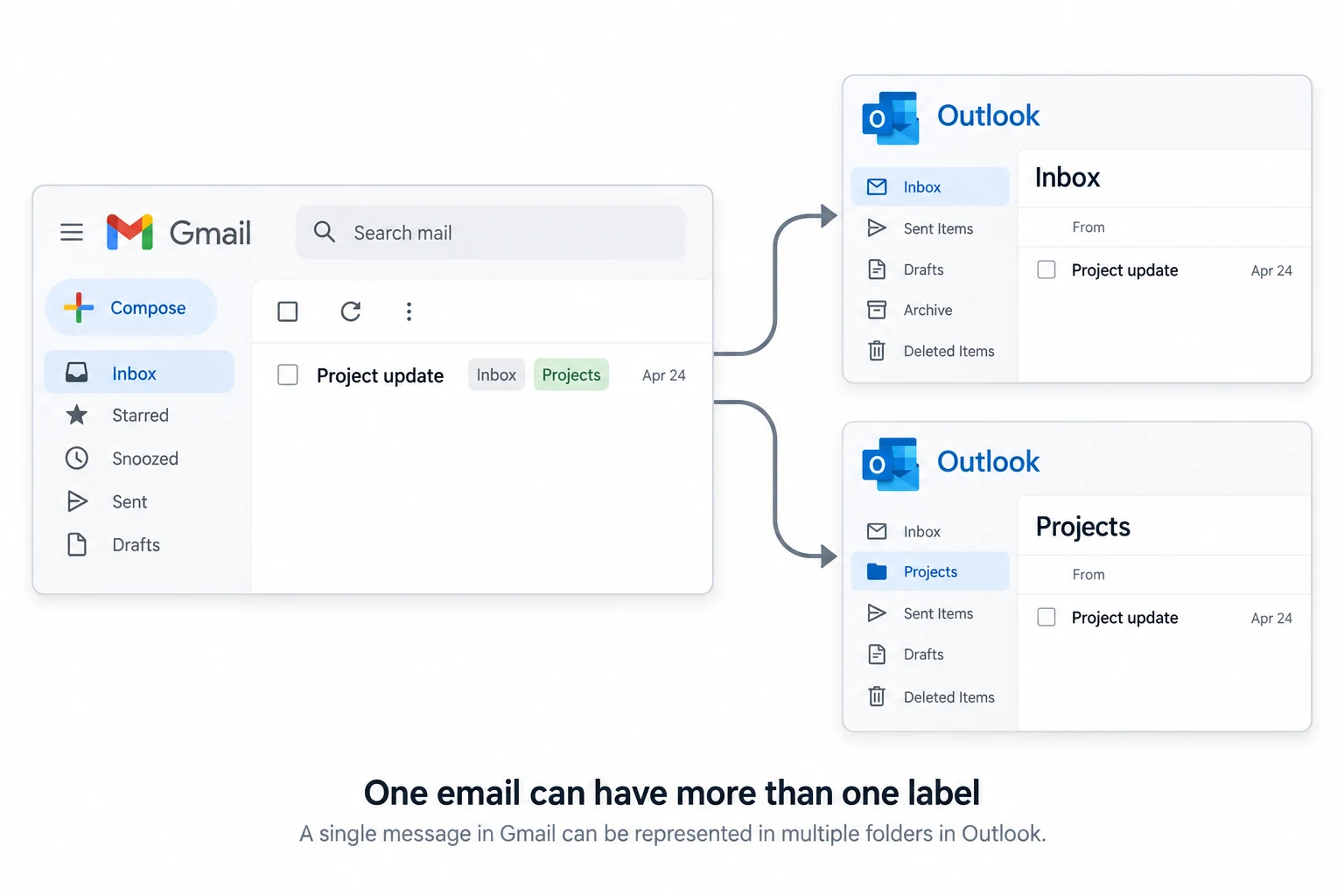
Gmail never had folders. It has labels, and a single message can carry several at once, so one email can be in Inbox, in Important and under a client label all at the same time. A mailbox file like MBOX or PST is built the old way, where a message lives in exactly one folder. Those two models do not line up.
When Vault exports a mailbox it takes the safe path. It writes each message once into a single flat container and records the labels it carried as data in the metadata XML. Google states this plainly in the Vault documentation. Gmail labels do not become mailbox folders on export, so opening the file in a mail client shows a single folder holding the lot. The structure is not gone. It is held as metadata rather than as folders.
Where Did the Label Names Go?
Into the metadata XML file that ships inside the export ZIP, next to the MBOX or PST. Open it and each message has a Labels entry listing the labels it held, tied to the message by its Rfc822MessageId and GmailMessageId. Inbox, Sent, Important, Category tabs and every custom label are all there.
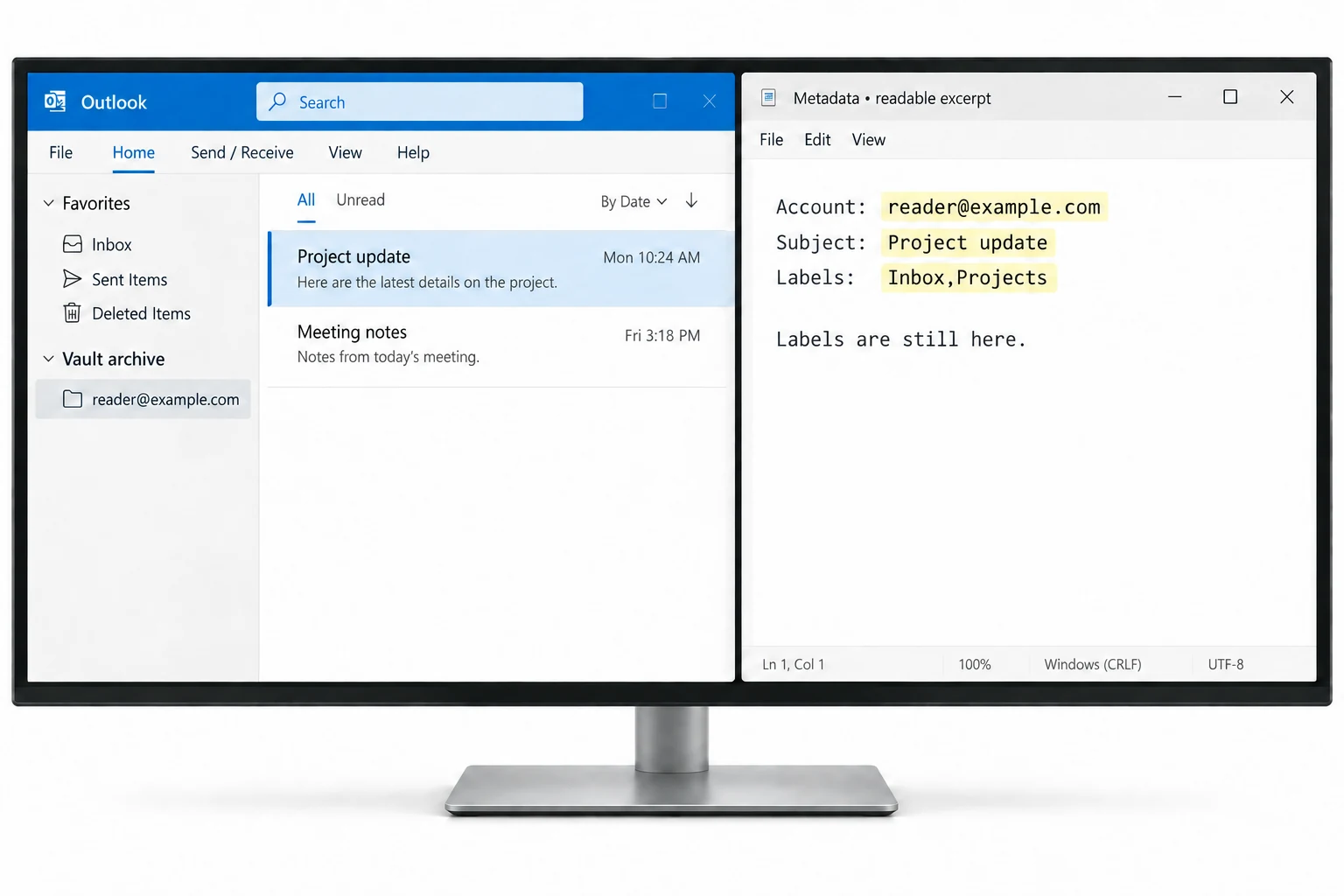
So the export is complete. What is missing is only the presentation, the folder tree a mail client would show. To get that back, something has to read the label names from the XML and turn each one into a folder, then file every message under the labels it carried. That is exactly what the steps below do.
People assume the export lost their labels. It did not. The label names sit in the XML the whole time. Our job is to read them and turn each one back into a folder, so the archive looks like the mailbox it came from.
How Do I Rebuild the Label Folders?
Four steps. The one that matters is reading the metadata XML, because that is where the folder names come from.
Find the metadata XML in your export
Unzip the Vault download. Sitting next to the MBOX or PST is a metadata XML file. Open it in any text editor and look for the Labels field on a message. Inbox, Sent, Important and your custom label names are all recorded there, matched to each message through its Rfc822MessageId. The mail file holds no folders of its own, so a client shows one big pile.
Load the export into Univik Google Vault Converter
Start Univik Google Vault Converter and use Add ZIP or Add Folder to bring in the unzipped export. The software loads the mail file next to its metadata XML, so every message arrives with the labels it carried. A plain MBOX tool ignores that XML, which is the exact reason it hands you a single folder.
Turn on rebuild labels as folders
In the output options switch on Rebuild Gmail labels as folders. The converter reads each label name from the XML and recreates it as a folder, placing every message under the labels it carried. A message with two labels lands in both, which matches how Gmail showed it. Nested labels like Clients/Acme become nested folders.
Pick your output and convert
Choose the format you need. PST imports into Outlook or Microsoft 365, MBOX suits Thunderbird and review platforms, PDF gives a fixed record. Pick one file per custodian or a single merged file. Run the conversion and the output opens with its folder tree in place instead of the single Vault folder.
Does the PST Export Fix This?
No, and this trips people up. Vault lets you export Gmail as PST instead of MBOX, and since PST is Outlook's own format it feels like the structured choice. It is not. A Vault PST still puts every message in one folder, because the label to folder gap is at Google's end and has nothing to do with the file format you pick.
Choosing PST at export only saves you the later MBOX to PST step. It does not restore the labels. Whether your export is MBOX or PST, the way to get folders is the same: read the metadata XML and rebuild the labels. Univik Google Vault Converter handles both, so it does not matter which format you already have.
Which Way Restores the Vault Folders?
The same export opens three ways. Only the last shows mail by label the way Gmail did.
| What you need | Open the MBOX | Vault PST straight in | Rebuild from the XML |
|---|---|---|---|
| Shows Gmail labels as folders | No, one folder | No, one folder | Yes, from the XML |
| Uses the metadata XML file | No | No | Yes |
| Message under all its labels | No | No | Yes, optional |
| Nested labels kept | No | No | Yes |
| Opens in Outlook | No | Yes, flat | Yes, structured |
| Good for | A quick look | A rough dump | Review, case, clean archive |
Univik Google Vault Converter reads the export ZIP with its metadata XML, recreates Inbox, Sent and every custom or nested label as a folder. It writes the result to PST, MBOX, PDF, MSG or EML. One file per custodian or a single merged archive.
Runs on Windows without Outlook · the free trial converts 25 messages from each export
The short version
- Vault does not convert Gmail labels to folders, so the export opens as one folder.
- The label names sit in the metadata XML, in the Labels field per message.
- A PST export from Vault has the same one-folder result, format does not change it.
- Read the XML with Univik Google Vault Converter and switch on rebuild labels as folders.
- Inbox, Sent, custom and nested labels come back in the PST, MBOX or PDF.
Rebuild Gmail label folders, free trial
Google Vault Questions
 About This Guide
This guide was written for Univik by Leena Taylor Paul. Univik builds Windows software for email and file formats and has done since 2013. The behaviour described here, that Gmail labels are not converted into folders and stay in the metadata XML, was verified against Google Vault Help in September 2026. The label rebuild was tested on a Gmail export that mixed nested and shared labels. 23 September 2026. Labels still not showing? Reach support from the link below.
Sources: Vault export contents (Google Workspace Help) · Reviewing messages exported from Vault · Univik Google Vault Converter product page