 Google Vault Guide
 By
By You can export Google Vault to PST in two ways. Pick PST as the format when you set up the export in Vault, or convert the MBOX that Vault produces. Either way, a Vault PST lands all mail in a single folder, because Vault does not build Gmail labels into folders. Convert with label folders switched on to get Inbox, Sent and custom labels back as folders. You also get one PST per custodian.
Most people want a Vault archive in PST for one of three reasons. They are moving to Outlook or Microsoft 365, they are handing an archive to a review platform that expects PST, or they want one portable file per person for a case. All three want more than a raw dump, they want the folders and the custodian detail intact.
That is the difference between the two routes below. Picking PST at export is the fast path. Converting the export is the path that keeps the structure a migration or a case needs.
Can Vault Export PST on Its Own?
Yes. When you set up a Gmail export in Vault you can pick PST as the format, and the download ZIP holds a PST instead of an MBOX. For a quick personal copy that is enough, and Outlook imports it straight away.
The snag shows the moment you open it. Every message sits in one folder, because Vault keeps Gmail labels as data in the metadata XML rather than building them into folders. Inbox, Sent and your case labels have merged. For a migration or an eDiscovery set that flat pile is a problem, which is why the conversion route exists.
How Do I Export Google Vault to a Clean PST?
Five steps. The export happens in Vault, the structure is put back during the conversion.
Run the export inside Google Vault
Sign in at vault.google.com with the Manage Matters, Manage Searches and Manage Exports privileges. Open or create a matter, run your search, then click Export. Name the export and start it. Large matters can take hours, so begin early. A finished export stays available for 15 days before Google removes it.
Download the ZIP and unzip it
On the Exports tab, click Download when the export finishes. Unzip the file. Inside you find the mail as MBOX or PST, a metadata XML file that carries the custodian and label data and a CSV counting the messages per account. Keep the XML with the mail, it carries the folder and custodian information.
Load the export into Univik Google Vault Converter
Install Univik Google Vault Converter and open it. Drag the unzipped export onto the window, or use the Add ZIP button. The software pairs the mail file with its metadata XML while it loads, so each message arrives with its custodian and its labels attached. The conversion PC needs neither Outlook installed nor a signed-in Google account.
Choose PST with label folders and a per-custodian split
Pick PST as the output. Switch on rebuilding Gmail labels as folders, which brings Inbox, Sent and custom labels back rather than leaving one flat pile. Where a matter covers several people, write a separate PST for each. For a personal archive you can merge everyone into a single PST instead. Set a split size when a review platform caps how large a PST may be.
Import the PST into Outlook
In Outlook, open the File tab and choose Open & Export, then Import/Export. On the wizard select the option to import from a file, and on the next screen the Outlook Data File type. Point it at the PST the converter wrote and finish. The mail shows up with its folders, dates and attachments. To attach it read-only, use Open Outlook Data File on the same menu.
Why One PST per Custodian?
A Vault matter usually spans several people. Export it as one PST and every custodian's mail is mixed together, which a reviewer then has to untangle. Most review platforms and most productions expect one PST per custodian instead, so each person's mail is a separate file with their name on it.
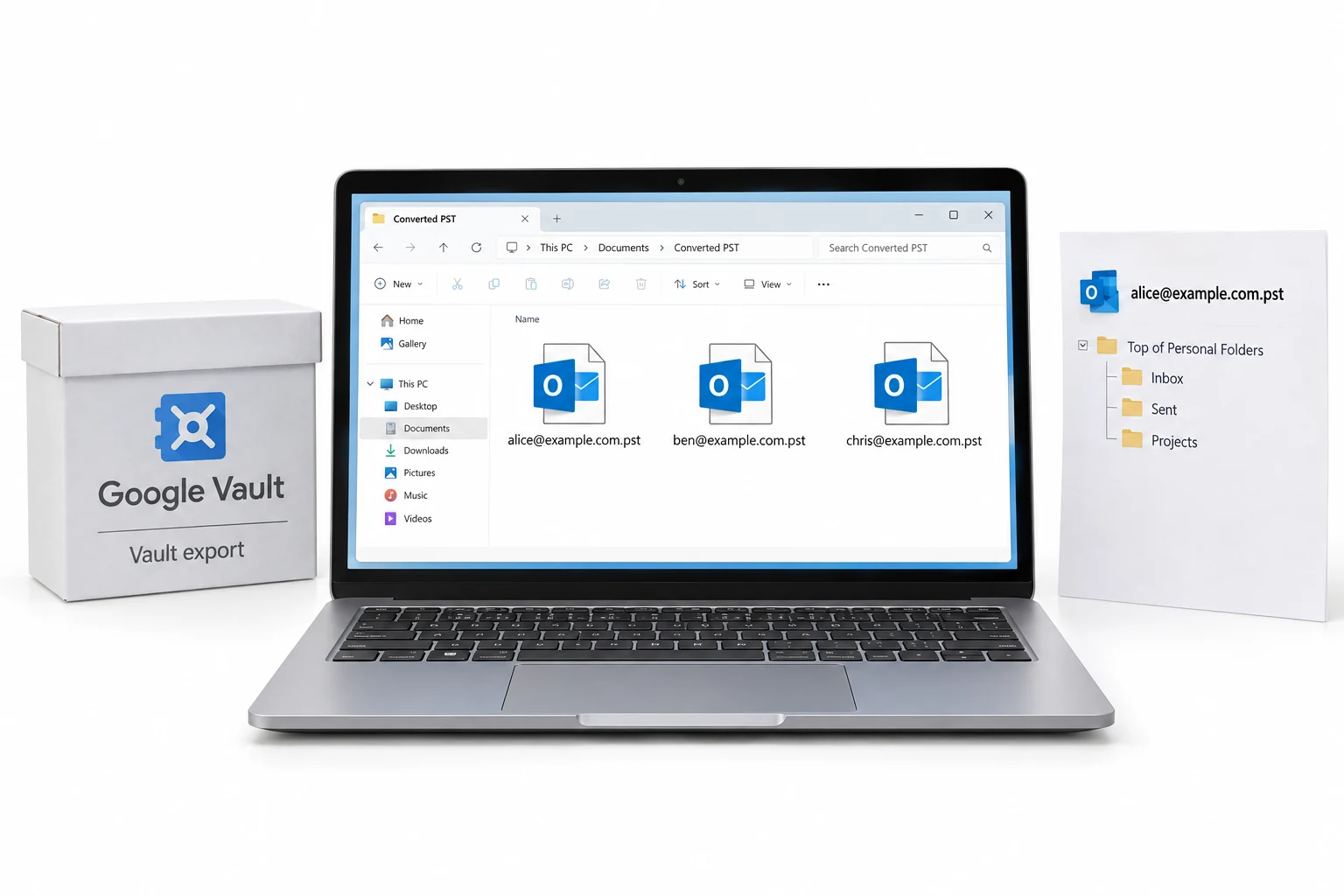
Univik Google Vault Converter reads the custodian from the metadata XML and writes a PST for each one, or a single merged PST when you prefer. Because the split comes from the XML rather than guesswork, it lines up with what Vault recorded. For a personal archive the merged file is simpler, for a case the per-custodian set saves hours.
The PST option in Vault looks like the finished answer, so people take it and then hit the one-folder wall. Reading the XML during conversion is what turns a flat PST into the per-custodian, foldered set a case actually runs on.
Can I Check the Export First?
Yes, and it is worth doing before a big conversion. The free Univik Online MBOX Viewer opens a Vault MBOX in a browser with nothing installed, and Thunderbird opens one too. Both let you confirm the export holds the mail and the date range you expected.
Neither makes a PST or rebuilds the folders, so a viewer answers is the export good and the PST conversion answers now make it usable in Outlook. Checking first saves you converting a partial or wrong export by mistake.
Which PST Route Fits You?
Both routes end in a PST. The gap is in folders, custodians and whether a review platform will accept it.
| What you need | PST straight from Vault | Convert the export to PST |
|---|---|---|
| Opens in Outlook | Yes | Yes |
| Gmail labels as folders | No, one folder | Yes, from the XML |
| One PST per custodian | No | Yes, or merged |
| Custodian metadata kept | Not in the PST | Yes |
| Split by size for review | No | Yes |
| Extra step | None, but flat | One conversion pass |
| Good for | A quick personal copy | Review, case, clean import |
Univik Google Vault Converter turns a Vault export into PST with Gmail labels rebuilt as folders and one file per custodian. It also writes PDF, MSG, EML and MBOX, reads the metadata XML for the custodian trail and runs without Outlook.
Runs on Windows 7 through 11 · the PST is built with no Outlook present · try 25 messages from any export free
The short version
- Vault can export Gmail as PST, but every label lands in one folder.
- Convert the export to keep Inbox, Sent and custom labels as folders.
- Choose one PST per custodian for a case, or a merged PST for a personal copy.
- Bring it into Outlook through the Import and Export wizard, choosing Outlook Data File.
- The converter reads the metadata XML and needs no Outlook to write the PST.
Export Google Vault to PST, free trial
Google Vault Questions
 About This Guide
This guide comes from Leena Taylor Paul for Univik, a maker of Windows email and file tools since 2013. The export flow, the PST versus MBOX choice and the way Vault leaves labels out of the folder tree were confirmed from Google’s Vault documentation in September 2026. The per-custodian PST output was run against a matter export that held three accounts. 23 September 2026. Trouble importing the PST? Support sits a click below.
Sources: Exporting data from Google Vault · Reviewing exported Vault messages · Univik Google Vault Converter product page