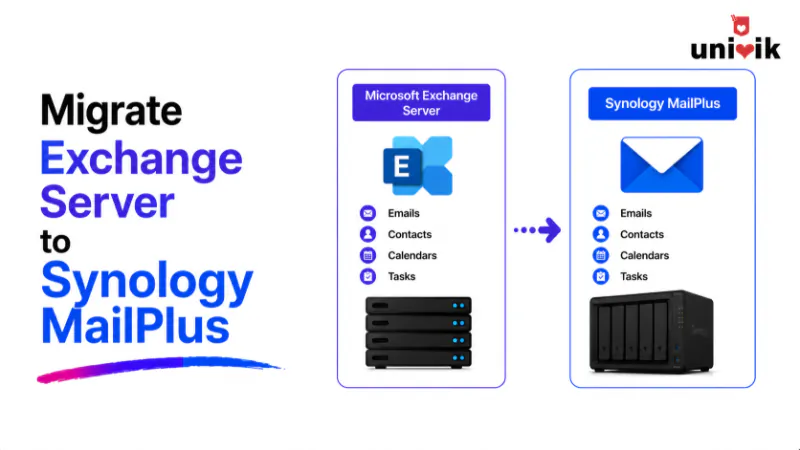
Exchange Server 2016 and 2019 both reached end of support on October 14, 2025. Microsoft is now blocking email from servers still running these versions. Migrating from Exchange Server to Synology MailPlus Server uses one of two paths with Univik Email Converter. The most reliable path exports each mailbox as a PST file from Exchange, then opens the PST in the converter and saves directly into MailPlus via IMAP Save. If IMAP is enabled on Exchange, the converter can also connect directly and migrate without an intermediate PST export. Exchange stores email in its own EDB database format PST export is the only way to get email out as a file. PST is fully supported as a converter input.
Why Organisations are Moving Off Exchange Server
Because the source is a cloud/IMAP account, email migration software can pull every mailbox over IMAP, ready to bring into MailPlus.
Microsoft Exchange Server 2016 and 2019 hit end of support on October 14, 2025. No security patches, no bug fixes, no technical support from that date forward.
The consequences for organisations that did not migrate are real. The Exchange team blog documented this deadline at 12-month, 9-month and 6-month intervals before the cutover. Microsoft began blocking email from out-of-support Exchange versions, meaning servers still running Exchange 2016 or 2019 can no longer reliably deliver email to Exchange Online recipients. The window to migrate on your own terms has passed. Organisations still on these versions are migrating under pressure.
Microsoft’s preferred destination is Exchange Online (Microsoft 365). Their on-premises alternative is Exchange Server Subscription Edition (SE), which moved to a subscription model in 2025.
For organisations that want self-hosted email with a one-time cost and no subscription, Synology MailPlus Server is the right destination. If you are leaving a cloud platform rather than on-premises Exchange, see our guide on migrating from Google Workspace to Synology MailPlus.

“Exchange migrations come up constantly right now because of the EOL deadline. The PST path is the one most Exchange admins are comfortable with, because PST export is already part of Exchange administration. You export with New-MailboxExportRequest, open the PST in the converter, point the IMAP Save at MailPlus and it runs. For admins who have IMAP enabled on Exchange, the direct IMAP path skips the PST export step entirely.”
Nick Rogers
|Founder, Univik, building email archive tools since 2013
How Exchange Server Stores Email
Exchange Server stores all email in an EDB file (Exchange Database). This is a proprietary database format you cannot copy the EDB file and open it in another mail server or converter directly.
To get email out of Exchange, you need either PST export or IMAP access. PST export converts individual mailboxes into Outlook PST files that can be opened on any Windows machine. IMAP is the standard protocol that lets email clients connect and read mail folder by folder.
IMAP is disabled by default on most Exchange installations
Unlike most other mail servers, Exchange Server does not have IMAP enabled out of the box. Before using the IMAP migration path, an Exchange admin must enable the IMAP4 service and configure it. The PowerShell commands are Set-Service MSExchangeIMAP4 -StartupType Automatic followed by Start-Service MSExchangeIMAP4. If this has not been done, use the PST export path instead.
Why Synology MailPlus Server Is the Right Destination
For organisations leaving Exchange because of the subscription cost or the desire for simpler on-premises infrastructure, MailPlus Server offers a direct replacement: SMTP, IMAP, POP3, webmail and mobile access without a Windows Server dependency.
MailPlus Server runs on a Synology NAS you own. Licences are one-time per seat. The first 5 accounts are free on qualifying NAS models.
If the organisation already runs Synology for file storage, adding MailPlus Server is a package install.
See our MailPlus Server overview and licensing guide for the full picture.
Cost: Exchange Server SE vs MailPlus Server
| Exchange Server SE (20 users) | Synology MailPlus Server (20 users) | |
|---|---|---|
| Licence model | Subscription (new in 2025). Annual renewal required. | Perpetual. Pay once, no renewals. |
| Hardware required | Windows Server required | Synology NAS (may already be in use) |
| Data location | On-premises Windows server | On-premises Synology NAS |
| Admin overhead | Windows Server, Active Directory, Exchange management | DSM web interface, no Windows dependency |
| EOL risk | Exchange 2016/2019 already EOL. SE is new, no EOL yet. | Perpetual licences do not expire |
Pre-Migration Checklist
List all Exchange mailboxes. Run Get-Mailbox -ResultSize Unlimited | Select DisplayName, PrimarySmtpAddress, TotalItemSize in Exchange Management Shell. Note every active mailbox and its size.
Assign the Mailbox Import Export role. PST export requires this role. Run New-ManagementRoleAssignment -Role "Mailbox Import Export" -User Administrator in Exchange Management Shell, then restart the shell before running export commands.
Create a shared folder for PST export. Exchange writes PST files to a UNC network path. Create a shared folder on the Windows server or a network share that Exchange can write to. Note the full UNC path (e.g. \\server\PST-Exports\).
Set up MailPlus Server before starting. Install MailPlus Server on the Synology NAS, configure your domain, create user accounts matching the Exchange mailboxes and enable IMAP (Service then MailPlus Client then Protocol).
Decide which path to use. If IMAP is already enabled on Exchange, Path B is simpler. If IMAP is disabled and you do not want to enable it, Path A via PST export is the reliable fallback. Both produce the same result in MailPlus.
Path A: Export PST from Exchange, Then Convert
This is the recommended path for organisations where IMAP is disabled on Exchange. PST export is a standard Exchange operation most admins are already familiar with.
Export each mailbox to PST using Exchange Management Shell. Run the following command, replacing the mailbox name and UNC path:
Check the status with Get-MailboxExportRequest. Each export runs as a background job and completes when the status shows Completed.
Copy the PST file to a Windows machine and open it in Univik Email Converter. In the Open menu, go to Email Data Files then Outlook PST/OST Files. Select the exported PST. The converter loads all folders Inbox, Sent, Deleted Items and any custom folders the user created.
Export to MailPlus Server via IMAP. In the Export menu, select IMAP. Enter the Synology MailPlus Server hostname, port 993 and the destination account login details. Click Export. The converter saves the Exchange email directly into the MailPlus account, preserving all folders.
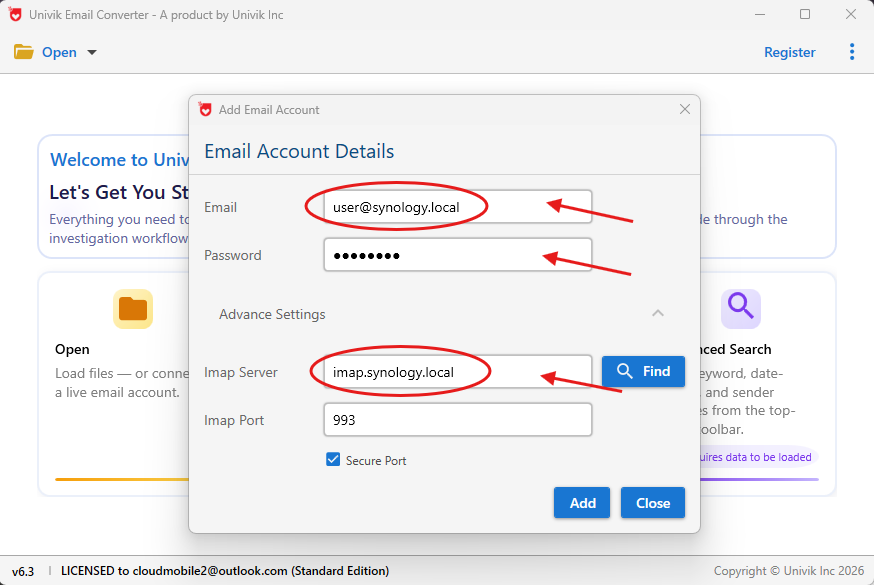
Path A Step 3: Export then IMAP enter MailPlus Server hostname, port 993 and destination account login
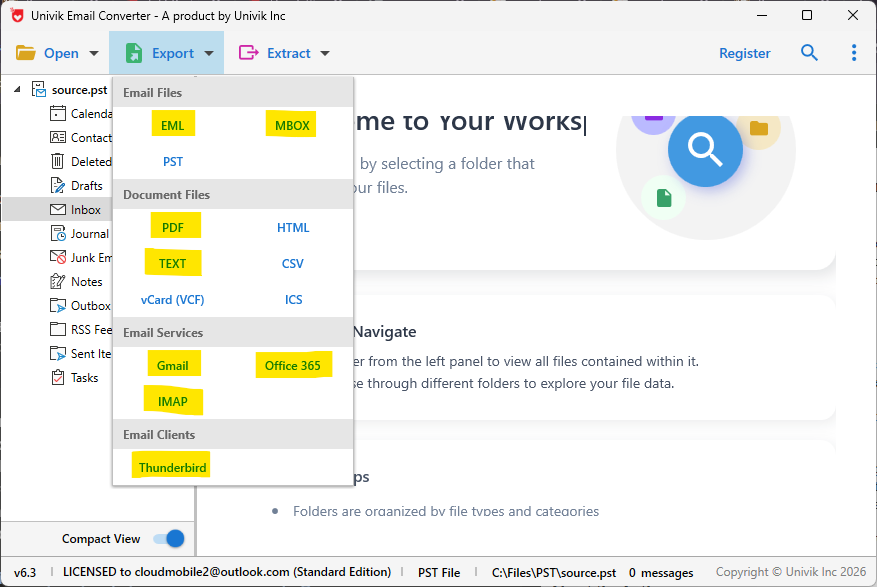
Path A: Select IMAP in the Export menu Exchange email saves directly into the MailPlus account
Path B: Migrate via IMAP
Use this path if IMAP is already enabled on Exchange Server or if you are prepared to enable it. This skips the PST export step entirely.
Enable IMAP on Exchange if not already running. In Exchange Management Shell, run:
Start-Service MSExchangeIMAP4
Confirm it is running with Get-Service MSExchangeIMAP4.
Connect the converter to Exchange via IMAP. In the Open menu, go to Email Accounts then Add account. Enter the Exchange server hostname, port 993 or 143 and the mailbox login details. The converter loads the full folder tree for that mailbox.
Export to MailPlus Server via IMAP. In the Export menu, select IMAP. Enter the MailPlus Server details. The converter migrates email directly from Exchange into the MailPlus account without any intermediate files.
The result: Exchange Server mailboxes migrated to Synology MailPlus Server with all folder structure, attachments and message metadata preserved. For a 10-user Exchange deployment with typical mailbox sizes, the migration runs in four to six hours.
⬇ Free DownloadSee All Features →
Free trial converts the first 25 emails per folder. No registration required. Windows only.
Contacts and Calendar Migration
Exchange contacts and calendars do not transfer via IMAP or PST conversion. They need a separate export step.
Export contacts. In Outlook connected to Exchange, go to File then Open and Export then Import/Export. Choose Export to a file, then Comma Separated Values. Select the Contacts folder. Import the CSV into Synology Contacts.
Export calendars. In Outlook, go to File then Save Calendar. Export as ICS. Import the ICS file into Synology Calendar. Shared calendars must be exported by the calendar owner and reshared after import.
Post-Migration Verification
Compare message counts. Check three to five mailboxes in MailPlus webmail against Exchange. PST exports from Exchange are complete, so significant gaps indicate a problem with the PST generation, not the conversion.
Verify folder names. Exchange uses different default names than MailPlus (Deleted Items vs Trash, Junk Email vs Spam). Confirm content landed in the right folders and relabel if needed.
Test inbound and outbound delivery. Before switching DNS, send test emails in both directions. Confirm outbound email passes SPF, DKIM and DMARC so it does not land in spam.
Update MX records. Once verified, update domain MX records to point to the Synology NAS. Keep Exchange receiving email for 30 days as a fallback, then run a final PST export of any email that arrived after the main migration.
For backup setup after migration, see our MailPlus Server backup guide.
Exchange to MailPlus: Common Questions
Exchange stores email in EDB format. Can I open the EDB file directly in the converter?
No. EDB is Exchange’s proprietary database format and requires a running Exchange server to access. The correct export path is PST via New-MailboxExportRequest. The resulting PST file opens directly in Univik Email Converter.
Do I need to export one PST per mailbox or can I export all mailboxes at once?
One PST per mailbox is the standard approach. Exchange supports bulk export requests but each mailbox generates its own PST file. Run export requests for all mailboxes simultaneously they run as background jobs and complete independently. Monitor with Get-MailboxExportRequest.
My Exchange server has already been shut down but I still have the PST files. Can I migrate?
Yes. PST files are self-contained. Open them in the converter via Open then Email Data Files then Outlook PST/OST Files. The converter loads the mailbox and you can export to MailPlus without any Exchange server involvement.
What happens to Exchange public folders?
Exchange public folders are separate from user mailboxes. They can be exported to PST using New-PublicFolderExportRequest. Open the resulting PST in the converter and export the contents to a dedicated shared MailPlus account.
Does migration from Exchange to MailPlus preserve read and unread status?
Yes. PST files preserve message flags including read status, importance and follow-up flags. These transfer to MailPlus via the IMAP Save path. Folder structure is also preserved exactly.
Exchange Server to MailPlus: Summary
Exchange Server 2016 and 2019 are past end of support. Organisations still running them face security risks and email delivery blocks from Microsoft.
The migration path to Synology MailPlus Server is well-defined. Export mailboxes as PST using New-MailboxExportRequest, open the PST files in Univik Email Converter and save directly into MailPlus via IMAP Save. If IMAP is enabled on Exchange, skip the PST export and connect the converter directly.
Contacts and calendars need separate export steps via Outlook CSV and ICS. Build 30 minutes per user into the calendar migration plan.