The Visual Studio Image Library is a free download of more than a thousand icons Microsoft uses across Windows, Office and Visual Studio, meant so your app can match that look. Grab the ZIP for your Visual Studio version from the Microsoft Download Center, find the icon by its concept and use the SVG when you need to scale it. To package one as an app icon, the Univik ICO Converter turns a PNG or SVG into a multi size ICO.
You want your app to look like it was built for Windows, and the fastest honest way there is to use the same icons Microsoft draws with. That set exists, it is free, and most developers never realise they can download it.
This guide walks the whole path. What the library is, how to download it, how it is arranged, how to use an icon in your project, what the licence lets you do and how to turn a flat image into a proper app icon.
What the Visual Studio Image Library Gives You
The Visual Studio Image Library is the collection of images that appear inside Visual Studio, Windows and Office, packaged for developers to reuse. Microsoft puts the count at more than a thousand, spanning the small glyphs on toolbars up to the larger pictures in dialogs. Because it is the exact art Microsoft ships, an app built from it reads as native rather than improvised.
It is the answer to a specific problem. The Windows shell files carry drives, folders and network art, but nothing for a database, a class or a build step. The library fills that developer gap, which is why a data tool or an admin console leans on it for the icons Windows itself never drew.
How to Download the Library
The library lives on the Microsoft Download Center, not inside a menu in Visual Studio. Microsoft keeps a separate library for each Visual Studio release, from 2012 through 2026, and each is a single ZIP you download and unzip. Pick the version closest to the look you want, since the newer sets add fresh art on top of the older ones.
You do not need Visual Studio on the machine to use it. The download is just image files, so it works for any app in any language, and the official image library page keeps the current links and notes in one place.
How the Library Is Organised
Inside the ZIP the images are grouped into five families, each answering a different design need. Index or readme files name every image by its concept, so you search by what an icon means rather than by a filename.
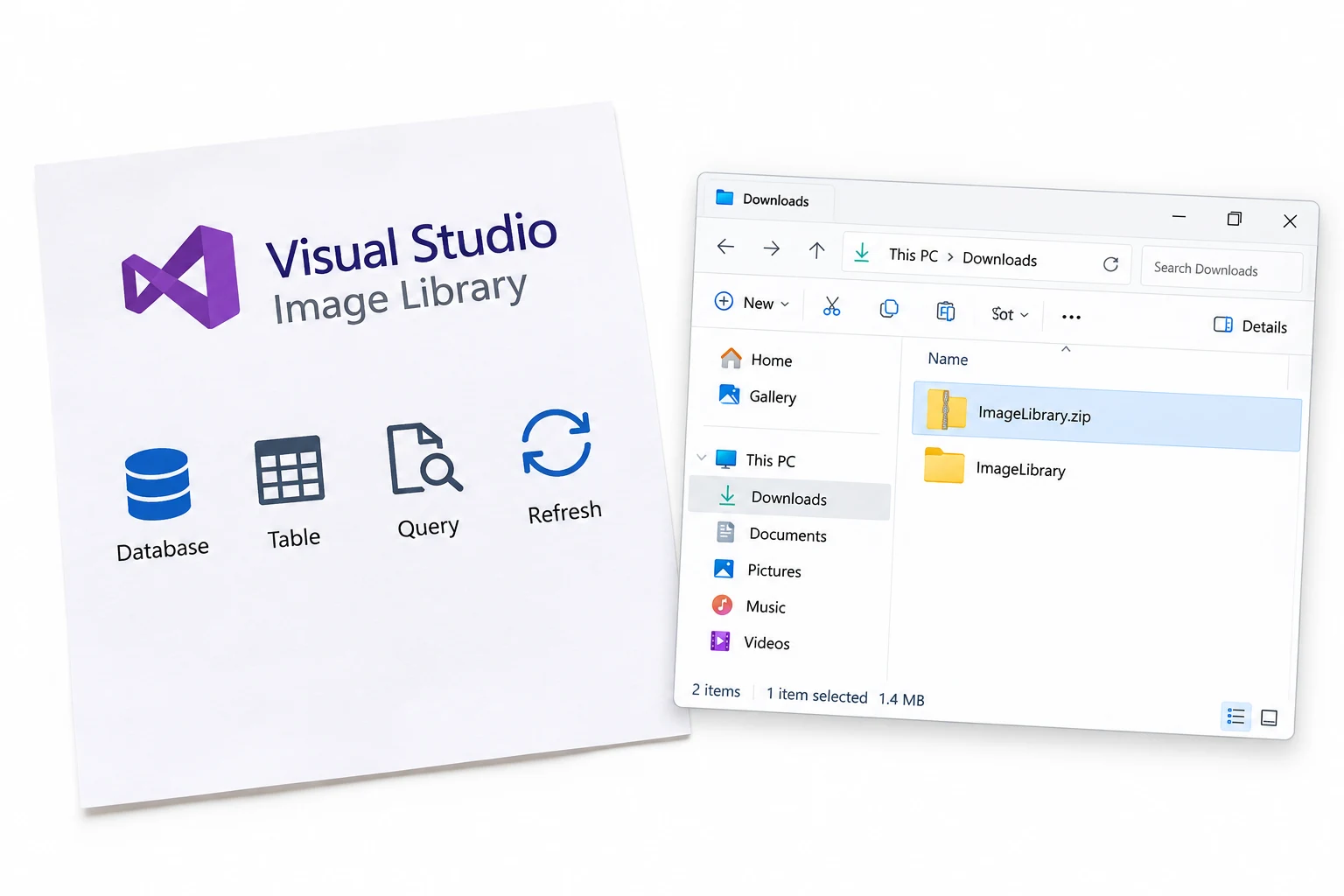
| Family | What it holds | Good for |
|---|---|---|
| Common Elements | Shared building blocks like arrows and badges | A consistent base across the UI |
| Actions | Run, stop, refresh, save, delete | Toolbar and command buttons |
| Annotations | Small overlays for warning, error and status | Marking state on another icon |
| Icons | Object icons for databases, tables, files and folders | Trees, lists and object views |
| Objects | Larger pictures like servers, reports and clouds | Dialogs and section headers |
Use a Library Icon in Four Steps
Getting an icon from the ZIP into your app takes four moves.
- Download and extractGet the ZIP for your Visual Studio version from the Download Center and unzip it to a folder you can browse.
- Find it by conceptOpen the index or readme and search by what the icon means, a database, a refresh, a warning, then note the matching image name.
- Pick the format and sizeReach for the SVG when the icon has to scale, or a PNG when its built in size already fits the spot.
- Add it to your projectDrop the file into a resources folder and reference it in your app or load it as a plain file at runtime.
Microsoft frames the set as just that, a folder of images you copy into your project and wire up like any other asset, which keeps the whole thing refreshingly simple.
The Sizes and Formats You Get
The newer libraries ship three formats side by side, and knowing which to grab saves a blurry button later.
The rule of thumb is short. Use the PNG when its size fits and switch to the SVG the moment you need the icon bigger, because a stretched PNG turns soft while a vector stays sharp.
What the Licence Actually Allows
The library is free, but free is not the same as no rules. The Microsoft licence terms let you copy and use the images in the projects you create, which is the whole reason it exists. Two limits matter. You cannot use Microsoft trademarks in your app name or branding in a way that hints Microsoft made or endorses your app, and you should use each image in line with the concept it was named for.
One grey area is worth naming. The terms talk about using the images, not reworking them, so heavy modification sits in unclear territory, and Microsoft support has pointed people to read the exact licence or call before changing an image much. When in doubt, keep to the vector for sizing and read the terms for your case. The broader question of reusing any icon you did not draw is set out in our guide on whether extracted icons are legal to use.
Downloading the ZIP means accepting its licence. Using an image inside your working app is the clear, intended case. Rebranding it, implying a Microsoft tie, or reselling the icons on their own is not. Keep your use inside what the licence spells out.
Turn a Library Image Into an App Icon
Classic Windows surfaces, the title bar, the taskbar, the EXE itself, want an ICO, and the library gives you PNG and SVG. Bridging that gap is a format step. Since the SVG is built for resizing, export the sizes you need from it, then pack those into a single multi size ICO for the app.
That packing is where a converter earns its place. The Univik ICO Converter turns a PNG or SVG into an ICO holding every size Windows asks for, and the same route is written up in our guide to converting PNG to ICO. Keep the licence in mind as you go, since it centres on using the images rather than reworking them.
Feed a PNG or SVG from the library in and get back a clean ICO with every size a Windows app needs, from the title bar to high resolution.
Free Download See All FeaturesPair It With the Windows System Icons
The library is only half of a native looking app. It supplies the developer glyphs, while the operating system chrome, the drives, folders and refresh arrows, still comes best from the Windows files themselves. The modern versions of those sit in the imageres.dll icon list, with the classics in the shell32 set beside it.
Mixing the two is the practical recipe. Pull the chrome from Windows, take the database and developer art from the library and draw your own only for your brand. The full breakdown for a data tool, which icon belongs to which source, is broken down in our guide to native Windows icons for a database or admin tool.
Frequently Asked Questions

Written and maintained by Leena Taylor Paul and the Univik team, developers of Windows data conversion and recovery software since 2013. We built the image to ICO side of the converter after watching developers download this library and then stall on turning a flat PNG into a multi size app icon, so this guide covers both halves of that job. Last verified August 2026. Stuck packaging an icon? Contact our support team.