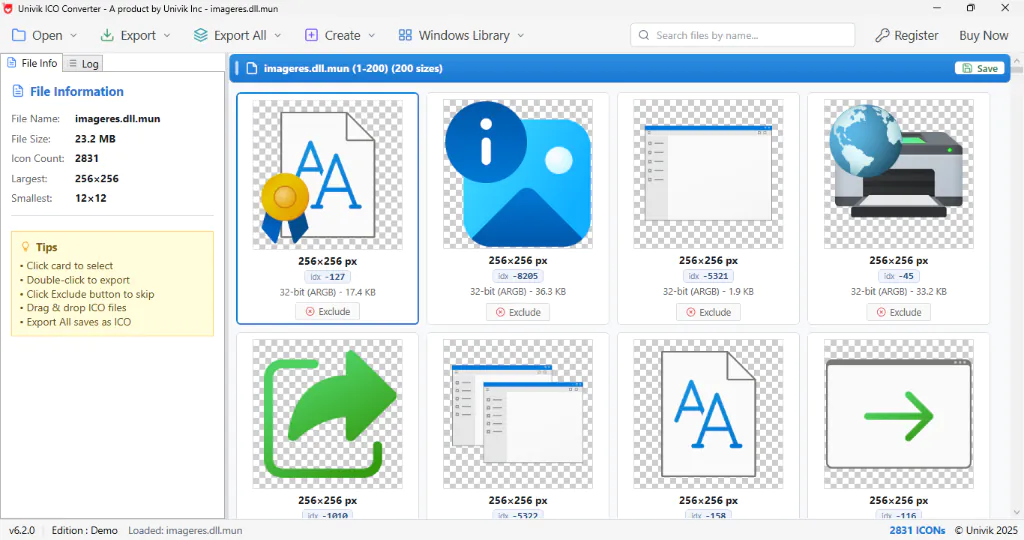
Most of the icons you actually see in Windows 10 and 11 do not come from shell32.dll. They come from imageres.dll, the modern high resolution set that File Explorer and the desktop draw from. This page lays out what is inside it by category and shows how to open it so you can view and export any icon. The Univik ICO Converter loads imageres.dll and shows the whole set with each number.
You went looking for a familiar Windows icon, checked shell32.dll and did not find the crisp version you had in mind. That is because the file most people name first is the old one. The modern art moved house years ago.
This guide is about the file it moved to. It shows what imageres.dll holds, why File Explorer leans on it, how it changed for Windows 11 and how to read and export any icon inside it.
What imageres.dll Actually Does
You can also view the icons in your browser — a free ICO viewer opens imageres.dll and shows every icon inside, no install needed.
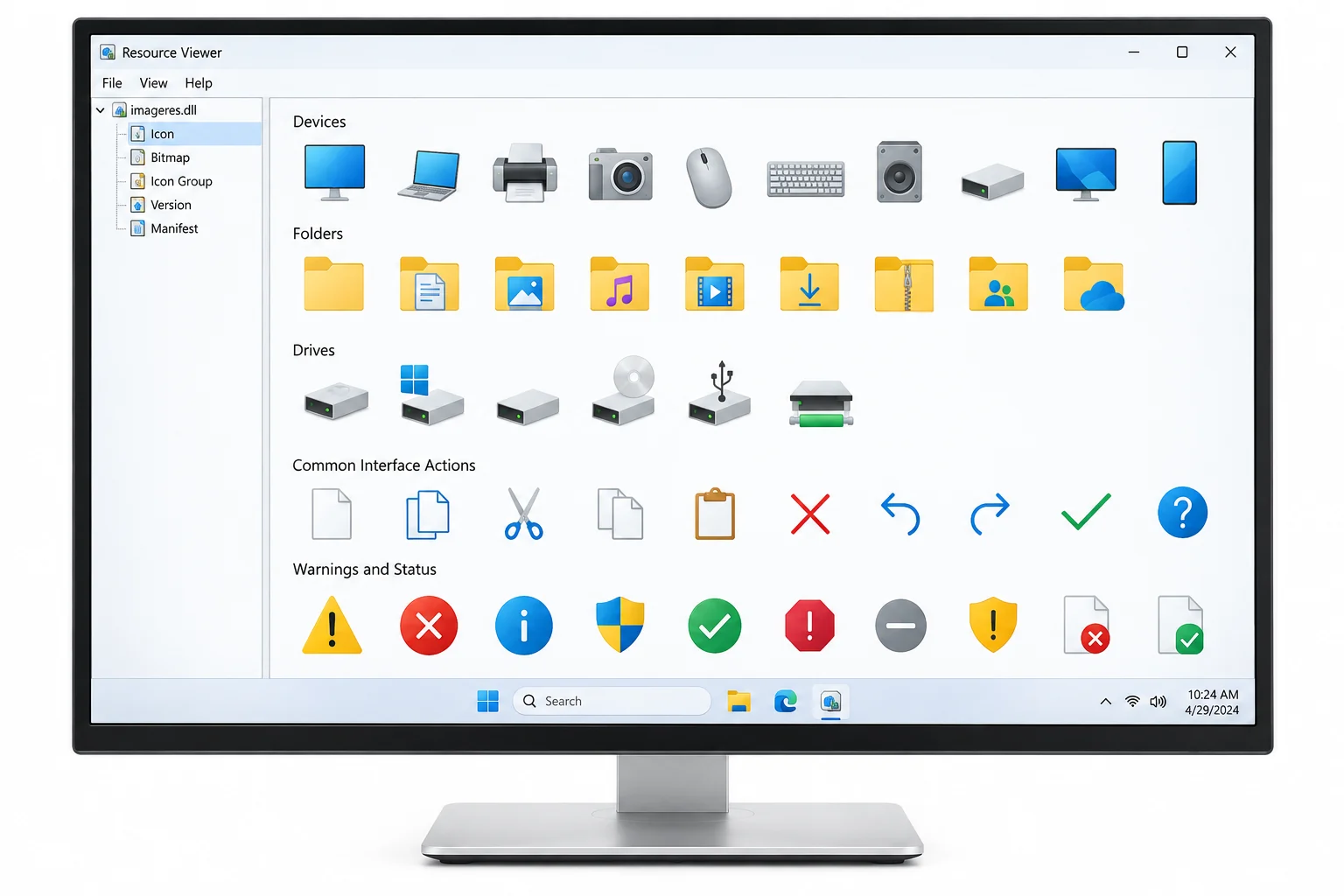
imageres.dll is the modern face of Windows icons. Microsoft shipped it in Windows Vista as the high resolution replacement for the older shell library, and today it supplies most of the pictures you meet in File Explorer, on the desktop and across everyday dialogs. When a folder, a drive or a device shows a clean, current icon, that art almost certainly came from here.
There is a practical reason it holds so many. A single ICO holds one picture, so a system that needs hundreds of them would turn into a pile of loose files. Bundling them into one library keeps the look consistent and quick for Windows to load, the same reason the classic set was packed the same way. A NirSoft scan of Windows 10 counted 402 icons in imageres.dll, which gives a sense of the scale.
What imageres.dll Holds, by Category
Think of imageres.dll as a stocked cupboard rather than a long numbered list. The groups below are the ones developers and tinkerers open most, with a sense of what each one keeps.
| Group | Icons you will find there | Where they show up |
|---|---|---|
| Folders | Generic folders plus the special ones for Documents, Pictures, Music and Videos | File Explorer and the user profile |
| Drives and storage | Fixed drives, removable drives, optical drives, network drives | This PC and drive windows |
| Devices | Monitors, phones, printers, peripherals | Device pages and prompts |
| Network | Network, internet, connection and sharing art | Network places and status |
| Actions and status | Refresh, delete, warning, information, progress | Buttons and message dialogs |
| Security | The user account shield and permission prompts | Elevation and account screens |
If the icon you want fits any of those and looks modern, imageres.dll is where to start. The classic, older versions of the same ideas sit in a different file, which the next section sorts out.
Below is the imageres.dll set as the file renders it, letting you pair each picture with its number.
Why File Explorer Uses imageres.dll, Not shell32.dll
The two files divide the work by age. shell32.dll keeps the classic pictures that go back to Windows 95, and those are catalogued in our shell32.dll icon list. imageres.dll holds the modern replacements, and File Explorer reaches for those first, which is why a fresh looking icon rarely turns up in the older file.
There is a newer detail worth knowing. A few of the latest Windows 11 Fluent icons, such as the redesigned Downloads folder, live in neither file and sit in a separate modern library instead. So the order to check is imageres.dll first, then shell32.dll, and the full map of every icon library sits in our overview of where Windows stores its icons.
Why Windows 11 Rebuilt imageres.dll
Windows 11 brought the biggest icon refresh in years, and imageres.dll got most of the changes. Folders, drives, the recycle bin and dozens of small system pictures were redrawn in the rounded Fluent style, and entries were added and moved in the process. An icon that answered to one number on Windows 7 can sit somewhere else on Windows 11.
Two reputable write ups track how far the art has come. Neowin walks through the old icons still buried in Windows 11, and Digital Citizen catalogues where the native Windows icons live across the system files. The lesson for anyone pinning an icon by number is the same one that applies to the classic set. Confirm it on the Windows version you are building for.
How to Open imageres.dll and See Every Icon
Only your own copy can hand you the exact set, so read it straight from the file. It is a one minute job. There is no need to download imageres.dll from anywhere, since every Windows PC already ships with it.
- Load the file in a viewerOpen C:\Windows\System32\imageres.dll with an icon viewer. Recent Windows keeps the real art in a SystemResources copy, and a capable viewer redirects there on its own.
- Wait for the gridThe viewer fills in every icon your build ships, in order. That on screen grid is the one accurate list.
- Check its positionEach icon shows a number, the index a shortcut or the registry needs. The rules behind those values live in our guide to finding an icon index.
- Save your pickExport the chosen icon as an ICO or PNG to keep a clean copy.
The wider technique for lifting icons out of any program file, not just this one, is written up in our guide to extracting icons from EXE or DLL files.
Pulling a Single imageres.dll Icon Out as a File
Finding the icon is step one. Making it usable is step two, because an icon locked inside a DLL will not paste into a document or a design canvas on its own. Export the one you picked, then change it to whatever format your project needs. The path from icon to image is spelled out in converting an ICO file to PNG.
If you only mean to restyle your own desktop, skip the export and aim a folder straight at an imageres.dll icon by its number, the same route changing a folder icon in Windows 11 uses.
Using an imageres.dll Icon in Your Own Software
This is the part developers care about. Reaching into imageres.dll gives your app the exact look users already know, which is tempting for a file tool, a device manager or anything that wants to feel native. The catch is that these are Microsoft's icons, and shipping them inside a product you release is a rights matter rather than a technical one.
There is a supported route for the native look. Microsoft publishes the Visual Studio Image Library, a licensed set of images made so apps can match Windows visually, and it comes with terms you agree to when you use it. The rights around reusing icons you did not draw, including that licensed path, are laid out in our guide on whether extracted icons are legal to use.
Point the tool at any Windows system file, scan the whole icon grid with its numbers and save the icon you need as a crisp transparent PNG.
Free Download See All FeaturesCopy the Windows Look or Draw Your Own
On your own desktop, an imageres.dll number is the fastest way to set a custom icon. Ship it to other people and it gets riskier. Their build might map that number to a different picture, and the art was never yours to distribute. Anything that depends on a fixed system slot risks breaking the day a Windows update reshuffles the set.
The dependable move for a shipped product is to include your own icon, one that stays put no matter which Windows the user runs. Draw the artwork, then build the file using converting PNG to ICO. Save the extracted Windows icons for study, mockups and personal tinkering. Let anything you release use only art you own or have licensed.
Never bake an imageres.dll index into a released build on the assumption it will hold. A single Windows update can renumber or redraw the set, turning your chosen icon into the wrong one across every machine that installs it. Point your product at an icon file you control instead.
Frequently Asked Questions

Written and maintained by Leena Taylor Paul and the Univik team, developers of Windows data conversion and recovery software since 2013. We added imageres.dll to the tool's library picker after too many people opened shell32.dll, came up empty and assumed their icon was gone, when it had simply moved to the modern file. Last verified August 2026. Hunting a modern Windows icon? Contact our support team.