Right click the folder, open Properties, go to the Customize tab and click Change Icon, then pick an icon and confirm with OK twice. Windows shows you its own icon library to choose from, so you never need to download anything. Shortcuts have the same button on their Shortcut tab, while drives take a small registry edit. If you want an icon Windows does not offer, the Univik ICO Converter turns any image into a proper .ico with every size Windows expects.
A yellow folder in a wall of yellow folders tells you nothing. Give the projects folder a star, the archive a box and the finance folder a lock, and you find things by sight instead of by reading. Windows 11 has everything you need for this already installed. This guide walks through folders, shortcuts and drives, plus the hidden file where Windows stores the choice and the 2026 change that quietly reset icons for a lot of people.
Change a Folder Icon in Four Steps
The whole job happens inside the folder's own Properties window.
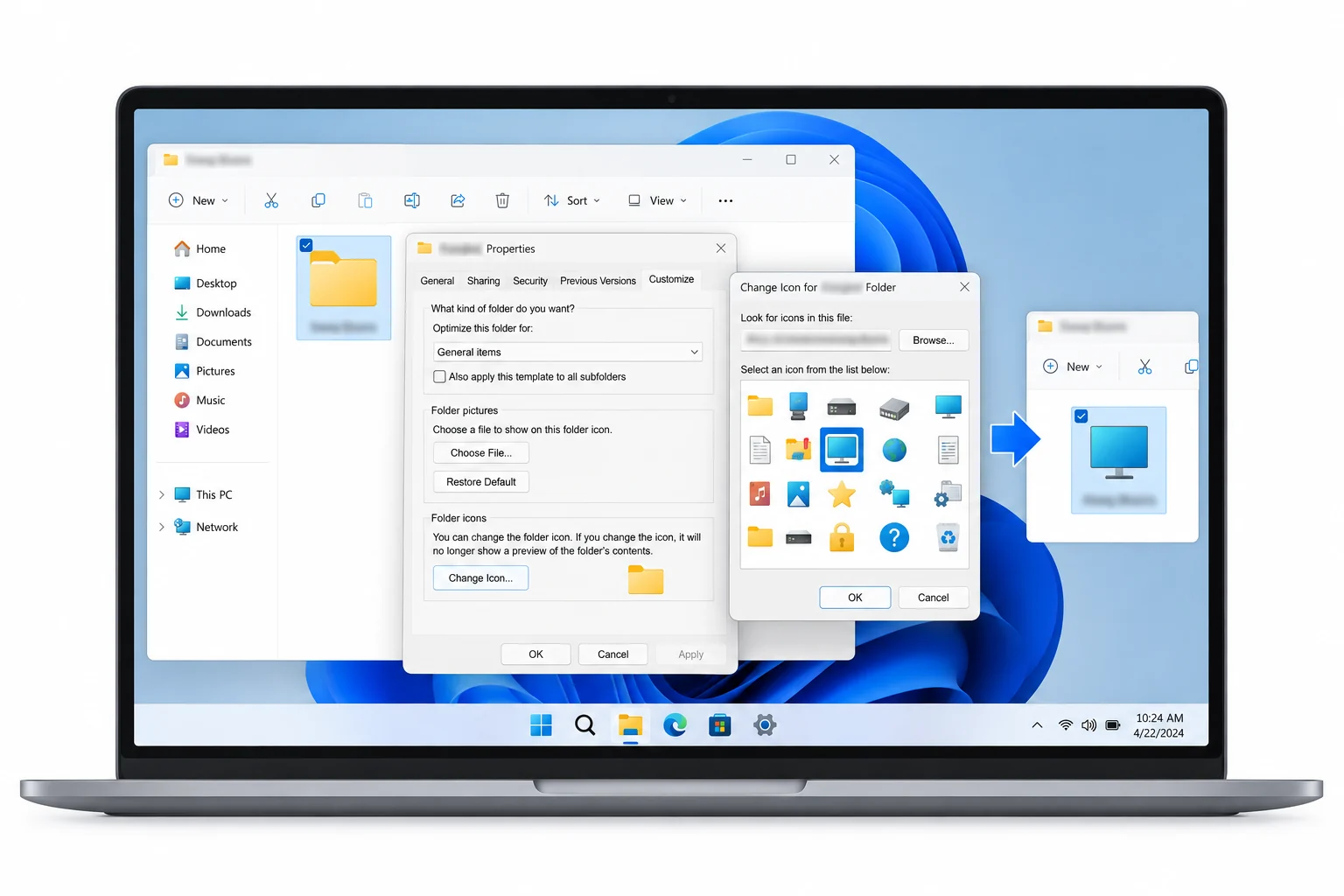
- Open PropertiesRight click the folder and choose Properties at the bottom of the menu.
- Go to CustomizeSelect the Customize tab, the last one across the top of the window.
- Click Change IconThe button sits at the bottom under Folder icons. A grid of Windows' built in icons opens, and the Browse button accepts your own .ico file.
- Pick and confirmSelect the icon, click OK in the icon grid, then OK again in Properties. The folder redraws with the new icon.
The grid that opens defaults to one of Windows' own icon libraries, and the Restore Defaults button in the same dialog is the undo, one click brings the standard folder back. If the list feels thin, the box at the top accepts a different file, and the next section tells you which files are worth typing in.
Where the Built in Icons Live
Windows ships thousands of icons inside a handful of system files, and the Change Icon dialog can browse any of them. Paste a file path into the box at the top of the dialog and press Enter to load its whole set.
These two cover nearly every customization job, and the full tour of what each system file holds is in the guide to where Windows stores its icons. If you would rather pull an icon out as its own file, the extraction guide covers that job separately.
What Windows Writes Behind the Scenes
The Properties dialog feels like magic, but it does something very ordinary. Windows stores your choice in a hidden desktop.ini file inside the folder and marks the folder read only so Explorer knows to check that file. Microsoft documents the whole mechanism in its desktop.ini customization guide.
Open the hidden file after setting an icon and you find an entry like this.
[.ShellClassInfo]
IconResource=%SystemRoot%\System32\shell32.dll,137
The value is a file and a number, the same reference format the registry and shortcuts use everywhere in Windows. The number picks which icon inside the file, and why it is sometimes written as a negative is a story of its own, covered in the guide to finding an icon's index in shell32.dll.
Knowing this explains folder icon behavior that otherwise looks random. The setting lives inside the folder, so it travels when the folder moves. And it points at a file, so it survives only as long as that file exists at that path. A reference to shell32.dll works on every Windows PC on earth. A reference to an .ico on a USB stick dies the moment the stick is unplugged.
The 2026 Update That Broke Custom Icons
In mid 2026 a Windows security update closed a 23 year old Explorer weakness, and the fix changed the rules for folder icons. Explorer now ignores desktop.ini files it does not trust, which silently reset custom icons for a lot of people, as covered in XDA's report on the change.
Right click the .ico file, open Properties and tick Unblock at the bottom of the General tab, then set the folder icon again. Or sidestep the whole issue by picking an icon from Windows' built in libraries instead.
Change a Shortcut Icon
Shortcuts carry their own icon, separate from whatever they point at, and the flow is nearly identical. Right click the shortcut, choose Properties, stay on the Shortcut tab and click the Change Icon button near the bottom. The same icon grid opens, the same Browse button accepts your own .ico and the same two OK clicks apply it.
One difference is worth knowing. A shortcut's icon reference lives inside the .lnk file itself rather than in a settings file beside it, so the icon follows the shortcut wherever you copy it. The reference still only works where the icon file it names exists.
Change a Drive Icon Through the Registry
Open a drive's Properties and there is no Customize tab to find. Drives have no Customize tab, so a drive icon is set through the registry. Microsoft documents the key in its guide to assigning a custom icon to a drive letter. The reference below gives drive E a new icon. Swap the letter and the icon reference for your own.
Windows Registry Editor Version 5.00

[HKEY_LOCAL_MACHINE\SOFTWARE\Microsoft\Windows\CurrentVersion\Explorer\DriveIcons\E\DefaultIcon]
@="%SystemRoot%\\System32\\imageres.dll,-30"- Save the text as a .reg filePaste the lines into Notepad, change the drive letter in the key and the icon reference in the value, then save with a .reg extension.
- Merge itDouble click the file and confirm the prompt. The edit needs an administrator account.
- Reopen ExplorerClose and reopen the File Explorer window and check This PC. The drive shows its new icon.
- To undoDelete the drive letter key you created under DriveIcons and reopen Explorer. The standard drive icon returns.
Right click the Explorer key in Registry Editor and export it to a file first. If anything looks wrong afterward, merging that export puts everything back.
Pick the Icon by Number Instead of Scrolling
The Change Icon grid is fine for browsing, but it has a blind spot, it never tells you the number of the icon you picked. The moment you want the same icon in a registry value, an icon settings file or a script, you need that number, and the dialog will not give it to you.
The Univik ICO Converter closes that gap. It opens shell32.dll, imageres.dll or any icon library and prints both numbers under every icon, the position and the stable ID, with a click to copy a reference the registry accepts as written. Browsing stays visual, and the number comes along for free. The free ICO viewer offers the same browsing when you only need a look, and a complete shell32.dll icon list is the fastest way to scan the classic set in one page.
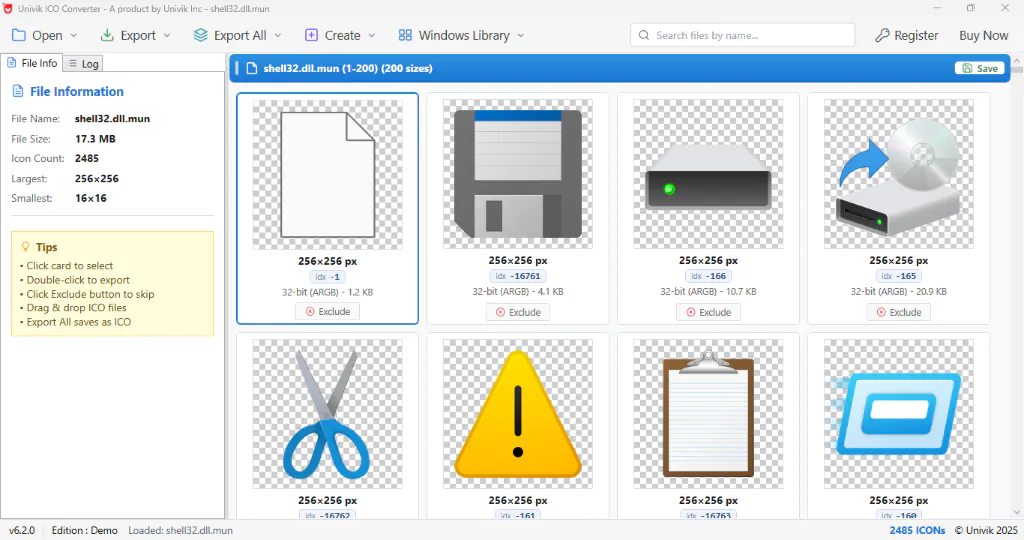
The Change Icon dialog only accepts a true .ico file. Univik packs every standard size into a single .ico from your PNG and reveals the number of each built in Windows icon.
Free Download See All FeaturesWhen the New Icon Fails to Show Up
You clicked OK, the dialog closed and the folder still wears the old face. Explorer caches icons aggressively, so a correct change can hide behind a stale cache. Close and reopen the Explorer window first and press F5 in the folder's parent to force a redraw. If the old icon survives that, restart the Explorer process from Task Manager or sign out and back in, which rebuilds the cache.
A different symptom points elsewhere. When built in icons apply fine but your own .ico gets refused or the change reverts the moment you reopen Properties, you are looking at the trust check from the 2026 update, not the cache. A tidy habit prevents most of this, keep the .ico file inside the folder it decorates, since a local file stays trusted and the path never breaks when the folder moves.
If the icon shows but looks blurry or blocky, the .ico file is missing the size Explorer wants for that view. A proper icon file carries the picture at each standard size, from the tiny list glyph to the large 256 pixel tile, so every view finds a sharp match. Building one from a plain image is covered in the guide to converting between ICO and PNG. A renamed PNG fails this test, which is the usual culprit when a downloaded icon looks wrong.
Frequently Asked Questions

Written and maintained by Leena Taylor Paul and the Univik team, developers of Windows data conversion and recovery software since 2013. Every flow here was walked through on Windows 11 24H2, including retesting after the 2026 update changed which icon files Explorer trusts. Last verified August 2026. Icon still not changing? Contact our support team.