To check a favicon setup, open each icon URL to confirm it loads, watch the request in DevTools for a 200 status and open the .ico in a viewer to confirm the sizes inside. A missing size or a 404 path is the usual fault. The free Univik ICO Viewer shows which sizes your favicon.ico holds.
A favicon that will not show is one of the more frustrating web problems, because the icon looks fine on your machine and broken on everyone else's. The fix is rarely a guess. A short set of checks tells you exactly which part is wrong before you change a thing.
Here is how to verify each piece of a favicon, from the file on the server to the sizes packed inside it.
What to Check in a Favicon Setup
A full setup is a handful of files, each declared by a tag and each meant to resolve to a real image. Before diving into tools, it helps to know the pieces you are checking for.
Which of these your site actually needs is set out in the guide on favicon sizes, and building the whole set is covered in the pillar on adding a favicon to a website. This page is about testing what you already have.
Open Each Icon URL Directly
The quickest test needs no tools at all. Type each icon address into the browser bar, starting with the favicon.ico at your site root. If the image appears, the file is there and reachable. If you get a 404 page, the file is missing or sitting in the wrong folder.
Do the same for the other files, the SVG and the apple-touch-icon, at whatever paths your tags point to. This one check rules out the single most common fault, a file that simply is not where the tag says it is.
Read Your Icon Tags in the Source
Next, look at what the page actually declares. Open the page source and look for rel="icon". The tags should sit inside the head, use the href attribute rather than src and point at paths that resolve. The link element reference spells out how the sizes attribute pairs with each file.
To list every icon tag at once, paste this into the browser console.
document.querySelectorAll('link[rel*="icon"]').forEach(function(el){
  console.log(el.rel, el.href, el.sizes.value || 'no size');
});
It prints each tag with its rel, the full URL it resolves to and the size it claims. A tag missing from that list is a tag your page never declared.
Watch the Requests in DevTools
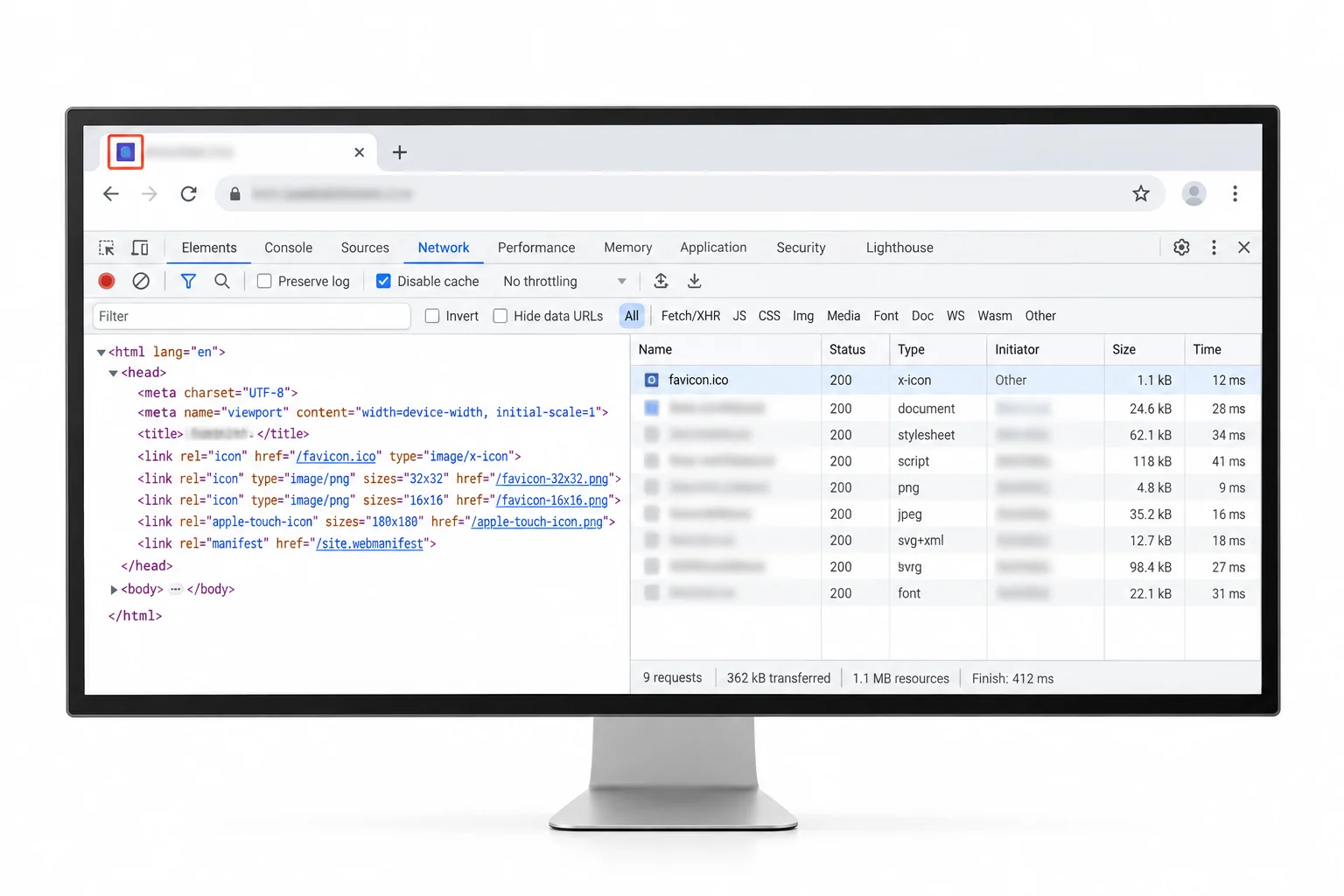
The network view shows what the browser really fetched. Open DevTools, move to the Network tab, type favicon into the filter and reload the page. Each row is a request the browser made, and the status column is the answer you want. The DevTools network guide covers reading that log.
While you are there, click the favicon request and read its response headers. If the icon downloads instead of showing, the server is sending the wrong Content-Type, and an .ico should come back as image/x-icon.
Check the Manifest Icons
The tab favicon is only half the picture. The icons a phone uses live in the web manifest, and they need their own look. In DevTools, open the Application panel and select Manifest, which lists every icon the manifest declares along with whether each one loaded.
A red entry there is a manifest icon that failed to fetch, a 192 or a 512 sitting at a broken path. The web manifest reference documents those icon entries, and the Android side of them is covered in the guide on PWA and Android icons.
Confirm the Sizes Inside the ICO
Here is the gap every browser check leaves. A 200 status tells you the favicon.ico downloaded, but it says nothing about what is inside. An .ico is a container, and it can hold one size or several, so a file that loads can still be missing the 16 or the 48 a crisp tab needs.
To see inside it, load the .ico into an ICO viewer. The free Univik ICO Viewer lists every image a favicon.ico contains and its size, so you can confirm the file holds the full set rather than a lone image stretched to fit.
Open your icon in the free viewer to read every size inside it, then rebuild it with the converter if a size the check flagged turns out to be missing.
Free Download See All FeaturesWhy a Favicon Won't Show
When the files check out but the icon still does not appear, a few culprits account for most cases.
One more catches people on Edge. A file that was only renamed from PNG to .ico can slip past Chrome yet fail in a stricter browser, which is its own trap, taken up in the guide on a renamed PNG.
Fix What the Check Finds
Each fault the checks surface has a plain fix. A broken path is corrected in the tag. A stale icon clears with a cache bust. A size missing from the .ico calls for a rebuild.
- Name the faultUse the checks above to pin down which piece is wrong.
- Fix a broken pathPoint the href at where the file actually sits.
- Rebuild a missing sizeRemake the .ico with the sizes it was short of.
- Bust the cacheHard refresh or add a version query, then run the checks again.
When a size is missing, the Univik ICO Converter rebuilds the favicon.ico with the full set, and the iOS side, the apple-touch-icon Safari looks for, is covered in the guide on the Apple touch icon.
Frequently Asked Questions

Written and maintained by Leena Taylor Paul and the Univik team, developers of Windows data conversion and recovery software since 2013. A favicon that will not show sends people down the wrong path more than most web problems, so this guide runs the checks in order, the file, the tags, the sizes, before you touch anything. Last verified August 2026. Favicon still not behaving? Contact our support team.