A modern favicon is a small set, a favicon.ico fallback, an SVG for current browsers, a 180 pixel Apple icon and a web app manifest, wired up with four link tags in your head. The old pile of twenty files is no longer needed. The Univik ICO Converter builds the favicon.ico and the PNG icons the set calls for from one image.
Adding a favicon should be a five minute job, and for years it was made to feel like a chore. Old guides had you export twenty odd files and paste ten link tags, most of them for devices that stopped reading them long ago. The modern version is far leaner.
Here is the small set that actually covers today's browsers and phones, the handful of tags that wire it up and where every file belongs.
The Modern Favicon Set Is Small
For a long stretch, a favicon meant a folder of images at every size a device had ever wanted, plus a browser config file and a run of meta tags. Browsers moved on. As the Evil Martians guide to favicons puts it, the icon generator madness of twenty plus static files can give way to a minimal set that fits modern needs.
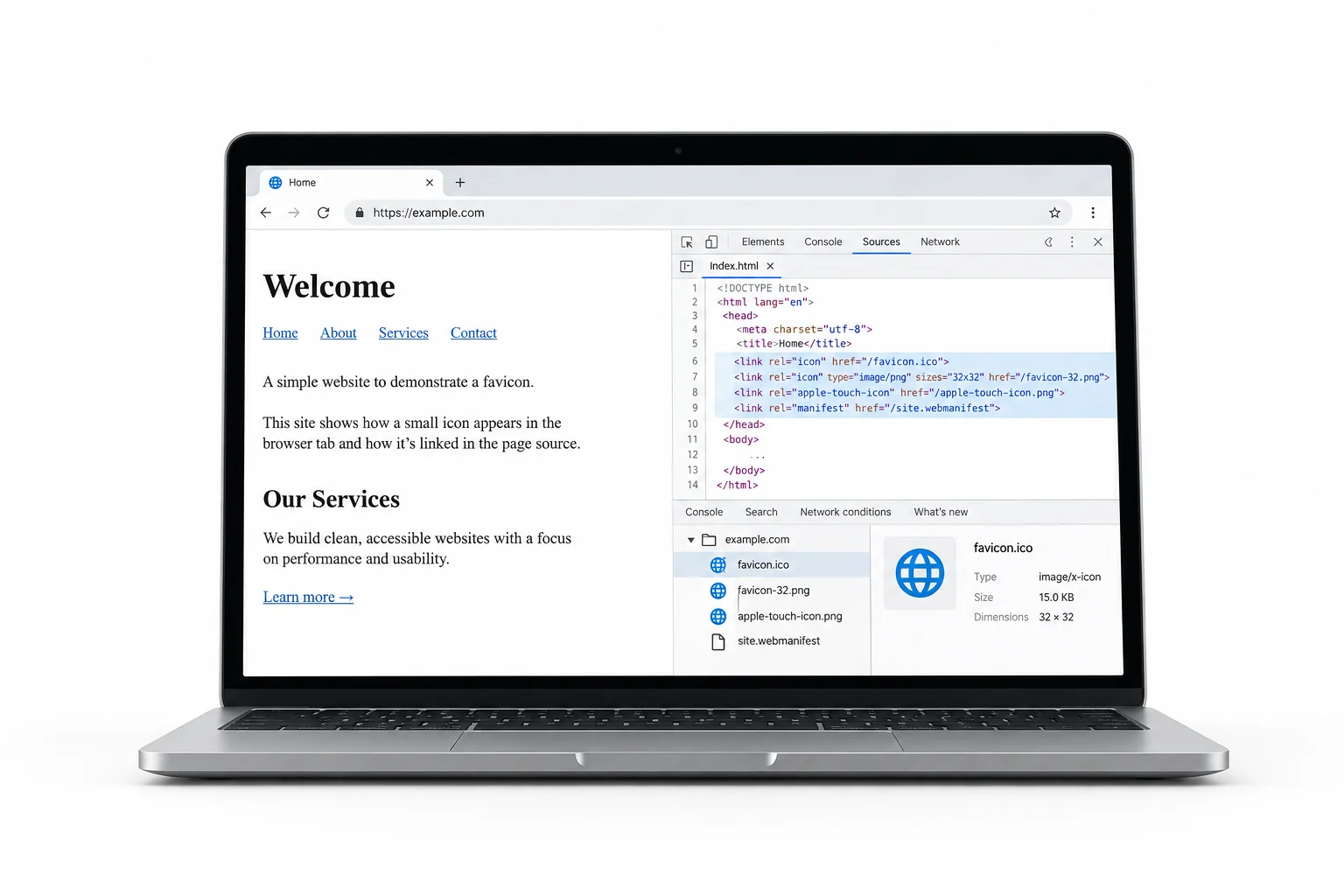
The Files You Actually Need
Four assets carry the whole job. Each one covers a different place your icon shows up, and together they leave no gaps.
The SVG is your source vector, dropped in as is, and it can even swap colours for dark mode in a way no raster file manages. The other three are raster files, and a converter turns your artwork into them. Exactly which pixel sizes belong in each is laid out in the guide on favicon sizes, while designing a mark that reads in a tiny tab is taken up in the guide on Windows style app icons.
The Link Tags for Your Head
Four lines in the head of every page wire the set up. Listing the .ico first lets modern browsers still reach past it to the SVG.
<link rel="icon" href="/favicon.ico" sizes="32x32">
<link rel="icon" href="/icon.svg" type="image/svg+xml">
<link rel="apple-touch-icon" href="/apple-touch-icon.png">
<link rel="manifest" href="/site.webmanifest">
The type on the SVG line matters. It tells a browser the format up front, so one that cannot render SVG skips it without a wasted download and falls through to the .ico. Drop the manifest line if your site is not meant to be installable.
The Web App Manifest
The manifest is a small JSON file that makes your site installable on Android and desktop Chrome. For a favicon setup, the part that matters is its icons list. MDN's web app manifest reference and web.dev's manifest guide cover the rest of the fields.
{
  "icons": [
    { "src": "/icon-192.png", "sizes": "192x192", "type": "image/png" },
    { "src": "/icon-512.png", "sizes": "512x512", "type": "image/png" },
    { "src": "/icon-mask.png", "sizes": "512x512", "type": "image/png", "purpose": "maskable" }
  ]
}
The 192 is the home screen icon and the 512 drives the install prompt and splash screen. The maskable entry gives Android room to crop the icon into whatever shape a phone uses, so keep its artwork padded away from the edges.
Make the ICO and PNG Files
Three of the four assets are raster files built from your artwork. The Univik ICO Converter turns one image into the favicon.ico and exports the PNG sizes the set needs.
- Load your artworkOpen the converter and drop in a large PNG or your SVG.
- Build the ICOExport a multi size favicon.ico holding 16, 32 and 48.
- Export the PNGsSave the 180, 192 and 512 pixel PNGs the Apple icon and manifest call for.
- Drop them inMove the files to your site root and add the four link tags.
If your source is a vector, the guide on converting an SVG to an ICO covers how each size renders cleanly. To check what a site already ships, the guide on getting a favicon from a website walks through inspecting one. The free ICO viewer shows every size inside your favicon.ico before you deploy it.
Turn a single picture into the favicon.ico plus the Apple and manifest PNGs, transparency kept, ready to drop into your site root next to the four link tags.
Free Download See All FeaturesWhere the Files Go
All four assets live in the root of your site, the same folder as your home page. A browser checks that root for favicon.ico on its own, even with no tag pointing at it, which is why the file has kept its exact name for decades.
The link tags reference the other files by path from that root, so a leading slash keeps them working on every page rather than only the home page. Put the assets anywhere else and the paths in your tags have to follow, or the icons quietly fail to load.
What You Can Delete
If you are cleaning up an old setup, a good deal of it can go. None of the following earns its place any more.
- The pile of PNG sizes. Separate 16, 32, 48, 64 and 96 pixel PNGs are redundant now that the SVG scales and the .ico holds the small sizes.
- The Windows tile tags. The browserconfig.xml file and the msapplication meta tags drove old Windows Start tiles that no longer exist.
- The Safari mask icon. The mask-icon link for Safari pinned tabs is superseded by the ordinary SVG favicon.
- The shortcut icon alias. Writing rel as shortcut icon is a leftover from the 1990s. Plain icon is all you need.
Stripping these out leaves the four files and four tags, which is the whole modern set.
Common Favicon Mistakes
When a favicon goes wrong, a few causes cover almost every case.
Miss the apple-touch-icon and an iPhone shows a screenshot when someone pins your page. Miss the manifest and a site cannot install. Ship the four files, point four tags at them and the icon lands everywhere it should.
Frequently Asked Questions

Written and maintained by Leena Taylor Paul and the Univik team, developers of Windows data conversion and recovery software since 2013. The old favicon advice had you export twenty files and paste ten link tags, most of which no device has read in years, so this guide sticks to the small set that covers today's browsers and phones and shows what you can throw away. Last verified August 2026. Favicon still not showing? Contact our support team.