An SVG has no fixed pixels, so a converter draws each icon size fresh from the vector, which keeps every size sharp instead of stretching one image to fit. The catch is the 16 pixel size, where fine detail still needs a simpler drawing. The Univik ICO Converter turns your SVG into a multi size .ico in one step.
An SVG is the ideal thing to build an icon from. It is a drawing described in math, so it can be rendered at any size without going soft. That makes it a better starting point than a fixed image, with one honest exception that catches people at the smallest size.
Here is how the conversion works, why a vector source stays sharp where a raster one does not and what you have to do yourself to make the tiny sizes read.
Why SVG Is the Best Source for an Icon
A PNG or a JPG is a fixed grid of pixels. Blow it up and the grid shows, since there is no more detail to draw. An SVG carries no pixels at all. It stores shapes as coordinates and curves, which a renderer turns into pixels on demand at whatever size you ask for. MDN's notes on SVG positions lay out that coordinate system.
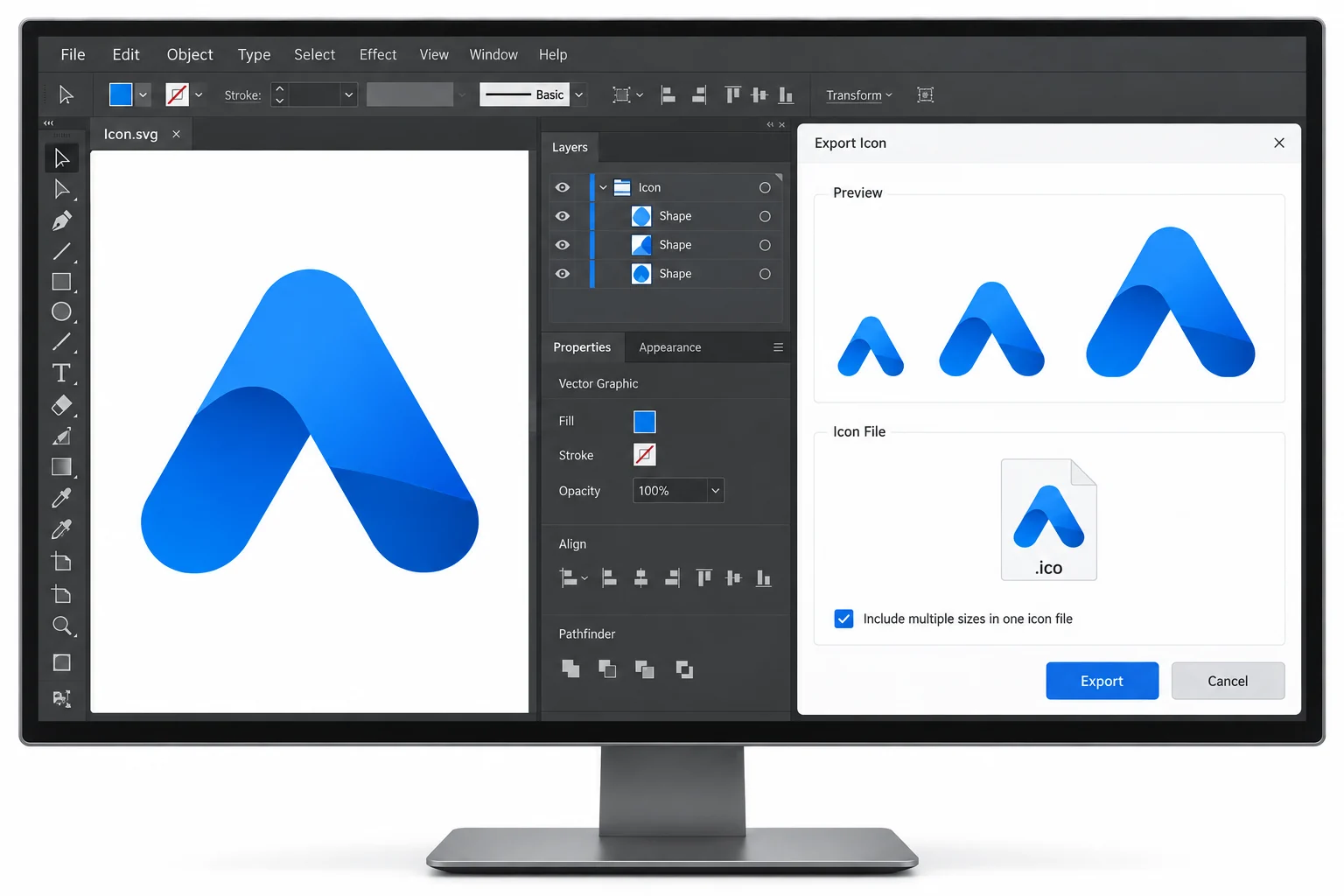
For an icon, which has to look right from a 16 pixel taskbar button to a 256 pixel tile, that is exactly the quality you want. The same vector feeds every size, and each one is drawn to fit rather than scaled from a neighbour.
Each Size Is Drawn, Not Stretched
This is the heart of why a vector source wins. When the converter builds the .ico, it draws the 16 pixel version, the 32, the 48 and the 256 each straight from the SVG. Every one is a fresh render at its own resolution, not a shrink or a stretch of another.
If your only source is a fixed image, the PNG to ICO route still builds a good multi size icon, but it works best when the PNG starts large. A vector sidesteps that worry, since size is never the limit.
Convert Your SVG to a Multi Size ICO
The conversion itself is quick. The Univik ICO Converter reads your SVG and writes a single .ico with each size drawn from the vector.
- Load your SVGOpen the converter and drop in the .svg file.
- Pick the sizesInclude 16, 32, 48 and 256, each one rendered from the vector.
- Build the ICOExport a single multi size .ico rather than separate images.
- Check the small oneLook at the 16 pixel version at true scale before you ship it.
To eyeball each size, the free ICO viewer shows every version the file holds. Once the .ico is ready, dropping it onto a program is covered in the guide on adding an icon to an EXE.
The converter renders your SVG at every icon size and packs them into one .ico, clean from a taskbar button to a large tile, with the transparency kept.
Free Download See All FeaturesThe 16-Pixel Problem
Here is the honest limit a vector source cannot solve for you. A 16 pixel icon is a grid of just 256 dots. That is barely enough to sketch a shape, let alone a logo with thin lines, a gradient or a word of text. Render a busy SVG down to 16 pixels and it turns to a smudge.
The renderer draws it as cleanly as the size allows, but no engine can fit detail that has nowhere to go. Crispness at the small end is not something the converter hands you. It comes from the drawing.
Design the SVG to Survive Small Sizes
A little work on the artwork pays off across every size, and it is the 16 pixel version that sets the bar. Get that one legible and the rest fall into place.
- Go bold. One clear shape beats a detailed scene. If the icon has to shrink to a fingernail, it needs to survive as a silhouette.
- Thicken the strokes. Lines under a pixel or two vanish at small sizes. Keep strokes chunky relative to the drawing.
- Raise the contrast. Soft gradients and pale tones blur together. Strong contrast holds up when the pixels run out.
- Drop tiny text. Words never read at 16 pixels. Cut them, or save them for the large sizes only.
- Center and fill. Put the subject in the middle and let it fill most of the square, since icon frames give you no room to waste.
The design craft behind a strong Windows icon, beyond just the small sizes, is taken up in the guide on Windows style app icons.
Give the SVG a Clean viewBox
One technical detail smooths the whole conversion. Your SVG should carry a viewBox rather than a fixed width and height, so it scales to any icon size without cropping. MDN's viewBox reference describes it as the box of coordinates that maps to whatever size the SVG is drawn into.
A square viewBox, such as viewBox="0 0 256 256", keeps the icon square and centered as it renders down. Fixed pixel dimensions on the SVG can leave the art clipped or off center once the converter resizes it, so let the viewBox carry the shape.
Keep the Background Transparent
Leave the space around your shape transparent rather than filling it white. A transparent icon sits cleanly on a light taskbar, a dark one and everything between, while a solid panel behind the art looks like a sticker stuck on the screen.
SVG handles this by simply having nothing behind the shape, and the converter carries that clear background through into each size of the .ico. It is one less thing to fix later.
What Goes Wrong Converting SVG to ICO
When an SVG icon disappoints, a few culprits cover almost every case.
Start from a clean vector, keep the drawing bold enough for 16 pixels and export one multi size .ico, and an SVG gives you the sharpest icon of any source. For web use, the sizes a favicon needs are set out in the guide on favicon sizes.
Frequently Asked Questions

Written and maintained by Leena Taylor Paul and the Univik team, developers of Windows data conversion and recovery software since 2013. The trap with SVG icons is assuming a vector source guarantees a crisp result, when the 16 pixel size still needs a simpler drawing, so this guide splits the job into the rendering that the converter handles and the artwork that you do. Last verified August 2026. Icon not reading small? Contact our support team.