To fix a corrupt ICO, first rule out a stale icon cache, then try a fresh copy of the file, and if that fails rebuild the icon from its original source image. Damaged bytes cannot be repaired in place. The Univik ICO Converter rebuilds a clean .ico from a good source image.
A corrupt icon rarely announces itself. The file sits there looking normal, then refuses to open, shows blank or drops out of a build with an error. Before you try to fix anything, it pays to work out which of two very different problems you actually have.
Here is how to tell a damaged file from a system side glitch, what tends to break an ICO and the honest set of ways to get a working icon back.
Two Different Broken Icon Problems
The word corrupt gets used for two things that need opposite fixes. One is a damaged .ico file, a single file whose bytes are wrong. The other is a stale icon cache, where the files are fine but Windows is drawing them from an out of date store.
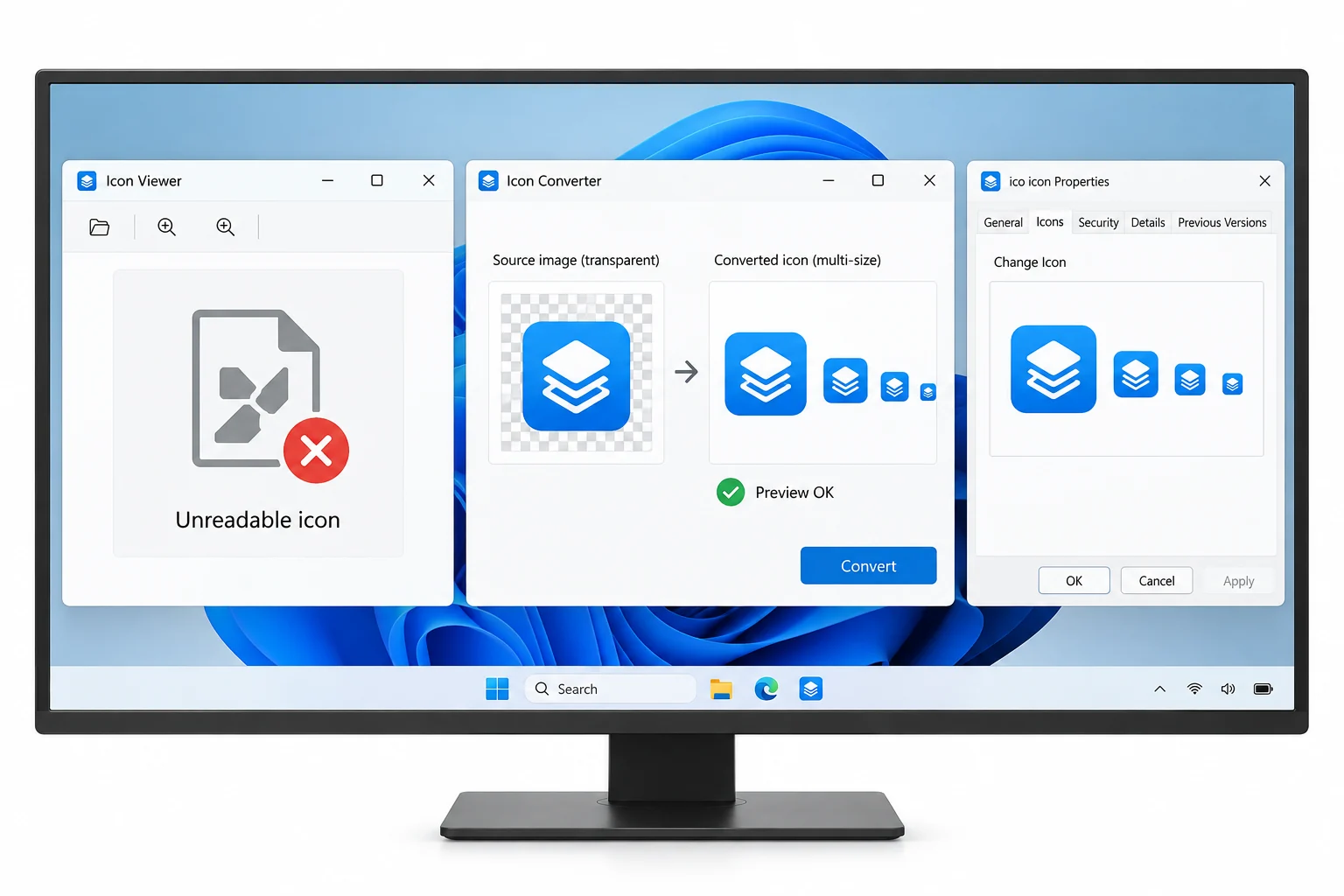
If your icons are wrong everywhere at once, the store is the culprit, and rebuilding the icon cache is the answer. Where Windows keeps that cache and how it works is covered in the guide on where Windows stores icons. The rest of this page is about a single bad file.
What Actually Corrupts an ICO
An ICO is a container, laid out on the ICO file page, with a header, a small directory and the image data. Corruption means one of those parts no longer matches the rest, so a reader trips partway through. A few everyday events cause it.
A buggy exporter can also write a file that was broken from the start, with entry offsets that point to the wrong place. A valid ICO follows a set layout, laid out in the ICO format reference, and any drift from it is what a reader chokes on.
How a Corrupt ICO Shows Up
The signs are consistent once you know them. The file will not open in an image tool or opens to a blank. A viewer shows no sizes or lists sizes that fail to render. In a build, an icon step throws an error like a failure to read or extract the icon.
A telling case is when one size shows but others do not. That points to partial damage, where the directory and one image survived while the rest of the data was lost. It is the difference between a file that is entirely gone and one you can still salvage part of.
Check Whether It Is Really Corrupt
Two quick checks settle it. First, look at the file size. A value of zero or only a few bytes means the file never finished writing and there is nothing to recover from it. Second, open the file in an ICO viewer and read what it reports.
A healthy file names its sizes and draws each one. A corrupt file shows nothing, errors or is missing entries it should have. The free ICO viewer lists what is inside a file, which tells you in seconds whether anything is left to work with.
Try a Clean Copy First
The fastest fix is also the dullest. If the icon came from a download, a repository or a colleague, fetch it again. A file damaged in transfer arrives whole the second time, and you are done.
If a tool keeps producing broken icons on your machine, look at what touches the file as it is written. Antivirus scanning the output folder mid build is a known troublemaker, and adding an exclusion for that folder clears it. Rule the easy causes out before assuming the icon itself is beyond help.
Salvage the Readable Sizes
When only part of a file is damaged, you can keep the part that survived. Open the file in the viewer, note which sizes still render and export those to a fresh image. From there a converter can pack them back into a new, valid ICO.
This will not bring back the sizes that were lost, so a partly salvaged icon may be missing its largest or smallest entry. That is acceptable for the moment, and you can add the missing sizes back once you locate a clean source.
Rebuild From the Source
The dependable fix is to stop treating the corrupt file as the source at all. Go back to the image the icon was made from, a PNG in most cases, and build a new ICO. The header and directory come out fresh and valid, so nothing carries over from the damaged file.
- Find the sourceLocate the PNG or image the icon was made from.
- Load it in the converterAdd the image and pick the sizes you need.
- Export a clean ICOWrite a fresh file with a valid header and directory.
- Swap it inReplace the corrupt file with the new one.
The Univik ICO Converter handles that rebuild, and the full walkthrough sits in the PNG to ICO guide. If the new file needs to carry clean transparency, how depth and the alpha channel work is set out in the guide on ICO color depth.
Turn the original image back into a valid multi size .ico with a fresh header and directory, leaving the corruption behind for good.
Free Download See All FeaturesWhen It Cannot Be Repaired
It helps to be clear about what repair means here. The bytes inside a file are not text you can patch by hand. Once they are scrambled or missing, there is no reliable way to reconstruct them, the same reason any damaged binary needs a backup rather than a fix, a point made under data corruption.
So the real recovery plan is the order above. A fresh copy if you can get one. A salvage of the readable sizes if you cannot. Then a rebuild from the source, the fix that leans on a clean file instead of the broken one. If the trouble was that a plain image had only been renamed to .ico, that is a separate case covered in the guide on a renamed PNG.
Frequently Asked Questions

Written and maintained by Leena Taylor Paul and the Univik team, developers of Windows data conversion and recovery software since 2013. Most corrupt icon reports we see are one of two different problems, a truly damaged file or a stale icon cache, so this guide sorts out which one you have before you fix the wrong thing. Last verified August 2026. Icon file still failing? Contact our support team.