Windows icons are stored inside system files, not as loose picture files you can browse. The big ones are imageres.dll and shell32.dll in the System32 folder, with ddores.dll holding device icons. On Windows 10 and 11 those libraries hand their icons to companion files ending .mun in the SystemResources folder, so the System32 copy can look bare. The Univik ICO Converter opens all of these, including the .mun files directly, and saves any icon out as a PNG or a fresh .ico.
People go looking for a Windows icon and expect to find a folder full of pictures. There is no such folder. Windows keeps its icons tucked inside program files, hundreds of them packed into a handful of system libraries, and the map of which file holds what is not written down anywhere obvious. We learned it the slow way while building our icon tools, opening one system file after another to see what was inside. This is that map, and it works as the front door to the rest of this series on where Windows hides its icons.
Icons Live Inside System Files
An icon on your screen almost never sits on disk as its own file. It is a resource baked into a program, and Windows pulls it out at the moment it needs to draw it. Most of those programs are dynamic link libraries, the .dll files in the C:\Windows\System32 folder, which is why a search of your drive for .ico files turns up almost nothing. One system library can carry many hundreds of icons, each stored at several sizes so Windows can show a crisp version whether it is painting a tiny menu entry or a large desktop tile.
| System File | Where It Lives | What Is Inside |
|---|---|---|
| imageres.dll | System32 | The biggest set. Folders, drives, devices, system actions and most modern shell icons |
| shell32.dll | System32 | Classic shell icons. Folders, files, shortcuts, control panel and network |
| ddores.dll | System32 | Device icons. Speakers, screens, mice, keyboards, cameras and printers |
| pifmgr.dll | System32 | Retro Windows 95 and 98 style icons |
| WindowsApps | Program Files | Store and UWP app icons, usually saved as PNG assets |
| Any app EXE or DLL | Wherever the app installs | That program's own icons, held inside its binary |
imageres.dll, the Biggest Icon Library
If you only learn one file name, make it this one. imageres.dll carries the largest collection Windows ships, and over the last few releases it has quietly taken over from the older libraries. Open it and you find the folder and drive icons, the arrows and shields on system actions, the hardware and device glyphs and most of the modern shell look. When a recent Windows icon is the one you are hunting, start here. You reach it at %SystemRoot%\System32\imageres.dll, and on Windows 11 the newest Fluent style icons live in its .mun copy.
shell32.dll, the Classic Shell Icons
shell32.dll was the heart of the Windows icon set for years, and plenty of it is still in daily use. This is where the classic folder, file and shortcut icons live, along with control panel and network glyphs. Its role has shifted toward compatibility as imageres.dll grew, so a modern version of an icon sits in imageres while the familiar older form stays here. When a program asks for a plain system icon without naming a newer one, it frequently gets one from shell32. And when a registry value or a script needs one of these icons by its number, the shell32.dll icon index guide reads the right number off for you.
ddores.dll, the Device Icons
The pictures you see in Devices and Printers come from ddores.dll. It is a focused library, full of hardware, speakers and headphones, screens and cameras, mice and keyboards, game controllers and printers. If you need a clean device glyph for a diagram or a hardware guide, this is the file to open rather than digging through the larger sets.
The Retro and the Modern Homes
Two more places round out the map, one old and one new. pifmgr.dll holds a set of retro icons in the Windows 95 and 98 style, the little computer, the window and the finger pointing at a page, kept around for old shortcuts and nostalgia. moricons.dll sits beside it with another batch of program icons from the MS-DOS era. Several control panel files carry their own icons too, so inetcpl.cpl and its neighbours are worth a look for the odd glyph.
At the modern end, Store and UWP apps do not pack their icons into a single library. They keep them as PNG assets inside the app's folder under Program Files WindowsApps, which is why those tiles look different from classic icons. Even explorer.exe carries a few shell icons of its own. And any normal program you install holds its own icons inside its EXE or DLL, so the quickest way to grab an app's icon is to open that app's own file. On a 64-bit system the 32-bit twins of these libraries sit in C:\Windows\SysWOW64, worth a look when a program expects the 32-bit set.
Why shell32.dll Looks Empty Now
Here is the twist that trips up almost everyone. Open shell32.dll in System32 on a current Windows 11 build and it looks nearly bare. Nothing is broken. Modern Windows parks the real icon payload in a companion file that ends .mun, kept in the SystemResources folder, and leaves the System32 library pointing at it. So shell32.dll.mun carries what shell32.dll once did, and imageres.dll.mun and ddores.dll.mun do the same for their pair.
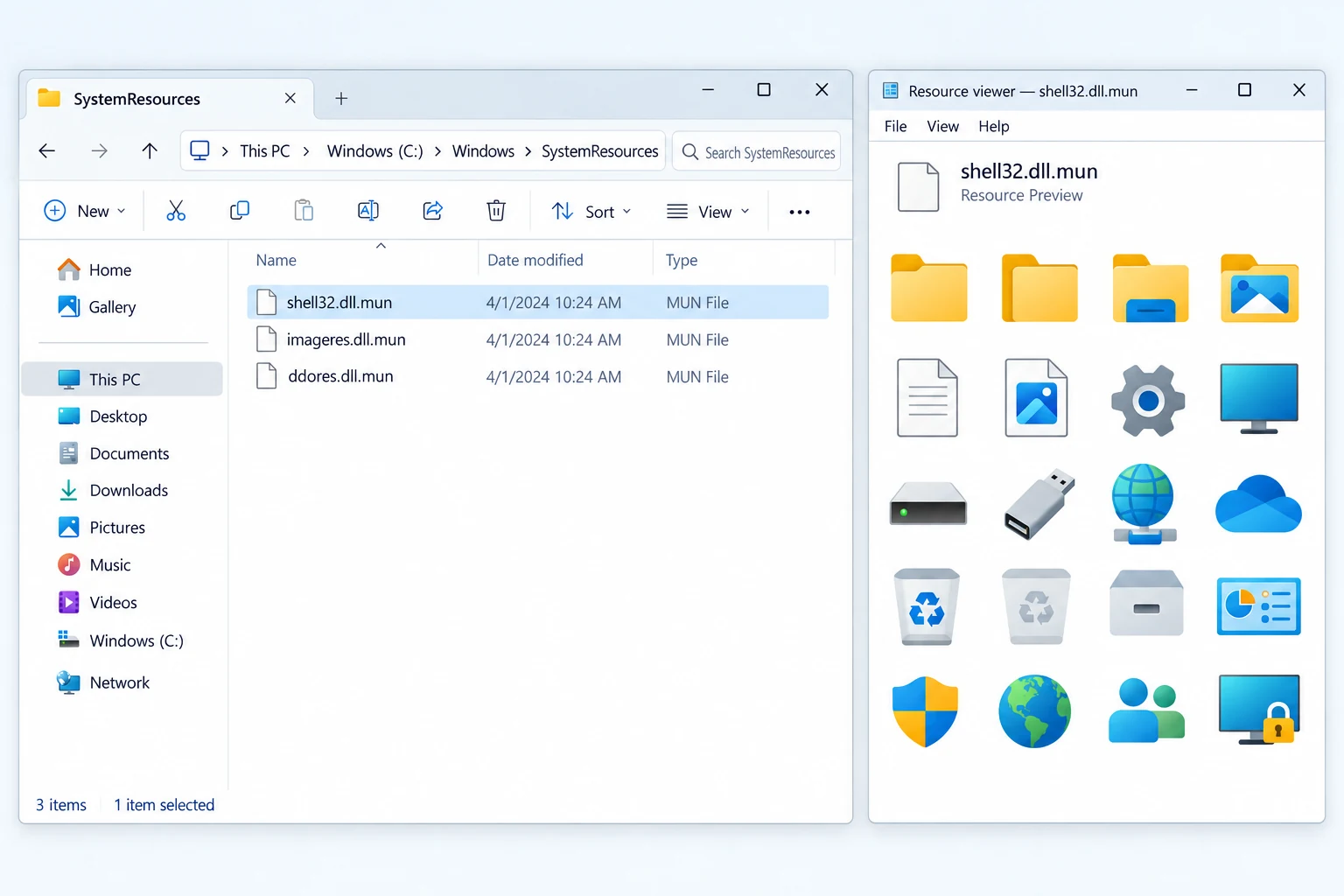
That companion file is part of the Multilingual User Interface model, where Windows holds a program's resources apart from its code and can swap them without rebuilding the binary. For icon hunting the rule is short. On Windows 10 and 11 you aim your tool at the .mun file rather than the System32 copy, a path Microsoft's own support notes confirm. The step by step for prying icons out of these files sits in our guide on extracting icons from EXE and DLL files, so this hub keeps to where they live.
How to Get Any of These Icons Out
Once you know the file, pulling the icon out is quick. The one habit that saves the most time is confirming the source first, since Windows spreads icons across so many files.
- Right click a shortcut, open Properties and click Change Icon to see the exact file and icon it uses.
- Open that file in an icon tool. For a system icon on Windows 10 or 11, open the .mun copy in SystemResources.
- Pick the size you need, anywhere from 16 pixels for a menu up to 256 for a large tile.
- Export it as a PNG for reuse or as a fresh .ico for a shortcut.
To browse a library without any extra tool, paste its path such as %SystemRoot%\System32\imageres.dll straight into that Change Icon box, and Windows lists every icon inside for you to pick. If the whole goal is a nicer looking folder, the step by step on changing a folder icon in Windows 11 uses these same libraries with no extraction at all.
The Univik ICO Converter handles every file on the map above, opens the .mun files without the rename step other tools ask for. It saves single icons or whole folders at once. When you only want to look inside a file before deciding, the free ICO viewer shows every frame, and the ICO file reference explains how a single icon holds many sizes at once.
Univik opens imageres.dll, shell32.dll and their .mun files directly and saves any icon as a clean PNG or an .ico with every size built in, one at a time or a whole folder.
Free Download See All FeaturesBefore You Reuse an Icon, a Word on Licensing
Finding an icon and being allowed to use it are two different things, and it is worth pausing on the second before you ship anything. Extracting a Windows icon for your own study, a mockup, internal documentation or restoring a broken icon on your own machine is the everyday, low risk use. Dropping a Microsoft icon into a product you sell or a pack you distribute is where copyright and trademark start to matter.
The short version is that using a real product's own icon to point at that product is one thing, and shipping that icon inside something you sell is another. The full picture, including the licensed path for icons that look native to Windows, sits in our guide on the legal side of using extracted icons. We are software builders and not lawyers, so treat that as a map rather than legal advice and read the licence for your case.
Frequently Asked Questions

Written and maintained by Leena Taylor Paul and the Univik team, developers of Windows data conversion and recovery software since 2013. Building an icon tool meant opening every one of these system files by hand to learn what each held, which is how this map came together in the first place. Last verified August 2026. Cannot find the icon you are after? Contact our support team.