To pull every icon out of a DLL in one go, open the file, choose Export All, pick a format and save the whole set to a folder. A duplicate filter keeps the batch clean by dropping repeated icons. The Univik ICO Converter does all of this in a single pass, with PNG, ICO and four other output formats to choose from.
Grabbing one icon is easy. Grabbing all of them, cleanly, in the format you actually want, is where most tools slow you down. A file like shell32.dll can hold well over two hundred icons, and clicking save on each one is nobody's idea of an afternoon.
This is the batch approach. How a DLL packs so many icons, the fastest way to export the whole set at once, the format that fits your use and how to drop the duplicates that pad the count.
Why Pull Every Icon, Not Just One
Extracting a single icon is a quick job, and the manual ways to do it are what extracting icons from EXE or DLL files lays out. Pulling the whole set is a different task with its own reasons.
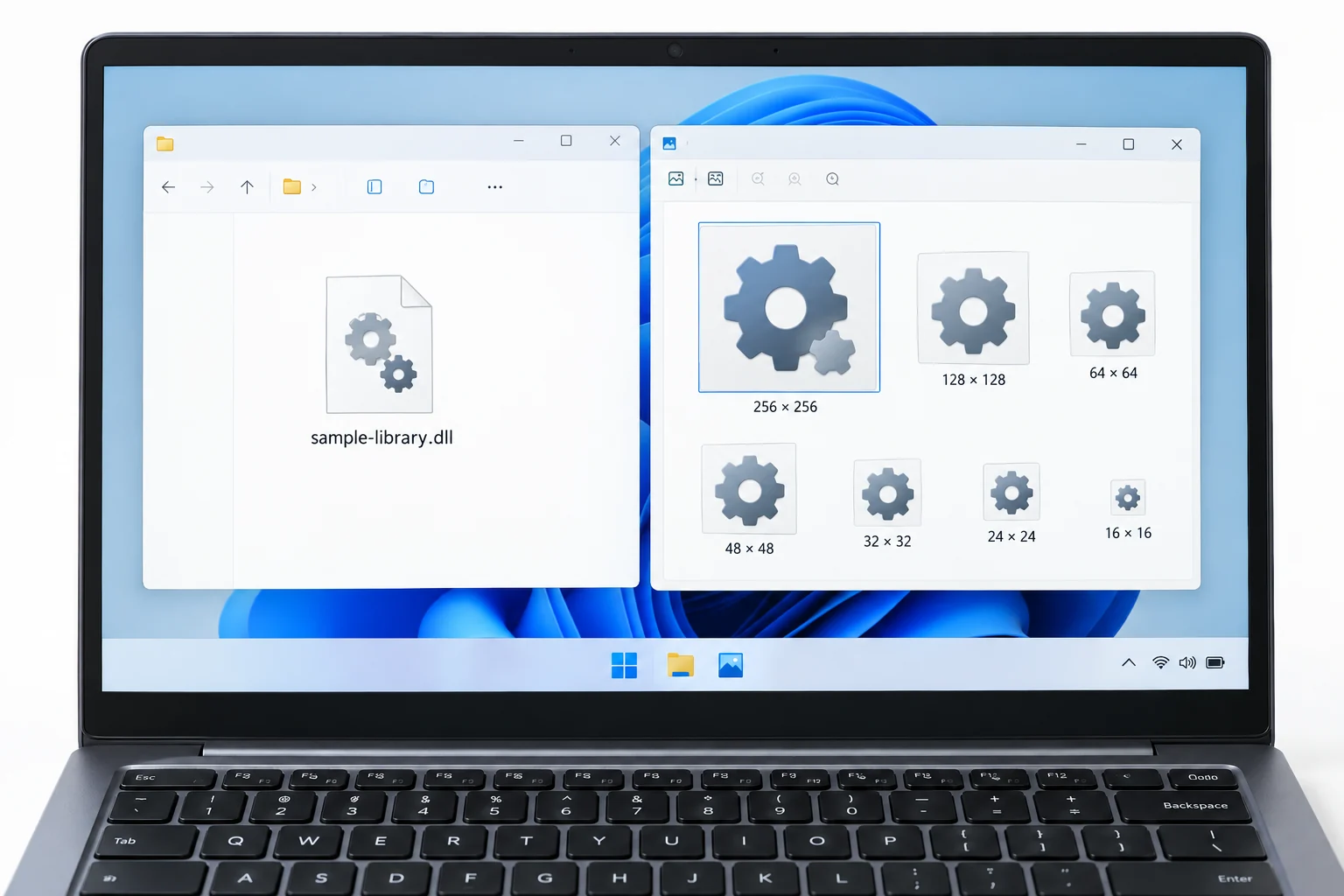
How Many Icons a Single DLL Holds
Icons are not loose files tucked in a folder. They sit embedded as resources inside the DLL itself, in a section the Windows loader reads on demand. That is how one file ends up carrying dozens of pictures at several sizes, from 16 pixels up to 256, bundled so the shell can grab whichever size a screen needs.
Each icon also sits at a numbered slot, and that numbering is what our finding an icon index guide explains. For a batch job the index matters less, since you are taking everything, but it is what tells you which of two hundred icons you just pulled is the one you were after.
Export the Whole Set in One Pass
The quick route is a tool that reads the file and writes every icon out together. In the Univik ICO Converter that is the Export All command, and it turns a long afternoon into four clicks.
- Open the DLLPoint the converter at the file, whether it is in C:\Windows\System32 or sitting anywhere else on disk.
- Look over the iconsThe tool lists every icon the file holds so you can confirm it is the right one before you export.
- Choose Export AllPick your output format and, if you want a tidy folder, turn on the option to leave out duplicate icons.
- Save the setThe whole batch writes to one folder in a single pass, each icon its own file, ready to use.
You can also open a file just to browse it with the free ICO viewer before committing to a full export.
Open any DLL or EXE, hit Export All and save every icon at once as PNG, ICO, BMP, GIF, JPEG or TIFF, with repeats filtered out.
Free Download See All FeaturesChoose the Output Format
A batch export lets you set the format once for the whole run, so the choice is worth a moment. Here is what each one suits.
| Format | Best for | Transparency |
|---|---|---|
| PNG | Web, apps and editing | Yes |
| ICO | Windows shortcuts and apps | Yes |
| BMP | Older tools that need it | No |
| GIF | Simple flat icons | Limited |
| JPEG | Photos rather than icons | No |
| TIFF | Print and archival | Yes |
For most people PNG is the answer, it holds transparency and opens in anything. If the icons are heading back into Windows, export as ICO instead or convert a PNG later by following converting PNG to ICO.
Skip the Duplicate Icons
Open a big system file and the same picture shows up again and again. That is normal. A single icon is stored at several sizes and sometimes at several slots, so a raw export of shell32.dll can hand you hundreds of files where a few dozen are truly distinct.
The Exclude Duplicate Icons option compares icons as it exports and writes each unique one only once. You get a folder of distinct art instead of a pile of near copies, which makes a two hundred icon file far easier to sort through afterward.
The Free and Manual Routes
Windows ships no built in way to save an icon to a file, so the free routes lean on small utilities. NirSoft ResourcesExtract scans a file or a folder from the command line. 7-Zip can open a DLL and pull its raw resource folder, while Resource Hacker gives finer control over individual sizes. If you would rather script the job for packaging or deployment, note that the usual PowerShell one liner pulls only a single small icon, so a true batch needs a resource aware tool or the ExtractIconEx API.
Those tools do the job, with more steps and rougher output. Our guide extracting icons from EXE or DLL files covers each one properly, so this post sticks to the one pass export and where it saves you time.
Extracting from an EXE or a System File
Everything here works the same on an EXE, since a program stores its icons as the same resources a DLL uses. The one snag is Windows 11 system files. Open shell32.dll and you may see nothing, because the icons were relocated into a paired .mun file under C:\Windows\SystemResources, so point the export at that file instead.
To decide which file to open in the first place, the map of which files hold icons at all is the subject of where Windows stores its icons. For what one specific file contains, the shell32.dll icon list and the imageres.dll icon list name the icons one by one.
What to Do With the Icons You Pull
Once the set is on disk, the uses open up. Drop one onto a folder by changing a folder icon in Windows 11, feed a PNG into an app or repackage a favourite as a multi size ICO.
One line to remember before you ship anything. On your own machine, extract freely. Reusing the artwork in a product you sell is a rights call that whether extracted icons are legal to use settles, since the icons in Windows files are Microsoft's work.
Frequently Asked Questions

Written and maintained by Leena Taylor Paul and the Univik team, developers of Windows data conversion and recovery software since 2013. We added Export All to the ICO Converter after watching people open shell32.dll and click save two hundred times, so this guide shows the one pass way to pull a whole file's icons and drop the duplicates. Last verified August 2026. Stuck on a stubborn file? Contact our support team.