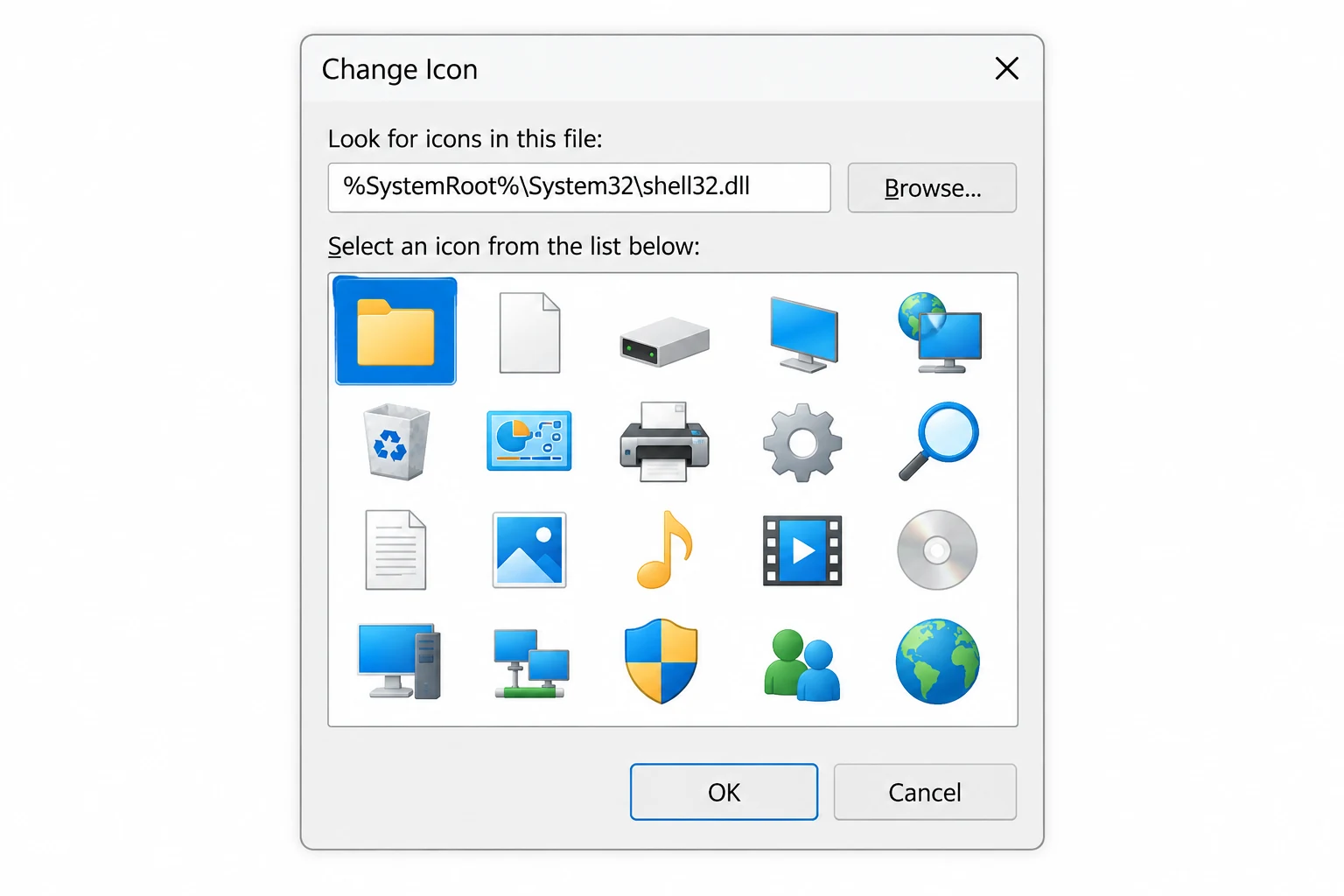
shell32.dll holds the classic Windows shell icons, the folders, drives, recycle bin and network art that Windows has drawn since the 1990s. This page maps what is inside it by type and shows how to pull the exact numbered list for your own Windows, since Microsoft reorders these icons between versions and no single list fits every build. The Univik ICO Converter opens shell32.dll and lays every icon out with its number.
You wanted a specific icon out of shell32.dll, so you went looking for a list. The lists you found do not quite agree with each other, and the number that worked in one guide points at something else on your machine. That is not a mistake on your part. It is how this file behaves.
This guide takes a steadier approach. It shows what shell32.dll actually contains, grouped so you can find the kind of icon you want, then explains why the numbers drift and how to read the exact list for the Windows build in front of you.
What Lives Inside shell32.dll
shell32.dll is the original icon library of the Windows shell, and it has carried the everyday desktop icons since Windows 95. Inside it are the pictures Windows reaches for in file dialogs, drive windows, network places and dozens of small system prompts. It is one of the largest icon collections on the machine, and it still holds art from every era, from a modern folder down to a floppy disk nobody has used in years.
It is not the only icon file, though, and knowing that saves time. The full map of which library holds what is mapped in our companion piece on where Windows stores its icons. For this page, the point is narrow. When people say the Windows icon list, they usually mean the contents of this one file.
The Classic Shell Icons, Grouped by Type
Rather than a flat run of numbers, it helps to picture shell32.dll as a set of shelves. Here are the groups you will actually reach for, and the kind of icon each one holds.
| Group | Icons you will find there | Where they show up |
|---|---|---|
| Folders | Open and closed folders, shared and special folders | Shortcuts and folder customising |
| Recycle bin | Empty bin and full bin | Desktop and custom shells |
| Drives and storage | Hard drive, removable drive, optical drive, network drive, the old floppy | This PC and drive shortcuts |
| Network | Network, workgroup, connection, internet globe | Network places and connection prompts |
| Devices | Printer, monitor, phone, camera | Device shortcuts and dialogs |
| System and control panel | Settings, user account, security shield, help | System shortcuts and warnings |
| Actions and overlays | Search, delete, favourites, the sharing badge | Buttons and status markers |
| Legacy | Windows 95 and 98 era pictures kept for old dialogs | Rare, older parts of Windows |
Almost everyone who opens this file is after something in the first four rows. The rest are handy to know are there when an older dialog surprises you with a picture from a decade ago.
We are preparing a full picture grid of each shell32.dll icon beside its number. Until it lands, the fastest way to see the real art for your build is to open the file yourself, and the steps for that are further down this page.
A Note on the Numbers You See Online
Every downloadable shell32.dll list is a snapshot of one Windows build at one moment. One well travelled example is index 42, long shared as the small green tree. It may still be the tree on your PC, or it may have shifted a place or two after an update. Treat any published number as a strong hint rather than a guarantee.
The number itself is a position. When a shortcut or the registry points at an icon, it uses a line like shell32.dll,42, where the value after the comma is the index. The full rules for those values, including the negative numbers that lock onto a fixed slot, are covered in our guide to finding a shell32.dll icon index, so this page does not repeat them.
Why No Single List Fits Every Windows Build
This is why a downloadable list can only be a snapshot. Microsoft has reworked the shell icon set several times, and each pass adds, drops or reshuffles entries, so the set on Windows 11 is not the set from Windows 7. The recent Windows 10 and 11 redesign alone refreshed the folder, drive and recycle bin art and moved things around.
Two reputable write ups show how much the art has changed. Digital Citizen catalogues where the native Windows icons live across shell32.dll and its siblings, and Neowin walks through the old icons still buried in Windows 11. What this means for the catalog is simple. There is no one true list, so the reliable move is to read the set from your own copy, which the next section covers.
When Your Icon Is in imageres.dll Instead
Here is the trap that sends people in circles. You spot a crisp, modern icon in File Explorer, go hunting for it in shell32.dll and never find it. That is because the modern set moved. imageres.dll arrived with Windows Vista as the high resolution counterpart, and today most of what File Explorer draws comes from there, not from shell32.dll. That file has its own catalogue in our imageres.dll icon list.
So the quick rule is this. If the icon looks classic or a little dated, shell32.dll is the place to look. If it looks sharp and current, check imageres.dll first. The wider list of libraries, including the device art in ddores.dll, sits in the icon storage map rather than here.
How to See the Exact List on Your Own PC
The only list that is truly right for your machine is the one your machine reports. Reading it takes a minute.
- Point a viewer at the fileOpen C:\Windows\System32\shell32.dll in an icon viewer. On current Windows the art lives in a resource copy under SystemResources, and the viewer follows that for you.
- Let every entry loadThe viewer lists each icon the file holds for your build, in order, which is the real list no download can match.
- Read the number beside itThe position shown next to an icon is its index, the value you drop into a shortcut or the registry.
- Save the one you wantExport the icon as an ICO or a PNG so you have a clean copy to work with.
The Univik ICO viewer opens shell32.dll directly and shows the whole grid with numbers, which is the same view we will turn into the thumbnail list for this page.
Turn a shell32.dll Icon Into a Usable File
Finding the icon is half the job. Getting a clean file out of it is the other half, since an icon inside a DLL is not something you can drop into a document as is. Once you have the index, export that single icon and convert it to the format you need, which is walked through in our steps on converting an ICO file to PNG.
For simply restyling your own desktop, you do not even need to export anything. Pointing a folder at a built in shell32.dll icon by its number is quicker, and that route is covered in changing a folder icon in Windows 11.
Load any Windows system file, browse the full icon grid with numbers and export the one you want as a clean transparent PNG.
Free Download See All FeaturesBuilt In Icon or Your Own, Which to Ship
For a shortcut on your own desktop, a shell32.dll number is the simplest thing in the world. For anything you hand to other people, it is shakier, because the number that works on your build can point elsewhere on theirs, and the art belongs to Microsoft. Software that depends on a fixed system index tends to break after a big Windows update.
The steadier path for a product is to bundle your own icon file, which never moves and never depends on the user's Windows version. You can build one from your own artwork with our steps on converting PNG to ICO. And if you do want the native Microsoft look in an app, the rights and the licensed route are walked through in our guide on whether extracted icons are legal to use.
Do not hard code a shell32.dll index into software you ship and assume it will hold. A single feature update can renumber the set, and your carefully chosen icon becomes the wrong picture on every machine that updates. Bundle your own file instead.
Frequently Asked Questions

Written and maintained by Leena Taylor Paul and the Univik team, developers of Windows data conversion and recovery software since 2013. We built the grid view that loads shell32.dll after one too many support tickets about a number that pointed at the wrong picture, and this guide is what we learned watching those icons move between builds. Last verified August 2026. Chasing a specific icon? Contact our support team.