An Electron app has two icons, the one on the packaged app that electron-builder sets and the one on the running window that your BrowserWindow code sets. Give electron-builder a build/icon.ico, then pass an icon to BrowserWindow. The Univik ICO Converter builds the multi size .ico electron-builder reads.
Shipping an Electron app with the plain default icon is a giveaway that the build is not quite finished. Fixing it feels like it should be one setting, and instead your icon shows up in some spots and not others. That is because Electron draws its icon from two different sources.
Sort out which source feeds which, and the app looks polished from the installer to the title bar. Here is how the pieces fit on Windows.
An Electron Icon Lives in Two Places
The confusion nearly always traces back to this. Your packaged app has one icon and the window it opens has another, and each is configured somewhere different. One is a packaging setting, the other is a line in your app code.
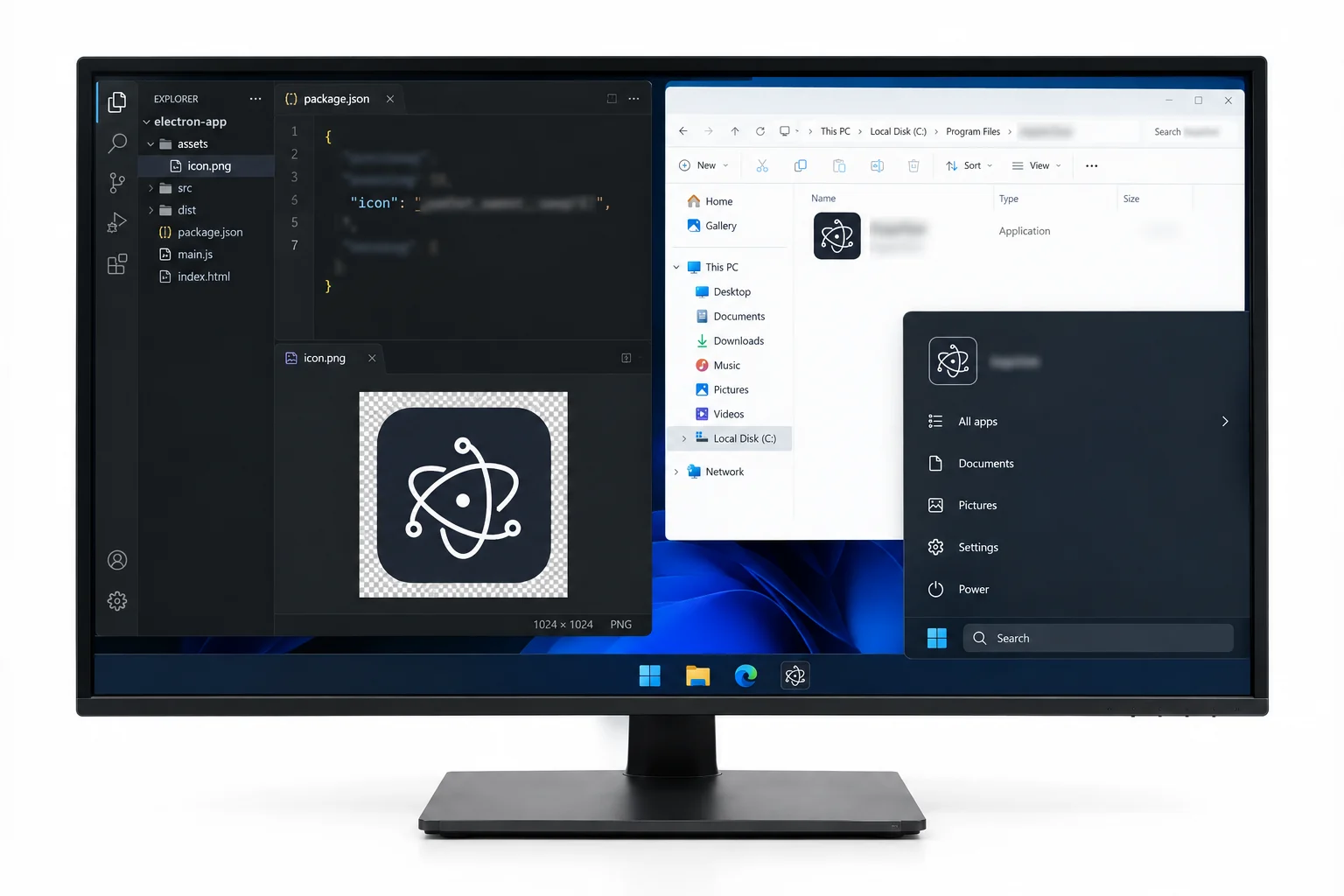
Miss the packaging side and the exe stays generic. Miss the window side and the app looks right until it opens, then wears the default. The rest of this guide sets each in turn.
The Packaged Icon, via electron-builder
electron-builder follows a convention over a setting. Drop an icon.ico into your build folder and it becomes the packaged app icon, no config line required. As the electron-builder icon docs note, the file wants to be at least 256 pixels, and without it you ship the stock Electron icon.
"build": {
  "win": {
    "icon": "build/icon.ico"
  }
}
The config above is only needed if your icon sits somewhere other than the default build folder. Point win.icon at the path you use and electron-builder picks it up for the Windows target.
One Source or a Ready ICO
There are two honest ways to feed electron-builder its Windows icon, and the right one depends on how much control you want.
- Let it convert. Hand electron-builder a single large source, a 1024 pixel PNG or an SVG, and it builds the platform icons from it, the icons and images guide spells this out. Quick, and fine when you are happy for the tool to pick the sizes.
- Give it a finished .ico. Build the
build/icon.icoyourself and electron-builder ships it as is. This is the route when you want to decide exactly which sizes go in rather than leave it to a guess.
The Univik ICO Converter covers the second route. It turns any picture into a multi size .ico with the sizes you choose, which you drop straight into the build folder. The free ICO viewer shows every size the file holds if you want to check it first. The conversion itself is broken down in the PNG to ICO guide, and how the art should read at every size is its own craft, taken up in the Windows style app icons guide.
The converter turns any picture into a multi size .ico with the sizes you set, so the packaged icon is yours to control rather than left to a guess. Drop it into the build folder and electron-builder ships it.
Free Download See All FeaturesThe Window Icon, in BrowserWindow
The packaging icon does nothing for the window your app opens. That one comes from your code, through the icon option on the window itself.
Pass a path when you build the window, as in new BrowserWindow({ icon: "build/icon.ico" }), and your icon lands on the title bar and the taskbar button while the app runs on Windows and Linux. Electron Forge's icon guide makes the same point, the window icon has to be loaded in the constructor on top of whatever the packager sets. On macOS this option is ignored, since the dock pulls its icon from the app bundle. One more Windows touch is app.setAppUserModelId, which gives the app its own taskbar identity so its button groups on its own rather than under a generic Electron entry.
Why It Shows in the Build but Not in Dev
A packaged app and a dev run behave differently, which throws people off. When you launch with a plain electron ., nothing has run electron-builder, so its packaging icon does not exist yet. The window shows whatever the BrowserWindow icon says, falling back to the Electron default if that line is missing.
Set the BrowserWindow icon and it appears in dev and in the build alike. The packaging icon only shows once you actually package the app, so judging the exe icon from a dev run tells you nothing. Build it, then look.
The Installer Carries Its Own Icons
One more layer catches people on Windows. The installer that wraps your app has its own icon, separate again from the exe and the window. A default NSIS build reuses your app icon, but you can set the installer, uninstaller and header icons on their own.
Those live under the nsis section of your config, as installerIcon, uninstallerIcon and installerHeaderIcon, each pointing at an .ico. Most apps leave them to inherit the app icon, though a branded installer is where you would override them.
Windows, macOS and Linux Each Want Their Own
Windows reads an .ico, macOS reads an .icns and Linux reads a set of PNG files. The neat part is that electron-builder makes all three from one good source, so a single 1024 pixel image or SVG in the build folder covers every target.
The catch worth knowing is macOS. Its dock icon comes from the app bundle, not from BrowserWindow, so the window icon trick that works on Windows quietly does nothing there. Give macOS its icns and let the bundle carry it.
Common Electron Icon Mistakes
When an Electron icon refuses to behave, the cause sits in this short list.
Set both icons, start from a source of 256 pixels or more and refresh the icon cache after a build. The wider mechanics of a Windows exe icon, namely the ordering that decides which icon shows and the cache that hides a change, are laid out in the EXE icon guide, and the same two icon split turns up when you package a Python app with PyInstaller.
Frequently Asked Questions

Written and maintained by Leena Taylor Paul and the Univik team, developers of Windows data conversion and recovery software since 2013. Electron developers keep asking why their icon appears in the packaged app but the dev window still shows the default, so this guide separates the packaging icon from the window icon and pins down which tool sets which. Last verified August 2026. Build showing the wrong icon? Contact our support team.