PyInstaller sets an EXE's icon with the --icon flag, but that only paints the file icon. The taskbar and title bar of the running window need a second step in your code. Point --icon at a real .ico, then set the window icon at run time. The Univik ICO Converter builds the multi size .ico PyInstaller expects from any image.
You bundle your Python app, set an icon and open the folder, and the EXE looks right. Then you run it and the window still wears a plain default icon. This is the most common snag with PyInstaller icons, and it comes down to a detail almost no one mentions upfront.
A PyInstaller app has two icons, not one, and each is set a different way. Get both and your app looks finished everywhere Windows shows it.
The Flag That Sets a PyInstaller EXE Icon
The build command takes one flag for the icon. Point --icon at a .ico file and PyInstaller writes it onto the EXE it produces, a step the usage docs lay out.
--onefileBundle everything into one EXE--windowedNo console window for a GUI app--icon=app.icoThe icon painted on the EXE filemain.pyYour entry point scriptThe flag also accepts the FILE.exe,ID form to lift an icon straight out of another program, a small cousin of extracting icons from an EXE. On macOS the same flag takes a .icns instead.
Make the ICO PyInstaller Wants
On Windows the flag wants a real .ico, and a good one holds several sizes so the app stays sharp from the taskbar to a large view. The Univik ICO Converter turns any image into that file.
- Load your artworkDrop a PNG or SVG into the converter at 256 pixels or larger.
- Include the sizesPack in 16, 32, 48 and 256 so the icon is crisp from a taskbar button to a large tile.
- Export the ICOSave one multi size .ico and point --icon at it.
The conversion itself, and why a picture renamed to .ico is not an icon, is laid out in the PNG to ICO guide. Hand PyInstaller a PNG named .ico and it either errors or quietly leans on Pillow to convert it, which is a coin toss on quality. The free ICO viewer shows every size a finished file holds, a quick check before you build.
Build the multi size .ico Windows wants from any picture, the file you hand to --icon and to your window icon call alike.
Free Download See All FeaturesWhy the Taskbar Still Shows the Default Icon
Here is the detail that trips almost everyone. The --icon flag paints the icon on the EXE file. It does nothing to the window your app draws once it is running. Those are two separate icons, set in two separate places.
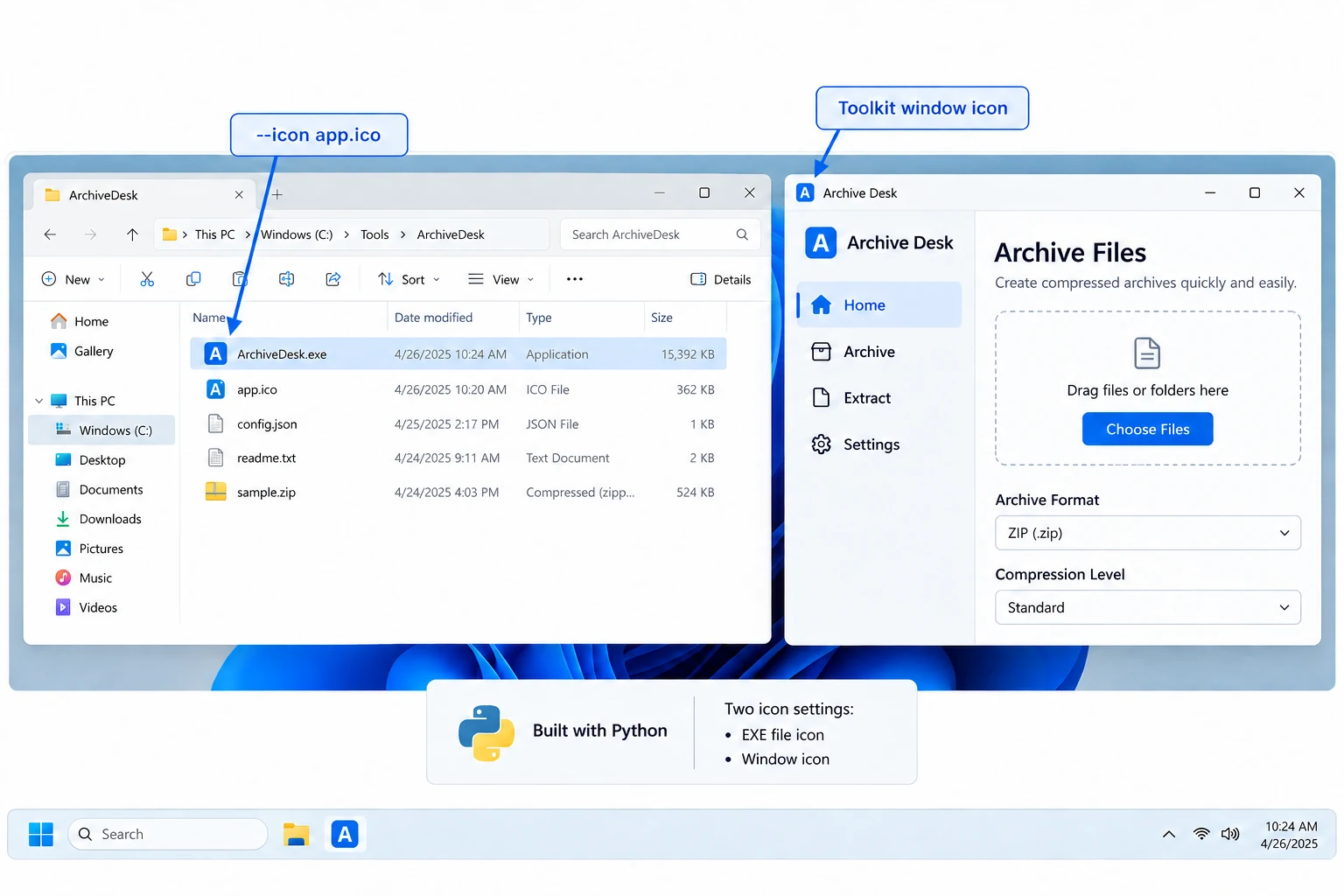
So the EXE sitting in a folder shows your icon, while the same app once launched shows the toolkit default, until you set the window icon too. That second step lives in your code, not the build command.
Set the Window Icon in Your Code
Every GUI toolkit has its own call for the window icon. In Tkinter it is root.iconbitmap("app.ico"). In PyQt it is setWindowIcon. Both point at your icon file. Add that line where you build the main window and the title bar and running taskbar button pick it up. On Windows one more call, SetCurrentProcessExplicitAppUserModelID, gives the app its own taskbar identity so its button stops hiding under the Python launcher.
The icon file needs to travel with the app for this to work. In a normal one folder build it sits next to the EXE, so a plain relative path finds it. A one file build is where this quietly breaks, which the next section sorts out.
Fix the Window Icon in a One File Build
A one file build packs everything into the single EXE, then unpacks it to a temporary folder each time the app runs. As PyInstaller's run time notes explain, the bootloader stores the path to that folder in sys._MEIPASS. Your old relative path no longer points anywhere real, so the icon call fails with a bitmap not defined error.
Two things fix it. Bundle the .ico into the build with --add-data, then load it from the run time folder rather than a fixed path.
import sys, os
base = getattr(sys, "_MEIPASS", os.path.abspath("."))
root.iconbitmap(os.path.join(base, "app.ico"))
Build with --add-data "app.ico;." on Windows so the file rides inside the EXE, and the snippet above finds it whether you run frozen or straight from Python. That one pattern clears the most reported one file icon problem there is.
Set the Icon in the Spec File
Once a build grows past a single line, the .spec file becomes the tidier home for its settings. PyInstaller writes one on the first build, and the EXE section of it carries the icon.
Set icon='app.ico' in that EXE block and rebuild by pointing PyInstaller at the spec instead of the script. The flag on the command line and the parameter in the spec do the same job, so pick whichever keeps your build readable. A team project leans on the spec so the settings sit in version control.
Doing It Without the Command Line
If a terminal is not your thing, auto-py-to-exe wraps PyInstaller in a window. It is the same engine underneath, with fields for the options.
The icon field there maps straight to --icon, so you browse to your .ico and it fills in the flag for you. The window icon is still a code step, since no build tool can reach into how your app draws its own window. That part stays with iconbitmap or its equivalent.
Common PyInstaller Icon Mistakes
When a PyInstaller icon misbehaves, it is nearly always one of these.
Set both icons, feed the flag a real .ico and clear the cache after a rebuild, and a PyInstaller app looks the part in every corner of Windows. The broader mechanics of an EXE icon, from the first icon rule to the cache, sit in the guide on adding an icon to an EXE.
Frequently Asked Questions

Written and maintained by Leena Taylor Paul and the Univik team, developers of Windows data conversion and recovery software since 2013. The question we hear most from Python developers is why the taskbar keeps showing a default icon after they set --icon. This guide puts the file icon and the window icon side by side and fixes both, including the one file case that breaks the window call. Last verified August 2026. Icon still off? Contact our support team.