An MSIX or AppX package is a ZIP style container, so its icon is not an embedded resource but a set of PNG files in an Assets folder. Open the package, take the logo you want, then convert it to ICO if you need a Windows icon file. The Univik ICO Converter opens .msix and .appx packages directly, shows the logo and tile art and exports it in one step.
You open an MSIX package expecting to see its icon, and instead your usual extractor shows nothing. The file is not broken and the tool is not failing. An MSIX package simply keeps its artwork somewhere an EXE or DLL never would.
This guide clears that up. What the package actually holds, the exact asset names to look for, the fastest way to pull the logo out and how to turn it into a proper ICO once you have it.
Why an MSIX Icon Is Not Where You Expect
An EXE or a DLL carries its icons inside itself, in a resource section the program loader reads. That is the model behind extracting icons from EXE or DLL files. An MSIX or AppX package, the format behind Microsoft Store downloads and UWP apps, works nothing like that.
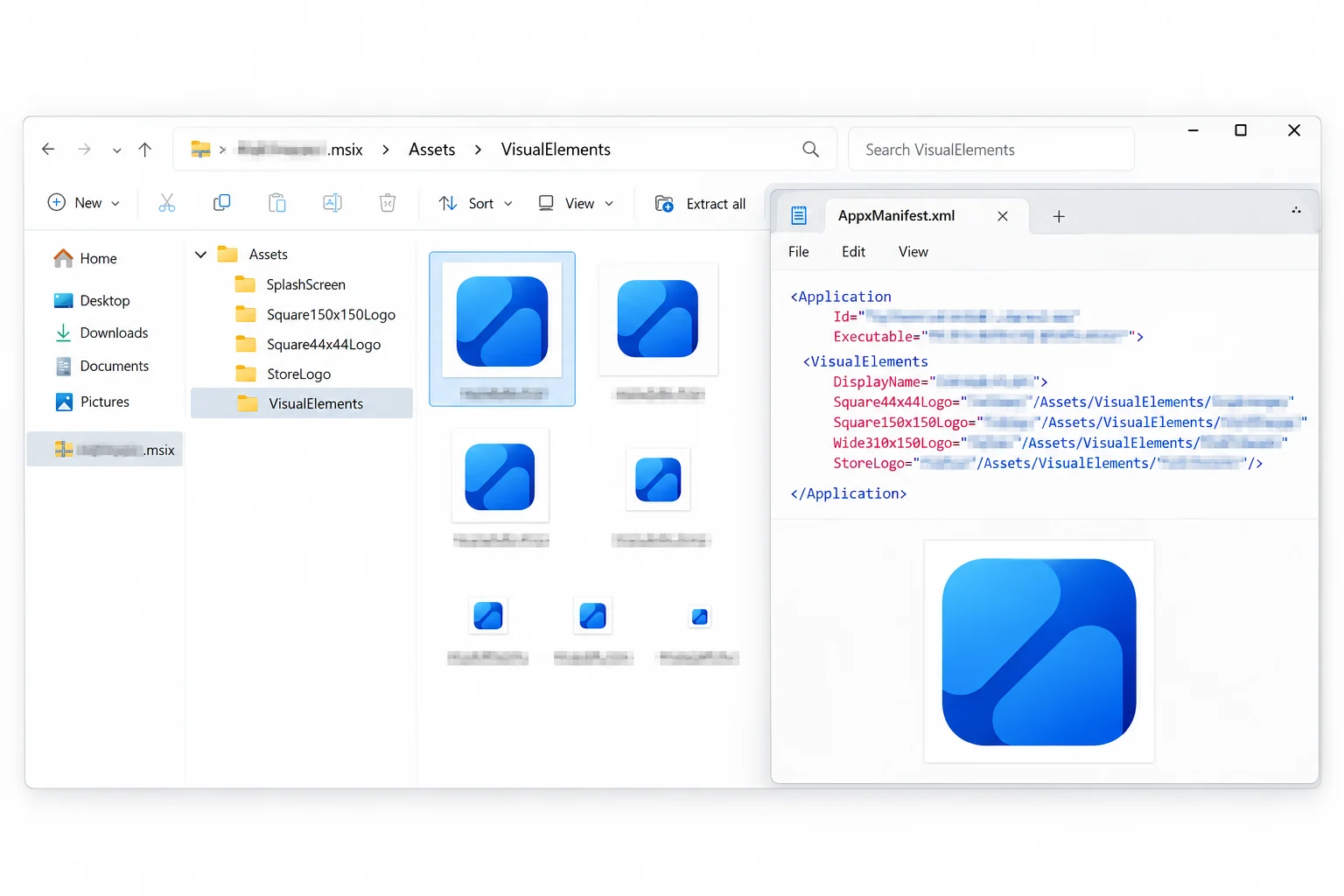
A package is a bundle of separate files zipped into one, closer to a folder than to a program. The app's binaries sit inside it, and so do its pictures, but the icons are ordinary PNG files sitting in a subfolder, not resources baked into a binary. Point a resource reader at the package and it finds no icon table to read, which is exactly why the file looks empty.
What Lives Inside an MSIX Package
Rename a copy of the file from .msix to .zip and open it, and the layout gives itself away. A handful of pieces show up every time.
The Assets folder is the whole story for icons. Everything Windows draws for the app, the taskbar icon, the Start tile, the Store listing logo, comes out of that one folder as PNG files.
The Asset Names You Need to Know
Open the Assets folder and the file names look cryptic, but they follow a fixed scheme set by Microsoft's packaging guidance. The manifest ties each file to a slot through its VisualElements section, the Visual Assets tab in Visual Studio. A few names carry the icons most people are after.
| Asset name | What it is | Where Windows shows it |
|---|---|---|
| Square44x44Logo | The app icon | Taskbar, Start tile corner, Alt+Tab |
| Square150x150Logo | The medium tile | Start menu tile |
| Square310x310Logo | The large tile | Start menu, large view |
| Wide310x150Logo | The wide tile | Start menu, wide view |
| Logo (in Properties) | The Store listing logo | Microsoft Store page |
For the plain app icon, Square44x44Logo is the one you want. Each of these names also appears many times over, with a tag on the end that marks the exact variant.
A single logo ships as a stack of files, each name tagged with the size and style it is drawn for. One filename decodes like this.
Square44x44Logo
The logo name, here the app icon
targetsize-32
Exact size in pixels, here 32
altform-unplated
No background plate, transparent
.png
Always a PNG image
Open the Package and Pull the Art in One Step
Digging through an Assets folder by hand works, but a tool that reads the package saves the sorting. The Univik ICO Converter opens the package format directly and lays the artwork out for you.
- Open the packageDrag your .msix or .appx file onto the converter. Bundles open the same way, without renaming anything.
- Find the logo artThe app reads the manifest and lists the package logos and tile images together, so you see them rather than a folder of file names.
- Pick your assetChoose the app icon or a larger tile and pick the crisp transparent variant when there is one.
- Export itSave the logo as a PNG or build a multi size ICO from it in the same step.
To look before you commit, the free ICO viewer previews what a package holds without exporting anything.
Open a .msix, .appx or bundle, see the app icon and every tile image at a glance and save your pick as a PNG or a ready to use ICO.
Free Download See All FeaturesHow to Extract an MSIX Icon for Free
No download is needed to get at the files. Because the package is a container, three free routes open it.
- Copy and renameCopy the file, change the copy's extension from .msix to .zip and open it in File Explorer.
- Or use 7-Zip7-Zip opens a .msix or .appx as the archive it is, no rename required, and shows the Assets folder inside.
- Or run makeappxWith the Windows SDK installed, makeappx unpack writes the whole package out to a folder from the command line.
- Take the PNG you wantOpen the Assets folder and take the highest resolution Square44x44Logo for the app icon or a bigger tile if you need larger art.
The trade is effort. You get a folder of PNG files with long names and no preview, so you sort out which is which yourself.
How to Get the Icon from an MSIX Bundle
A file ending in .msixbundle or .appxbundle is not a single app. It is a wrapper holding one package for each processor architecture, x64, x86 and arm64, plus resource packages that carry the scaled artwork. Open one and you find more packages, not an Assets folder.
Run makeappx unbundle on the bundle or open it in 7-Zip to get the packages inside. In a bundle the scaled artwork is split into resource packages, so open the one whose name mentions resources or scale if the main package looks bare.
Getting a Usable ICO, Not Just PNGs
Whichever route you take, the logos come out as PNG files, since that is all a package stores. For web work or a document that is perfect. For a folder icon, a shortcut or your own application, Windows wants an ICO holding several sizes, the container our ICO file guide breaks down.
The step is a quick conversion. Pick the largest square logo as your source so it stays sharp, then build the icon file by following converting PNG to ICO. Starting from the biggest asset matters, because an ICO built from a 44 pixel image will never look crisp at 256. A Store app's logo is the developer's artwork, so reusing it in a product you ship is a rights question, one whether extracted icons are legal to use answers.
Get the Icon of an Installed Store App
Sometimes the app is already installed and you have no package file to hand. Every installed Store app unpacks to C:\Program Files\WindowsApps, under a folder named for the package, and its Assets folder holds the same PNG logos.
The catch is that WindowsApps is hidden and locked down, so browsing it means taking ownership of the folder, which is fiddly and easy to get wrong. Grabbing the original .msix or .appx and opening that is the calmer path. Either way the artwork is identical, since it is the same package on disk.
Frequently Asked Questions

Written and maintained by Leena Taylor Paul and the Univik team, developers of Windows data conversion and recovery software since 2013. We added package support to the ICO Converter after users kept opening a Store package in an EXE icon tool and getting nothing, so this guide shows where the logo and tile art really sit and how to lift it out cleanly. Last verified August 2026. Wrestling with a package? Contact our support team.