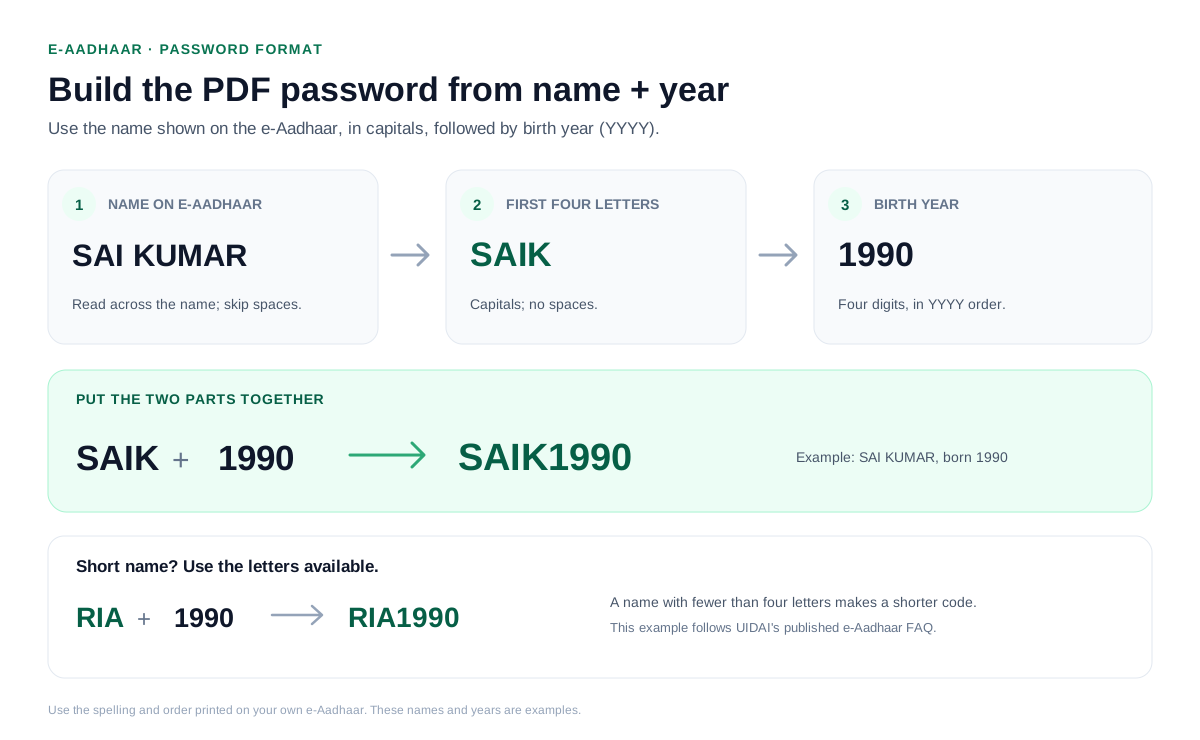
An e-Aadhaar PDF from UIDAI opens with a password made from the first four letters of your name in capitals followed by your birth year (YYYY). If your name has fewer than four letters, use the letters shown and add the year.
For a name like Sameer born in 1990 that comes to SAME1990. Strip the password after it opens and the Aadhaar stops asking on later opens.
Your e-Aadhaar lands from the UIDAI site as a sealed PDF, and it demands a password the moment you try to view it. UIDAI seals the page because it shows your Aadhaar number and photo. That code is nothing secret. It is built from two facts you carry in your head, the name on the card and the year you were born. Learn the rule and open the file, then hand it to the Univik PDF Unlocker to drop the seal for good.
What Is the Password on an e-Aadhaar PDF?
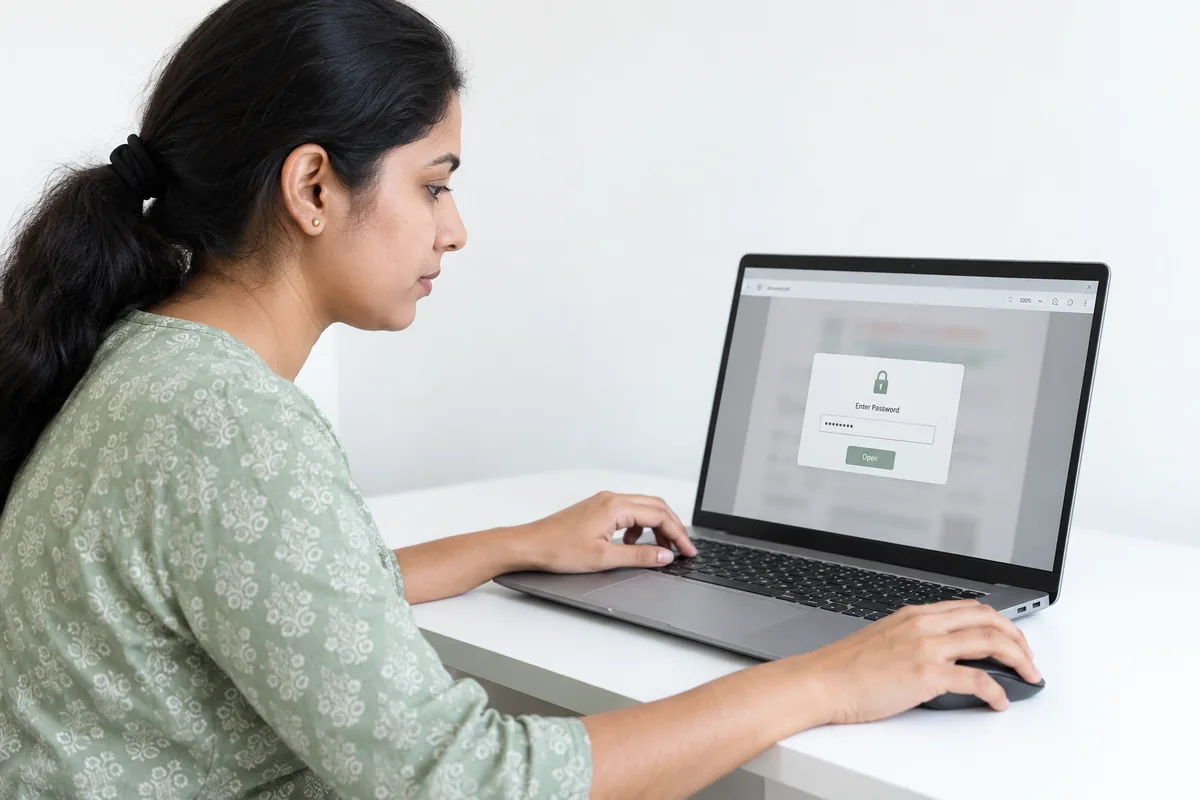
The seal on an e-Aadhaar is an open password chosen by UIDAI. Nothing on the page appears until you type it in. UIDAI applies it so a copy resting in your email or downloads cannot flash your identity to whoever taps the file. The value is that the rule never shifts. Your name supplies the first part and your birth year supplies the rest.
What Is the e-Aadhaar PDF Password Format?
Take your name's first four letters in capitals, then add your four-digit birth year. Read the name across first name and surname, ignoring spaces. If your name has fewer than four letters, use the letters shown and then the year. The examples below show how it lands.
| Name on Aadhaar | Birth year | Password |
|---|---|---|
| Sameer | 1990 | SAME1990 |
| Raj Yadav | 1988 | RAJY1988 |
| Rani Kumari | 1984 | RANI1984 |
| Sam Yadav | 1975 | SAMY1975 |
| Priya Nair | 2010 | PRIY2010 |
| Kiara | 2000 | KIAR2000 |
How Do You Open an e-Aadhaar PDF?
Three pieces make the code: the letters, the year and the case.
- Write the first four letters of your name in capitals, such as SAME for Sameer.
- Attach the birth year in four digits, so Sameer born in 1990 becomes SAME1990.
- Open the PDF in any viewer and enter that code at the prompt. Your Aadhaar appears.
Doing this at every open grows tiresome, and that is why people strip the seal.
How Do You Remove an e-Aadhaar PDF Password?
Entering the code at every open is a small daily annoyance, and a KYC portal or an app that reads the file cannot get past the seal on its own. Take it off once and the Aadhaar opens straight away from then on. Unlock the file with your name-and-year code, then hand it to the PDF Unlocker, which finishes in roughly two seconds.
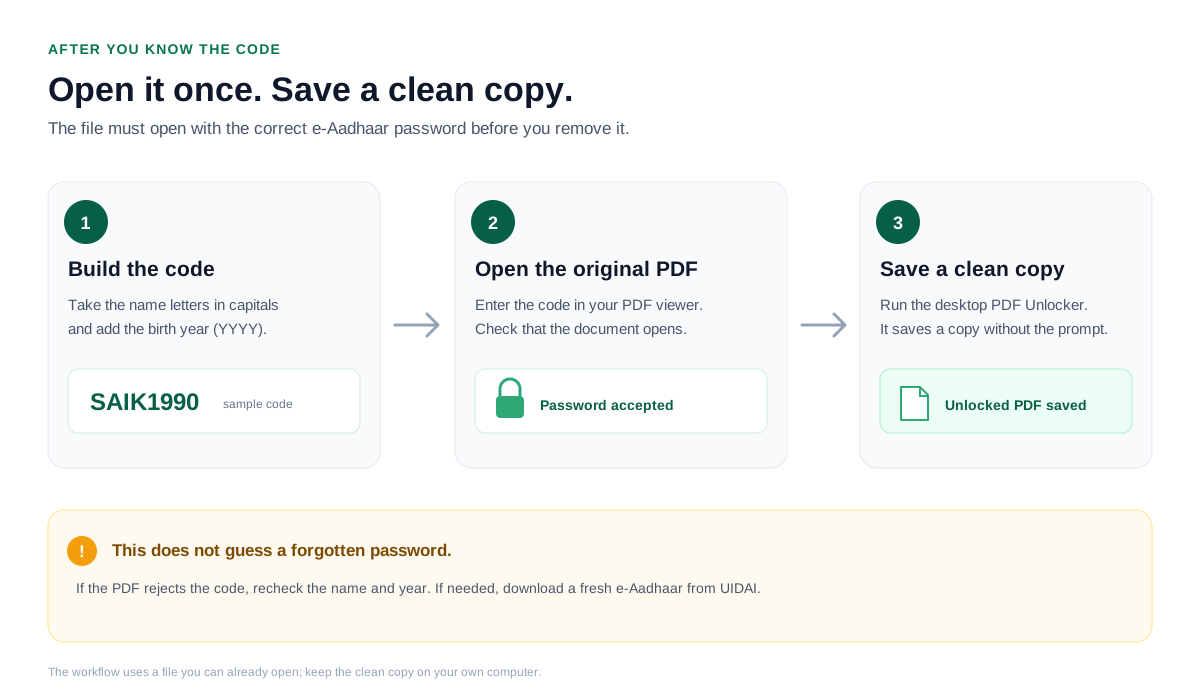
The Univik PDF Unlocker lifts the code from an e-Aadhaar you can already open and writes a clean copy. Aim it at a folder and every sealed identity file comes out unlocked in a single pass.
Free Download See all featuresWhat If the Password Does Not Work?
Since the code is your own name plus your birth year, a rejection nearly always points to a tiny slip. Re-read how the name sits on the card, its spelling and its order. Keep every letter capital. Count the first four letters across the whole name rather than the first name by itself. Match the birth year to the card. When none of that helps, pull a fresh e-Aadhaar from UIDAI, because a half-finished download can reject a correct code.
Is It Safe to Remove an e-Aadhaar Password?
Few files deserve more care than an Aadhaar. Your Aadhaar number, your photo and your address all sit on that page. Feed it to a website you do not run and you have handed your identity to an unknown machine. Keep the work inside a program on your own computer and nothing travels anywhere. Lifting the code from an Aadhaar that belongs to you sits well within your rights. Still torn between a browser tool and one on your desktop? The safety of online PDF unlockers makes a good read first.
- An e-Aadhaar opens on the first four letters of your name in capitals joined to the birth year as YYYY.
- Read the letters straight across the whole name, so Raj Yadav gives RAJY. Keep them capital.
- Unlock the file with that code, then lift the password so the Aadhaar shows with no prompt.
- Because an Aadhaar carries your identity, a desktop program that stays offline beats any online site.
- A rejected code usually means a name or year slip, and a fresh UIDAI download fixes a bad file.

e-Aadhaar Password Questions

Put together and kept current by Leena Taylor Paul and the Univik team, makers of Windows file utilities since 2013. A lot of the people we help need a clean e-Aadhaar for a KYC upload and would rather not retype a code on every open, so the guide sets out the rule first and then the safe way to clear the seal. Last verified September 2026. Cannot open your e-Aadhaar? Contact our support team.