 Recovery Guide
 By
By Act! shows this message when it cannot reach the SQL Server (ACT7) service that holds your database. The service is stopped, TCP/IP is switched off for it, a firewall blocks it or the .pad file points at a computer name that no longer exists. Start the service, enable TCP/IP and check the .pad file. If the service will not run, a reader that opens the .adf file directly reaches the contacts without it.
The full message is long: the database could not be accessed, check your network connection, verify that your database server is available and disable any firewall software. It appears on a single PC with no network at all, which is why it confuses people.
The database server it means is a copy of Microsoft SQL Server that Act! installed on your own machine. This guide gives the three fixes that solve most cases, then the route for the day none of them do.
- What Is the Database Server Act! Cannot Reach?
- Fix 1: Is the SQL Server (ACT7) Service Running?
- Fix 2: Is TCP/IP Enabled for the ACT7 Instance?
- Fix 3: Does the .pad File Point at the Right Computer?
- How Do You Skip the Error and Export the Data in 3 Steps?
- Step 1: Locate the .adf and .alf that the .pad points to
- Step 2: Open the .adf directly, with no SQL Server service involved
- Step 3: Export the tables you need and keep the files
- Fix or Skip: Which Should You Do?
- How Do You Check the Data Is Safe Either Way?
- Database Could Not Be Accessed Questions
What Is the Database Server Act! Cannot Reach?
Act! keeps your database inside Microsoft SQL Server. When you installed Act!, it installed SQL Server Express with an instance named ACT7 and a Windows service to run it. Every time Act! opens a database it connects to that service, even on a laptop with no network. If the connection fails for any reason, Act! shows the database could not be accessed message and blames the network.
Act! resellers list the same handful of causes: the SQL Server (ACT7) or SQL Server Browser service is stopped, TCP/IP is disabled for the ACT7 instance, a firewall or antivirus blocks it, the .pad file is damaged or it names a computer that has since been renamed.
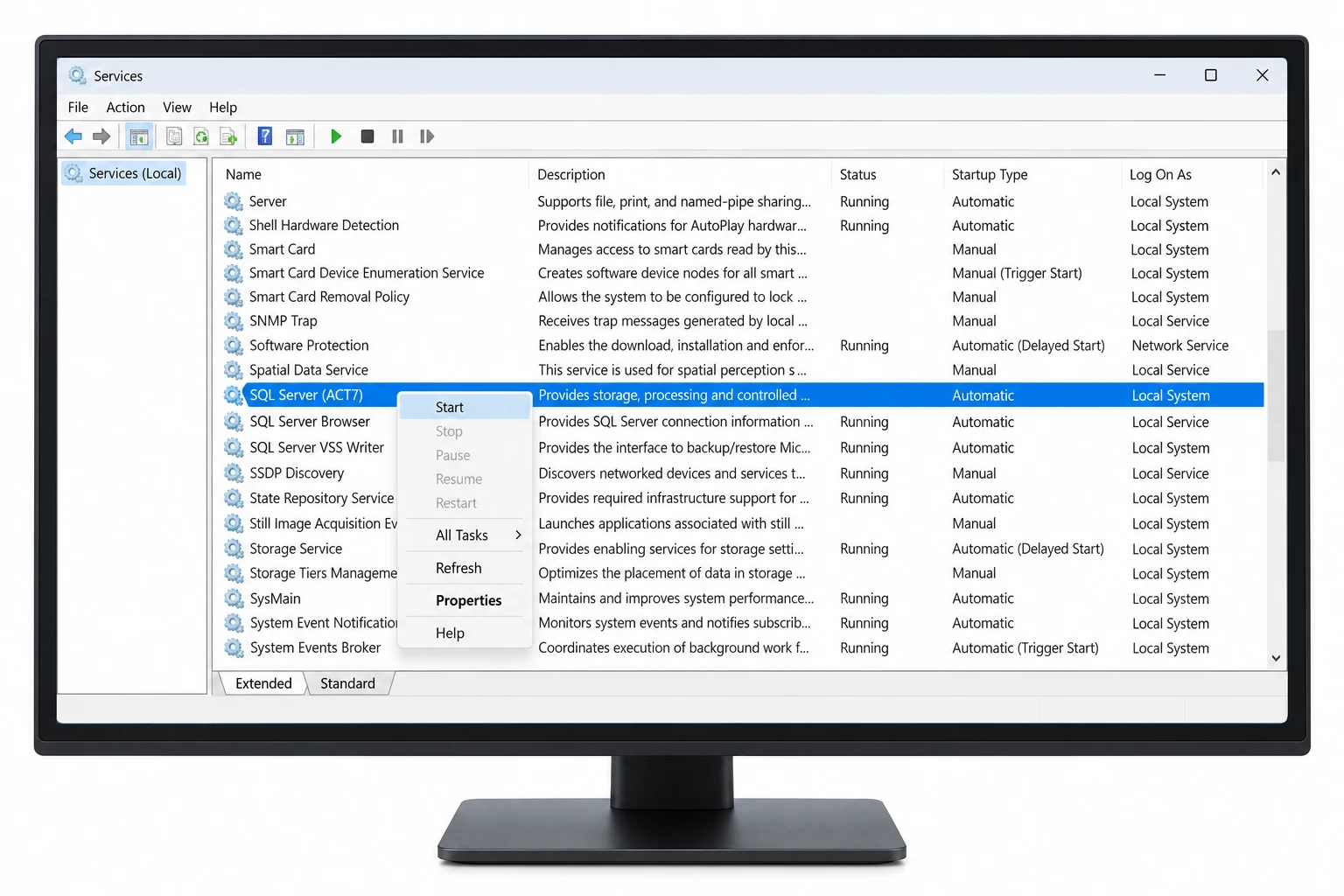
Fix 1: Is the SQL Server (ACT7) Service Running?
Press the Windows key, type services.msc and press Enter. Scroll to SQL Server (ACT7) and SQL Server Browser. If either shows a blank Status, right-click it, choose Properties, set Startup type to Automatic, click Start and then OK. Open Act! again.
If the service starts and stops again at once, a Windows update or an antivirus scan often sits behind it. Restart the PC and try once more before moving on.
Fix 2: Is TCP/IP Enabled for the ACT7 Instance?
Open SQL Server Configuration Manager, expand SQL Server Network Configuration and click Protocols for ACT7. If TCP/IP shows Disabled, right-click it, choose Enable, then restart the SQL Server (ACT7) service from the same tool. Add Act! and SQL Server as exceptions in your firewall if it asks.
This fix needs administrator rights on the PC. On a locked-down office machine, IT has to do it.
Fix 3: Does the .pad File Point at the Right Computer?
The .pad file is a small pointer that tells Act! where the .adf lives and which computer hosts it. Open it in Notepad and look for host= followed by a name. If the PC was renamed or the database came from another machine, that name is wrong. Change it to the current computer name, or replace it with the IP address. As a last resort, use File, Open Database in Act! and pick the .adf itself instead of the .pad.
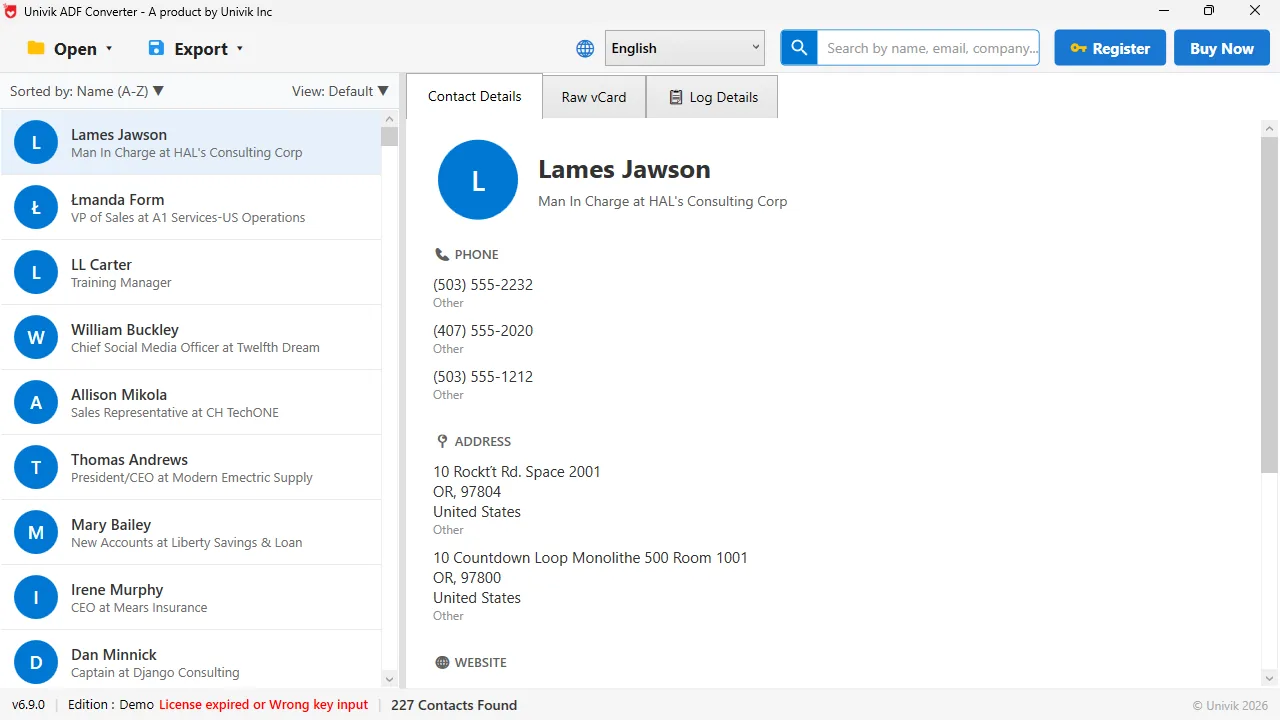
The service can stay stopped The .adf opened directly on the same PC where Act! showed the error. Every contact, phone and address is there.
How Do You Skip the Error and Export the Data in 3 Steps?
When the service will not come back, or you only wanted the contacts, this route never touches it.
Locate the .adf and .alf that the .pad points to
Go to Documents, then into ACT, ACT Data and finally Databases. The .adf and .alf that share your database name are the ones you need. Copy both to a new folder. The .pad can stay behind, it holds no data.
Open the .adf directly, with no SQL Server service involved
Start Univik ACT ADF Converter and load the copy of the .adf. The program reads the file without the ACT7 service, without Act! and without a login, then shows the contact, company and history counts. The stopped service is no longer in the picture.
Export the tables you need and keep the files
Pick Excel to get contacts, companies, notes, history and opportunities on separate sheets. Pick CSV, vCard, PDF or PST for a specific destination. Store the export with a copy of the .adf and .alf. Whatever happens to the ACT7 service next, the records are yours.
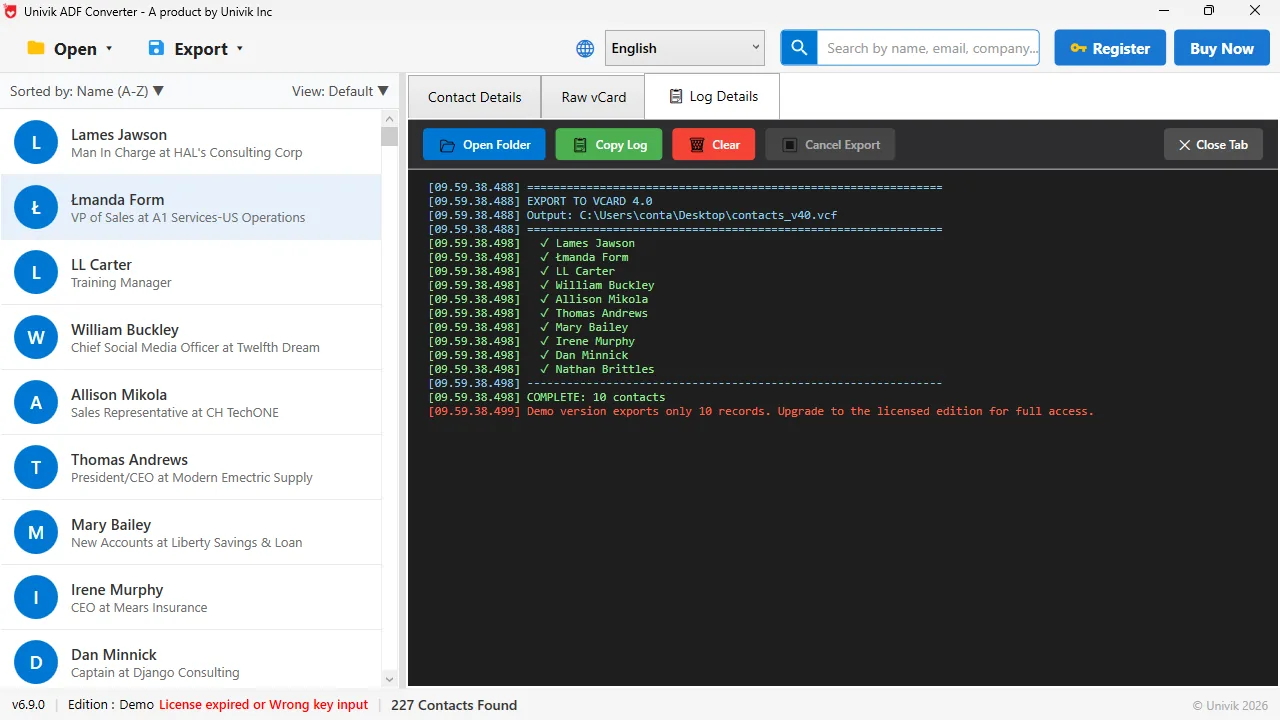
Out in one pass Each record is ticked as it is written. The demo stops at 10 records and shows the full count first.
This error is about a Windows service, not about your contacts. When the service will not come back, the file it was guarding is still sitting in Documents, complete and readable.
Univik ACT ADF Converter opens the .adf with no SQL Server service, no Act! and no login. The free demo shows the record counts on your own database first.
Windows 11 / 10 / 8 / 7 · reads the .adf directly · the demo lists every contact and exports the first 10
Fix or Skip: Which Should You Do?
Both are valid. The choice depends on whether you still need Act! tomorrow.
| Criteria | Fix the service | Skip it and read the .adf |
|---|---|---|
| Time | 10 minutes to an afternoon | 10 minutes |
| Needs | Administrator rights, Services and SQL Server Configuration Manager | The .adf and .alf files |
| Result | Act! works again | Contacts, notes and history in Excel, CSV, vCard or PST |
| Best when | You keep using Act! every day | Act! is on its way out, or the fixes did not work |
| Cost | Free | $39 one time, free demo first |
If your team logs into Act! every morning, spend the afternoon on the service. If Act! was already on its way out, this error is a good day to finish the move.
How Do You Check the Data Is Safe Either Way?
- You hold a copy of the .adf and .alf pair somewhere other than the PC showing the error
- The record counts you see, in Act! or in the reader, match what you remember
- At least one export in Excel or CSV exists, so the next service failure costs you nothing
The error tends to return after Windows updates. An export on hand turns it from a crisis into a nuisance.
The short version
- The database server in the message is the SQL Server (ACT7) service on your own PC.
- Fix 1: start SQL Server (ACT7) and SQL Server Browser in Services and set them to Automatic.
- Fix 2: enable TCP/IP under Protocols for ACT7 in SQL Server Configuration Manager, then restart the service.
- Fix 3: open the .pad file in Notepad and check the host name, or open the .adf directly from Act!.
- If the service will not run, a direct .adf reader reaches the contacts without it.
Try Univik ACT ADF Converter free
Database Could Not Be Accessed Questions
Why does Act! say the database could not be accessed on a single PC with no network?
Because the database server it means is the SQL Server (ACT7) service running on that same PC. When the service is stopped, blocked by a firewall or unreachable through the .pad file, Act! shows the network wording even though no network is involved.
How do I start the SQL Server (ACT7) service?
Open services.msc, find SQL Server (ACT7), right-click it, choose Properties, set Startup type to Automatic and click Start. Do the same for SQL Server Browser. Then open Act! again.
What does the .pad file have to do with this error?
The .pad file tells Act! which computer hosts the database. If the PC was renamed or the files came from another machine, the host name inside the .pad is wrong. Edit it in Notepad or open the .adf directly through File, Open Database.
Can I get my contacts without fixing the SQL Server service?
Yes. Univik ACT ADF Converter opens the .adf file on its own, with no ACT7 service, no Act! and no login. Copy the .adf and .alf to a new folder, open the .adf and export the records.
Will fixing the service lose any data?
No. Starting a service, enabling TCP/IP or editing the .pad file does not touch the .adf. Take a copy of the .adf and .alf before you start anyway, as a habit.
Does this error mean my ACT! database is corrupt?
Almost never. It is a connection problem between Act! and its own SQL Server service. If the service starts and Act! still fails, then check the database with Act! Diagnostics or read the .adf directly to confirm the records are there.
 About This Guide
Written and maintained by Leena Taylor Paul and the Univik team, developers of Windows data conversion and recovery software since 2013. We checked the causes and fixes for this error against Act! reseller documentation in September 2026 and opened ACT! databases directly on Windows 11 without the ACT7 service running. Last verified September 20, 2026. Need a hand? Contact our support team.
Sources checked: Univik ACT ADF Converter