 Recovery Guide
 By
By This message means the copy of SQL Server that Act! uses cannot read the version stamp inside the .adf. It happens when the database was last opened by a newer SQL Server, when the .adf and .alf pair were copied while Act! was running, or when the two files do not match. The records are still in the file. A reader that opens the .adf without SQL Server skips the version check and exports the contacts.
You copied the database files to a new PC or restored them from a USB stick. Act! answers with one line: this database cannot be opened because the SQL Server version of this database cannot be identified. Nothing else. Six months or six years of contacts sit behind that sentence.
This is a plumbing error, not a data error. Below is what causes it, what Act! and its resellers suggest and the route that works when the plumbing cannot be fixed.
- Why Does Act! Say the SQL Server Version Cannot Be Identified?
- Is the Data Inside the .adf Damaged?
- What Fixes Does Act! Offer for This Error?
- How Do You Export the Contacts Without Fixing SQL Server in 3 Steps?
- Step 1: Stop trying to attach the file and make a safe copy
- Step 2: Open the copied .adf in a reader that skips SQL Server
- Step 3: Export contacts, notes and history to files you can keep
- Which Route Should You Take?
- How Do You Check the Recovered Data Is Complete?
- SQL Server Version Error Questions
Why Does Act! Say the SQL Server Version Cannot Be Identified?
Since ACT! 2005 the .adf has been a Microsoft SQL Server data file, and Act! runs its own SQL Server instance, named ACT7, to open it. When you open a database, Act! asks that instance to attach the file. SQL Server first reads a version stamp inside the .adf. If the stamp belongs to a newer SQL Server than the one installed, or if the stamp cannot be read at all, the attach fails and Act! shows this message.
Three situations produce it. The database was last opened on a PC with a newer Act! and therefore a newer SQL Server. The .adf and .alf were copied by hand while Act! or its SQL Server service was still running, so the copy is out of step. Or the .alf beside the .adf is not the one that belongs to it.
Is the Data Inside the .adf Damaged?
In the first and third cases, no. The contacts, companies, notes and history are all in the file. SQL Server is refusing on principle, because a database file only moves forward between versions and never back. In the second case, a copy taken while the file was open can have pages that were mid-write. Most such copies still hold every record, but the only way to know is to read the file.
That is why the free demo of a direct reader is useful here. It shows the record counts before you spend anything. If the counts look right, the file is fine.
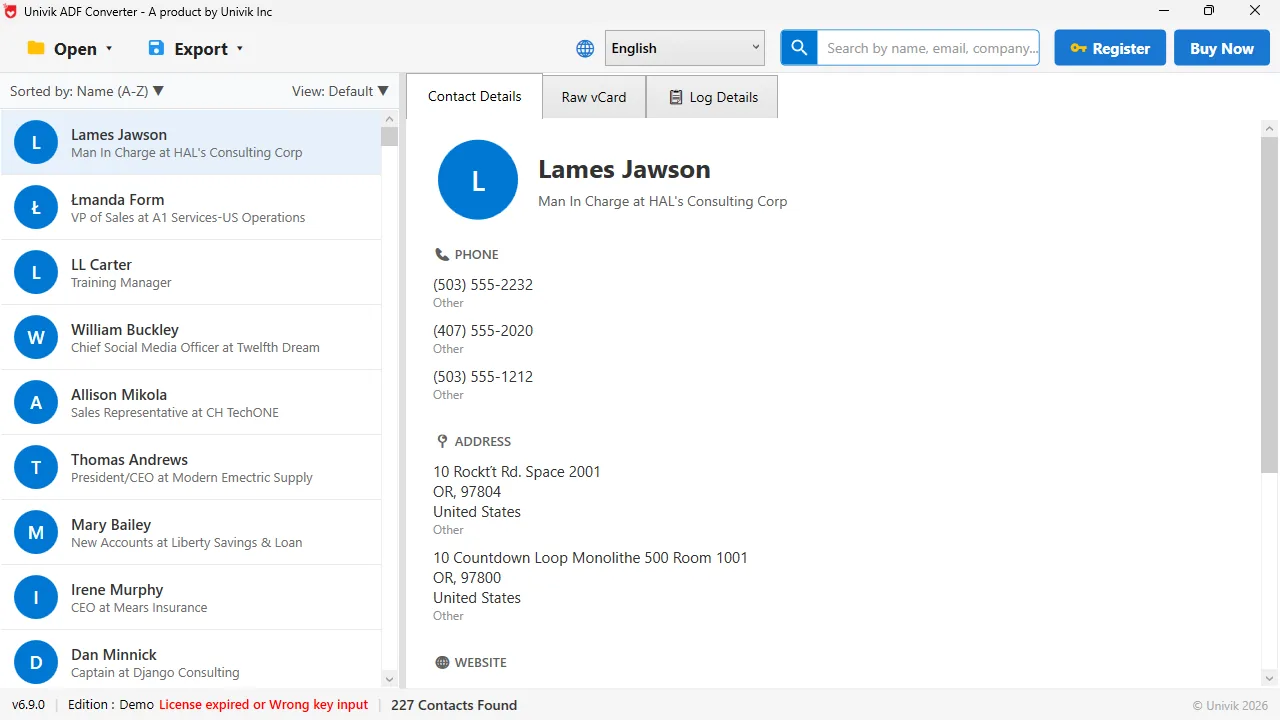
Version check skipped A reader that never hands the file to SQL Server has nothing to identify. The contacts list as usual, 227 of them here.
What Fixes Does Act! Offer for This Error?
Act!'s knowledge base and its resellers point to two repairs. The first is Act! Diagnostics, the actdiag tool installed with Act!, where you detach the database from the ACT7 instance and reattach it from the .adf. That helps when the file pair lost its link but the versions match. The second is to upgrade Act! so its SQL Server is at least as new as the one that last touched the file. That helps when the database came from a newer install.
Both need a working Act! of the right version and an administrator login. If your Act! is expired, retired or on the wrong version, neither repair is open to you. A UK business owner with a Sage ACT! 2011 database in this exact spot wrote that she would pay anyone who could get it working. She did not need it working. She needed the contacts.
How Do You Export the Contacts Without Fixing SQL Server in 3 Steps?
This route never attaches the file to SQL Server, so the version stamp is never checked.
Stop trying to attach the file and make a safe copy
Close Act!. Copy the .adf and its .alf to a fresh folder on a PC where Act! is not running. From now on work only on the copy. If you have an older copy from before the error, keep that one as well.
Open the copied .adf in a reader that skips SQL Server
Install Univik ACT ADF Converter, then point it at the copy of the .adf. It parses the file directly and lists the contacts with the company, note and history counts in the summary. There is no SQL Server, no ACT7 instance and no version check in the path. If the summary shows the numbers you expect, the data is intact.
Export contacts, notes and history to files you can keep
Choose Excel for a workbook with a sheet per table, CSV for a CRM load, a vCard for the phone or a PST for Outlook. After this export the records live in ordinary files, and no future SQL Server version can lock them again. Our guides cover Outlook, HubSpot and Zoho and Salesforce from there.
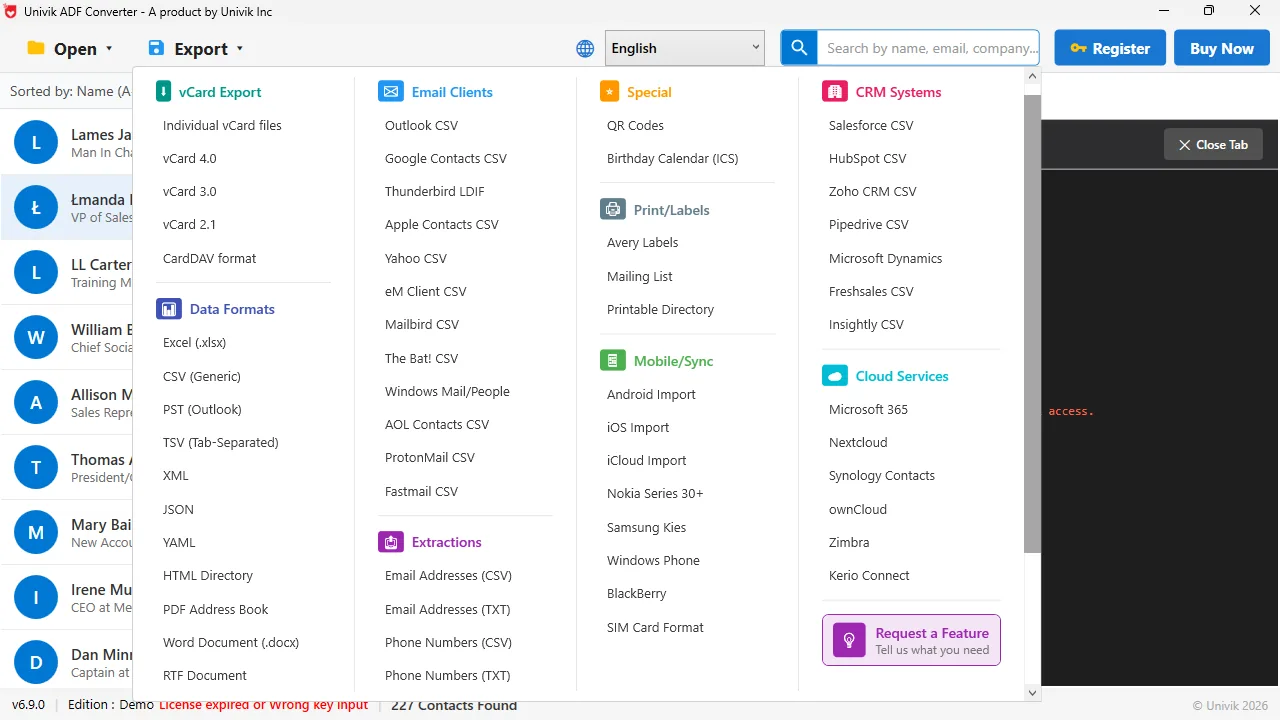
Get them out of the .adf for good Once the records are on screen, write them to Excel, CSV, vCard or PST so the next PC move cannot lock them again.
Every .adf is a SQL Server data file, and SQL Server is strict about versions. Files move forward, never back. A reader that parses the file itself does not care which SQL Server last touched it.
Univik ACT ADF Converter opens the .adf without SQL Server, so the version error never appears. The free demo shows the record counts on your own file before you pay.
Windows 11 / 10 / 8 / 7 · no Act!, no SQL Server, no login · the demo shows the full count and writes the first 10 contacts
Which Route Should You Take?
Four routes, with what each one asks of you.
| Route | What it needs | Fixes the error | Gets notes and history | Cost |
|---|---|---|---|---|
| Act! Diagnostics: detach and reattach | Working Act! of the right version, admin rights | Sometimes, if the pair only lost its link | Yes, inside Act! | Free |
| Upgrade Act! and SQL Server to match | New Act! subscription, install time | Yes, if the file is intact | Yes, inside Act! | $40 per user per month |
| Attach the .adf to a newer SQL Server yourself | SQL Server Express, Management Studio, skill | Yes, one way | Yes, as raw tables | Free, your hours |
| Univik ACT ADF Converter | The .adf and .alf files | Skips it | Yes, exported with the contacts | $39 one time |
If Act! still works and the versions can be matched, the Act! Diagnostics route keeps everything inside Act!. If Act! is gone or the wrong version, read the file directly and stop fighting SQL Server.
How Do You Check the Recovered Data Is Complete?
- The contact count in the summary matches the last count you remember from Act!'s status bar
- A note you wrote in the final week before the error appears with its date
- The history sheet is longer than the contact sheet, which is normal for a database in daily use
If the counts are short, try an older copy of the .adf and .alf. A backup zip from before the PC move is often the cleanest source.
The short version
- The error means Act!'s SQL Server cannot read the version stamp in the .adf. It is a version or file-pair problem, not lost data.
- SQL Server databases only move forward. A file last opened by a newer SQL Server will not open on an older one.
- Act!'s fixes are detach and reattach with Act! Diagnostics, or upgrading Act! so the SQL Server versions match.
- A reader that opens the .adf without SQL Server never runs the version check. The contacts, notes and history export from there.
- Work from a copy of the .adf and .alf, and keep the originals untouched.
Try Univik ACT ADF Converter free
SQL Server Version Error Questions
What causes "the SQL Server version of this database cannot be identified" in Act!?
Act!'s SQL Server instance cannot read the version stamp in the .adf. The usual reasons are a database last opened by a newer Act! and SQL Server, an .adf and .alf pair copied while Act! was running, or an .alf that does not belong to that .adf.
Is my ACT! data lost when this error appears?
No. The contacts, notes and history are still inside the .adf. SQL Server refuses to attach the file, it does not erase it. A reader that opens the .adf without SQL Server shows the records straight away.
Can Act! Diagnostics fix the SQL Server version error?
Sometimes. Detaching and reattaching the database with actdiag helps when the file pair lost its link and the SQL Server versions already match. It does not help when the file came from a newer SQL Server, because a database never moves back to an older version.
Can I open the database without fixing SQL Server?
Yes. Univik ACT ADF Converter reads the .adf directly, without SQL Server or Act!, so there is no version check. Open a copy of the .adf with its .alf beside it and export the records.
Will the error come back after I export?
Not for the exported files. Excel, CSV, vCard and PST files have nothing to do with SQL Server. Keep the .adf and .alf as an archive, but you will not need to attach them again.
What if the record count looks wrong in the reader?
Then the copy was taken while the database was mid-write. Use an older copy or a backup zip made before the move. The record counts in the free demo tell you which copy is the good one before you buy anything.
 About This Guide
Written and maintained by Leena Taylor Paul and the Univik team, developers of Windows data conversion and recovery software since 2013. We checked the causes and fixes for this error against Act!'s knowledge base and reseller documentation in September 2026, and opened ACT! databases directly on Windows 11 with no SQL Server in the path. Last verified September 20, 2026. Need a hand? Contact our support team.
Sources checked: Act! Knowledge Base: detach a database from the ACT7 instance · Microsoft: databases become unusable when attached to a newer SQL Server · Univik ACT ADF Converter