 Migrate Guide
 By
By HubSpot imports contacts, companies and activities such as notes from CSV files. It links a note to a contact by email address or record ID. ACT!'s own export gives you contacts only, so the notes and history need a tool that reads the database file. Export contacts and notes as separate CSVs, add each contact's email to the notes rows, import contacts first and notes second.
Switching from ACT! to HubSpot is a common move, and the contacts part is not the hard part. The question people ask on the HubSpot community and on Reddit is the same every time: do the notes, calls and history come with them?
They can, if you build the files the way HubSpot's import expects. This guide walks through the whole job on a real database, including the one spreadsheet step that trips most people up.
- What Does HubSpot Accept From an ACT! Export?
- Why Does ACT!'s Own Export Not Bring the Notes?
- How Do You Migrate ACT! to HubSpot in 5 Steps?
- Step 1: Export contacts, companies and notes from the .adf
- Step 2: Add an email column to the notes and history rows
- Step 3: Import contacts into HubSpot
- Step 4: Import companies and let HubSpot link them
- Step 5: Import notes as activities linked by email
- Which ACT! Fields Map to Which HubSpot Properties?
- What Does Not Carry Over to HubSpot?
- Which Way Should You Move ACT! to HubSpot?
- How Do You Check the HubSpot Import Worked?
- ACT! to HubSpot Questions
What Does HubSpot Accept From an ACT! Export?
HubSpot's import takes CSV or Excel files for contacts, companies, deals and tickets. It also takes activities: notes, calls, emails, meetings and tasks. For a notes import the only required column is Note body. An Activity date column keeps the original dates. To attach each note to the right person, the row needs that person's email address or HubSpot record ID.
The limits are generous. HubSpot's documentation gives free accounts 20 MB per file and 500,000 rows a day, and paid accounts 512 MB and 10 million rows a day. An ACT! database of a few thousand contacts is far below either.
Why Does ACT!'s Own Export Not Bring the Notes?
ACT! stores notes and history as separate records that point at a contact. Its File, Export screen writes contact fields and stops. Act! consultants say it plainly: notes and history are not in the list of things you can pick. The rows exist in the .adf database file, so the fix is to read that file with software that sees every table.
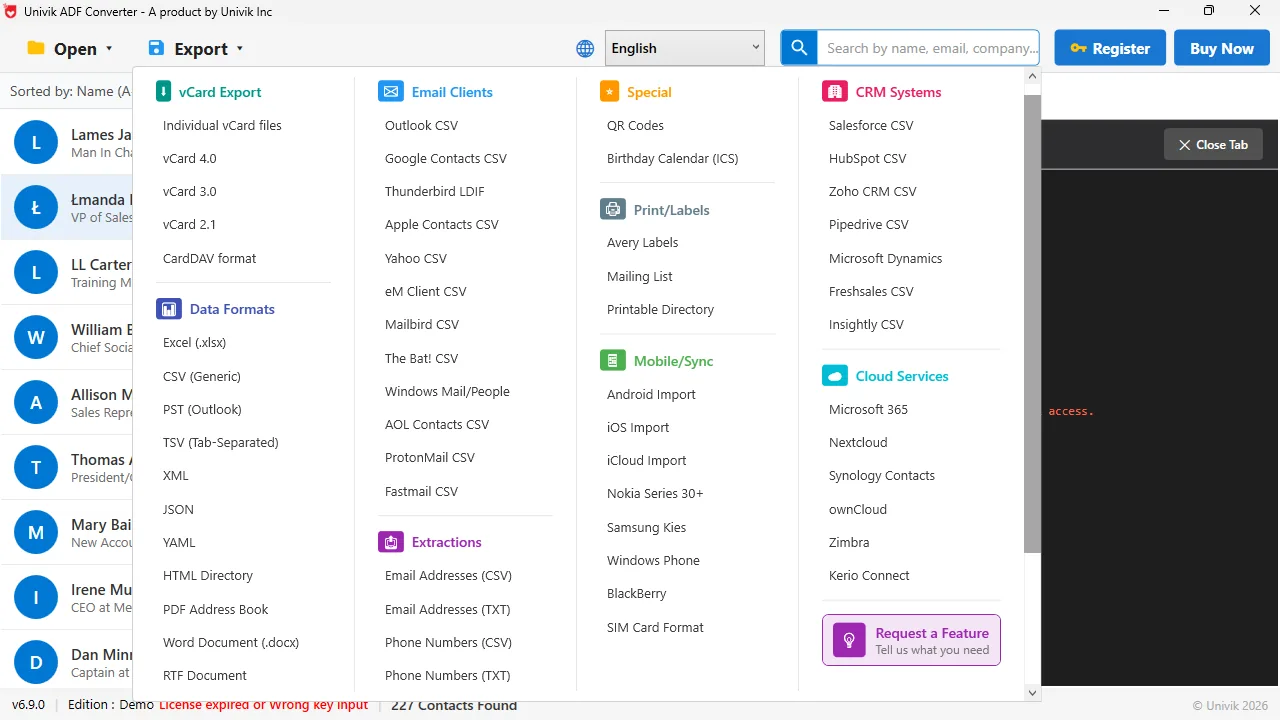
CSV is the bridge to HubSpot Under Data Formats, CSV writes one file per table. The CRM CSV option names the contact and company columns the way HubSpot and other CRMs expect.
How Do You Migrate ACT! to HubSpot in 5 Steps?
Have the .adf and .alf files, a HubSpot account with import rights and Excel or Google Sheets.
Export contacts, companies and notes from the .adf
Open the .adf with Univik ACT ADF Converter, pick CSV and you get a contacts file, a companies file and a notes and history file. Each note row carries its date, its text and the name of the contact it belongs to. Save all three in one folder.
Add an email column to the notes and history rows
HubSpot links a note to a contact by email, but ACT! links by name. Open the notes CSV in Excel, add a column called Email and fill it with a lookup against the contacts file, matching on the contact name. XLOOKUP or VLOOKUP both work. Rows that find no email will import as unlinked notes, so fix duplicate names before you move on.
Import contacts into HubSpot
In HubSpot go to Contacts and click Import. Choose one file and one object, pick Contacts and upload the contacts CSV. Map First name, Last name, Email, Phone, Job title and Company name to HubSpot's properties. Set Email as the unique key so a second run updates rather than duplicates.
Import companies and let HubSpot link them
Import the companies CSV as Companies. If the file has a website or domain column, HubSpot uses it to link each company to the contacts that share that email domain. If ACT! never held websites, import the companies anyway and link later with the Company name column.
Import notes as activities linked by email
Start a new import, pick Notes as the object and upload the notes CSV. Map the text column to Note body, the date column to Activity date and the Email column to the contact association. HubSpot writes each row onto the timeline of the matching contact. History records follow the same path, either mixed into the same file or as a second notes import.
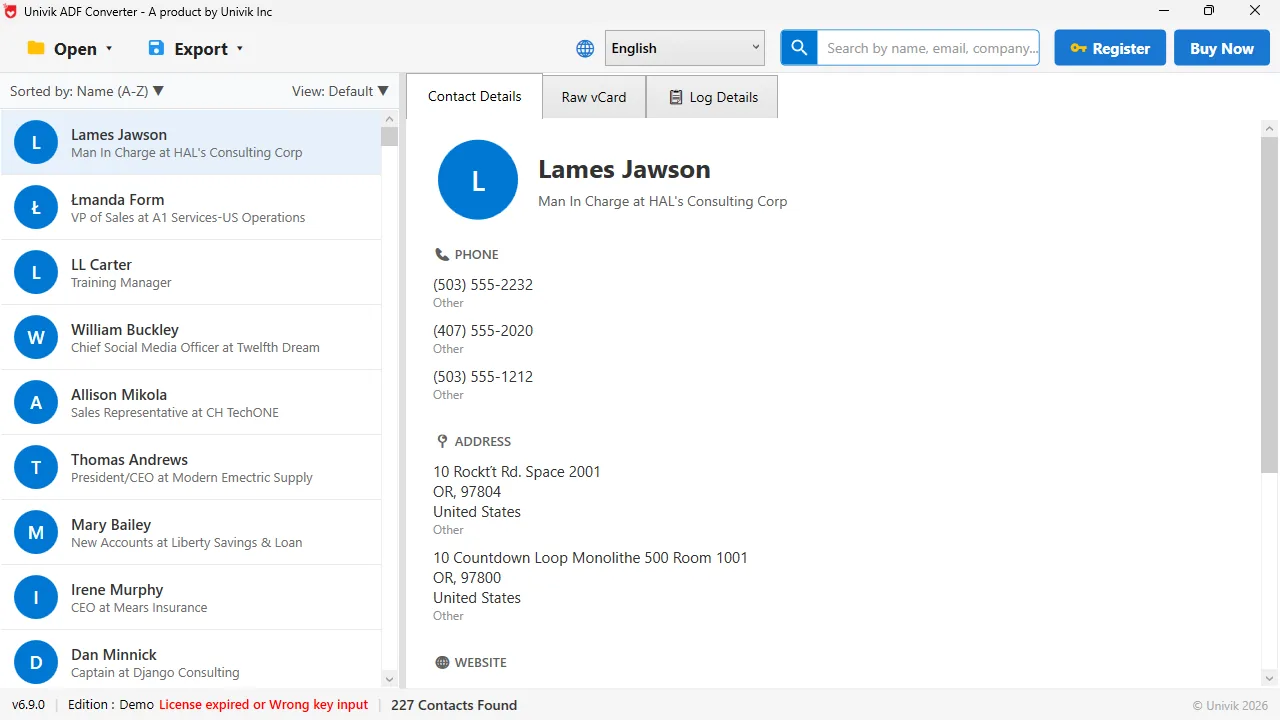
What HubSpot will receive Name, job title and company for each of the 227 records, read straight from the .adf with no ACT! on the PC.
Which ACT! Fields Map to Which HubSpot Properties?
Most of the standard ACT! contact fields have a direct home in HubSpot. Contact, split into first and last name, becomes First name and Last name. E-mail becomes Email. Phone and Mobile become Phone number and Mobile phone number. Title becomes Job title. Company becomes Company name, which HubSpot also uses to link or create the company record. Address, City, State, Zip and Country map to the address properties of the same names. ID/Status has no default match, so create a custom property or drop it into Lifecycle stage. Custom ACT! fields come out as extra columns and need a custom property each.
The migration itself is two CSV imports. What people pay consultants thousands for is the part in between: getting the notes out of ACT! at all, and giving each note the email of the contact it belongs to.
Univik ACT ADF Converter reads the whole .adf, not only the contact table. Contacts, companies, notes and history come out as CSV files that HubSpot's import accepts, with no ACT! licence and nothing uploaded.
Windows 11 / 10 / 8 / 7 · CSV and Excel output · the free trial writes the first 10 contacts so you can test the HubSpot mapping first
What Does Not Carry Over to HubSpot?
Three things stay behind. Attached documents live in ACT!'s supplemental folder, not in the database, so copy them out and attach them in HubSpot by hand where they matter. Calendar activities are not part of the export. Layouts, reports and templates are ACT! design files with no meaning in HubSpot. Everything that is a record about a person or a company comes across.
Which Way Should You Move ACT! to HubSpot?
Four ways, with the honest trade-offs.
| Way | Contacts | Notes and history | Cost | Time |
|---|---|---|---|---|
| ACT! File, Export to CSV, then HubSpot import | Yes | No, not in ACT!'s export | Free | 1 hour |
| Migration service (SyncMatters, Data2CRM and others) | Yes | Yes, mapped for you | Quoted per project, often hundreds to thousands | Days to weeks |
| HubSpot partner or Act! consultant | Yes | Yes, plus cleanup | Hourly or fixed, $3,000 and up reported | 1 to 4 weeks |
| Univik ACT ADF Converter plus HubSpot's import | Yes | Yes, you add the email column | $39 one time | 2 to 3 hours |
A service earns its fee when you have twenty users, deep custom fields and no time. For a small team with one database, the CSV route is a morning's work.
How Do You Check the HubSpot Import Worked?
- The contact count in HubSpot matches the count in the converter's summary
- A long-standing customer's record shows notes from several years on the timeline, in date order
- The import report shows zero rows skipped for a missing email, or you have handled the ones it lists
Keep the .adf and the three CSV files. If a property was mapped wrongly, a second import with Email as the key overwrites it without creating duplicates.
The short version
- HubSpot imports contacts, companies and notes from CSV and links notes to contacts by email or record ID.
- ACT!'s own export writes contacts only. Notes and history need a reader that opens the .adf.
- Export three CSVs: contacts, companies, notes and history. Add each contact's email to the notes rows with a lookup.
- Import in order: contacts, then companies, then notes as activities.
- Attachments, calendar items and ACT! layouts do not move. Plan for them separately.
Try Univik ACT ADF Converter free
ACT! to HubSpot Questions
Can HubSpot import notes from ACT!?
Yes. HubSpot's file import accepts notes as an activity object. The file needs a Note body column and, to link each note to a contact, that contact's email address or HubSpot record ID. Activity date keeps the original date.
Why do my ACT! notes not appear in the export file?
ACT!'s File, Export screen writes contact fields only. Notes and history are separate records in the .adf database. Univik ACT ADF Converter reads those tables and writes them to their own CSV.
Do I need ACT! installed to migrate to HubSpot?
No. Copy the .adf and .alf files, open the .adf in Univik ACT ADF Converter and export the CSVs. The rest happens inside HubSpot's import screens.
How do I link ACT! history to the right HubSpot contact?
Add an Email column to the history CSV and fill it with a lookup against the contacts CSV on the contact name. Map that column to the contact association when you import the file as Notes.
Will ACT! opportunities import into HubSpot as deals?
Yes, as a separate Deals import. Export opportunities to CSV, map Name to Deal name, value to Amount, close date to Close date and stage to Deal stage. Link each deal to a contact by email in the same way as notes.
What is the free way to move ACT! to HubSpot?
Export contacts from ACT!'s File, Export screen to CSV and import that file into HubSpot. It is free and works for the contact list. It does not include notes, history or opportunities.
 About This Guide
Written and maintained by Leena Taylor Paul and the Univik team, developers of Windows data conversion and recovery software since 2013. We exported a 227-contact ACT! database to CSV on Windows 11 in September 2026 and checked every import rule in this guide against HubSpot's own import documentation the same day. Last verified September 19, 2026. Need a hand? Contact our support team.
Sources checked: HubSpot Knowledge Base: set up your import file · Univik ACT ADF Converter