 Migrate Guide
 By
By Zoho CRM lists Act! as a migration source under Setup, then Data Administration, then Import. Its own help page says the wizard accepts CSV only. It maps Act! companies, contacts, opportunities, notes, history, tasks and meetings. Act!'s own export gives you contacts alone, so the notes and history CSVs have to come from a tool that reads the database file. Make one CSV per table, upload them together and map the fields.
Zoho did something useful for people leaving ACT!: it built a migration option that already knows what an Act! contact, company, note and history record look like. Then it added one line to the help page that stops most people. The wizard only takes CSV files.
This guide is about getting from the .adf on your disk to those CSV files, and then through Zoho's wizard with the notes and history attached to the right people.
- What Does Zoho CRM's Act! Migration Actually Accept?
- Which CSV Files Do You Need to Make From the ACT! Database?
- How Do You Migrate ACT! to Zoho CRM in 5 Steps?
- Step 1: Export every table from the .adf as CSV
- Step 2: Give each notes and history row a contact email
- Step 3: Open Setup, Data Administration, Import and choose Act! CRM
- Step 4: Upload the CSV files together and map the fields
- Step 5: Run the migration, then check a busy contact
- How Do ACT! Fields Map to Zoho CRM Modules?
- What Does Not Move From ACT! to Zoho?
- Which Route Fits an ACT! to Zoho CRM Move?
- How Do You Check the Zoho Migration Worked?
- ACT! to Zoho CRM Questions
What Does Zoho CRM's Act! Migration Actually Accept?
In Zoho CRM go to Setup, then Data Administration, then Import. Act! CRM appears among the sources. Zoho's help page lists the Act! modules it can bring across: company, contacts, case, opportunity, users, tasks, notes, history information and meetings. It also states that the wizard allows only CSV for migration, and it offers a mailbox, migration@zohocrm.com, that converts an Act! backup for you within two or three business days.
You need administrator rights in Zoho, you can upload several files or a zip of them at once. Every required Zoho field must be mapped before the migration runs. New fields can be created during mapping, depending on your Zoho edition.
Which CSV Files Do You Need to Make From the ACT! Database?
One per table. Contacts, companies, opportunities, notes and history are the five that matter. Groups can come as a sixth if you use them as lists. ACT!'s own File, Export screen writes the contacts and companies files, provided a licence still works. Opportunities, notes and history are not offered there, so those files come out of the .adf itself.
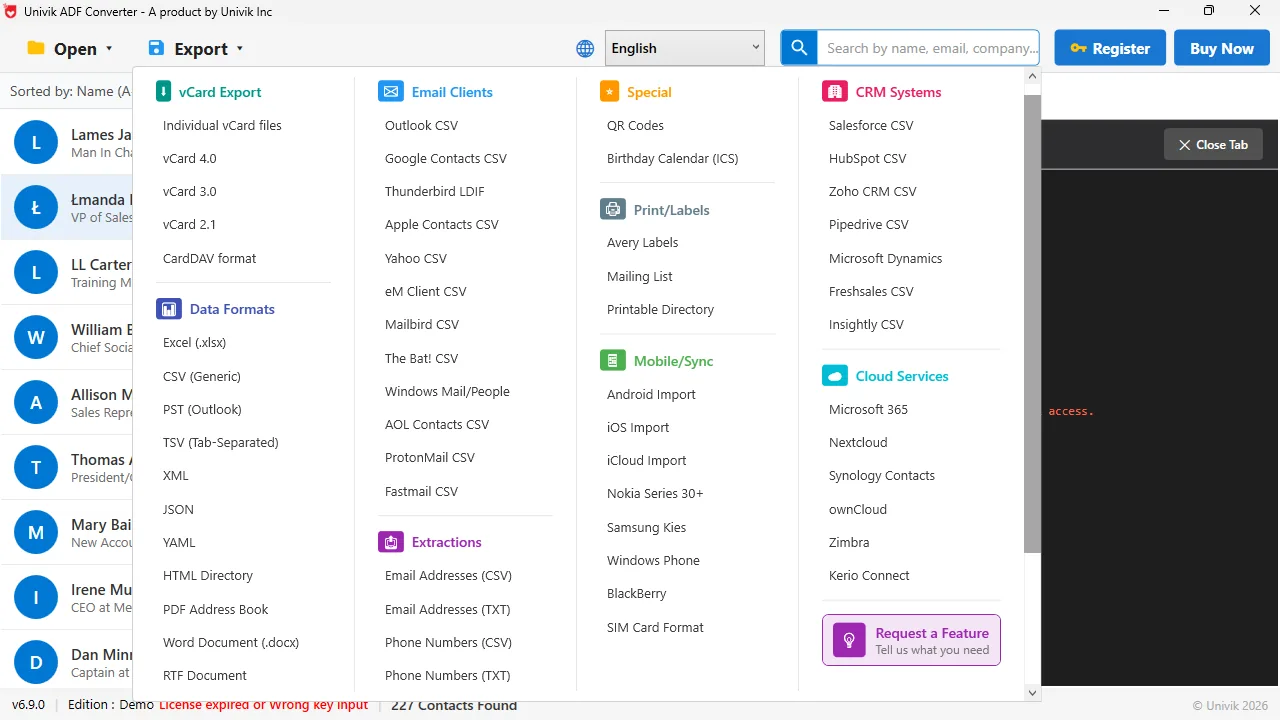
Zoho wants CSV, this menu makes it The CSV and CRM CSV options write one file per ACT! table, which is what Zoho's Act! migration asks you to upload.
How Do You Migrate ACT! to Zoho CRM in 5 Steps?
Keep the .adf and .alf to hand, along with a Zoho CRM administrator login and a spreadsheet.
Export every table from the .adf as CSV
Run Univik ACT ADF Converter on the .adf and select CSV. Each table becomes its own file. The CRM CSV option labels the contact and account fields for a CRM import. Keep all the files in one folder.
Give each notes and history row a contact email
Zoho links an imported note to a contact through a unique field, and email is the safest one. The notes and history CSV names the contact each row belongs to. Add an Email column and fill it with XLOOKUP or VLOOKUP against the contacts CSV on the name. Fix duplicate names first so the lookup picks the right person.
Open Setup, Data Administration, Import and choose Act! CRM
Sign in to Zoho CRM as an administrator, open Setup, then Data Administration, then Import. Pick Act! CRM. The wizard asks for your files and shows the Act! module list it understands.
Upload the CSV files together and map the fields
Upload all four CSVs in one go or zip them and upload the zip. Map each file to its Zoho module: contacts to Contacts, companies to Accounts, opportunities to Deals, notes and history to Notes. Map Last Name, Account Name and the email field, then any custom columns. Create new Zoho fields for ACT! custom fields you want to keep.
Run the migration, then check a busy contact
Start the migration and wait for Zoho's completion email. Open a contact you know well. The notes and history should appear on that record, in date order, with the ACT! dates preserved. If they landed unlinked, the email column did not match and a second notes import with corrected emails fixes it.
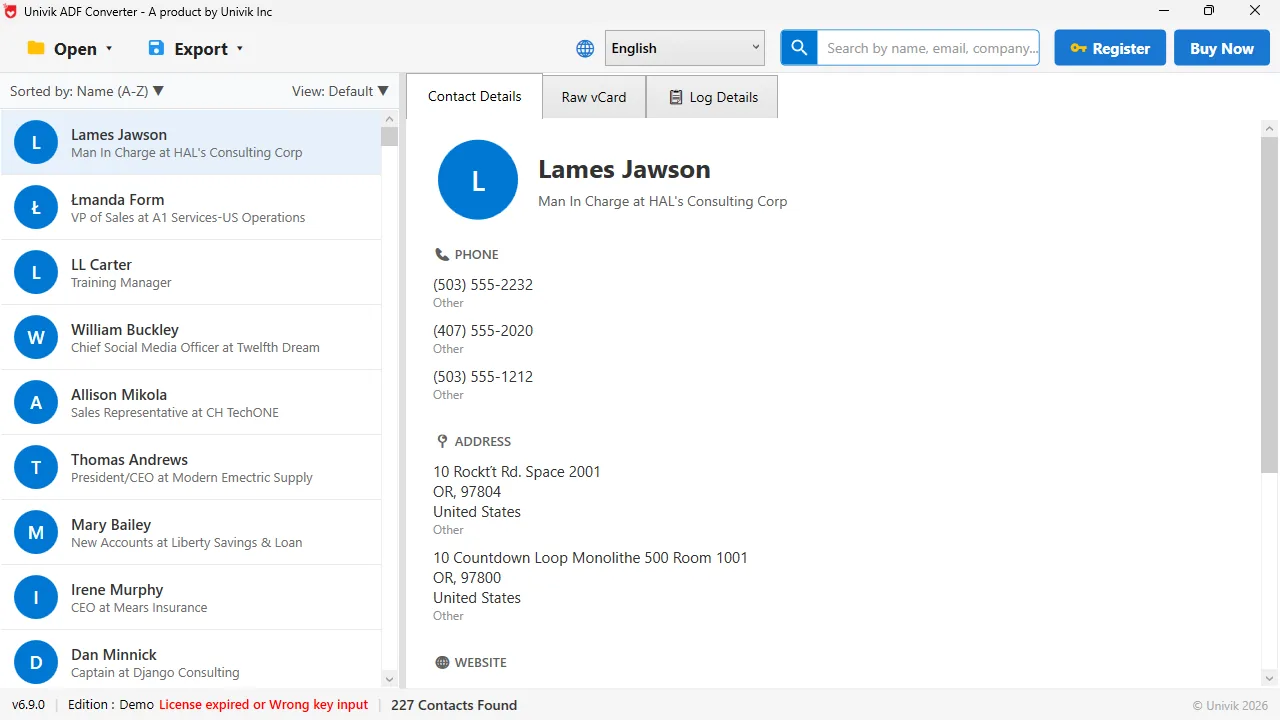
Contacts and accounts in one view Each ACT! contact carries a company that becomes a Zoho Account and a title that maps to the Zoho Title field.
How Do ACT! Fields Map to Zoho CRM Modules?
ACT! Contact becomes a Zoho Contact, with the name split into First Name and Last Name, E-mail to Email, Phone to Phone, Mobile to Mobile, Title to Title and Company to Account Name. ACT! Company becomes a Zoho Account with Website, Phone and the address fields. ACT! Opportunity becomes a Zoho Deal, with the value to Amount, the stage to Stage and the close date to Closing Date. Notes and history rows become Zoho Notes, each attached to the contact whose email they carry. ID/Status has no Zoho default and suits Lead Source or a custom picklist.
Zoho's wizard is the easiest CRM import we have seen for ACT! data. Its only demand is that you arrive with CSV files, and ACT! itself will not give you the notes and history ones.
Univik ACT ADF Converter reads the whole .adf and writes contacts, companies, opportunities, notes and history as separate CSV files, with no ACT! licence and nothing uploaded. Feed them to Zoho's Act! migration and keep the history.
Windows 11 / 10 / 8 / 7 · CSV and CRM CSV output · the free trial writes the first 10 contacts so you can test the Zoho mapping first
What Does Not Move From ACT! to Zoho?
Attached documents stay in ACT!'s supplemental folder. Copy them out and attach them to the Zoho record by hand where they matter. Calendar entries are not part of the export. ACT! layouts, reports and templates are design files with no Zoho equivalent. Every record that describes a person, a company, a deal or a conversation comes across.
Which Route Fits an ACT! to Zoho CRM Move?
Four ways, with who does the work and what it costs.
| Way | Contacts and accounts | Notes and history | Cost | Who does the work |
|---|---|---|---|---|
| ACT! File, Export then Zoho import | Yes | No, ACT! does not export them | Free | You |
| Send the backup to Zoho's migration team | Yes | Yes, if they can convert the backup | Free, two to three business days per Zoho | Zoho, then you map |
| Zoho partner or Act! consultant | Yes | Yes, cleaned and mapped | Quoted, often thousands | Them |
| Univik ACT ADF Converter plus Zoho's wizard | Yes | Yes, as CSV you upload | $39 one time | You, in an afternoon |
Zoho's free conversion service is worth a try if you have days to spare and a clean backup zip. If you want the files today and want to see the record counts first, read the .adf yourself.
How Do You Check the Zoho Migration Worked?
- The Zoho Contacts count matches the contact count in the converter's summary
- A customer from years ago shows notes from their first year and their last on the timeline
- Deals in Zoho carry the amounts and closing dates you remember from ACT! opportunities
Hold on to the CSVs and the .adf pair. A field mapped wrongly is fixed by a second import with the same unique key, without duplicates.
The short version
- Zoho CRM's Act! migration lives under Setup, Data Administration, Import and takes CSV files only.
- It maps Act! companies, contacts, opportunities, notes, history, tasks and meetings to Zoho modules.
- ACT!'s own export writes contacts only. A direct .adf reader writes the notes, history and opportunities CSVs too.
- Upload all the CSVs in one go, map required fields and run the migration.
- Check a long-standing contact in Zoho for notes across several years before you retire ACT!.
Try Univik ACT ADF Converter free
ACT! to Zoho CRM Questions
Does Zoho CRM have an Act! import option?
Yes. Under Setup, Data Administration, Import, Zoho CRM lists Act! CRM as a source. Its help page says the wizard accepts CSV files only and maps Act! companies, contacts, opportunities, notes, history, tasks and meetings.
Why does Zoho say my Act! export is the wrong format?
Zoho's wizard takes CSV. An Act! backup is a zip of database files, not CSV. Either send the backup to migration@zohocrm.com for conversion (Zoho says two or three business days) or export CSV files from the .adf yourself.
Can I bring ACT! notes and history into Zoho CRM?
Yes. Zoho lists notes and history as supported Act! modules. ACT!'s own export does not write them, so use Univik ACT ADF Converter to export the notes and history table to CSV, add each contact's email and upload it with the other files.
Do I need ACT! installed to migrate to Zoho?
No. Copy the .adf and .alf, open the .adf in Univik ACT ADF Converter and export the CSVs. Everything after that happens in Zoho CRM's import screens.
How do notes get attached to the right contact in Zoho?
Through a unique field on the contact, usually email. Add an Email column to the notes CSV with a lookup against the contacts CSV before you upload, and map it during the import.
What is the free way to move ACT! to Zoho CRM?
Export contacts from ACT!'s File, Export screen and import that CSV into Zoho. It is free and covers the contact list only. For notes, history and opportunities you need either Zoho's conversion service or a direct .adf export.
 About This Guide
Written and maintained by Leena Taylor Paul and the Univik team, developers of Windows data conversion and recovery software since 2013. We checked Zoho CRM's Act! migration requirements against Zoho's own help page in September 2026 and exported a 227-contact ACT! database to CSV on Windows 11 the same week. Last verified September 20, 2026. Need a hand? Contact our support team.
Sources checked: Zoho CRM help: migrating from Act! CRM · Univik ACT ADF Converter