 Export Guide
 By
By ACT!'s normal contact export writes names, phones and emails, but the notes and history you typed over the years sit in separate tables and are left out. To export ACT! notes and history, read the whole .adf database file with a tool that sees every table. It writes each note with its date and linked contact, and each history record with its type and description, to Excel or CSV.
You exported your ACT! contacts, opened the file and the names were all there. The notes were not. Years of call notes, meeting write-ups and follow-up history, gone from the export. This is the most common complaint from people leaving ACT!, and it is not your mistake.
The notes are still in the database. They live in their own tables away from the contact list, and the standard export never looks there. This guide explains why that happens and how to get every note and history record out in a form you can read and keep.
- Why Notes and History Are Missing From an ACT! Export
- Where ACT! Keeps Notes and History
- How Do You Export ACT! Notes and History in 3 Steps?
- Step 1: Open the .adf file so every table is visible
- Step 2: Export to Excel with notes and history on their own sheets
- Step 3: Open the sheets and match notes to contacts
- What the Exported Notes and History Look Like
- Can ACT! Itself Export Notes and History?
- Which Way Should You Use to Get ACT! Notes and History Out?
- How Do You Check Nothing Was Left Behind?
- ACT! Notes and History Questions
Why Notes and History Are Missing From an ACT! Export
ACT! keeps a contact and the things written about that contact in different places. The contact record holds the name, company, phones and emails. Every note and every history entry is a separate row in its own table, linked back to the contact by an ID. When you run the standard export, ACT! writes the contact table and stops there.
So the export is not broken. It is doing what it was built to do, which is to move a contact list. The notes were never part of that list.
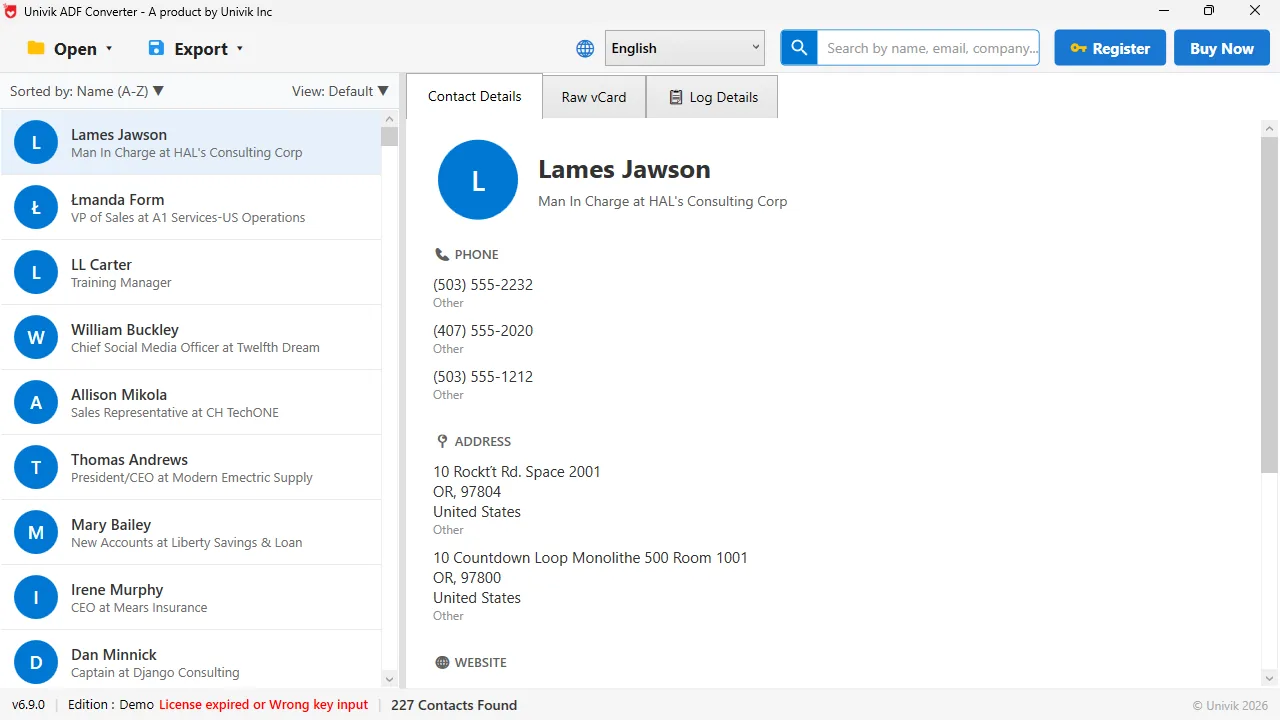
More than a name Each ACT! record carries phones, addresses and, behind them, the notes and history tied to that person. A full export keeps all of it together.
Where ACT! Keeps Notes and History
Both live inside the .adf database file, the same file that holds the contacts. Notes are the free text you typed on a record, each stamped with a date. History is the log of what happened: calls, meetings, emails sent and tasks done, each with a date, a type and a Regarding line. In a busy database the history table is often many times the size of the contact list.
How Do You Export ACT! Notes and History in 3 Steps?
ACT! does not need to open for this. The converter reads the database file on its own.
Open the .adf file so every table is visible
Open the .adf file, with its .alf file beside it, in Univik ACT ADF Converter. Before you export, the tool shows a summary with the contact count, the company count and the history record count. That last number is the one the standard export throws away.
Export to Excel with notes and history on their own sheets
Open the Export menu and pick Excel (.xlsx). The workbook it writes has a sheet for contacts, a sheet for notes and a sheet for history. Each note row carries its date, the contact it belongs to and the full text, with ACT!'s rich formatting turned into plain text you can read anywhere.
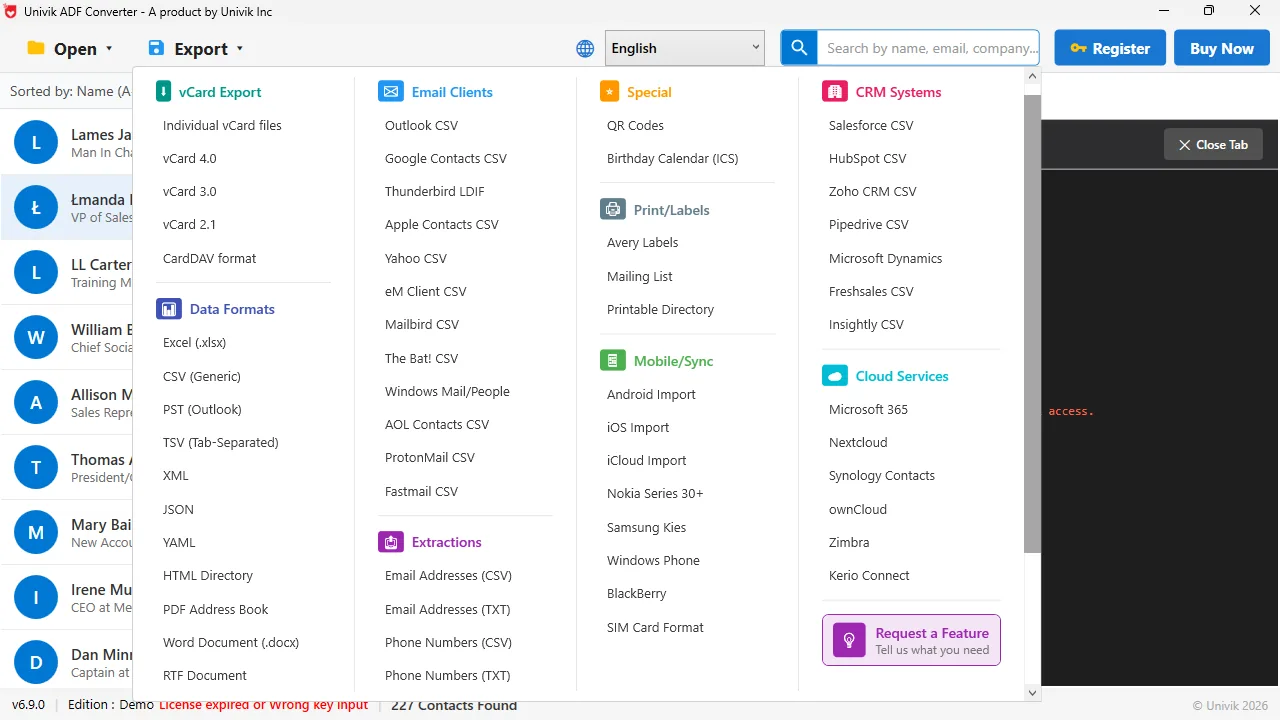
Pick Excel for the full picture Under Data Formats, the Excel (.xlsx) export puts contacts, notes and history on their own sheets in one workbook.
Open the sheets and match notes to contacts
Open the workbook. On the notes and history sheets, each row names the contact it belongs to, so you can sort or filter by person and read their full story in order. If you prefer one CSV per table, export CSV instead and you get the same columns in separate files.
What the Exported Notes and History Look Like
A note row has the date it was written, the contact it belongs to and the text itself. A history row has the date, the type such as call, meeting, email or task, the Regarding line and the full description. Opportunities come out too, with their value, stage and close date. Nothing is shortened, so a long meeting write-up arrives whole.
In every ACT! database we have opened, the history table is far bigger than the contact list. Years of calls, meetings and emails pile up behind each name. Exporting only the contacts throws that record away.
Univik ACT ADF Converter reads the whole .adf file, not only the contact table. Notes, history, opportunities and groups come out to Excel or CSV with their dates and linked contacts, with no ACT! installed.
Windows 11 / 10 / 8 / 7 · reads every table in the .adf · the free trial shows the record counts and exports a sample
Can ACT! Itself Export Notes and History?
Partly. The File menu contact export cannot. What ACT! can do, while it still runs, is print a report such as the Notes and History report and save it as a PDF. That gives you a readable record, but it is a printed page, not a table you can sort or import anywhere. For a keepsake it is fine. For moving the data into a new system it falls short.
Which Way Should You Use to Get ACT! Notes and History Out?
Here is how the options line up.
| Method | Notes included | History included | Needs ACT! running |
|---|---|---|---|
| ACT! File menu contact export | No | No | Yes |
| ACT! report printed to PDF | Yes, as a report | Yes, as a report | Yes |
| Univik ACT ADF Converter to Excel | Yes, one sheet, dated | Yes, with type and description | No |
If you only need something to read, an ACT! report to PDF does the job while ACT! still works. If you want the notes as data you can search, sort or load into a new CRM, read the .adf directly. The same goes when ACT! no longer opens. For the full CRM move, see how to migrate ACT! data to Zoho, Salesforce or HubSpot.
How Do You Check Nothing Was Left Behind?
- The history sheet has far more rows than the contact sheet, which is normal for a database in daily use
- A contact you dealt with often shows their calls and meetings in date order
- A long note you remember arrives in full, not cut off
Keep the workbook with the .adf backup. Together they are the complete record of the account, even after ACT! is gone.
The short version
- ACT!'s normal contact export leaves notes and history out because they live in separate tables.
- The notes and history are still inside the .adf database file.
- A reader that opens the whole .adf exports them with the date, the linked contact and the full text.
- Excel is the best target: contacts, notes and history each get their own sheet in one workbook.
- Check the history row count against the number ACT! showed. It is usually far larger than the contact count.
Try Univik ACT ADF Converter free
ACT! Notes and History Questions
Why did my ACT! export not include the notes?
ACT!'s standard export writes the contact table only. Notes and history are stored in their own tables inside the .adf database and are linked to contacts by an ID. The contact export never reads them. The notes are still in the file. You need an export that covers every table.
How do I export ACT! notes and history to Excel?
Open the .adf file in Univik ACT ADF Converter and choose Excel (.xlsx) from the Export menu. The workbook has separate sheets for contacts, notes and history, with each note's date and linked contact and each history record's type and description.
Can I export ACT! notes without ACT! installed?
Yes. Every note is stored in the .adf, so you do not need ACT! running. Univik ACT ADF Converter opens the .adf without a licence and exports the notes and history. Keep the .alf file next to the .adf when you open it.
What is the difference between notes and history in ACT!?
Notes are free text you typed on a record, each with a date. History is the automatic log of what happened, such as calls, meetings, emails and completed tasks, each with a date, a type and a Regarding line. Both export as their own sheet.
Do the exported notes keep their formatting?
The text arrives whole, with ACT!'s rich formatting turned into plain text so it opens in Excel, a CRM or any text editor. Bold and colours are dropped, but no words are lost.
Can I import the exported notes into a new CRM?
Yes. The notes and history CSV has a column naming the contact each row belongs to, which most CRMs use to link notes during import. Check your new CRM's import guide for the exact column it expects.
 About This Guide
Written and maintained by Leena Taylor Paul and the Univik team, developers of Windows data conversion and recovery software since 2013. We exported notes and history from ACT! databases on Windows 11 in September 2026 and compared the history row counts against the totals ACT! itself reported. Last verified September 19, 2026. Need a hand? Contact our support team.
Sources checked: Act! Knowledge Base · Univik ACT ADF Converter