 Export Guide
 By
By ACT! exports contacts through its own File menu. Open the File menu, choose Export or Data Exchange then Export, pick Comma Separated Values and select Contacts as the record type. The whole list saves as a CSV you can open in Excel or import into Outlook. When ACT! will not open, the same contacts can be read straight from the .adf database file instead.
You want your ACT! contacts out of the CRM and into something you use every day: an Excel sheet, your Outlook or a plain CSV for another address book. ACT! can do most of this itself, and this guide starts there.
There is a second path for the times ACT! will not cooperate, when the licence has lapsed or the version no longer runs on Windows 11. Your contacts still live inside the .adf database file, and they can be read from it directly. Both routes are below, with the honest trade-offs of each.
- Does ACT! Have a Built-In Contacts Export?
- How Do You Export ACT! Contacts Step by Step?
- Step 1: Open the File menu in ACT!
- Step 2: Choose Export and pick Comma Separated Values
- Step 3: Select Contacts and finish the export
- How to Export ACT! Contacts to Excel
- How to Move ACT! Contacts to Outlook
- What If ACT! Will Not Open or Is Not Installed?
- Which ACT! Contact Export Method to Use
- How Do You Check the ACT! Contacts Export Worked?
- What If the ACT! Contacts Export Goes Wrong?
- ACT! Contacts Export Questions
Does ACT! Have a Built-In Contacts Export?
Yes. ACT! has exported contacts for years through its own File menu, and it writes plain data files a spreadsheet can read. In recent ACT! versions you open the File menu and choose Export, or Data Exchange then Export. Older releases keep it in the same File menu. You pick the Contacts record type and a format such as Comma Separated Values, and ACT! writes the file.
The catch is that this route needs ACT! open and running on the PC. If ACT! still starts, the built-in export is the first thing to try. If ACT! will not open, or was never installed on this machine, jump to the .adf section below.
How Do You Export ACT! Contacts Step by Step?
This is the built-in route. Nothing extra is installed, and the file stays on your PC.
Open the File menu in ACT!
Start ACT! and open the database that holds the contacts you want. Click the File menu at the top left. In ACT! Premium and recent versions you may see Data Exchange first, with Export inside it.
Choose Export and pick Comma Separated Values
Choose Export. In the wizard, set the file type to Comma Separated Values (.csv), or Text Delimited if your version lists that instead. Give the file a name and a spot you will remember, such as the Desktop.
Select Contacts and finish the export
When ACT! asks what to export, choose Contacts. You can add Companies or Groups in the same run. Step through the field mapping if it appears, then finish. ACT! writes one row per contact into the CSV.
How to Export ACT! Contacts to Excel
Excel does not open an .adf file, so you go through a CSV first. Export the contacts to a CSV from the File menu, then open that CSV in Excel. Excel reads a CSV straight away and shows one row per contact, with columns for name, phone, email and company.
Some ACT! List Views also carry a Tools menu with Export to Excel, which drops the current list into a new workbook. That is handy for a filtered list you are looking at right now. For the full address book, the File menu export to CSV is the reliable path. To keep a real .xlsx workbook, use Save As in Excel once the CSV is open.
How to Move ACT! Contacts to Outlook
Outlook imports contacts from a CSV or a vCard, so the CSV you exported is most of the way there. In Outlook, open Import/Export, choose Import from another program or file, pick Comma Separated Values and map the columns to the Outlook contact fields.
If you would rather land them in an Outlook data file directly, a converter can read the ACT! database and write a PST. Open the PST in Outlook and the contacts show up in the Contacts folder, with names, numbers and emails in the right fields.
For the full walkthrough, including field mapping and the calendar question, see our guide on how to import an ACT! database into Outlook.
What If ACT! Will Not Open or Is Not Installed?
This is the common wall. Maybe the ACT! licence has lapsed. Maybe the version will not run on Windows 11. Or all you have is a copy of the database files from an old PC. The built-in export needs ACT! running, so it is off the table.
Your contacts are still there. They live inside the .adf file, which is the ACT! database, usually paired with an .alf file and sometimes a .pad pointer. A tool that reads the .adf format can pull them out with no ACT! installed at all.
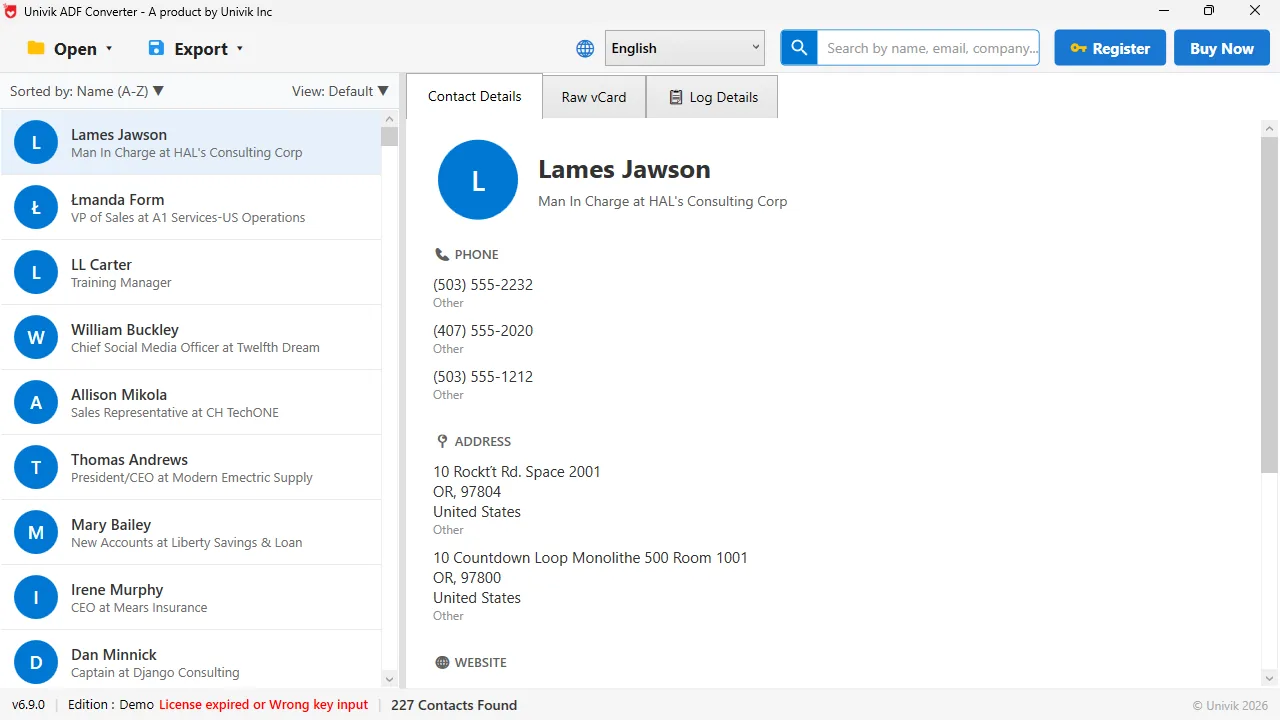
Reads every contact Univik ACT ADF Converter opens the .adf file with no ACT! installed and lists all 227 contacts, with phone numbers and addresses on the right.
We took an ACT! 2013 database, copied only the .adf and .alf files to a Windows 11 laptop with no ACT! installed, and the contacts, companies and notes all read out to a CSV. The data is not lost when the software will not run.
That is what Univik ACT ADF Converter does. It opens the .adf file on its own and writes the contacts, companies, notes and history to CSV, Excel, vCard, PDF or an Outlook PST. No ACT! licence, and nothing leaves your PC.
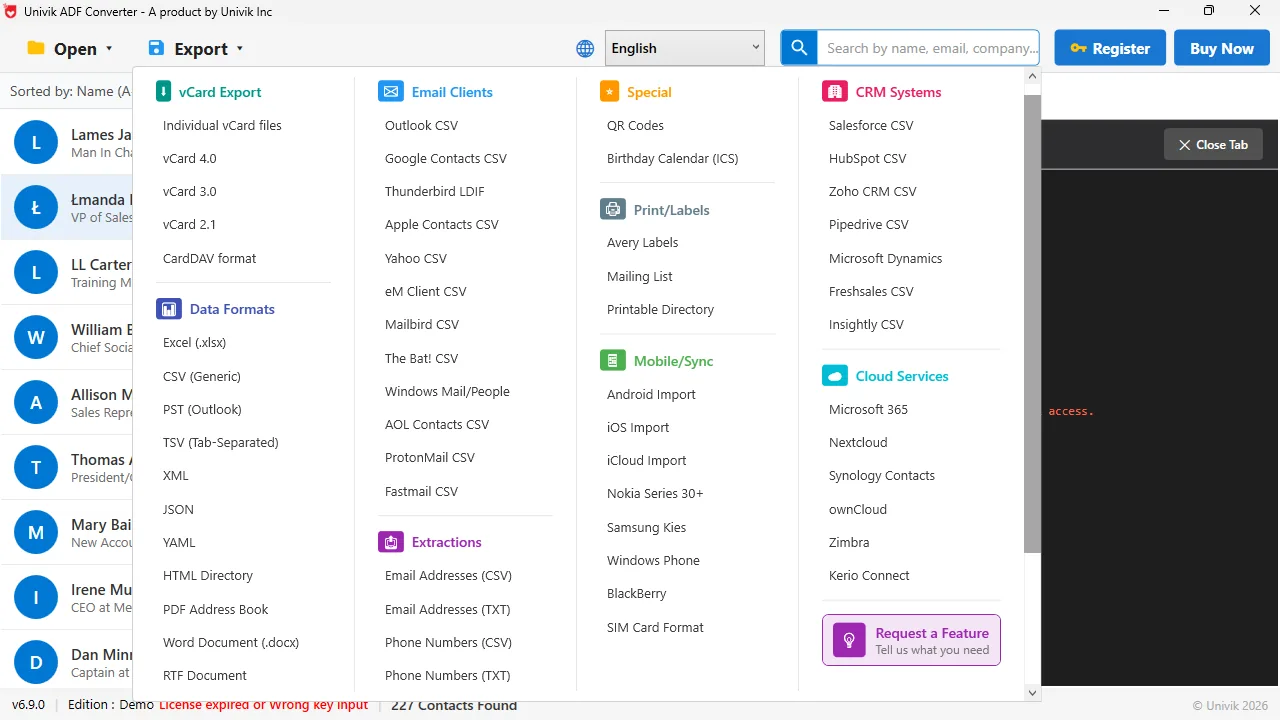
Pick any format The Export menu writes vCard, Excel, CSV and PST. It also writes CRM CSV files for Salesforce, HubSpot, Zoho and Pipedrive.
Univik ACT ADF Converter opens the ACT! database without ACT! installed and writes your contacts to the format you need: a CSV, an Excel sheet, a vCard for a phone, a PDF or an Outlook PST. Notes, history and companies come across with them.
Windows 11 / 10 / 8 / 7 · reads the .adf directly · the free trial exports the first 10 contacts so you can check the output before you buy
Which ACT! Contact Export Method to Use
Three routes cover almost every case. The right one depends on whether ACT! still opens and what the next app needs.
| Method | Needs ACT! running | Output | Best for |
|---|---|---|---|
| ACT! File menu export | Yes | CSV or text file | ACT! still opens on the PC |
| List View, Export to Excel | Yes | Excel workbook | A filtered list you are viewing |
| Univik ACT ADF Converter | No | CSV, Excel, vCard, PDF, PST | ACT! will not run or is gone |
If ACT! opens, its own export is free and takes a couple of minutes, so start there. The converter earns its place when ACT! will not run. It also helps when you only have the database files or when you want vCard, PDF or a ready PST rather than a raw CSV. Going to a phone? See how to export ACT! contacts to vCard. Moving to a new CRM or to Google? See how to migrate ACT! data to Zoho, Salesforce or HubSpot and how to export ACT! contacts to Google Contacts.
How Do You Check the ACT! Contacts Export Worked?
- A CSV or Excel file lands where you saved it, right after the export finishes
- Opening it shows a header row and one row for every contact in the database
- A contact you know shows the right phone, email and company across its columns
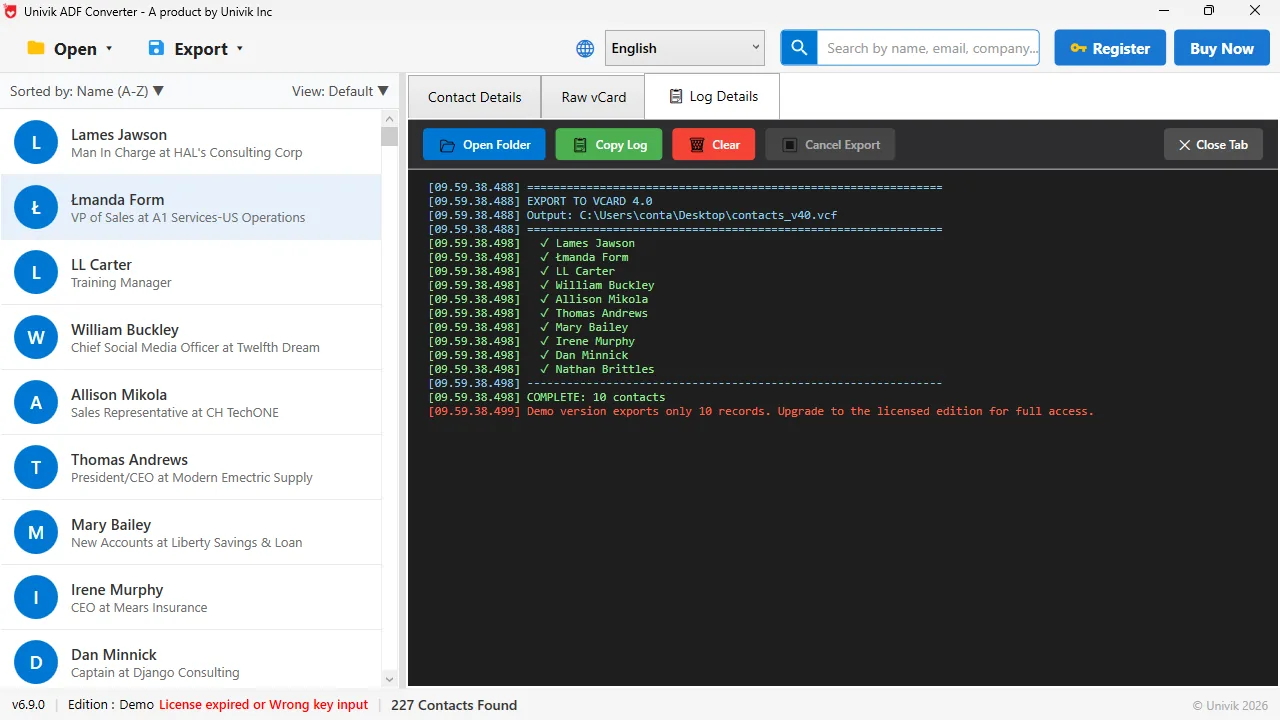
Logs every record The export log shows a vCard 4.0 file finishing, each contact ticked off. The demo build stops at 10 records, the paid build writes the whole database.
Store the exported file with the rest of your backups. Run it again whenever the ACT! database changes, because the CSV only holds the contacts that existed the day you exported it.
What If the ACT! Contacts Export Goes Wrong?
A few problems cover most ACT! exports that stall. Each card pairs the symptom with the fix.
Do this: Read the contacts straight from the .adf database file with an ADF converter. The built-in export needs ACT! running, but the .adf holds the same records and can be read on its own.
Do this: ACT!'s plain CSV export is contact fields only. To keep notes, history and opportunities, run the export for those tables too. Or use a converter that reads the whole .adf and writes them next to the contacts. See how to export ACT! notes and history.
Do this: The file opened as plain text. Import it through Excel's Data then From Text/CSV, and set the delimiter to comma. Or open the .csv from inside Excel so it splits into columns.
Stuck with a database file and no working ACT!? Tell our support team which ACT! version made it and we will point you to the right export route.
The short version
- If ACT! opens, use File then Export and pick Comma Separated Values with the Contacts record type to get a CSV.
- Open that CSV in Excel for a sheet, or import it into Outlook through Import/Export.
- If ACT! will not open, the contacts still sit in the .adf database file.
- Univik ACT ADF Converter reads the .adf with no ACT! installed and writes CSV, Excel, vCard, PDF or PST.
- Copy the .adf and its matching .alf file together before you move or read the database.
Try Univik ACT ADF Converter free
ACT! Contacts Export Questions
How do I export contacts from ACT!?
Open ACT!, go to the File menu and choose Export, or Data Exchange then Export. Pick Comma Separated Values as the format and Contacts as the record type. ACT! saves the whole list as a CSV. This needs ACT! running. If it will not open, read the contacts from the .adf database file instead.
How do I export ACT! contacts to Excel?
Export the contacts to a CSV from the File menu, then open that CSV in Excel. Excel reads it straight away, one row per contact. Some ACT! List Views also have Tools then Export to Excel for the list you are viewing. Use Save As in Excel to keep it as an .xlsx workbook.
How do I convert ACT! contacts to a CSV file?
In recent ACT! versions, File then Export lets you choose Comma Separated Values and write the contacts to a .csv. Older ACT! releases such as 6.0 export a tab delimited or text file first, which you then save as CSV in Excel. A converter can also read the .adf and write CSV directly.
How do I move ACT! contacts to Outlook?
Export the ACT! contacts to a CSV, then in Outlook open Import/Export, choose Import from another program or file, pick Comma Separated Values and map the columns. To land them in Outlook without a manual import, convert the ACT! database to a PST and open it in Outlook.
Can I export contacts if ACT! will not open?
Yes. Your contacts live in the .adf database file, not only inside the running program. A tool that reads the .adf format, like Univik ACT ADF Converter, opens that file with no ACT! installed and writes the contacts to CSV, Excel, vCard or PST. Copy the .adf and its matching .alf file together before you start.
Where does ACT! keep the contacts database?
By default ACT! stores the database in your Documents folder, usually under Documents\ACT\ACT Data\Databases, as a matching .adf and .alf pair. Older versions also use a .pad pointer file. Copy the .adf and .alf together to move or read the database elsewhere.
Does the ACT! export include notes and history?
ACT!'s plain CSV export is contact fields by default. Notes, history and opportunities sit in their own tables. Export those separately, or use a converter that reads the whole .adf and writes notes and history next to each contact.
 About This Guide
Written and maintained by Leena Taylor Paul and the Univik team, developers of Windows data conversion and recovery software since 2013. We tested this with an ACT! 2013 database on Windows 11 in September 2026, both through ACT!'s own File menu export and by reading the .adf file directly with no ACT! installed. Last verified September 18, 2026. Need a hand? Contact our support team.
Sources checked: Act! Knowledge Base · Univik ACT ADF Converter