 vCard Guide
 By
By A vCard, or .vcf file, is the format phones use for contacts. To export ACT! contacts to vCard, open the ACT! .adf database in a reader built for the format and choose vCard from the Export menu. Pick vCard 3.0 for the widest support, save one combined .vcf, then import it through iCloud for an iPhone or Google Contacts for Android and the contacts sync to the phone.
Your ACT! contacts are on a Windows PC and you want them in your pocket. Phones do not read ACT! files, and they do not read a CSV well either. What they want is a vCard, the small .vcf file that every iPhone and Android phone understands.
This guide takes the ACT! database to a vCard and then onto the phone. It also answers the two questions that trip people up: which vCard version to pick, and whether to make one file or one file per person.
- What Is a vCard and Why Phones Want It
- How Do You Export ACT! Contacts to a vCard in 3 Steps?
- Step 1: Open the ACT! .adf file in the converter
- Step 2: Choose vCard 3.0 and save one combined .vcf
- Step 3: Import the .vcf on your phone
- Which vCard Version Should You Pick?
- How Do You Put the vCard on an iPhone?
- How Do You Put the vCard on an Android Phone?
- One vCard File or One Per Contact?
- How Do You Check the Contacts Reached the Phone?
- ACT! to vCard Questions
What Is a vCard and Why Phones Want It
A vCard is a small text file, ending in .vcf, that holds one person's details: name, phone numbers, emails, address and company. It is the common language of address books. iPhone, Android, Google Contacts, Outlook and Apple Contacts all read it. One .vcf can hold one person or thousands.
ACT! does not export a vCard on its own, so you need a step in between. A reader that opens the ACT! database can write the vCard for you, with each ACT! field placed in the matching vCard field.
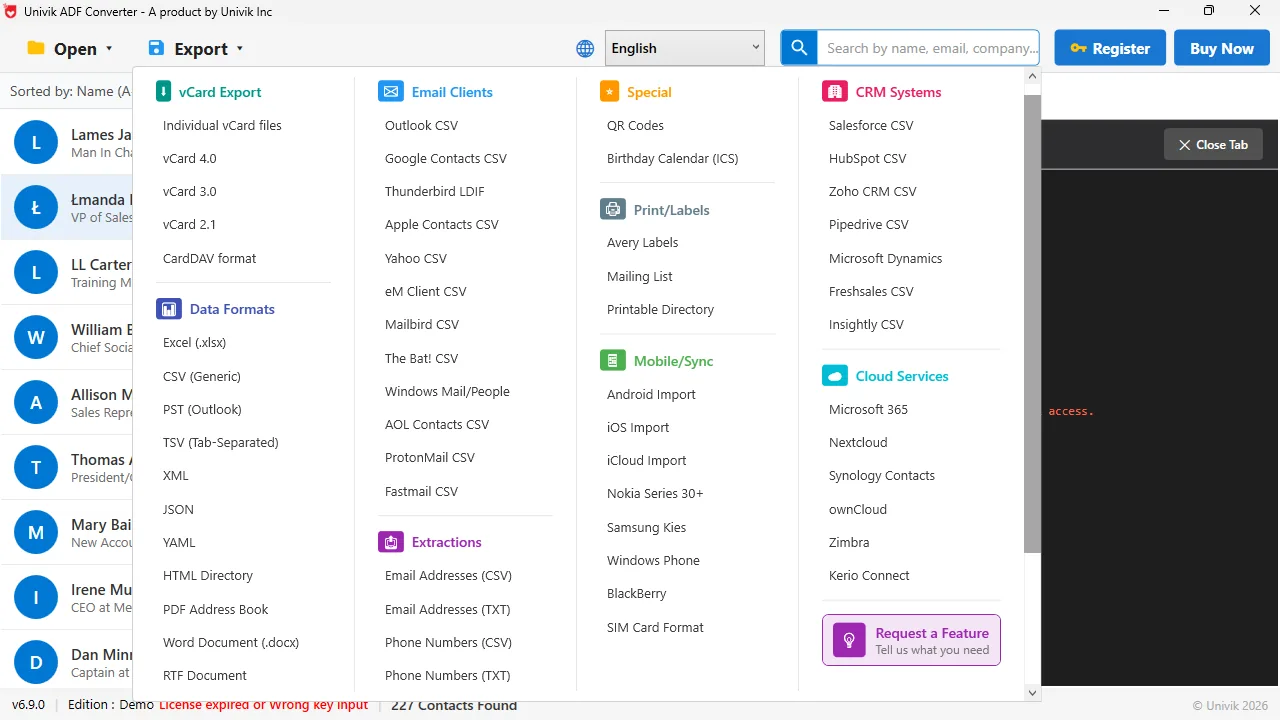
Three vCard versions, plus one file per contact The vCard Export group offers vCard 4.0, 3.0 and 2.1, and an Individual vCard files option that writes one .vcf per person.
How Do You Export ACT! Contacts to a vCard in 3 Steps?
You do not need ACT! on the PC for this. The .adf file is read straight from disk.
Open the ACT! .adf file in the converter
Open Univik ACT ADF Converter and choose your .adf file, keeping the .alf file next to it. The list of names appears on the left. Click a few names and check the phone numbers look right, since those are what you will dial from the phone.
Choose vCard 3.0 and save one combined .vcf
Open the Export menu. Under vCard Export pick vCard 3.0, which is the version phones handle best. Leave the Individual vCard files option alone unless you want one file per person. Save the .vcf somewhere you can reach from the phone, such as your desktop or a cloud drive.
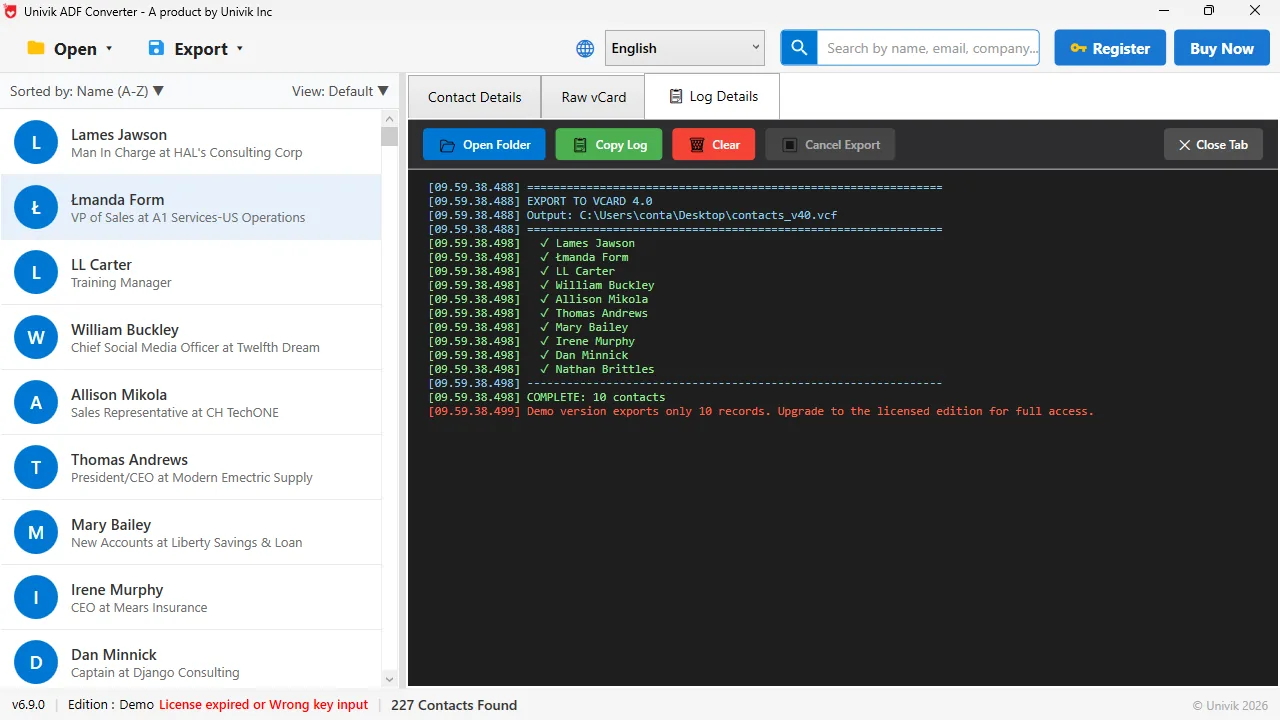
Proof it wrote the file The log lists each contact as it goes into contacts_v40.vcf. The demo build stops at 10 records, the paid build writes them all.
Import the .vcf on your phone
Get the .vcf to the phone and open it. The iPhone and Android sections give the exact steps for each phone. In both cases the phone reads the file and adds every entry in one go.
Which vCard Version Should You Pick?
The converter offers vCard 2.1, 3.0 and 4.0. Version 3.0 is the safe pick. It is what iPhone, Android, Google and Outlook all read without fuss. Version 4.0 is newer and handles some fields better, but a few older apps still reject it. Version 2.1 is for very old phones and older Outlook builds. When in doubt, choose 3.0.
How Do You Put the vCard on an iPhone?
The easiest way is iCloud. On a computer, sign in at iCloud.com, open Contacts, click the gear icon and choose Import vCard. Pick your .vcf and the names appear in iCloud and sync to the iPhone on their own. The other way is email: send the .vcf to yourself, open the message on the iPhone, tap the attachment and choose Add All Contacts.
How Do You Put the vCard on an Android Phone?
Use Google Contacts. On a computer, go to contacts.google.com, click Import, choose the .vcf and the entries sync to any Android phone signed into that Google account. On the phone itself, the Contacts app can also import a .vcf from storage. Look under Settings then Import, or under Fix and manage then Import from file, depending on the phone. For the Google route in detail, including the 3,000-contact limit and labels, see how to export ACT! contacts to Google Contacts.
Most vCard problems on a phone come from the version, not the data. Our rule is vCard 3.0 unless you know the target needs something else. It has imported cleanly on every iPhone and Android phone we have tried.
Univik ACT ADF Converter reads the ACT! .adf file with no ACT! installed and writes vCard 2.1, 3.0 or 4.0, as one combined file or one file per contact. Phone numbers, emails, addresses and company all land in the right vCard fields.
Windows 11 / 10 / 8 / 7 · vCard 2.1, 3.0 and 4.0 · the free trial writes the first 10 contacts so you can test the import on your phone
One vCard File or One Per Contact?
The converter can write one .vcf holding everyone, or a separate .vcf for each person. Here is when each makes sense.
| Option | How many files | Best for | Watch out for |
|---|---|---|---|
| One combined .vcf | One file for everyone | iPhone, Android, Google Contacts | Nothing, this is the normal choice |
| Individual vCard files | One .vcf per contact | Sharing single contacts, some old phones | Hundreds of files to move |
| CSV instead of vCard | One file | Google Contacts import | iPhone will not open a CSV directly |
For a phone, make one combined file. Every import tool reads it in a single step. One file per person is handy when you want to send a single person's card, or for an old handset that only takes one card at a time.
How Do You Check the Contacts Reached the Phone?
- The phone's address book grew by the number of records in the ACT! database
- A name you know shows the right mobile and work numbers, and tapping one dials it
- Company names and email addresses appear on the contact card, not in the notes field
If you also use Outlook or another CRM, import the same .vcf there too, so every address book matches.
The short version
- Phones read vCard (.vcf) files, not ACT! files or CSVs.
- Open the ACT! .adf in Univik ACT ADF Converter and choose vCard from the Export menu.
- Pick vCard 3.0 unless you have a reason not to. Save one combined file.
- iPhone: import through iCloud.com or open the .vcf from an email. Android: import in Google Contacts or the Contacts app.
- Check a few names on the phone and confirm the numbers dial.
Try Univik ACT ADF Converter free
ACT! to vCard Questions
How do I export ACT! contacts to a vCard?
Open the ACT! .adf database file in Univik ACT ADF Converter, open the Export menu and pick vCard 3.0 under vCard Export. It writes one .vcf file with every contact, or one file per contact if you choose Individual vCard files. ACT! itself has no vCard export.
How do I get ACT! contacts onto my iPhone?
Export them to a vCard first. Then sign in at iCloud.com on a computer, open Contacts, click the gear icon and choose Import vCard. The contacts sync to the iPhone. Or email the .vcf to yourself and tap it on the phone, then choose Add All Contacts.
How do I get ACT! contacts onto an Android phone?
Export them to a vCard, then go to contacts.google.com on a computer, click Import and choose the .vcf. The contacts sync to any Android phone on that Google account. The phone's Contacts app can also import a .vcf from storage.
Which vCard version should I use, 2.1, 3.0 or 4.0?
Use 3.0 unless you have a reason not to. iPhone, Android, Google Contacts and Outlook all read it. Version 4.0 is newer but a few older apps reject it. Version 2.1 is for very old phones and older Outlook builds.
Should I make one vCard file or one per contact?
One combined file for a phone. iCloud, Google Contacts and the phone apps read it in a single import. One file per contact is only useful for sharing a single card or for an old handset that imports one card at a time.
Can I do this if ACT! will not open any more?
Yes. The contact records are inside the .adf database file, and Univik ACT ADF Converter reads it with no ACT! and no licence to write the vCard. Make sure the matching .alf file sits beside the .adf.
 About This Guide
Written and maintained by Leena Taylor Paul and the Univik team, developers of Windows data conversion and recovery software since 2013. We exported ACT! contacts to vCard 3.0 on Windows 11 in September 2026 and imported the file through iCloud and Google Contacts to confirm the numbers and emails landed in the right fields. Last verified September 19, 2026. Need a hand? Contact our support team.
Sources checked: Apple Support, iCloud Contacts · Google Contacts Help · Univik ACT ADF Converter