 Export Guide
 By
By Google Contacts imports a CSV or a vCard, and it takes up to 3,000 records per file. To export ACT! contacts to Google Contacts, read the ACT! .adf database with a tool that writes a Google-shaped CSV, sign in at contacts.google.com, click Import and choose the file. Google adds every record under a dated label, and they sync to Gmail and to any Android phone on that account.
Once your address book is in Google Contacts it is everywhere at once: Gmail suggests them, your Android phone rings with their name and Google Workspace shares them across the team. Getting an old ACT! address book in there is a one-time job, and this guide walks through it.
Two things catch people out. Google has a 3,000-contact limit per import file, and it drops every imported record into one label rather than keeping your ACT! groups. Both have simple fixes, covered below.
- Does Google Contacts Want a CSV or a vCard?
- How Do You Export ACT! Contacts to Google Contacts in 3 Steps?
- Step 1: Export a Google-shaped CSV from the ACT! .adf file
- Step 2: Import the CSV at contacts.google.com
- Step 3: Rename the import label and check a few records
- What Is the 3,000-Contact Import Limit and How Do You Work Around It?
- How Do You Keep ACT! Groups as Google Labels?
- How Do You Handle Duplicates After the Import?
- Google CSV or vCard: Which Should You Pick?
- How Do You Check the Contacts Reached Google?
- ACT! to Google Contacts Questions
Does Google Contacts Want a CSV or a vCard?
Either one. The Import screen at contacts.google.com accepts a CSV file or a vCard (.vcf) file. For a CSV, Google reads the column headers to work out which column is the name, which is the phone and so on. If the headers match Google's own export layout, every field lands in the right place with no extra work.
ACT! cannot write either file itself. A reader that opens the ACT! .adf database can write a CSV in Google's layout, or a vCard, straight from the ACT! records.
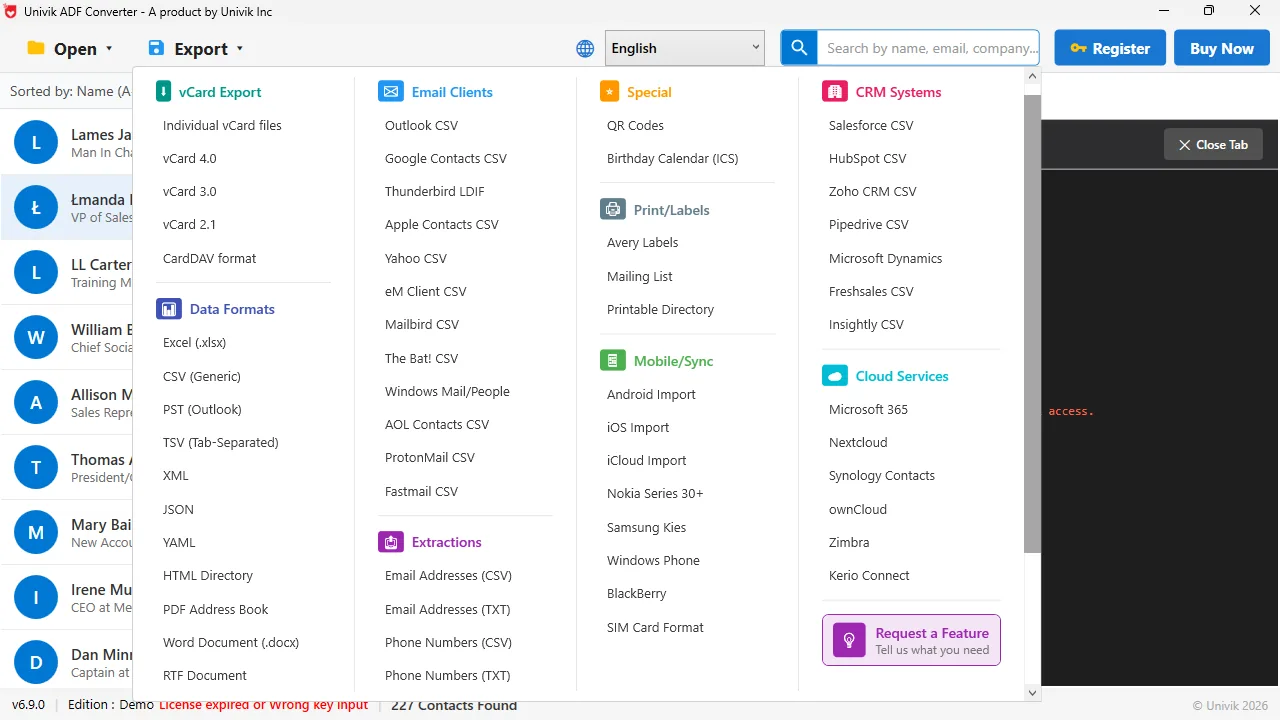
A CSV Google already understands Under Email Clients, the Google Contacts CSV option writes the column names Google's import screen expects, so no renaming is needed.
How Do You Export ACT! Contacts to Google Contacts in 3 Steps?
ACT! can be missing from the PC. The records come straight out of the database file.
Export a Google-shaped CSV from the ACT! .adf file
Start Univik ACT ADF Converter and load the .adf, keeping the .alf beside it. Open the Export menu and under Email Clients pick Google Contacts CSV. Save the file. If the database holds more than 3,000 people, see the limit section below before you import.
Import the CSV at contacts.google.com
On a computer, sign in to the Google account that should own the contacts and go to contacts.google.com. Click Import in the left menu, choose Select file, pick the CSV and click Import. Google reads the file and adds them in one go.
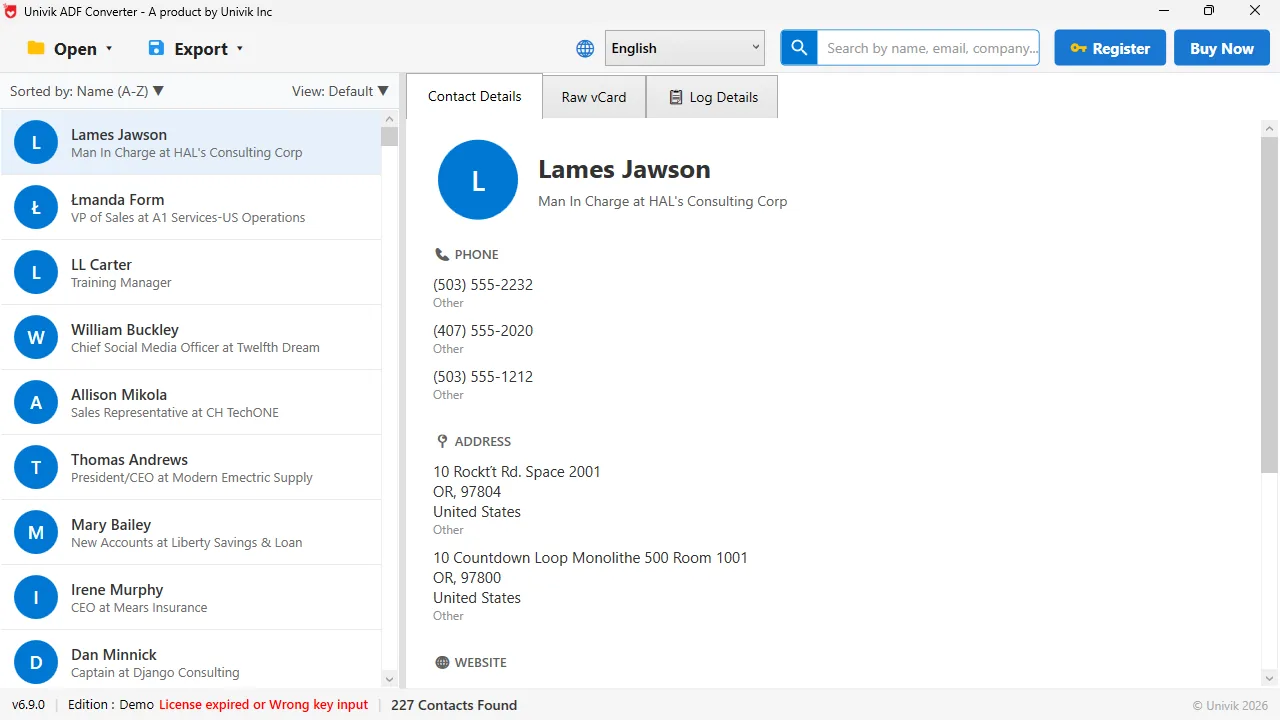
Names, numbers and addresses Each ACT! record shows its phone numbers and addresses. These map to the phone and address fields on the Google contact card.
Rename the import label and check a few records
Google puts everything from the import under a label that reads Imported on followed by the date. Rename that label to something you will recognise, like ACT! Contacts. Then open a few records and confirm the mobile, work phone and company sit in their own fields.
What Is the 3,000-Contact Import Limit and How Do You Work Around It?
Google imports at most 3,000 records from one file. A bigger file stops partway. The fix is to split the export into several CSVs of 3,000 or fewer, each with its own header row. Import them one after another. Each import gets its own dated label, which you can merge into one afterwards. A Google account can hold 25,000 records in total, so large ACT! databases still fit.
How Do You Keep ACT! Groups as Google Labels?
Google labels are the closest thing to ACT! groups, but the import does not create them for you. The simplest route is one import per group: export each ACT! group to its own CSV, import it, then rename that import's label to the group name. For a handful of groups this takes a few minutes. If you have many, import everything once and build the labels in Google by selecting people and applying a label.
How Do You Handle Duplicates After the Import?
If some ACT! people were already in Google, you will now have two cards for them. Google has a tool for this. In the left menu open Merge and fix. It lists likely duplicates side by side and merges them with one click, keeping the phone numbers and emails from both cards. Run it once after the import and again after the phone syncs.
Google's import is forgiving as long as the column headers are the ones it knows. A CSV written in Google's own layout goes in first time. A generic CSV with ACT!'s field names usually needs a round of renaming in a spreadsheet before Google accepts the phone and address columns.
Univik ACT ADF Converter reads the ACT! .adf file with no ACT! installed and writes a CSV in Google's own column layout, or a vCard, so the Google import goes through first time.
Windows 11 / 10 / 8 / 7 · Google Contacts CSV and vCard · the free trial writes the first 10 contacts so you can test the Google import
Google CSV or vCard: Which Should You Pick?
All three files below import into Google. They differ in how much you touch them first.
| File type | Google import | Keeps company and job title | Best for |
|---|---|---|---|
| Google Contacts CSV | Yes, columns already named | Yes | Most people, one clean import |
| Generic CSV with ACT! headers | Yes, after you rename columns | Yes, if mapped | You want to edit the list in Excel first |
| vCard 3.0 (.vcf) | Yes | Yes | You are also loading the same file onto a phone |
Pick the Google Contacts CSV unless you also need the same file on an iPhone, in which case a vCard covers both jobs. Use the generic CSV only when you want to clean the list in a spreadsheet before it goes in.
How Do You Check the Contacts Reached Google?
- The dated import label holds the same number of entries as the CSV had rows
- A contact you know shows their company and job title on the card, not in the notes box
- Typing their name in Gmail's To field suggests the right email address
Give an Android phone on the same account a minute to sync, then search a name in its Contacts app. If it is there, the whole move is done.
The short version
- Google Contacts imports a CSV or a vCard at contacts.google.com, up to 3,000 records per file.
- Write a Google-shaped CSV from the ACT! .adf file so the column names already match.
- Split the export into files of 3,000 or fewer if your ACT! database is larger.
- Google puts every imported contact under one dated label. Rename it, or make one label per ACT! group.
- Run Merge and fix afterwards to clear duplicates, then check a few records on your phone.
Try Univik ACT ADF Converter free
ACT! to Google Contacts Questions
How do I import ACT! contacts into Google Contacts?
Export a Google-shaped CSV from the ACT! .adf database with Univik ACT ADF Converter, then go to contacts.google.com, click Import in the left menu, select the file and click Import. Google adds them under a dated label that you can rename.
Does Google Contacts have an import limit?
Yes. Google imports at most 3,000 records from one CSV or vCard file, and an account holds up to 25,000 in total. For a larger ACT! database, split the export into files of 3,000 or fewer and import them one after another.
Will my ACT! groups come across as Google labels?
Not automatically. Google puts each import under one dated label. To keep groups, export each ACT! group to its own CSV, import it and rename that label to the group name. Or import once and build labels in Google by selecting people.
Can I export ACT! contacts to Gmail if ACT! no longer opens?
Yes. The records sit in the .adf database file, so a reader that opens the .adf directly can write the Google CSV with no ACT! installed and no licence. Gmail uses the same Google Contacts, so once they are in, Gmail sees them.
What about Google Workspace shared contacts?
The steps here load records into one user's Google Contacts. A Workspace admin can then share them, or add them to the shared directory using the admin tools. The import itself is the same CSV either way.
Why did some phone numbers land in the wrong field?
Google reads the CSV column headers. If the headers are ACT!'s own field names rather than Google's, phone and address columns can be mismatched. Use the Google Contacts CSV export, which writes Google's headers. Or rename the columns in a spreadsheet before importing.
 About This Guide
Written and maintained by Leena Taylor Paul and the Univik team, developers of Windows data conversion and recovery software since 2013. We exported ACT! contacts as a Google Contacts CSV on Windows 11 in September 2026 and imported it at contacts.google.com to confirm the name, phone, email and company fields landed correctly. Last verified September 19, 2026. Need a hand? Contact our support team.
Sources checked: Google Contacts Help, Import contacts · Univik ACT ADF Converter