 Migrate Guide
 By
By To migrate ACT! data to Zoho, Salesforce or HubSpot, export each ACT! table as its own clean CSV first: companies, contacts, notes, history and opportunities. Read them straight from the .adf database file so the notes keep a column naming their contact. Then import in order, companies before contacts and contacts before notes, so the new CRM can link the records back together.
Most ACT! migration guides spend one line on the export and ten pages on the new CRM. That is backwards. The part that goes wrong is getting clean data out of ACT! in the first place, with the notes still attached to the right people.
This guide is about that first step. It shows which ACT! tables you need, how to get them out as CSV files a CRM can read and in what order to load them into Zoho, Salesforce or HubSpot. The CRM side gets a short section each, because that part is well documented already.
- Why Do ACT! Migrations Stall at the Export Step?
- Which ACT! Tables Do You Need to Move?
- How Do You Export ACT! Data for a CRM Import in 3 Steps?
- Step 1: Open the .adf and count the records in each table
- Step 2: Export one CSV per table, shaped for your CRM
- Step 3: Import companies, then contacts, then notes and history
- In What Order Should You Import Into the New CRM?
- What Do Zoho, Salesforce and HubSpot Each Want?
- Which Migration Route Should You Use?
- How Do You Check the Migration Worked?
- ACT! CRM Migration Questions
Why Do ACT! Migrations Stall at the Export Step?
ACT! stores a customer as several linked records: the contact, the company, the notes written about them, the history of calls and emails and any open opportunity. ACT!'s standard export writes the contact list and nothing else. So the migration starts with names and phone numbers and no memory of the relationship.
The second snag is the link between tables. A note is useful only if the new CRM knows which contact it belongs to. That needs a column in the notes file that names or IDs the contact. A plain contact export never has it.
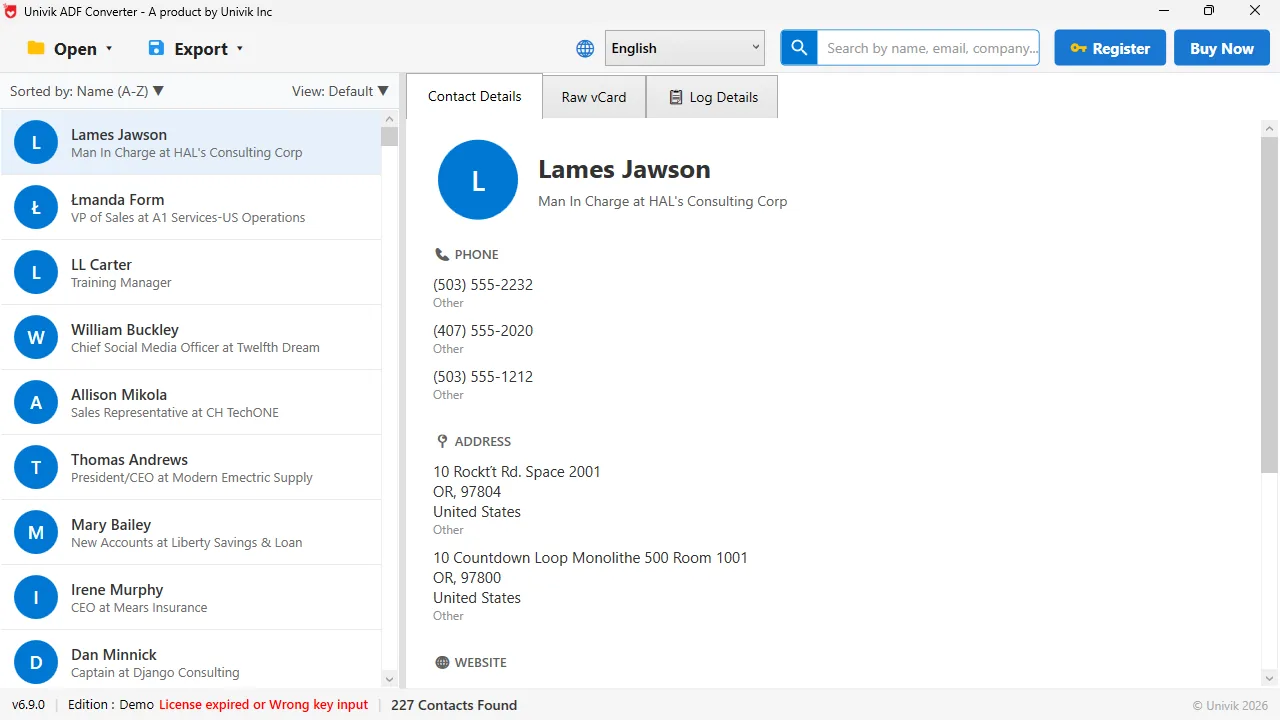
Count before you move The tool lists every record read from the .adf, here 227 contacts, so you know the number the new CRM should show after the import.
Which ACT! Tables Do You Need to Move?
Five tables cover almost every migration. Contacts are the people. Companies are the accounts they work for. Notes are the free text typed on a record. History is the dated log of calls, meetings and emails. Opportunities are the deals with a value and a stage. Groups are a sixth, useful if you used them as lists or segments.
All six live inside the .adf database file. A reader that opens the .adf can write each one as a separate CSV, with the linked contact carried into the notes, history and opportunity files.
How Do You Export ACT! Data for a CRM Import in 3 Steps?
This works whether or not ACT! still opens, because it reads the database file directly.
Open the .adf and count the records in each table
Open the database in Univik ACT ADF Converter, keeping the matching .alf in the same folder. Write down the contact, company and history counts from the summary. Those numbers are your finish line. When the new CRM shows the same counts, the migration is complete.
Export one CSV per table, shaped for your CRM
Open the Export menu and look under CRM Systems. Pick the CSV for your target, Salesforce, HubSpot or Zoho CRM. The tool names the contact and account columns the way that CRM's import screen expects, which saves most of the field mapping. For notes, history and opportunities use the plain CSV export, which writes one file per table with the linked contact carried into every row.
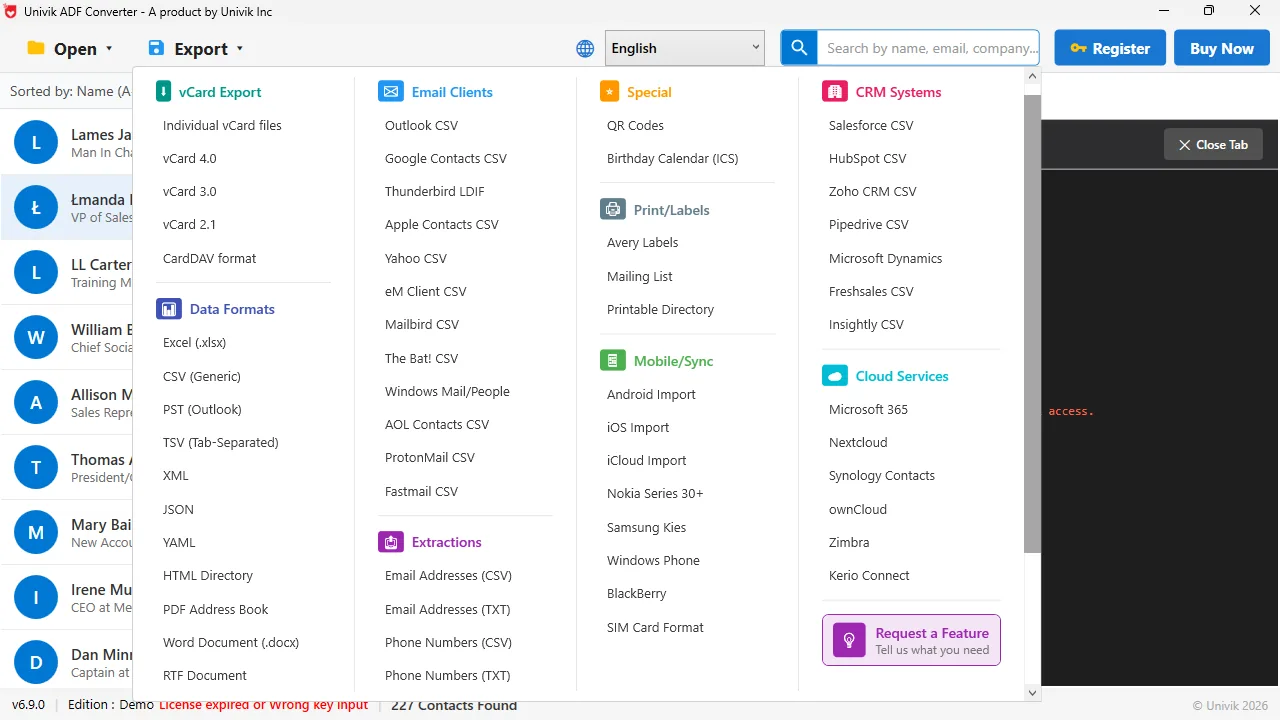
A CSV shaped for each CRM Under CRM Systems the Export menu writes a Salesforce, HubSpot, Zoho CRM, Pipedrive, Microsoft Dynamics, Freshsales or Insightly CSV with the column names that CRM expects.
Import companies, then contacts, then notes and history
In the new CRM, import the companies file first so the accounts exist. Then import contacts, matching the company column to those accounts. Then import notes and history, matching the contact column to the people you loaded. Opportunities go last, linked to both. Each import screen asks you to confirm the mapping before it runs.
In What Order Should You Import Into the New CRM?
Parents before children. A contact points to a company, a note points to a contact, an opportunity points to both. If you load notes before contacts, the CRM has nothing to attach them to and either rejects the rows or files them as orphans. Companies, then contacts, then notes and history, then opportunities avoids that.
What Do Zoho, Salesforce and HubSpot Each Want?
Zoho CRM imports through Setup, then Data Administration, then Import. It has separate modules for Accounts, Contacts, Notes and Deals, so you run one import per file and pick the matching module each time.
Salesforce uses the Data Import Wizard for Accounts, Contacts and Leads. Notes are the awkward part in Salesforce, and many teams load them with Data Loader as a separate object linked to the contact. Keep the contact column in the notes file for exactly this reason.
HubSpot imports from Contacts, then Import, then a file from your computer. It can take companies and contacts together in one file with an association column, and notes as a separate engagement import.
In all three, the import screen shows a preview and a mapping step. Read that step slowly. It is where a mobile number ends up in the fax field if you rush.
The migrations that go badly are the ones that start with ACT!'s own contact export and discover months later that the notes never came across. Export every table, not only the contacts. Keep the column that ties each note to its person. The CRM import is the easy half.
Univik ACT ADF Converter reads the .adf file with no ACT! installed and writes Salesforce, HubSpot, Zoho CRM and Pipedrive contact CSVs, plus one plain CSV per table for notes, history and opportunities, each row linked to its contact.
Windows 11 / 10 / 8 / 7 · CRM-named columns · the free trial exports the first 10 contacts so you can test the import mapping first
Which Migration Route Should You Use?
Four routes, with the honest trade-offs.
| Route | Who does the export | Notes and history | Cost | Best when |
|---|---|---|---|---|
| ACT! own export, clean up in Excel | You, inside ACT! | No, unless you export each table by hand | Free | ACT! runs and the database is small |
| Migration agency or consultant | They do everything | Yes, if scoped | Highest | Large team, custom fields, no time |
| ETL tool such as StarfishETL | You, with setup | Yes, with mapping work | Paid, per project | Ongoing sync or repeat migrations |
| Univik ACT ADF Converter CSVs | You, from the .adf file | Yes, dated and linked by contact | $39 one time | One-time move, with or without ACT! running |
If ACT! still runs and you have a few hundred contacts with no notes you care about, ACT!'s own export and an hour in Excel is enough. The moment notes, history or a dead ACT! install enter the picture, read the .adf directly. An agency or an ETL tool earns its fee when the team is large or the CRM setup is custom.
How Do You Check the Migration Worked?
- The contact and company counts in the new CRM match the counts the .adf summary showed
- Opening a busy contact shows their notes and history in date order under their record
- A deal you remember appears as an opportunity with the right value and stage
Keep the CSV files and the .adf backup for a few months after go-live. If a field turns out to be missing, you can re-import that one table without redoing the whole move.
The short version
- Export every ACT! table as its own CSV: companies, contacts, notes, history and opportunities.
- Read them from the .adf file so each note row names its contact. That column is what the CRM uses to link them.
- Import in order: companies, then contacts, then notes and history, then opportunities.
- Zoho, Salesforce and HubSpot all import CSV. Each has its own import screen and its own names for the fields.
- Check the record counts in the new CRM against the counts the .adf showed before you started.
Try Univik ACT ADF Converter free
ACT! CRM Migration Questions
How do I migrate ACT! data to Salesforce?
Export each ACT! table as a CSV from the .adf file, using the Salesforce-shaped export so the columns match. Import accounts first with the Data Import Wizard, then contacts, then load notes and history from the plain CSV export as a linked object using the contact column. Check the record counts against the .adf summary.
How do I migrate ACT! to Zoho CRM?
Export ACT! companies, contacts, notes and deals as separate CSVs, shaped for Zoho. In Zoho go to Setup, then Data Administration, then Import. Run one import per module: Accounts, then Contacts, then Notes, then Deals. Map the company and contact columns so the records link.
How do I move ACT! contacts to HubSpot?
Export a HubSpot-shaped contact CSV from the ACT! .adf file. In HubSpot open Contacts, then Import, choose a file from your computer and map the columns. Companies can go in the same file with an association column. Notes import separately as engagements linked by contact.
Will my ACT! notes and history move to the new CRM?
Yes, if you export them as their own files with a column naming each contact and import them after the contacts. ACT!'s standard contact export leaves notes and history out entirely, which is why so many migrations lose them.
Can I migrate from ACT! if the software no longer opens?
Yes. Everything sits inside the .adf database file, so the program does not need to run. Univik ACT ADF Converter reads the .adf with no ACT! installed and writes the CRM-shaped CSV files you need for the import.
Do I need a migration agency to leave ACT!?
Not for most small and mid-size databases. If you can export clean CSVs per table and follow the import order, the CRM import screens do the rest. An agency makes sense for a large team, heavy custom fields or a tight deadline.
 About This Guide
Written and maintained by Leena Taylor Paul and the Univik team, developers of Windows data conversion and recovery software since 2013. We exported CRM-shaped CSVs from ACT! databases on Windows 11 in September 2026 and checked the column names against the Zoho, Salesforce and HubSpot import screens. Last verified September 19, 2026. Need a hand? Contact our support team.
Sources checked: Salesforce Help, Data Import Wizard · Zoho CRM Help, Import data · HubSpot Knowledge Base, Import · Univik ACT ADF Converter