 Migrate Guide
 By
By Salesforce imports accounts, contacts and opportunities from CSV through the Data Import Wizard, up to 50,000 records per file, and imports notes through the wizard or Data Loader. ACT!'s own export gives you contacts only. To bring notes and history, read the .adf with a tool that writes every table to CSV, add the Salesforce record ID or email of each contact to the notes rows and import in order: accounts, contacts, opportunities, notes.
Salesforce is the most structured destination an ACT! database can land in, and that structure is the catch. Accounts must exist before contacts, contacts before notes. Every note needs the ID of the record it belongs to. ACT! hands you none of that.
This guide builds the files in the order Salesforce wants them and shows where the notes and history come from, since ACT!'s own export leaves them behind.
- Which Salesforce Import Tool Do You Use for ACT! Data?
- Which CSV Files Do You Need From the ACT! Database?
- How Do You Migrate ACT! to Salesforce in 5 Steps?
- Step 1: Export accounts, contacts, opportunities and notes from the .adf
- Step 2: Import accounts, then contacts, with the Data Import Wizard
- Step 3: Export the new Salesforce IDs and match them to the notes
- Step 4: Import opportunities linked to accounts
- Step 5: Import notes and history against the contact IDs
- How Do ACT! Fields Map to Salesforce Objects?
- What Does Not Move From ACT! to Salesforce?
- Which Path Should You Take From ACT! to Salesforce?
- How Do You Check the Salesforce Import Worked?
- ACT! to Salesforce Questions
Which Salesforce Import Tool Do You Use for ACT! Data?
Two tools cover an ACT! migration. The Data Import Wizard, under Setup, Data Import Wizard, imports accounts, contacts, leads and opportunities from CSV, up to 50,000 records per file, with a matching option that stops duplicates. Salesforce's help also documents importing legacy notes through the wizard when the Notes and Attachments related list is in use. For larger volumes or enhanced Notes, Data Loader, the free desktop tool, imports any object including ContentNote.
For a typical ACT! database of a few thousand contacts, the wizard alone is enough for accounts, contacts and opportunities. Either tool handles the notes.
Which CSV Files Do You Need From the ACT! Database?
Four: companies, which become Accounts; contacts, which become Contacts; opportunities, which become Opportunities; and notes and history, which become Notes. ACT!'s File, Export screen covers the first two as long as a licence works. Opportunities, notes and history never appear in that screen, so a direct read of the .adf supplies them.
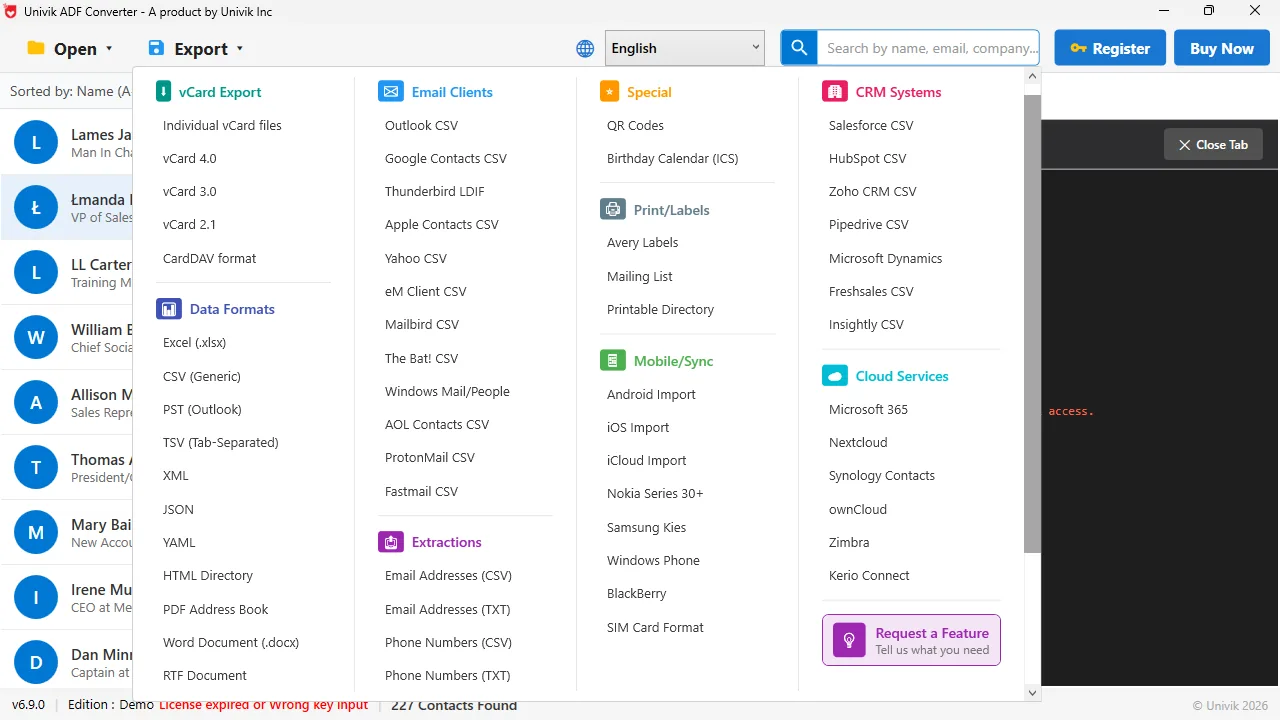
Files the Data Import Wizard can read CRM CSV writes contact and account columns with the names Salesforce and other CRMs expect, one file per ACT! table.
How Do You Migrate ACT! to Salesforce in 5 Steps?
Gather the .adf and .alf, a Salesforce login with import rights and Excel.
Export accounts, contacts, opportunities and notes from the .adf
Point Univik ACT ADF Converter at the .adf, choose CSV and you get a companies file, a contacts file, an opportunities file and a notes and history file. The CRM CSV option puts CRM-style headings on the contact and account columns. Keep the files together.
Import accounts, then contacts, with the Data Import Wizard
Open the Data Import Wizard and import the companies CSV as Accounts, matching on Account Name so a rerun does not duplicate. Then import the contacts CSV as Contacts, matching on Email. Map the Company column to Account Name so each contact attaches to its account. The wizard emails you when each job finishes.
Export the new Salesforce IDs and match them to the notes
Notes in Salesforce point at a record by its 18-character ID, not by name. Run a Contacts report with Contact ID, Email and Name and export it. In Excel add a ParentId column to the notes CSV with a lookup on the contact name or email. Rows with no match need a manual fix before the next step.
Import opportunities linked to accounts
Import the opportunities CSV as Opportunities. Map the ACT! name to Opportunity Name, value to Amount, close date to Close Date and stage to Stage. Link each one to its account by Account Name. Salesforce requires a Stage and a Close Date on every opportunity, so fill blanks before you import.
Import notes and history against the contact IDs
Import the notes CSV with ParentId, Title and Body columns. If your org still uses the Notes and Attachments related list, the Data Import Wizard accepts the file. If it uses enhanced Notes, load it with Data Loader as ContentNote and then link the notes to their contacts. Either way each ACT! note lands on the timeline of the right person with its date in the title or body.
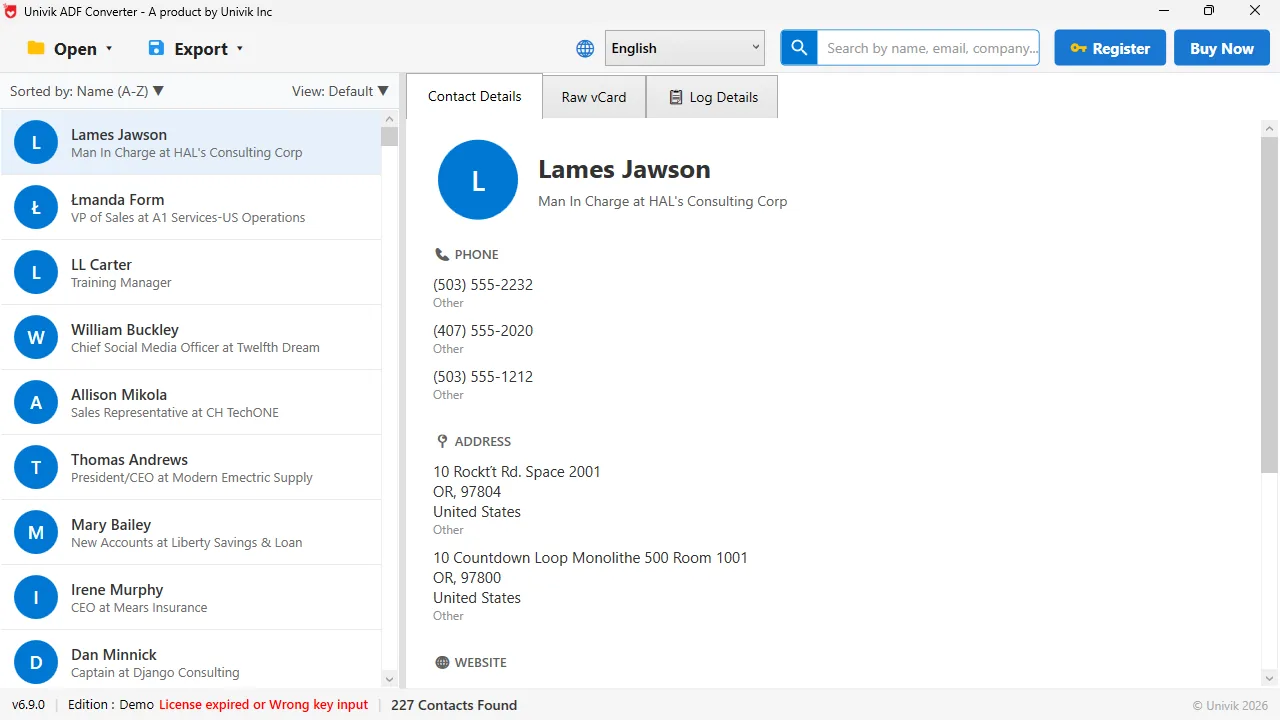
Two Salesforce objects in one screen The company on each ACT! record becomes the Account, the person becomes the Contact linked to it.
How Do ACT! Fields Map to Salesforce Objects?
ACT! Company becomes Account, with Website, Phone and Billing Address. ACT! Contact becomes Contact. First Name and Last Name take the split name, Email takes E-mail, Phone and Mobile take the two numbers, Title takes Title and the Company column feeds Account Name for the link. ACT! Opportunity becomes Opportunity with Amount, Stage and Close Date. ACT! notes and history become Notes with the ACT! date kept in the title. ACT! ID/Status suits Lead Source or a custom picklist. Custom ACT! fields need a custom field on the matching object before import.
Salesforce rewards people who import in the right order and punishes everyone else with orphan records. Get the accounts in first, capture the IDs and the notes fall into place.
Univik ACT ADF Converter reads the whole .adf and writes companies, contacts, opportunities, notes and history as CSV files, with contact and account columns named for a CRM, no ACT! licence and nothing uploaded. The rest is Salesforce's own import tools.
Windows 11 / 10 / 8 / 7 · CRM CSV output · the free trial writes the first 10 contacts so you can test the Salesforce mapping first
What Does Not Move From ACT! to Salesforce?
Attachments are files in ACT!'s supplemental folder, outside the database. Copy that folder out and add the documents to the matching Salesforce records yourself. Calendar entries are not exported. ACT! layouts, reports and templates have no Salesforce meaning. Records about people, companies, deals and conversations all come across.
Which Path Should You Take From ACT! to Salesforce?
Four ways, with the honest cost and time.
| Way | Accounts and contacts | Notes and history | Cost | Time |
|---|---|---|---|---|
| ACT! File, Export then Data Import Wizard | Yes | No, ACT! does not export them | Free | Half a day |
| Salesforce partner or Act! consultant | Yes | Yes, mapped and cleaned | Quoted, often thousands | 1 to 4 weeks |
| Migration platform (SyncMatters, Data2CRM and others) | Yes | Yes, automated | Quoted by record count | Days |
| Univik ACT ADF Converter plus Salesforce's own tools | Yes | Yes, you match the IDs | $39 one time | One day |
A partner earns the fee when you have many users, custom objects and a go-live date. For one database and a small team, Salesforce's own tools plus the four CSVs take a day.
How Do You Check the Salesforce Import Worked?
- The Contacts count in Salesforce matches the contact count in the converter's summary
- Every contact shows an Account, and no account was created twice
- A long-standing customer's record lists notes from several years in the related list or timeline
Keep the .adf, the CSVs and the ID export. A wrong mapping is fixed by an update import with the same match field.
The short version
- Salesforce's Data Import Wizard takes CSV files of up to 50,000 records for accounts, contacts and opportunities. Notes go through the wizard or Data Loader.
- ACT!'s own export writes contacts only. A direct .adf reader writes accounts, opportunities, notes and history too.
- Import order matters: accounts, contacts, opportunities, then notes.
- Notes need the Salesforce ID of the contact they belong to. Export the IDs after the contact import and match them in Excel.
- Attachments and calendar items stay behind. Everything about a person, company or deal comes across.
Try Univik ACT ADF Converter free
ACT! to Salesforce Questions
Can the Salesforce Data Import Wizard import ACT! contacts?
Yes. Export the contacts to CSV, open Setup, Data Import Wizard and import them as Contacts, up to 50,000 records per file. Map the Company column to Account Name so each contact links to its account.
How do I get ACT! notes and history into Salesforce?
ACT!'s own export does not write them. Export the notes and history table to CSV with Univik ACT ADF Converter, add each contact's Salesforce ID as ParentId, then import through the Data Import Wizard for legacy Notes or Data Loader for ContentNote.
In what order should I import ACT! data into Salesforce?
Accounts first, then contacts, then opportunities, then notes. Each later object links to an earlier one, and notes need the Salesforce ID of the contact they belong to.
Do I need ACT! installed to migrate to Salesforce?
No. Copy the .adf and .alf, open the .adf in Univik ACT ADF Converter and export the CSVs. Everything after that happens in Salesforce's own tools.
Will ACT! opportunities become Salesforce opportunities?
Yes. Export the opportunities table and import it as Opportunities with Amount, Stage and Close Date mapped. Salesforce requires a Stage and Close Date on every record, so fill any blanks first.
What is the free way to move ACT! to Salesforce?
Export contacts from ACT!'s File, Export screen and import that CSV with the Data Import Wizard. It is free and covers the contact list only, without notes, history or opportunities.
 About This Guide
Written and maintained by Leena Taylor Paul and the Univik team, developers of Windows data conversion and recovery software since 2013. We checked the Data Import Wizard and notes import rules against Salesforce's help documentation in September 2026 and exported a 227-contact ACT! database to CSV on Windows 11 the same week. Last verified September 20, 2026. Need a hand? Contact our support team.
Sources checked: Salesforce help: import notes with the Data Import Wizard · Salesforce Trailhead: data import · Univik ACT ADF Converter