 Migrate Guide
 By
By To import an ACT! database into Outlook, get the contacts out of the .adf file first, then bring them into Outlook. The fastest way is a PST file that Outlook opens directly, so every contact lands in the Contacts folder with names, phones and emails in the right fields. A CSV or vCard import works too. Notes and history come out as a spreadsheet you keep beside the contacts.
You are done with ACT! and you want your contacts in Outlook, where your email already lives. Maybe ACT! still opens, maybe it stopped opening a while ago. Either way the job is the same: get the records out of the ACT! database and into Outlook without typing them again.
One thing to clear up first. Searching for ACT! and Outlook brings up sync add-ons that keep the two programs talking while you still use ACT!. That is not what this guide is about. This is a one-way move, so you can leave ACT! behind.
- Are You Syncing or Leaving ACT!?
- What Are the Three Ways to Get ACT! Contacts Into Outlook?
- How Do You Import an ACT! Database Into Outlook in 3 Steps?
- Step 1: Open the ACT! .adf file in a reader
- Step 2: Export the contacts as an Outlook PST
- Step 3: Open the PST in Outlook and check the Contacts folder
- How Does the CSV Way Work With Outlook's Own Import?
- What Happens to Notes, History and the Calendar
- Which Way Into Outlook Should You Use?
- How Do You Check the Contacts Landed in Outlook?
- What If the ACT! to Outlook Move Goes Wrong?
- ACT! to Outlook Questions
Are You Syncing or Leaving ACT!?
Two very different jobs share the same search words. Syncing means ACT! stays your CRM and an add-on keeps Outlook in step with it. Act! has its own Outlook link for that. Leaving means you export the data once and stop using ACT!.
This guide is for leaving. If ACT! still works and you plan to keep it, the sync add-ons are the better fit. If you are moving on, or ACT! no longer opens, read on.
What Are the Three Ways to Get ACT! Contacts Into Outlook?
Outlook can take contacts three ways: from a PST data file, from a CSV through its Import wizard or from a vCard file. All three start from the same place, the ACT! .adf database file. Univik ACT ADF Converter reads that file without ACT! on the PC and can write all three formats. If the destination is a CRM rather than Outlook, see how to migrate ACT! data to a new CRM.
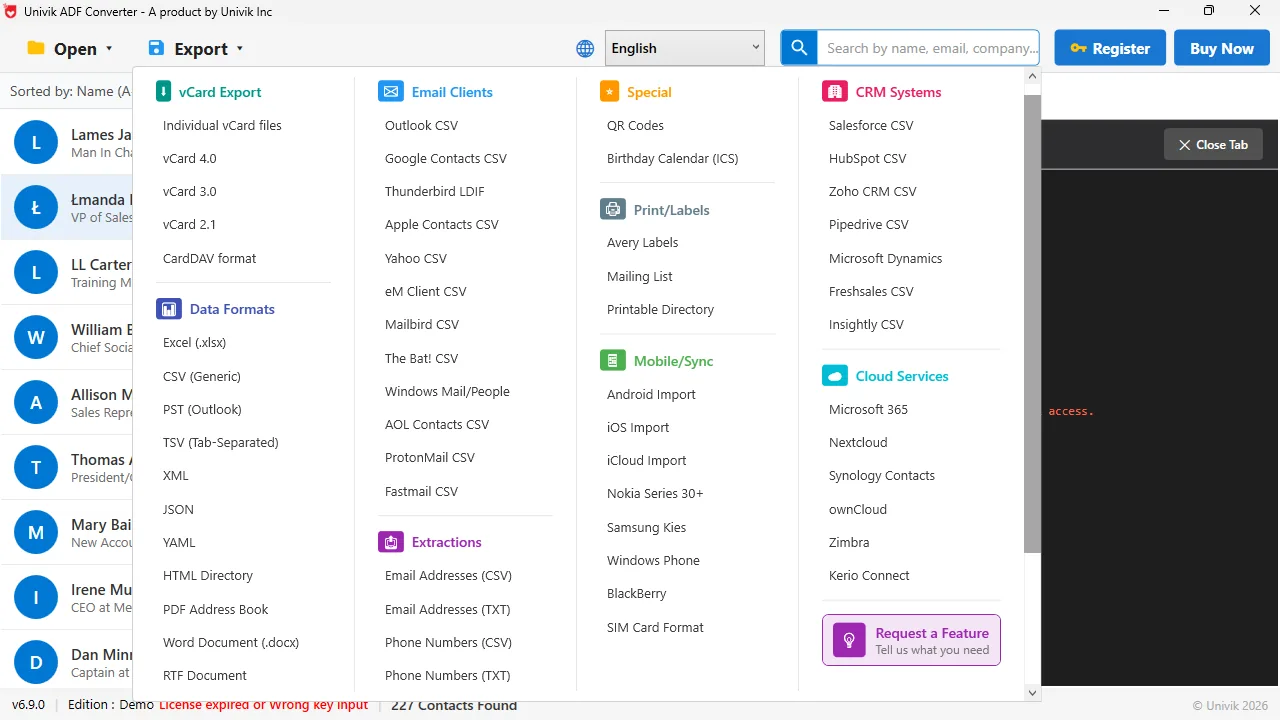
Two Outlook exits The Export menu has a PST (Outlook) option under Data Formats and an Outlook CSV option under Email Clients. PST is the one-step way in.
How Do You Import an ACT! Database Into Outlook in 3 Steps?
This is the PST way. It is the shortest path and it needs no column matching.
Open the ACT! .adf file in a reader
Locate your database pair, the .adf plus the .alf that matches it, normally under Documents in the ACT folder. Load the .adf into Univik ACT ADF Converter. The contact list fills the left side and you can click any record to check it before you move anything.
Export the contacts as an Outlook PST
Open the Export menu and pick PST (Outlook) under Data Formats. Choose where to save the file. The tool writes every contact into a PST with the name, company, phone numbers, emails and addresses placed in the matching Outlook fields.
Open the PST in Outlook and check the Contacts folder
In Outlook go to File, then Open and Export, then Open Outlook Data File. Pick the PST you saved and it appears in the folder list on the left. Open its Contacts folder and the ACT! records are there, ready to drag or copy into your main Contacts if you want them merged.
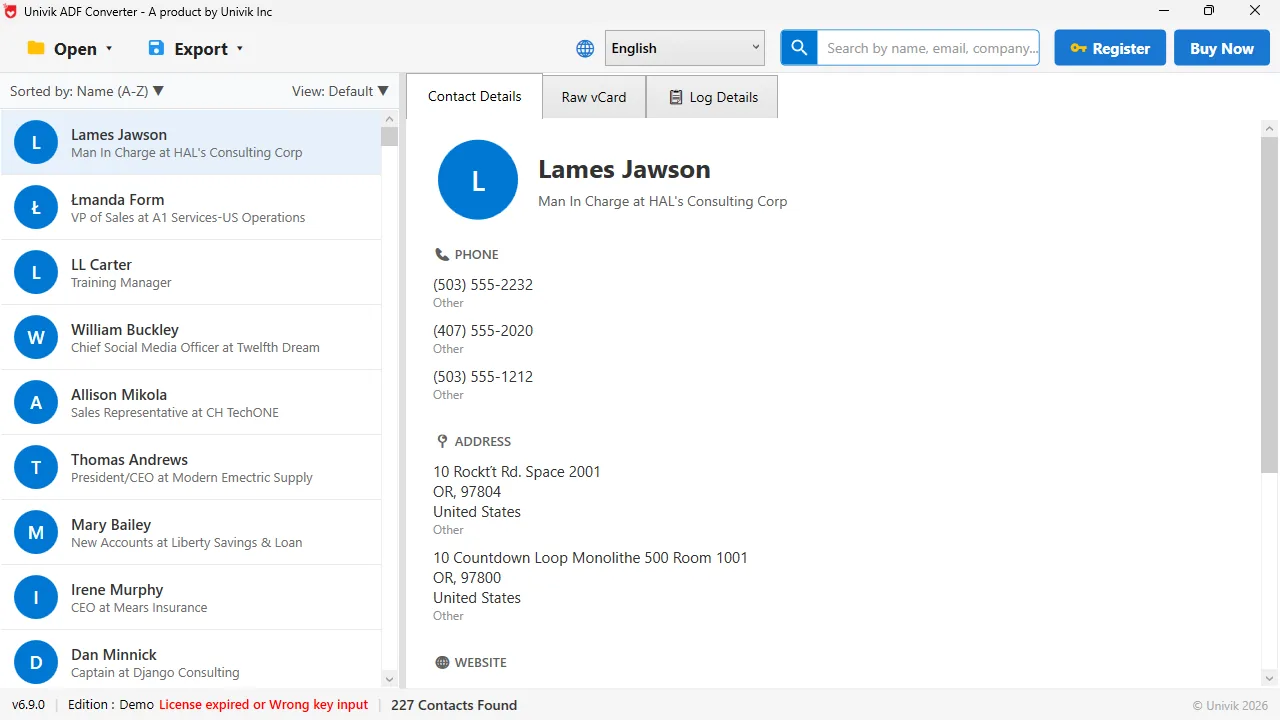
Check before you move Each ACT! record shows its phone numbers and addresses on the right. These are the fields that map into Outlook contact cards.
How Does the CSV Way Work With Outlook's Own Import?
If you would rather see the columns before they go in, export a CSV instead. Pick Outlook CSV under Email Clients in the Export menu, which lays the columns out the way Outlook expects. Then in Outlook go to File, then Open and Export, then Import/Export. Pick Import from another program or file, then Comma Separated Values. Point it at your CSV.
Outlook shows a Map Custom Fields button during the import. Click it and check that First Name, Last Name, Company and the phone columns line up. The Outlook CSV export gets most of this right on its own, but it is worth a look before you finish.
What Happens to Notes, History and the Calendar
Outlook contact cards have one Notes box, so the years of dated ACT! notes and history do not fit inside them as separate entries. Univik ACT ADF Converter exports notes and history to a CSV or Excel sheet, with the date of each note and the contact it belongs to, so you keep the full record beside the contacts. Many people save that sheet in the same folder as the PST.
The ACT! calendar and activities are a different story. The converter moves contacts, companies, notes, history and opportunities, not the calendar. If your ACT! still runs and you need old appointments in Outlook, use ACT!'s own Outlook sync before you switch off ACT!.
The part people worry about is the field mapping. When we exported an ACT! database to PST and opened it in Outlook, the work phone, mobile and email each landed in the right box on the contact card. No manual matching was needed.
Univik ACT ADF Converter opens the ACT! .adf file with no ACT! installed and writes an Outlook PST with every field in place. It also saves notes and history as a spreadsheet so nothing is left behind.
Windows 11 / 10 / 8 / 7 · writes PST, Outlook CSV and vCard · the free trial exports the first 10 contacts so you can test the mapping
Which Way Into Outlook Should You Use?
All three work. Pick by how much checking you want to do.
| Way into Outlook | Manual mapping | Needs ACT! running | Best for |
|---|---|---|---|
| PST from Univik ACT ADF Converter | No | No | Most people, one step |
| CSV through Outlook's Import wizard | Yes, you match columns | No, if the CSV came from the .adf | You want to review columns first |
| vCard file, one contact or many | No | No | A small list or a phone as well |
For most people the PST is the answer, because Outlook opens it as is and nothing needs matching. Use the CSV when you want to see and adjust the columns. Use a vCard when the list is small or the same contacts are also going to a phone.
How Do You Check the Contacts Landed in Outlook?
- The PST shows in Outlook's folder list and its Contacts folder holds the ACT! records
- Opening a contact shows the work phone, mobile and email in their own labelled fields
- The count in Outlook matches the count the reader showed before the export
If you merge the records into your main Contacts folder, check for duplicates afterwards. People who were already in Outlook may now appear twice.
What If the ACT! to Outlook Move Goes Wrong?
A few things go wrong often enough to plan for. Each card pairs the problem with the fix.
Do this: Run the import again and click Map Custom Fields. Drag each ACT! column onto the right Outlook field. Or skip the CSV and use the PST, which needs no mapping.
Do this: Look for a second folder inside the PST, sometimes named for the database. If it is still empty, run the export again and make sure PST (Outlook) was selected, not a CSV.
Do this: The converter moves contacts and notes, not the ACT! calendar. If ACT! still runs, use its built-in Outlook sync to copy the calendar before you stop using it.
Stuck between ACT! and Outlook? Tell our support team your Outlook version and which export you ran, and we will tell you which step to redo.
The short version
- First get the contacts out of the ACT! .adf file. A reader does this even when ACT! will not open.
- The quickest way into Outlook is a PST. Open it in Outlook and the contacts are in the Contacts folder.
- A CSV works through Outlook's Import wizard but you match the columns yourself.
- Notes and history come out as a CSV or Excel sheet to keep beside the contacts.
- The ACT! calendar is not moved by the converter. Use ACT!'s own Outlook sync for that while ACT! still runs.
Try Univik ACT ADF Converter free
ACT! to Outlook Questions
How do I import an ACT! database into Outlook?
Open the ACT! .adf file in a reader such as Univik ACT ADF Converter, export the contacts as an Outlook PST, then in Outlook go to File, Open and Export, Open Outlook Data File and pick the PST. The contacts appear in the PST's Contacts folder with the fields already mapped.
Can I move ACT! contacts to Outlook if ACT! no longer opens?
Yes. The contacts are stored in the .adf database file, not in the program. Univik ACT ADF Converter reads that file on its own and writes a PST or CSV for Outlook, with no ACT! installed and no licence.
Does the ACT! to Outlook move keep my notes and history?
Notes and history are exported to a CSV or Excel sheet with the note dates and the names they belong to. They do not become separate Outlook items, because an Outlook contact has only one Notes box. Keep the sheet beside the PST.
Will my ACT! calendar and activities move to Outlook?
Not through the converter. It moves contacts, companies, notes, history and opportunities. If ACT! still runs, use ACT!'s own Outlook sync to copy the calendar before you switch off ACT!.
PST or CSV: which is better for ACT! to Outlook?
PST for most people. Outlook opens it directly and the fields are already in place. Choose CSV when you want to see the columns and adjust them yourself in Outlook's Map Custom Fields screen.
Does this work with Outlook 365 and the new Outlook?
Classic Outlook for Windows opens PST files directly, so the PST way works there. The new Outlook app has more limited PST support, so if you use it, the CSV import or a vCard file is the safer choice.
 About This Guide
Written and maintained by Leena Taylor Paul and the Univik team, developers of Windows data conversion and recovery software since 2013. We exported an ACT! database to PST and opened it in classic Outlook on Windows 11 in September 2026, and checked that phone, email and company fields landed in the right places. Last verified September 19, 2026. Need a hand? Contact our support team.
Sources checked: Microsoft Outlook support · Univik ACT ADF Converter