 vCard Guide
 By
By AOL Contacts imports a CSV file, not a vCard, so a .vcf will not load on its own. Turn the vCard into an AOL Contacts CSV first with Univik vCard Converter, then open More in your contact list and choose Import from CSV file (5MB max). Your names, emails and phone numbers land in the right fields in one go.
You have a .vcf file of contacts and you want them in AOL Mail. The catch is simple: the Contacts area imports a CSV file, not a vCard, so a .vcf will not load directly. The fix is one short conversion. You turn the vCard into an AOL Contacts CSV and import it, so every name, email and phone number lands in the right place.
This matters because a vCard and a CSV hold the same details in different shapes. A vCard packs each contact into its own block of text. A CSV lays the same fields out as columns a mail service can read row by row. Get the columns right and the import is clean. Get them wrong and names end up in the phone column. That is why a purpose-built CSV beats a plain export from another app.
This guide shows the direct route with Univik vCard Converter, then a free route through Google Contacts for a one-off. Both end with the same import step, so pick the one that fits how many contacts you have.
- Why You Need a CSV, Not a VCF
- Convert and Import: The Steps
- Step 1: Convert the .vcf to an AOL Contacts CSV
- Step 2: Open Import from CSV file in AOL Contacts
- Step 3: Pick the CSV and check the contacts
- The Free Route Through Google Contacts
- Methods Compared
- What Transfers from the vCard
- Check the Contacts Imported
- Fix Common Import Problems
- VCF to AOL Contacts Questions
Why AOL Contacts Needs a CSV, Not a VCF
AOL Mail has no vCard import. Open Contacts and look under the More menu. The only import choice is Import from CSV file (5MB max). There is no VCF option anywhere. So if you feed it a .vcf, it has nothing to open it with. The vCard has to become a CSV first.
The good news is that the conversion is quick and keeps every field. Once the CSV is built, the import itself is two clicks. The three steps below do the whole job.
The same CSV route works from other apps too. A contact list exported from Excel or an Outlook address book saved as CSV imports the same way, once its columns match the ones the import expects. A vCard is the one common contact file that has to be converted first.
Convert the VCF and Import It to AOL Contacts
This is the direct route. You convert the .vcf to a CSV, then import that file from your contact list. It handles one contact or thousands in the same run.
Convert the .vcf to an AOL Contacts CSV
Open your .vcf file in Univik vCard Converter. It reads every vCard version and shows your contacts in a list. Click Export, then pick AOL Contacts CSV from the Email Clients group. This writes a CSV with the right columns, so the fields line up on import. Save the CSV where you can find it.
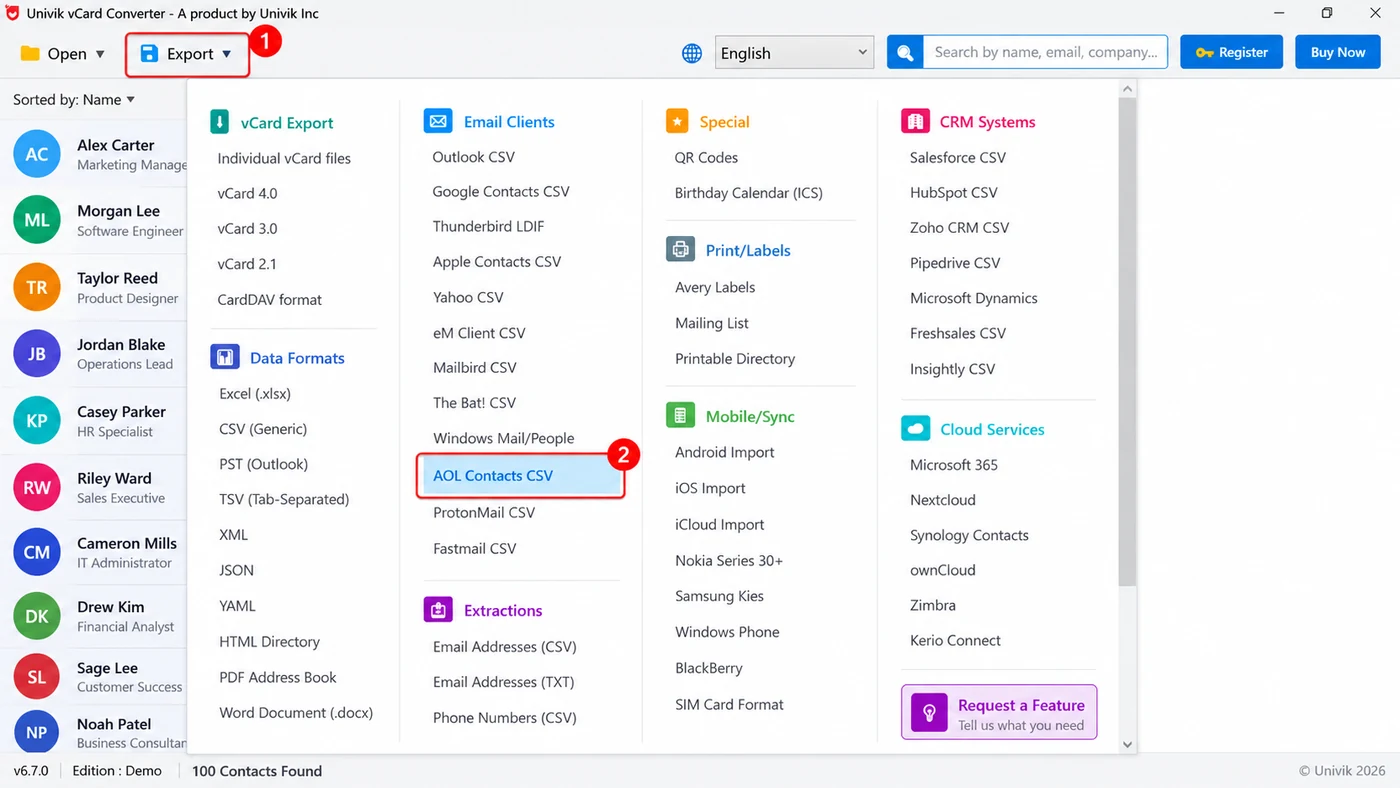
Step 1 In Univik vCard Converter, open Export and choose AOL Contacts CSV.
That CSV is the point of this step. A plain CSV from another app often uses different column names, so the fields land in the wrong place. A CSV with the right columns drops each one into its matching column.
Open Import from CSV file in AOL Contacts
Sign in to AOL Mail in your browser. In the left menu open Contacts. On the Contacts toolbar, open the More menu (the three-dots icon) and pick Import from CSV file (5MB max).
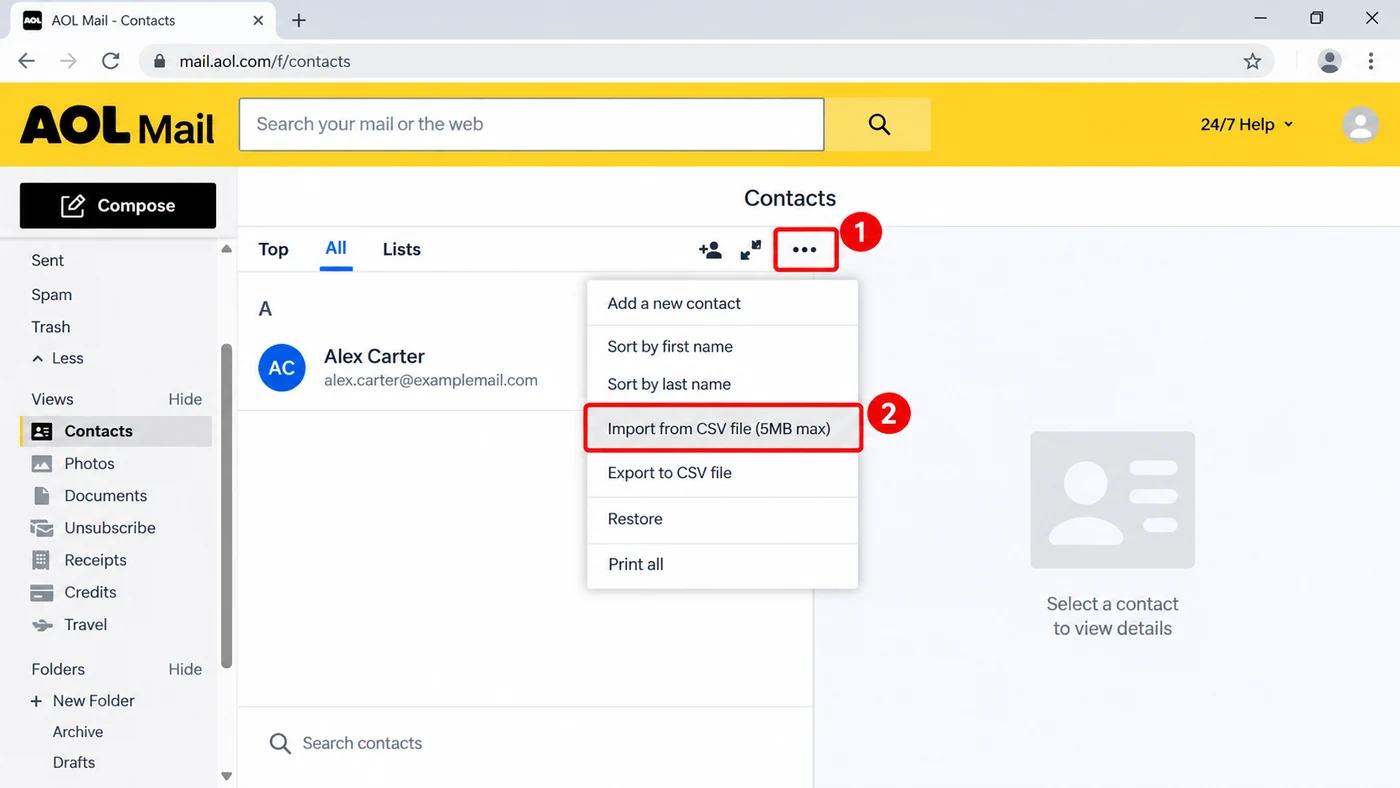
Step 2 In AOL Contacts, open More and choose Import from CSV file.
If your CSV is larger than 5 MB, split it into two files and import them one after the other. A CSV of a few thousand contacts is usually well under that limit.
Pick the CSV and check the contacts
A file picker opens. Choose the CSV you saved in step one and confirm. It reads the rows and adds each one to your list in a few seconds. Open one or two contacts and check the name, email and phone sit in the right fields. That is the whole import done.
Univik vCard Converter opens .vcf files from any app, reads every vCard version and exports a ready CSV with the right columns. It keeps names, emails, phone numbers, company, job title, addresses and contact photos. It handles the whole address book in one run.
Windows 11 / 10 · opens vCard 2.1, 3.0 and 4.0 · the free trial exports a sample so you can see the columns before you buy
The Free Route Through Google Contacts
For a one-off, you can reach it through Google Contacts without a tool. Google Contacts imports a vCard, so this route uses it as a middle step. Go to contacts.google.com, choose Import and upload your .vcf. Then select those contacts, choose Export and pick the Outlook CSV option. Now import that CSV with the same More then Import from CSV file steps above.
It is free, but there are two catches. The columns Google writes do not always fit, so a field like a job title or a second phone number can land in the wrong column, and you may need to tidy the CSV in a spreadsheet first. It also copies every contact through your Google account, which you may not want. For a large address book or a clean map straight in, the converter route is quicker and tidier.
VCF to AOL Contacts Methods Compared
| Method | Steps | Field mapping to AOL | Cost | Best for |
|---|---|---|---|---|
| Univik vCard Converter to AOL CSV | Convert, then import | Built for AOL columns | Trial, then licence | Any size, a clean map, photos kept |
| Google Contacts as a middle step | Import to Google, export CSV, import here | Needs tidying | Free | A one-off, if you use Google |
| Edit a CSV by hand | Type the columns yourself | Only if you know the headers | Free | A handful of contacts |
| Import the VCF straight into AOL | Not possible | AOL has no VCF import | Not applicable | Nobody, so convert first |
What Transfers from the vCard to AOL Contacts
A vCard holds far more than a name and an email, and a good conversion carries it across. The full name, the email address, the phone numbers, the company and job title, the mailing address and the notes each go into their matching field. Contact photos move too when the vCard holds them. The result looks like the contact you started with, not a stripped-down copy.
Check the Contacts Imported into AOL
- The new contacts show in your contact list and the count matches the number of vCards you started with
- Open one contact and the name, email and phone sit in their own fields, not merged into one line
- A contact that had a company, a photo or a second phone number still shows them
If a field looks off, the CSV columns did not line up. Go back to the converter, export a fresh CSV and import that. A CSV with the right columns is what keeps this step clean.
Fix Common VCF to AOL Import Problems
Three problems cover most VCF to AOL imports that go wrong. Each card below pairs the symptom with its fix.
Do this: That is expected. The Contacts area takes CSV only. Convert the vCard to a CSV first, then use More then Import from CSV file.
Do this: The CSV columns did not match AOL's. Export an AOL Contacts CSV from Univik vCard Converter. It uses the headers AOL Contacts wants, so import that instead of a plain CSV.
Do this: The import caps at 5 MB. Split the contacts into two CSV files and import them one after the other, or drop any large embedded photos before you export.
Stuck with a vCard that will not go in? Tell our support team how many contacts you have and which app the .vcf came from. We will point you at the fastest clean route in.
VCF to AOL Contacts Questions
Can I import a VCF file directly into AOL Mail?
No. AOL Contacts imports a CSV file only and caps it at 5 MB. There is no vCard import. To add VCF contacts you convert the .vcf to a CSV first, then use More then Import from CSV file in your contact list.
How do I convert a vCard to an AOL Contacts CSV?
Open the .vcf in Univik vCard Converter, click Export and choose AOL Contacts CSV. It reads every vCard version and writes a CSV with the right columns, so names, emails and phone numbers land in the right fields when you import.
Where is the import option in AOL Contacts?
Sign in to AOL Mail, open Contacts in the left menu, then click the More button on the Contacts toolbar. Choose Import from CSV file (5MB max) and pick your CSV. It adds the contacts in a few seconds.
Can I import all my contacts to AOL at once?
Yes. One CSV can hold your whole address book, and it imports the lot in one go as long as the file stays under 5 MB. For a very large list, split it into two CSV files and import them one after the other.
Will the contact photos and phone numbers transfer to AOL?
Phone numbers, company, job title and mailing address transfer when the CSV maps them to the right columns, which is what the converter's export does. Contact photos move across when the vCard holds them and the target supports them.
How do I import VCF contacts to AOL for free?
Import the .vcf into Google Contacts, export those contacts as an Outlook CSV, then import that CSV. It is free but the columns may need tidying in a spreadsheet so they line up properly, and it routes your contacts through a Google account.
 About This Guide
Written and maintained by Leena Taylor Paul and the Univik team, developers of Windows data conversion and recovery software since 2013. The import steps here were checked live in AOL Contacts, where the CSV-only limit and the 5 MB cap show right in the menu, in September 2026. Last verified September 9, 2026. Need a hand? Contact our support team.
Sources checked: AOL Mail help centre · Univik vCard Converter