 Extract & Save Guide
 By
By An expired ACT! licence or a Windows 11 block stops the software, not your data. The contacts, notes and history still sit in the .adf database file on your disk. Find the .adf and its matching .alf file, open them in a reader that needs no licence. Then export the data to CSV, Excel, vCard or PST.
Maybe your ACT! subscription ran out. Maybe ACT! shows a licence error. Maybe the version you own will not run on Windows 11. Now the program will not open and years of contacts feel locked away.
Here is the good news. A licence controls the software, not the file. The database is still on your disk and the records inside it are intact. This guide shows how to reach that data and save it somewhere you can keep, without paying for another year you do not want.
- Why ACT! Suddenly Locks You Out
- Is Your ACT! Data Gone When the Licence Expires?
- How Do You Get Your ACT! Data Out in 3 Steps?
- Step 1: Find the .adf and .alf files on the old PC
- Step 2: Open the .adf in a reader that needs no licence
- Step 3: Export the contacts, notes and history you need
- Does the 14-Day ACT! Trial Trick Work?
- What You Can Save Your ACT! Data As
- Which Way Should You Use to Recover ACT! Data?
- How Do You Check You Got Everything Out?
- ACT! Lockout Questions
Why ACT! Suddenly Locks You Out
ACT! moved to a subscription years ago. When the subscription runs out, the software stops opening the database and shows a licence message. Two other things cause the same lockout: an old one-time-purchase version that will not install on Windows 11, and a lost install disc or key after you reinstall Windows.
In every case the block is on the program, not on the file. That difference is what makes recovery possible.
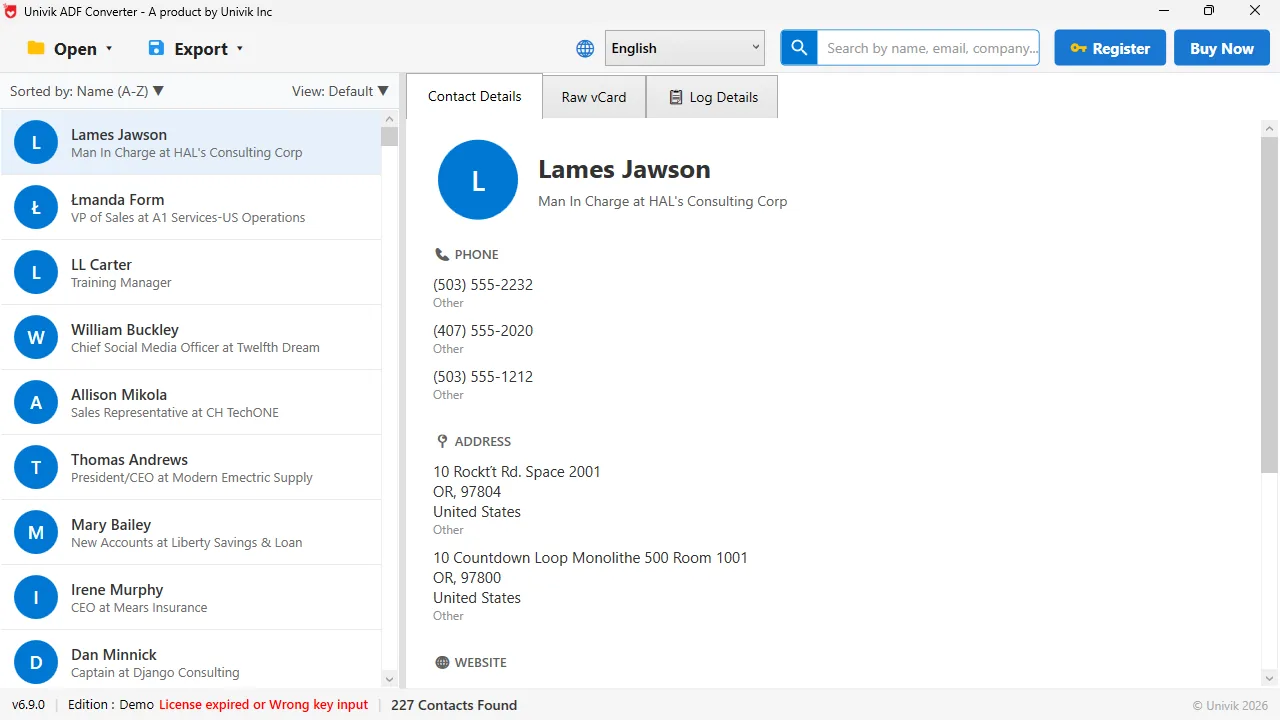
Locked out, data intact Even with the ACT! licence expired, the .adf still holds every contact. Here 227 records read out with no working ACT! on the PC.
Is Your ACT! Data Gone When the Licence Expires?
Everything you built in ACT! lives in the .adf database file. The licence check happens when the ACT! program starts, long before it touches your contacts. So an expired licence hides the data, but the data itself is untouched on the disk.
Open the .adf with a tool that does not run that licence check and the records come straight back. No renewal, no reinstall.
How Do You Get Your ACT! Data Out in 3 Steps?
This works from a copy of the database files, even if the original PC no longer runs ACT!.
Find the .adf and .alf files on the old PC
Browse to your Documents folder and open ACT, then ACT Data, then Databases. Take the .adf together with the .alf that has the same name, and copy the pair to a USB stick or a new folder. A .pad file is often there too, but it is only a pointer and you can leave it.
Open the .adf in a reader that needs no licence
Launch Univik ACT ADF Converter and choose the copied .adf file. It reads the database with no ACT! and no licence, and lists every contact in seconds. Nothing is sent online, so the data stays on your PC.
Export the contacts, notes and history you need
Use the Export menu to save the records. A CSV suits a spreadsheet or a new CRM, a vCard suits a phone and a PST puts the contacts into Outlook. Notes and history export along with the contacts, so nothing is left behind. Our guides cover importing into Outlook, making a vCard for your phone and exporting notes and history in more detail.
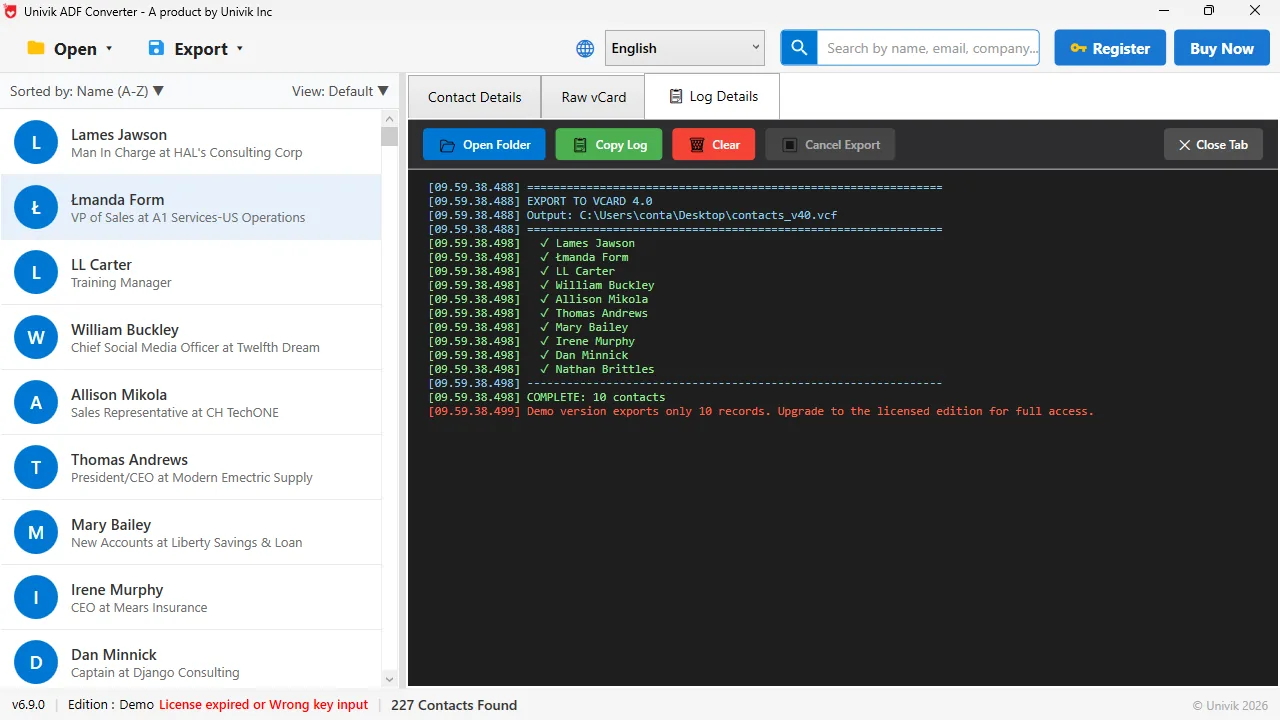
Then export and move on The log shows a clean vCard export finishing. Your contacts are out of ACT!, ready for a new tool.
Does the 14-Day ACT! Trial Trick Work?
A common tip on forums is to install the ACT! 14-day trial, open the database and export before the two weeks end. It can work, and it is worth knowing. It also has three problems. The trial updates the database to the current version, one way, so your old ACT! can never open that file again. The 14 days can end before you finish. And its export screen writes contacts only, so the notes and history stay behind. We tested the whole trick in what the Act! free trial can and cannot export.
Reading the .adf directly skips all three. There is no time limit, the file is not rewritten and the notes come out with the contacts. For a one-time job that is the easier way.
What You Can Save Your ACT! Data As
Once the database is open you are not stuck with one format. A CSV or Excel sheet is best for review or a CRM import. A vCard moves contacts to a phone. A PST puts them in Outlook. A PDF makes a printed record for an archive. Pick the one your next tool wants and export.
A lapsed subscription does not delete your contacts. We have opened databases from ACT! licences that expired years ago and pulled every record out. The file on your disk is still yours.
Univik ACT ADF Converter opens the .adf file with no licence and no ACT! installed. Recover every contact, note and history record, then export to CSV, Excel, vCard, PDF or PST and move on.
Windows 11 / 10 / 8 / 7 · no ACT! licence needed · the free trial recovers and exports the first 10 contacts
Which Way Should You Use to Recover ACT! Data?
Three options, with the honest pros and cons.
| Option | Needs a working ACT! | Risk | Best for |
|---|---|---|---|
| Renew the ACT! subscription | Yes, and payment | Cost keeps recurring | You want to keep using ACT! |
| Install the 14-day trial | Yes, for 14 days | Updates the file one way, exports contacts only, then ends | A one-time contact list export |
| Univik ACT ADF Converter | No | One-time cost, reads the file directly | Getting your data out and moving on |
Renewing makes sense only if you plan to keep using ACT!. If the goal is to leave ACT! or only to get the data back, reading the file directly costs less over time and does not depend on the software running at all.
How Do You Check You Got Everything Out?
- The exported file holds every contact, not only a sample, when you use the full version
- Notes and history appear next to the contacts they belong to
- A record you remember well shows the right phone, email and company
Keep the .adf and .alf backup even after the export. It is your original, and you can always open it again if you need another format later.
The short version
- An expired ACT! licence or a Windows 11 block stops the software, not your data.
- The contacts, notes and history still sit in the .adf file on your disk.
- Find the .adf and its .alf file, then open them in a reader that needs no licence.
- Univik ACT ADF Converter reads the .adf and exports to CSV, Excel, vCard, PDF or PST.
- The 14-day trial can get a contact list out once, but it rewrites the database and skips the notes.
Try Univik ACT ADF Converter free
ACT! Lockout Questions
My ACT! subscription expired. Is my data lost?
No. An expired subscription stops the ACT! software from opening, but your contacts, notes and history are still in the .adf database file on your disk. Open the .adf with a reader that needs no licence and export the data.
ACT! will not run on Windows 11. How do I get my contacts?
The database does not depend on the program running. Copy the .adf and .alf files and open the .adf in Univik ACT ADF Converter, which reads it on Windows 11 with no ACT! installed. Then save the contacts as a CSV, a vCard, an Excel sheet or a PST.
Can I export from ACT! without renewing the subscription?
Yes. You do not need a live subscription to read the .adf file. A reader built for the format opens the database directly and exports the data, so you can leave ACT! without paying for another year.
Does the 14-day ACT! trial let me export my data?
It can export the contact list if the database opens in the trial. The catches: the trial rewrites the database to the current version, the 14 days can end before you finish and its export screen leaves out notes and history. Reading the .adf directly avoids all three.
Where are my ACT! database files if the program will not open?
Look in your Documents folder, under ACT then ACT Data then Databases. The .adf and .alf files sit there, named for your database. Copy both together to a safe place before you open them.
Will my notes and history come out, or only the contacts?
Notes, history, companies and opportunities all live in the .adf along with the contacts. A converter that reads the whole database exports them together, so you keep the full record, not only names and numbers.
 About This Guide
Written and maintained by Leena Taylor Paul and the Univik team, developers of Windows data conversion and recovery software since 2013. We recovered data from ACT! databases with expired licences on a Windows 11 PC in September 2026, reading the .adf file directly with no ACT! installed. Last verified September 19, 2026. Need a hand? Contact our support team.
Sources checked: Act! Knowledge Base · Univik ACT ADF Converter