 Migrate Guide
 By
By Access has no import filter for an ACT! .adf file. Export the ACT! data to Excel or CSV first, then in Access use External Data, New Data Source, From File, Excel and let the import wizard build a table from each sheet. Set phone and postcode columns to Short Text before you finish, or leading zeros disappear. Contacts, companies and notes each become their own table, linked by the contact name or ID column.
Small offices keep asking the same thing on support forums: the CRM is going away, we already own Access, can the ACT! database go straight into it? Not directly. Access reads its own .accdb and .mdb files, plus Excel, CSV, text and a few database drivers. It has never read an ACT! .adf.
The route that works is two short hops. Get the tables out of ACT! as a spreadsheet, then let the Access import wizard turn each sheet into a table. This page walks through both hops and the field settings that decide whether the result is a usable database or a pile of text.
- Why Can Access Not Open the ACT! ADF File Directly?
- Which ACT! Export Format Should You Feed Access?
- How Do You Import the ACT! Tables Into Access in 4 Steps?
- Step 1: Export the ACT! tables to Excel
- Step 2: Start the Access import wizard
- Step 3: Set field types and a primary key
- Step 4: Repeat for each sheet and link the tables
- Which Field Types Should Each ACT! Column Get in Access?
- Excel Import or CSV Import: Which One for Access?
- How Do You Check the Access Database Against ACT!?
- ACT! to Access Questions
Why Can Access Not Open the ACT! ADF File Directly?
An ACT! database from the 2005 release onward is a Microsoft SQL Server data file with an .adf extension. Access can link to a running SQL Server through ODBC, but it cannot open the file itself. A stand-alone .adf is not running anywhere. The Access open dialog will not even list it.
So the job is not a conversion inside Access. It is an export from ACT! into something Access imports well, and Excel is the best of those because one workbook carries every table with its headings intact.
Which ACT! Export Format Should You Feed Access?
Two exports work. If ACT! still opens, File, Export writes a text-delimited file of contacts, one table at a time and contacts only. If ACT! is gone or the licence has lapsed, a direct .adf reader such as Univik ACT ADF Converter writes an Excel workbook with a sheet per table, or a CSV per table, without Act! installed. Pick Excel (.xlsx) under Data Formats.
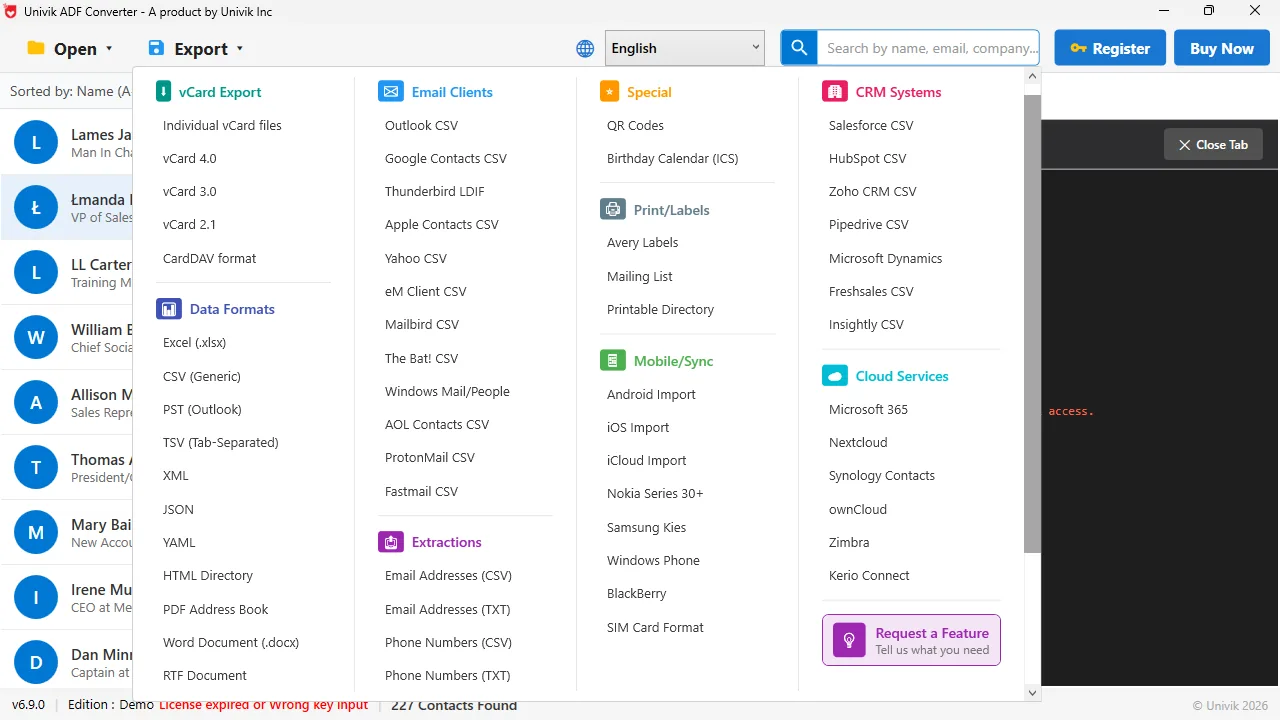
Data Formats, Excel (.xlsx) This is the export to pick for Access. The import wizard reads the sheet headings as field names.
How Do You Import the ACT! Tables Into Access in 4 Steps?
These steps use Access in Microsoft 365. Access 2019 and 2021 have the same menu. Access 2016 and earlier start the same wizard from an Excel button on the External Data tab.
Export the ACT! tables to Excel
Run the Excel export and open the workbook once to check it. The first row of each sheet must be the column headings and nothing else. Rename sheets to Contacts, Companies and Notes if they are not already named, because Access uses the sheet name as the table name.
Start the Access import wizard
Create a blank database, then go to External Data, New Data Source, From File, Excel. Browse to the workbook, choose Import the source data into a new table in the current database and click OK. Pick the Contacts sheet, tick First Row Contains Column Headings and click Next.
Set field types and a primary key
The wizard shows every column with a Data Type box. Click each phone, postcode and ID column and set Short Text. Set the note or description column to Long Text and the date columns to Date/Time. On the next screen choose Choose my own primary key and pick the Contact ID column. Finish and let Access name the table Contacts.
Repeat for each sheet and link the tables
Run the wizard again for the Companies sheet and the Notes sheet. Then open Database Tools, Relationships, add the three tables and drag Contact ID from Contacts onto the same column in Notes. Tick Enforce Referential Integrity. Now a query can list every note for a contact, which is what the CRM did.
People try to attach the .adf to Access the way they would attach a spreadsheet. It is a SQL Server data file, so Access has nothing to hold on to. Go through Excel and the whole import takes ten minutes.
Which Field Types Should Each ACT! Column Get in Access?
Access guesses types from the first eight rows of a column, per Microsoft's import guide. A column of phone numbers that begins with a few blanks or a few plain digits gets guessed as Number, and every leading zero and plus sign is gone after import. Set these by hand in the wizard.
| ACT! column | Access field type | Why |
|---|---|---|
| Contact ID, Company ID | Short Text, indexed, no duplicates | Keeps the ID exactly as exported and lets you use it as the key |
| Phone, Mobile, Fax | Short Text | Number fields drop leading zeros and plus signs |
| Postcode / ZIP | Short Text | Same reason, and UK or Canadian codes contain letters |
| Email, Website | Short Text or Hyperlink | Hyperlink makes them clickable in forms |
| Create Date, Edit Date, Last Reach | Date/Time | Sorting and date filters only work on a real date field |
| Note text, History description | Long Text | Short Text stops at 255 characters and cuts the note |
| Custom yes/no fields | Yes/No | Only if every value is TRUE/FALSE or Yes/No in the sheet |
Excel Import or CSV Import: Which One for Access?
Both arrive through the same wizard. The difference is what survives the trip.
| Criteria | Import from Excel (.xlsx) | Import from CSV |
|---|---|---|
| Several tables in one file | Yes, one sheet each | No, one file per table |
| Field types guessed by Access | From the first eight rows of each column | From the first eight rows, with a text qualifier step |
| Long notes | Kept in full | Kept if the file is UTF-8 and quoted |
| Accented names | Kept | Kept only if you pick Unicode (UTF-8) on the Advanced button |
| Best when | You export the whole database at once | You are re-importing one table after a fix |
Use the Excel route for the first full import. Keep CSV for re-importing a single table after you have cleaned it in a spreadsheet.
Univik ACT ADF Converter opens the .adf and .alf pair on any Windows PC and writes the Excel workbook the Access wizard wants, one sheet per table, no Act! licence needed.
Windows 11 / 10 / 8 / 7 · reads ACT! 2005 to Act! v27 databases · the demo exports the first 10 contacts and never changes your file
How Do You Check the Access Database Against ACT!?
- The record count at the bottom of each Access table matches the count the converter showed for that table
- A phone number that starts with 0 or + still starts with 0 or + in Access
- The longest note opens in full in the Long Text field, not cut at 255 characters
- A query joining Contacts to Notes on Contact ID returns notes for a contact you know well
Access files have a 2 GB ceiling and 255 fields per table. An ACT! database with thousands of contacts and years of notes fits with room to spare, but a very wide custom-field layout can hit the field limit. Split rarely used custom fields into a second table if the wizard complains.
The short version
- Access does not open .adf files. Export from ACT! to Excel or CSV first.
- In Access: External Data, New Data Source, From File, Excel, then Import the source data into a new table.
- Set phone, postcode and ID columns to Short Text, notes to Long Text, dates to Date/Time.
- One sheet becomes one table. Link Contacts, Companies and Notes on the ID column in Relationships.
- Check the row counts against the ACT! status bar before you retire the old CRM.
Try Univik ACT ADF Converter free
ACT! to Access Questions
Can Microsoft Access open an ACT! .adf file?
No. The .adf is a SQL Server data file. Access can link to a live SQL Server through ODBC, but it cannot open the file on its own. Export the ACT! data to Excel or CSV and import that.
Which Access versions have the import wizard used here?
Access in Microsoft 365, Access 2021 and 2019 have External Data, New Data Source, From File, Excel. Access 2016 and earlier run the same wizard from an Excel button straight on the External Data tab.
Do ACT! notes and history come into Access?
They come in as their own tables when the export carries them as separate sheets. Set the note text column to Long Text in the wizard, then link the table to Contacts on the Contact ID column in Relationships.
Why did phone numbers lose their leading zero after the import?
Access guessed the column as Number. Delete the table, run the wizard again and set the phone column to Short Text on the field options screen. The same applies to postcodes.
Can I link the ACT! export instead of importing it?
Yes. The wizard offers Link to the data source by creating a linked table. The Access table then reads the Excel file live, but you cannot edit the data in Access. Import it if Access is going to be the new home.
Is there a size limit for the Access database?
An .accdb file can grow to 2 GB and a table can have 255 fields. A typical ACT! database with tens of thousands of contacts and notes sits well under both. Attachments stay as files on disk, not inside the database.
 About This Guide
Written and maintained by Leena Taylor Paul and the Univik team, developers of Windows data conversion and recovery software since 2013. We checked the External Data import wizard path, field type names and the 2 GB and 255-field limits against Microsoft's Access documentation in September 2026, and opened ACT! databases directly on Windows 11. Last verified September 20, 2026. Need a hand? Contact our support team.
Sources checked: Microsoft Support: Import or link to data in an Excel workbook · Microsoft Support: Access specifications · Univik ACT ADF Converter