 Recovery Guide
 By
By Act! keeps each database as an .adf file with an .alf beside it, by default under Documents, ACT, ACT Data, Databases inside the Windows profile of whoever used it. Copy that pair from the old PC or drive, take ownership of the folder if Windows blocks you, then open the .adf in a reader that needs no Act! and no Act! user name. The contacts, notes and history export to Excel, CSV, vCard or PST.
The sales manager left. The old office PC is in a cupboard. Or a drive from a dead laptop is in a USB dock on your desk. Somewhere on it is the ACT! database with every customer the business has ever spoken to, and nobody knows the Act! password, the Windows password or which folder to look in.
None of those three is needed. This guide shows where the database sits, how to get it off the machine and how to read it without Act! or its login.
- Where Does ACT! Keep the Database on the Old Computer?
- Do You Need the Act! User Name and Password?
- What If Windows Says You Do Not Have Permission?
- How Do You Get the Contacts Off the Old PC in 4 Steps?
- Step 1: Find the Databases folder in the old user's profile
- Step 2: Copy the .adf and .alf pair to a USB stick
- Step 3: Open the .adf on your own PC with no Act! installed
- Step 4: Export the contacts, notes and history
- What If the Old Computer Will Not Start?
- Which Route Should You Use for an Old Machine?
- How Do You Check You Found the Right Database?
- Old Computer ACT! Database Questions
Where Does ACT! Keep the Database on the Old Computer?
By default Act! saves every database inside the Documents folder of the Windows user who created it, in a path like C:\Users\jane\Documents\ACT\ACT Data\Databases. Inside that folder each database is a matching .adf and .alf pair plus a small .pad pointer. Some offices moved the folder to a shared drive or a server, in which case the .pad file on the old PC names the location: open it in Notepad and read the path after host= and the folder line.
On a machine with several Windows accounts, check each profile under C:\Users. The database belongs to whoever ran Act!, not necessarily the account you log in with.
Do You Need the Act! User Name and Password?
No. The Act! login controls who can open the database inside the Act! program. It is stored in the database and checked by Act! when it starts. The .adf file itself is not encrypted by that login. Software that parses the file directly never reaches the login screen, so the former employee's password and the Act! licence are both beside the point.
What you do need is the .alf that belongs to the .adf. Take the pair together, with the same name.
What If Windows Says You Do Not Have Permission?
Another user's Documents folder is protected. If the old PC still boots and you have an administrator account, right-click the folder, open Properties, then Security, then Advanced and take ownership. Windows then lets you copy the files. If the drive has been pulled from a dead laptop, plug it into a USB dock on your own PC and do the same on the folder from there. Windows asks for administrator approval once and then copies normally.
If the old drive is encrypted with BitLocker, you need the recovery key from the company's Microsoft account or IT records. Nothing else opens an encrypted drive.
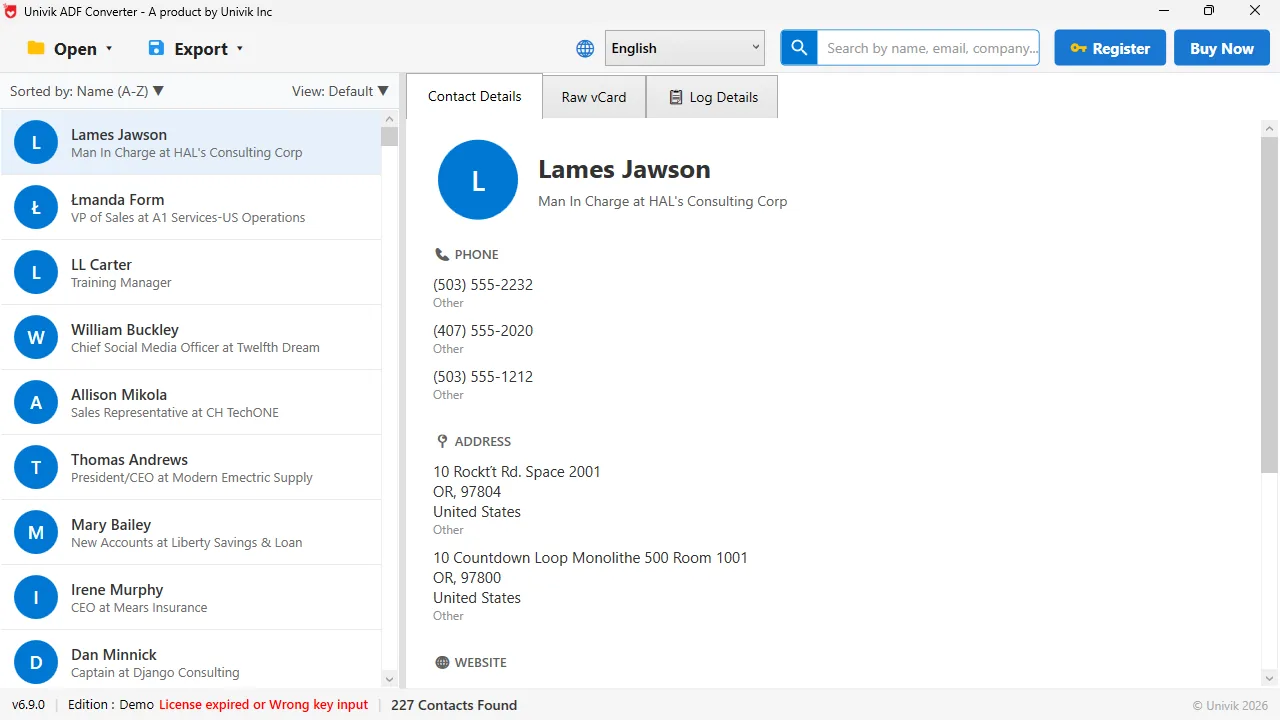
No login, no Act! The .adf copied from an old profile opens like any other. Names, titles, phones and addresses for all 227 contacts.
How Do You Get the Contacts Off the Old PC in 4 Steps?
You need a USB stick, a Windows PC of your own and about twenty minutes.
Find the Databases folder in the old user's profile
On the old PC or the mounted drive, browse to that path. If the folder is empty, search the whole drive for *.adf. The largest .adf with a recent date is normally the live database. Older ones with dates in the name are Act!'s own copies.
Copy the .adf and .alf pair to a USB stick
Copy the .adf and the .alf together. If a folder with the database name sits beside them, copy it too. It holds attached documents. Skip the .pad. If the copy stalls with a permission error, take ownership of the folder as described and try again.
Open the .adf on your own PC with no Act! installed
Install Univik ACT ADF Converter on your PC and open the .adf from the USB stick. It parses the file without Act!, without SQL Server and without any Act! user name. Its summary lists how many contacts, companies and history rows the file holds, so you know at once whether you copied the right database.
Export the contacts, notes and history
Choose Excel to review everything on separate sheets, CSV to load a CRM, a vCard for someone's phone or a PST for Outlook. Hand the export to whoever is taking over the accounts. The old PC can now be wiped.
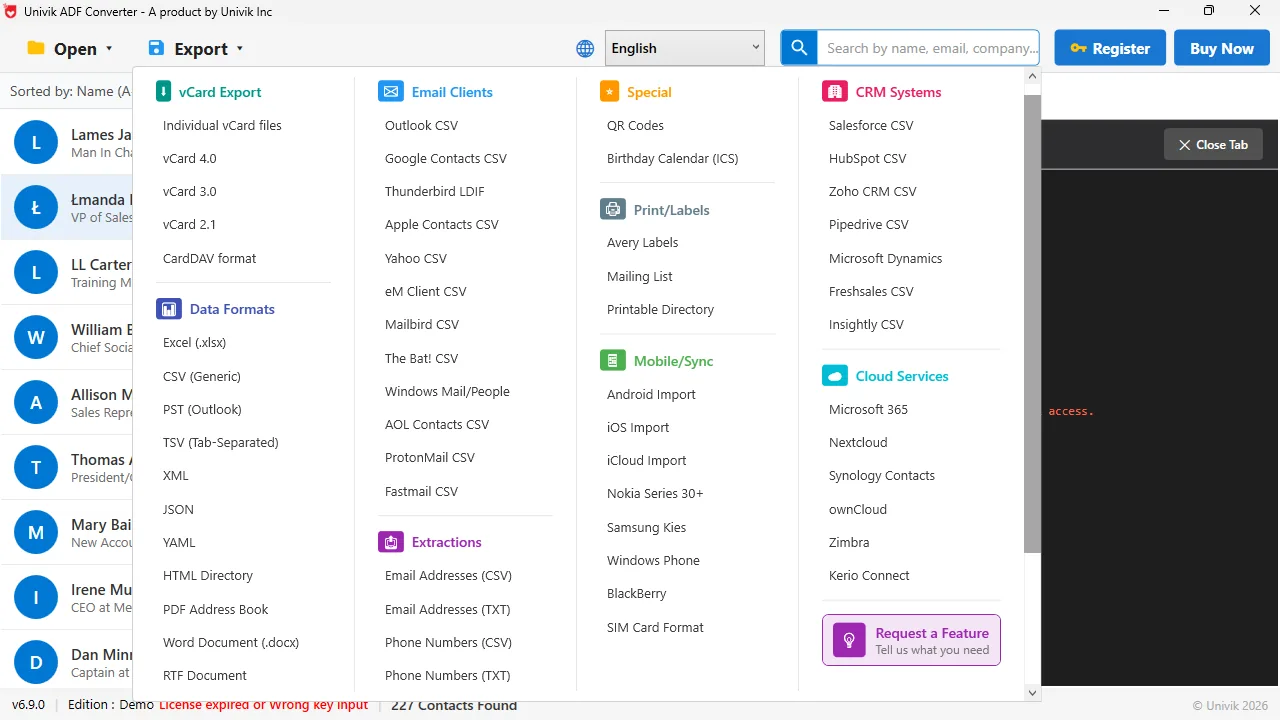
Excel for the review, CSV for the CRM Once the old database is open, the export menu puts the records wherever the business needs them next.
What If the Old Computer Will Not Start?
The database does not care whether Windows boots. Remove the drive, connect it to another PC with a USB adapter and browse to the same Users path. Take ownership of the folder, copy the pair and continue from step 3. If the drive itself has failed, a data recovery service can usually image it. The .adf and .alf then come back as ordinary files.
A database off an old machine is the usual case, not the odd one. The Act! password left with the person. The file stayed in their Documents folder the whole time, readable by anyone who knows where to look.
Univik ACT ADF Converter reads the .adf from any old PC or pulled drive with no Act!, no licence and no Act! user name. Export the contacts, notes and history and retire the machine.
Windows 11 / 10 / 8 / 7 · no Act! login needed · the free demo shows the counts and exports the first 10 contacts
Which Route Should You Use for an Old Machine?
Four routes, from the one that needs everything to the one that needs only the files.
| Route | Needs the Act! login | Needs Act! installed | Works from a pulled drive | Cost |
|---|---|---|---|---|
| Log in as the old user and export from Act! | Yes | Yes, and a licence | No | Free if both still work |
| Reset the Act! password with Act! support | No, but proof of ownership | Yes | No | Support time |
| Restore a backup zip into a fresh Act! | Admin login for the restore | Yes | Yes, if a zip exists | Act! licence |
| Univik ACT ADF Converter | No | No | Yes | $39 one time |
If the old user is reachable and Act! still runs, ask them to log in and export. Everything else costs more time than reading the file.
How Do You Check You Found the Right Database?
- The contact count is in the range the business expects, not 3 or 4 test records
- A customer the team dealt with last quarter is in the list with a current phone number
- The most recent history entry is dated close to the old user's last working day
If the counts are tiny, you found a demo or test database. Search the drive again for another .adf.
The short version
- The database is an .adf and .alf pair in the old user's Windows profile, under Documents\ACT\ACT Data\Databases.
- The Act! user name and password protect the Act! program, not the file. A direct reader does not ask for them.
- If Windows blocks the folder, take ownership of it as an administrator or read the drive from another PC.
- Copy both files to a USB stick, open the .adf on your own PC and export the records.
- Check the contact count and a familiar name before you call the job done.
Try Univik ACT ADF Converter free
Old Computer ACT! Database Questions
Where is the ACT! database stored on a computer?
By default under Documents, ACT, ACT Data, Databases in the Windows profile of the user who ran Act!, as an .adf file with a matching .alf. If it was moved, the .pad file in that folder names the real location.
Can I open a former employee's ACT! database without their password?
Yes. The Act! user name and password guard the Act! program, not the file. Copy the .adf and .alf and open the .adf in Univik ACT ADF Converter. It reads the records without any Act! login.
Windows will not let me copy the folder from the old user. What now?
Sign in as an administrator, right-click the folder, choose Properties, Security, Advanced and take ownership. After that the copy works. On a pulled drive, do the same from your own PC.
Do I need Act! installed on my own PC to read the copied database?
No. Univik ACT ADF Converter opens the .adf without Act!, without a licence and without SQL Server. The free demo shows the contact count so you can confirm the file before buying.
The old PC is dead. Is the ACT! database gone?
Not unless the drive itself has failed. Pull the drive, connect it to another PC by USB and copy the .adf and .alf from the old user's Documents folder. If the drive is encrypted with BitLocker, you need the recovery key.
How do I know which .adf is the real database?
Open each one in the converter and compare the contact counts. The live database has the largest count and history entries dated up to the last day the old user worked. Tiny counts mean a demo or test file.
 About This Guide
Written and maintained by Leena Taylor Paul and the Univik team, developers of Windows data conversion and recovery software since 2013. We checked the default database location and file names against Act!'s documentation in September 2026 and opened ACT! databases directly on Windows 11 with no Act! installed. Last verified September 20, 2026. Need a hand? Contact our support team.
Sources checked: Act! Knowledge Base: how to move an Act! database · Univik ACT ADF Converter