 Open & Read Guide
 By
By An ACT! backup file is a normal .zip. Inside it sit the .adf database file, its .alf companion and, if the backup included them, the attached documents. To open it without Act!, extract the zip to a folder, keep the .adf and .alf together, and load the .adf in a reader built for the format. The contacts, notes and history then export to Excel, CSV or vCard.
Someone hands you a file called something like Backup of MyDatabase.zip. It came from an old server, a cloud backup or a colleague who left. Act! is not installed anywhere you can reach, and restoring the backup needs Act!. So the zip sits there with years of contacts inside.
You do not need Act! to get at those contacts. This guide shows what the zip really contains, which files matter and how to read them on any Windows PC.
- What Is Inside an ACT! Backup Zip?
- Why Does Restoring an ACT! Backup Need Act!?
- How Do You Open an ACT! Backup Zip Without Act! in 3 Steps?
- Step 1: Extract the zip to a folder on your PC
- Step 2: Find the .adf and .alf pair inside
- Step 3: Open the .adf and export the records
- What Happens to the Attachments in the Backup?
- Which Way Should You Use to Read an ACT! Backup?
- How Do You Check the Backup Was Read in Full?
- ACT! Backup Zip Questions
What Is Inside an ACT! Backup Zip?
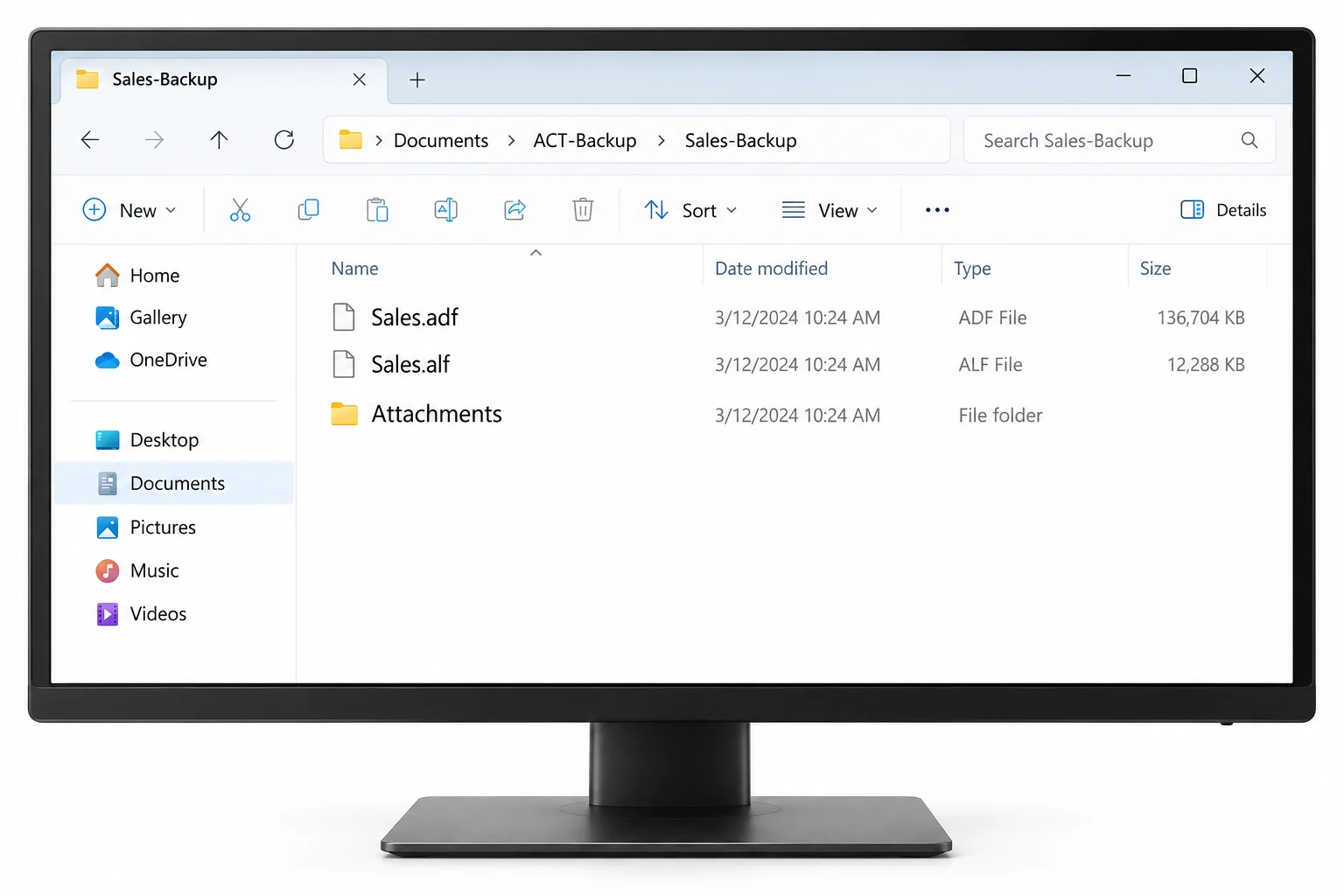
When you click File, Backup, Database in Act!, it writes one .zip file. Act! resellers describe the contents as the database, attached documents, layouts, document templates, report templates and saved queries. The part you care about is the database. That means two files: the .adf, which holds every record, plus the .alf that Act! needs alongside it.
Since Act! 2009 the backup screen has an Include Attachments box. If it was ticked, the zip also holds a folder of attached documents. If not, the zip is small and holds the database only.
Why Does Restoring an ACT! Backup Need Act!?
The Restore command lives inside Act!. It unpacks the zip, attaches the database to Act!'s own copy of Microsoft SQL Server and asks for an Act! administrator or manager login. Only those two user levels can back up or restore. So without a working Act!, the same version or newer, plus a login that still works, the Restore route is closed.
The zip itself is not closed. Any zip tool opens it, and the .adf inside is readable by software that understands the format. The three steps that follow take that route.
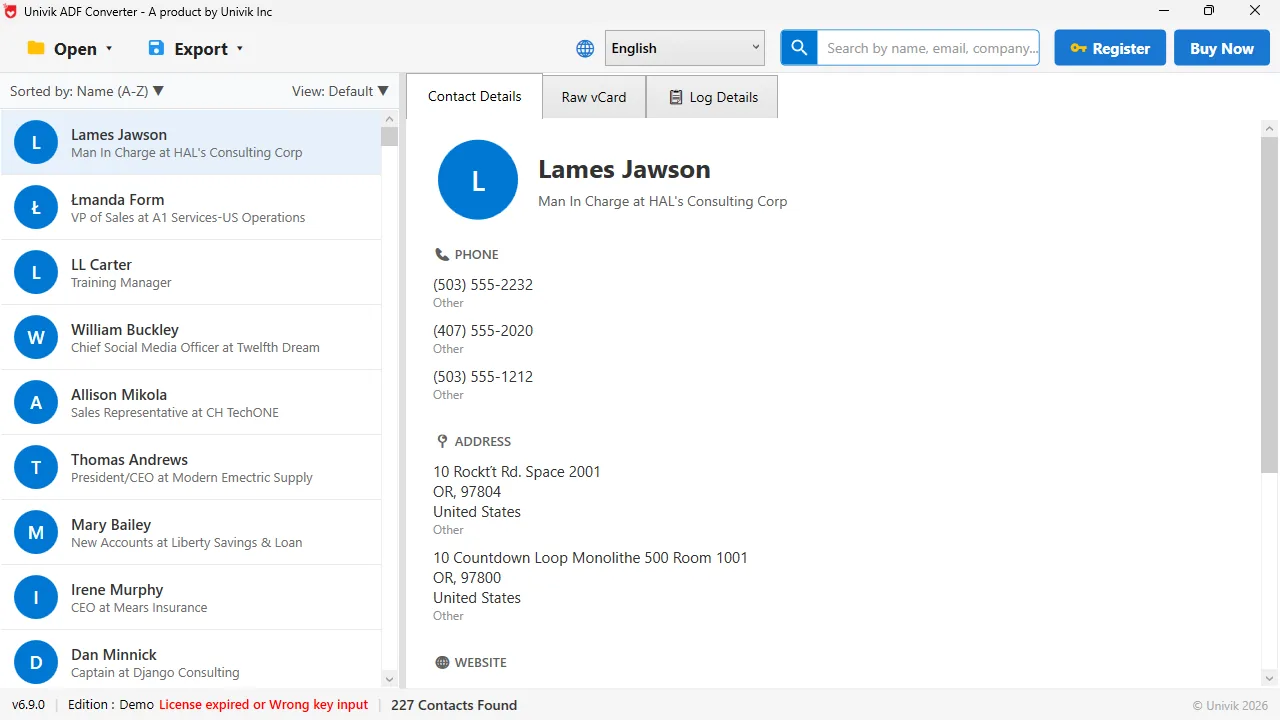
Out of the zip, on screen The .adf pulled from a backup zip opens like any other database. This one held 227 contacts with titles, phones and addresses.
How Do You Open an ACT! Backup Zip Without Act! in 3 Steps?
You need the backup zip, a Windows PC and about ten minutes.
Extract the zip to a folder on your PC
Copy the backup zip to a folder such as Documents\ACT-Backup. Right-click it and choose Extract All. Windows unpacks the contents into a folder with the same name. If the backup was password protected in Act!, Windows asks for that password at this point.
Find the .adf and .alf pair inside
Look through the extracted folder for a file ending in .adf and one ending in .alf with the same name, for example Sales.adf and Sales.alf. Leave them in the same folder. If you see a folder of documents as well, that is the attachments store. It stays where it is for now.
Open the .adf and export the records
Start Univik ACT ADF Converter and open the .adf. The summary shows how many contacts, companies and history records the backup holds. Choose Excel to get every table on its own sheet, CSV for a CRM import, vCard for a phone or PST for Outlook. The export writes to a folder you pick.
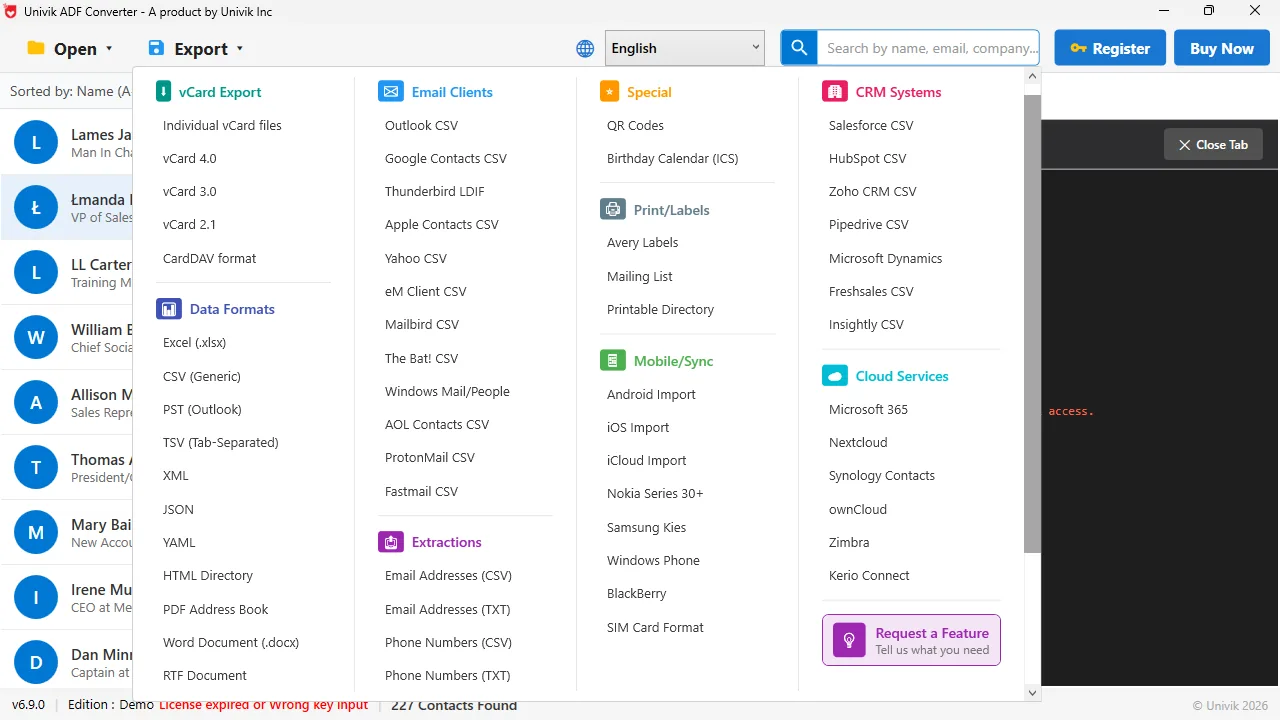
Pick where the data goes next Excel or CSV for a spreadsheet, vCard for a phone, PST for Outlook. The backup never needs to be restored into Act!.
What Happens to the Attachments in the Backup?
Attached documents are not inside the .adf. They are separate files that Act! stored in a supplemental folder, and the backup copies that folder into the zip. After you extract the zip, those documents are plain files you can open with Word, Acrobat or whatever made them. Copy the folder somewhere safe. The converter exports the database records, not the attachment files, so keep the two together yourself.
A backup zip usually turns up long after the person who made it has left. With no working Act! to restore it into, extracting the .adf and reading it directly is the practical route.
Univik ACT ADF Converter opens the .adf from any ACT! backup zip with no Act! installed and no login. Contacts, companies, notes, history and opportunities export to Excel, CSV, vCard, PDF or PST.
Windows 11 / 10 / 8 / 7 · opens .adf files from ACT! 2005 to Act! v27 · the free trial shows the full record count and exports the first 10 contacts
Which Way Should You Use to Read an ACT! Backup?
Four routes, with what each one needs.
| Way | Needs Act! installed | Gets notes and history | Cost | Best when |
|---|---|---|---|---|
| Restore in Act! (File, Restore) | Yes, same or newer version, admin login | Yes, inside Act! | Act! licence | You still run Act! and want the database back |
| Install the Act! 14-day trial and restore | Yes, for 14 days | Only what its export screen offers | Free for 14 days | One quick look at a database the trial can update |
| Attach the .adf to SQL Server | No, needs SQL Server and know-how | Yes, but as bare tables | Free, costs your hours | A database person is on hand |
| Univik ACT ADF Converter | No | Yes, exported with the contacts | $39 one time | No Act! anywhere and you want the data out today |
If Act! still runs somewhere in the company, use Restore As and give the database a new name so nothing gets overwritten. If it does not, reading the .adf directly is faster than rebuilding an Act! install for one backup.
How Do You Check the Backup Was Read in Full?
- The contact count in the summary matches what the old Act! showed, or what the person who made the backup remembers
- A contact you know well opens with phone, email and company filled in
- The history sheet has rows dated across the years the database was in use
Keep the original zip. It is the master copy, and a second export later costs nothing.
The short version
- An ACT! backup is a plain .zip with the .adf and .alf database files inside, plus attachments if they were included.
- Restoring it needs Act! of the same or a newer version and an administrator login.
- Without Act!, extract the zip, keep the .adf and .alf together and open the .adf in a reader made for the format.
- Contacts, companies, notes and history export to Excel, CSV, vCard or PST from there.
- Attached documents are ordinary files in the zip. Copy that folder out by hand.
Try Univik ACT ADF Converter free
ACT! Backup Zip Questions
What files are inside an ACT! backup zip?
The .adf database file and its .alf companion, plus layouts, templates and saved queries. If Include Attachments was ticked when the backup was made, a folder of attached documents is in the zip too.
Can I open an ACT! backup without Act! installed?
Yes. Extract the zip with Windows, keep the .adf and .alf side by side and open the .adf in Univik ACT ADF Converter. It reads the database without Act!, a licence or an Act! login.
Do I need an Act! administrator login to read the backup?
Only for Act!'s own Restore command. Reading the extracted .adf directly asks for no Act! user or password.
The backup zip asks for a password. What do I do?
Act! can password protect backups. That password was set by whoever made the backup and Windows needs it to extract the zip. Without it the zip stays closed. Check with the person or the IT notes from that time.
Will an old ACT! backup from 2010 still open?
Yes, as long as the .adf inside comes from ACT! 2005 or later. Univik ACT ADF Converter reads the .adf without updating it, so the age of the backup does not matter.
Are the attached documents exported too?
No. Attachments are separate files in the zip, not records in the database. Copy the extracted attachments folder out yourself. The converter exports the contacts, notes, history and other records.
 About This Guide
Written and maintained by Leena Taylor Paul and the Univik team, developers of Windows data conversion and recovery software since 2013. We opened ACT! databases directly on Windows 11 in September 2026 and checked the backup contents and restore rules against Act!'s own backup and restore documentation. Last verified September 19, 2026. Need a hand? Contact our support team.
Sources checked: Act! Knowledge Base: back up and restore · Univik ACT ADF Converter