 Thundermail Guide
 By
By Thundermail has no PST import, so you move the mail over IMAP instead. Create a Thundermail app password, load the PST into a desktop converter and choose the IMAP destination. Enter mail.thundermail.com, port 993, SSL/TLS, your address and the app password. The whole PST then uploads into Thundermail with folders, dates and attachments kept. Outlook does not need to be installed.
Moving into a new email service usually means leaving old mail behind, because the web interface only imports so much. Thundermail is the same on the surface. Underneath it is standard IMAP, and a PST is only a mailbox, so the two can be joined with a tool that reads one and writes to the other.
That tool delivers the PST into Thundermail over the same IMAP link a client uses. The steps below cover the app password, the converter and the upload, then the questions people ask before they start.
Why Import PST to Thundermail Over IMAP?
A PST is where years of Outlook mail usually ends up, and Thundermail gives no direct way to load one. What Thundermail does give is IMAP access on mail.thundermail.com, and IMAP is a two-way link, so anything able to write to it can add mail to the account. That is the opening a converter uses.
The alternative routes are slow or lossy. Dragging messages by hand takes forever and drops folder structure. Some free tools push one folder at a time or route the mail through their own servers. A converter that reads the PST and writes over IMAP does the whole file in one pass and keeps the mail on your machine until it reaches Thundermail.
How Do I Import a PST into Thundermail?
Four steps, about twenty minutes plus the upload time. The app password comes first because the transfer needs it.
Get your Thundermail app password ready
A tool cannot sign in with your normal Thundermail password, so make an app password first. In the Thundermail dashboard open Email Settings, click Create app password, set one and save it. Copy it right away, because Thundermail shows it only once. This is the password the converter will use to reach your mailbox.
Load the PST file into Univik Email Converter
Install and open Univik Email Converter and add your Outlook PST file. The tool reads the PST on its own, so Outlook does not need to be installed. The folder tree from the PST appears, and you can untick anything you do not want to move, such as an old Deleted Items folder or a large archive you would rather leave behind.
Choose IMAP as the destination and enter Thundermail
Pick the IMAP destination in the save options. Enter mail.thundermail.com, port 993, security SSL/TLS, your full Thundermail address for the username, plus the app password. This points the converter straight at your live Thundermail mailbox rather than writing a file.
Run the upload and check Thundermail
Start the transfer. The converter uploads each PST folder into Thundermail over IMAP, keeping the folder names, the message dates and the attachments. When it finishes, open Thundermail on the web or in a client and the imported folders are there beside your existing mail. Large PSTs take longer, so leave it to run.
Does This Work Without Outlook?
Yes, and that is often the point. Univik Email Converter parses the PST file itself, so Outlook does not need to be installed on the PC running the import. That matters when the PST is an archive from a machine you no longer have, or an export handed to you as a loose file with no Outlook around it.
All the tool needs is the PST and the Thundermail details. It reads the file, connects to Thundermail over IMAP and uploads the mail. Nothing depends on Outlook opening the PST first, which also sidesteps the size and profile problems Outlook can hit with a large archive.
People expect to lose their folder tree when they switch services. Writing the PST in over IMAP keeps it, because each Outlook folder becomes the same folder in Thundermail. That is the part that makes it feel like a move rather than a fresh start.
What Happens to the PST Folders?
They are recreated in Thundermail as they were in Outlook. Inbox, Sent Items, any subfolders and archive folders arrive with their names and nesting, and the messages inside keep their dates and attachments. A folder called Clients with three subfolders in the PST shows the same way in Thundermail after the import.
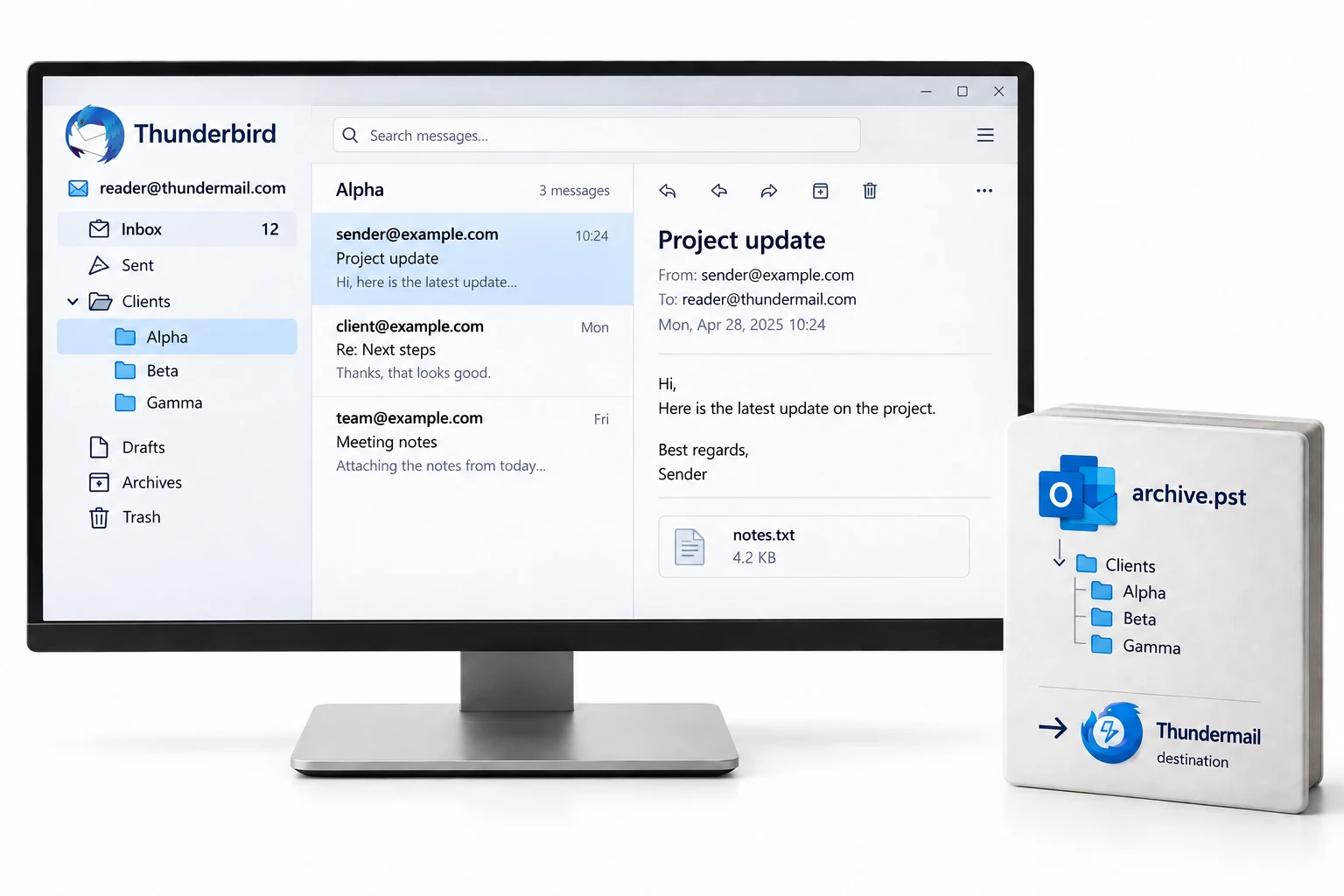
You are also in control of what moves. When the PST loads, its folders appear with tick boxes, so you can leave out a bulky Deleted Items folder or an old archive and bring only what you want into the new account. The rest of the PST stays untouched on disk.
Which PST Import Route Is Best?
Three ways get PST mail into Thundermail. Only one moves a full file with the structure intact.
| What you need | Drag by hand | Free online mover | Converter over IMAP |
|---|---|---|---|
| Needs Outlook installed | Yes | No | No |
| Keeps the folder tree | Manual | Often flattens | Yes |
| Picks only some folders | No | No | Yes |
| Runs a whole PST in one pass | No | One folder at a time | Yes |
| Mail stays off third-party servers | Yes | No | Yes |
| Good for | One or two messages | A small mailbox | A full PST into Thundermail |
Univik Email Converter reads an Outlook PST without Outlook installed and delivers it to Thundermail over IMAP, keeping the folder tree, dates and attachments. Point it at mail.thundermail.com with your app password and run the whole file in one pass.
Windows 7 to 11 · no Outlook needed · the trial moves a sample from each folder
The short version
- Thundermail has no PST import, so the mail goes in over IMAP.
- Make a Thundermail app password in the dashboard first.
- Load the PST in Univik Email Converter and pick the IMAP destination.
- Enter mail.thundermail.com, port 993, SSL/TLS, your address and app password.
- The upload keeps the folder tree, dates and attachments, no Outlook needed.
Import a PST to Thundermail, free trial
Thundermail PST Import Questions
 About This Guide
Written for Univik by Leena Taylor Paul, from Univik's work with Outlook and IMAP tools since 2013. The Thundermail IMAP settings came from Thundermail's own beta support pages in 2026. The PST upload was tested against an IMAP mailbox that held nested folders. 23 September 2026. An upload stalling partway? Support is a click below.
Sources: Thundermail IMAP and SMTP settings · Getting started with Thundermail · Univik Email Converter