 Thundermail Guide
 By
By Thundermail uses mail.thundermail.com for both incoming and outgoing mail. Set IMAP to port 993 and SMTP to port 465, both with SSL/TLS. The username is your full Thundermail address, ending in @thundermail.com or @tb.pro. The password is an app password you create in the Thundermail dashboard under Email Settings, not your login password. Clients that support JMAP can use port 443 instead of IMAP.
Thundermail is in beta from MZLA Technologies, the group behind Thunderbird. It is built on the open-source Stalwart mail server. Because it speaks standard IMAP, you are not tied to its web interface. Any client, and any tool that connects over IMAP, can reach the mailbox once you have the settings and an app password.
The table has the exact values. The steps under it cover the app password and the account setup, and the sections after that answer the questions people hit first.
What Are the Thundermail Server Settings?
Here are the values from Thundermail's own support pages. The server name is the same for incoming and outgoing mail, only the port changes.
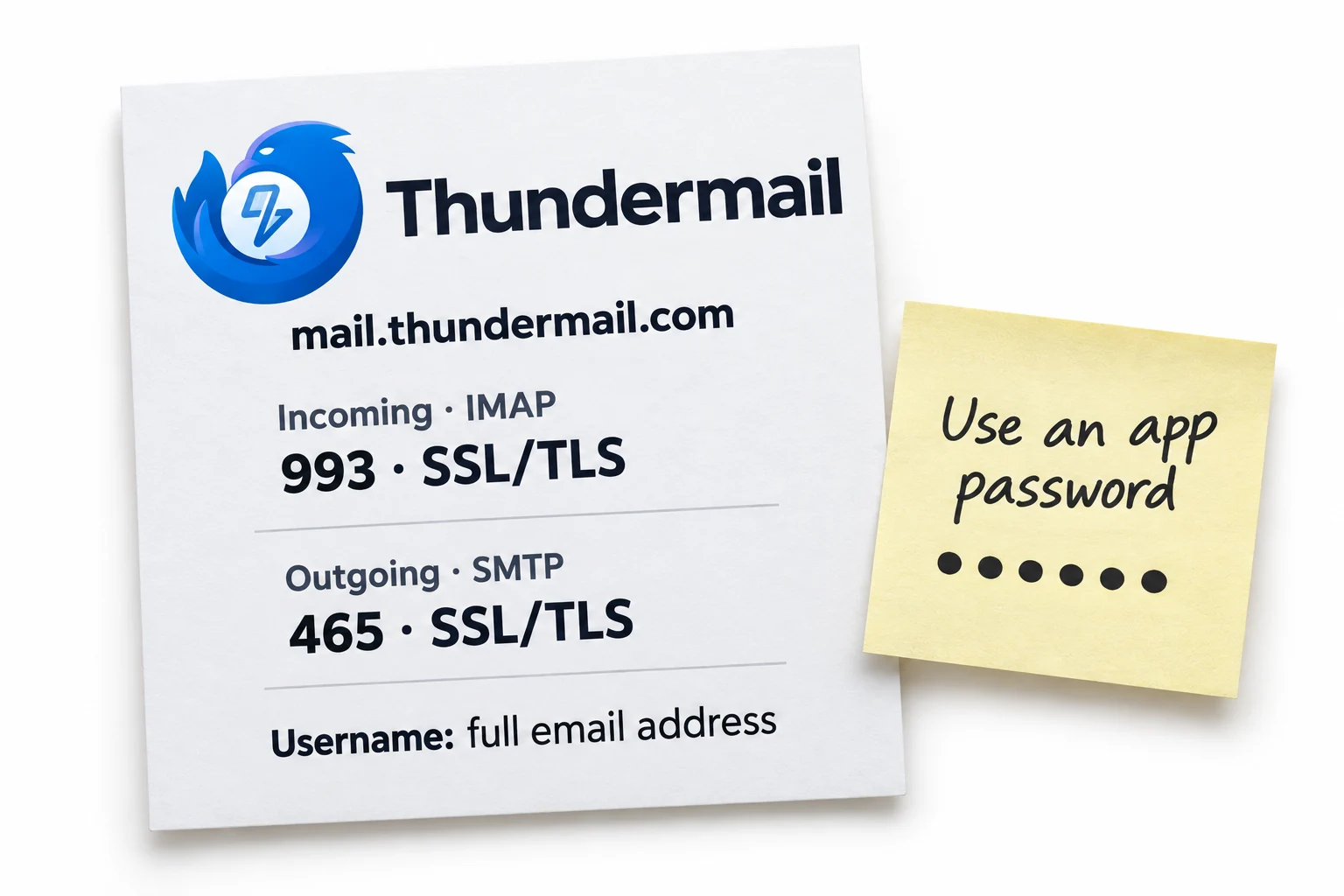
| Purpose | Server | Port | Security |
|---|---|---|---|
| Incoming, IMAP | mail.thundermail.com | 993 | SSL/TLS |
| Outgoing, SMTP | mail.thundermail.com | 465 | SSL/TLS |
| JMAP, optional | mail.thundermail.com | 443 | SSL/TLS |
Sign in everywhere with your full Thundermail address as the username and your app password, never your dashboard login password. If a client asks for a separate incoming and outgoing username, use the full address for both.
How Do I Set Up Thundermail in a Client?
Four steps, about ten minutes. The app password comes first, because the client will ask for it during setup.
Create a Thundermail app password
External clients cannot use your normal Thundermail password. Sign in to your Thundermail dashboard, scroll to the Email Settings section and click Create app password. Type a password, confirm it and save. Note it down at once, because Thundermail will not show it again. You use this app password, not your login password, in every email client.
Add a new account with your Thundermail address
In your email client, add a new account and enter your full Thundermail address and the app password you created. Thundermail addresses end in @thundermail.com or @tb.pro, or your own custom domain if you set one up. Choose manual setup so you can enter the server details yourself rather than relying on auto-detect during the beta.
Enter the IMAP incoming settings
For incoming mail set the server to mail.thundermail.com, the port to 993 and the connection security to SSL/TLS. The username is your full Thundermail address. IMAP keeps the mail on the Thundermail server and mirrors it to the client, so the same mailbox shows on every device you connect.
Enter the SMTP outgoing settings
For outgoing mail use the same server, mail.thundermail.com, with port 465 and SSL/TLS. Sign in with your full address and the app password again. Save the account. Send yourself a test message and check it arrives, which confirms both the incoming and outgoing settings are right.
Why the Thundermail App Password?
Thundermail keeps external clients off your main login password on purpose. An app password is a separate key you can hand to one client and revoke later without touching your real credentials, so a lost laptop or an old tool does not put the whole account at risk. It is the same pattern Gmail and others use for third-party access.
The one thing to watch is that Thundermail shows the app password once. When you click Create app password and save it, copy it somewhere safe in that moment, because there is no way to view or recover it afterwards. Lose it and you make a new one and update the client.
The setting people miss on Thundermail is the app password. They try their login password. The client rejects it. Their first guess is that the server details are wrong. Make the app password first and the rest of the setup is the same as any IMAP account.
Why IMAP Rather Than POP3?
Thundermail documents IMAP and JMAP, not POP3. IMAP is the right default anyway. IMAP leaves your mail on the Thundermail server and mirrors it to each client, so the same inbox, sent items and folders appear on your laptop, your phone and the web. Read a message on one device and it shows as read on the others.
POP3, by contrast, tends to download mail to a single machine and can remove it from the server, which is a poor fit for a mailbox you reach from several places. For moving mail into Thundermail or backing it up, tools use IMAP on port 993 with SSL/TLS, the same incoming settings a client uses.
Using Thundermail with Import and Backup Tools
Because Thundermail is plain IMAP, desktop tools can talk to it directly. That opens two jobs the web interface does not do well. The first is moving an existing mailbox in, for example an Outlook PST full of old mail, by having a converter deliver it to the Thundermail account over IMAP. The second is pulling a copy out, a local backup of everything in Thundermail, saved as PST, PDF or MBOX.
Both use the same incoming settings from the table, mail.thundermail.com on port 993 with SSL/TLS, and the same app password. Univik Email Converter handles the import side, delivering PST and other mailboxes into a Thundermail IMAP account. Univik Email Backup handles the copy-out side, saving a Thundermail mailbox to local files. The two guides linked below walk through each.
With your Thundermail app password and the settings above, Univik tools connect straight to the mailbox. Univik Email Converter delivers a PST or other mailbox into Thundermail. Univik Email Backup saves a Thundermail mailbox to PST, PDF, MBOX or EML on your PC.
Windows 7 to 11 · connect over IMAP with your app password · trials included
The short version
- Server for both directions: mail.thundermail.com.
- IMAP incoming on port 993, SMTP outgoing on port 465, both SSL/TLS.
- JMAP is available on port 443 for clients that support it.
- Username is your full address, password is an app password from the dashboard.
- The app password shows once, so copy it when you create it.
Thundermail Settings Questions
 About This Guide
Written for Univik by Leena Taylor Paul. Univik has built Windows email tools since 2013. The Thundermail server names, ports and the app password steps were taken from Thundermail's own support pages in September 2026, while the service was in beta. The IMAP connection was tested from a desktop email tool. 23 September 2026. Settings not connecting? Support is a click below.
Sources: Getting started with Thundermail (support.tb.pro) · What is Thundermail · Univik Email Converter