 Thundermail Guide
 By
By To move Gmail to Thundermail, turn on IMAP in Gmail and create a Google app password, then make a Thundermail app password. Add Gmail as an IMAP source in a converter using imap.gmail.com, and set the destination to mail.thundermail.com, both on port 993 with SSL/TLS. The mail moves across with Gmail labels rebuilt as Thundermail folders, and a Google Takeout MBOX works as the source too.
People switching off Gmail worry about two things: getting years of mail across, and losing the way it was sorted. Both are solvable. Gmail exposes the whole mailbox over IMAP and Thundermail takes mail in over IMAP. A converter sits between them and carries the messages.
The one Gmail quirk to plan for is labels. Gmail sorts with labels, not folders, so a good move turns each label into a folder as it lands in Thundermail. The steps below set up both accounts and run the transfer.
How Do Gmail Labels Become Thundermail Folders?
Gmail never had folders. It tags each message with one or more labels, so the same email can sit under Inbox, Important and a project label at once. A mailbox on the other side, like Thundermail, thinks in folders, where a message lives in one place. Moving between the two means turning labels into folders.
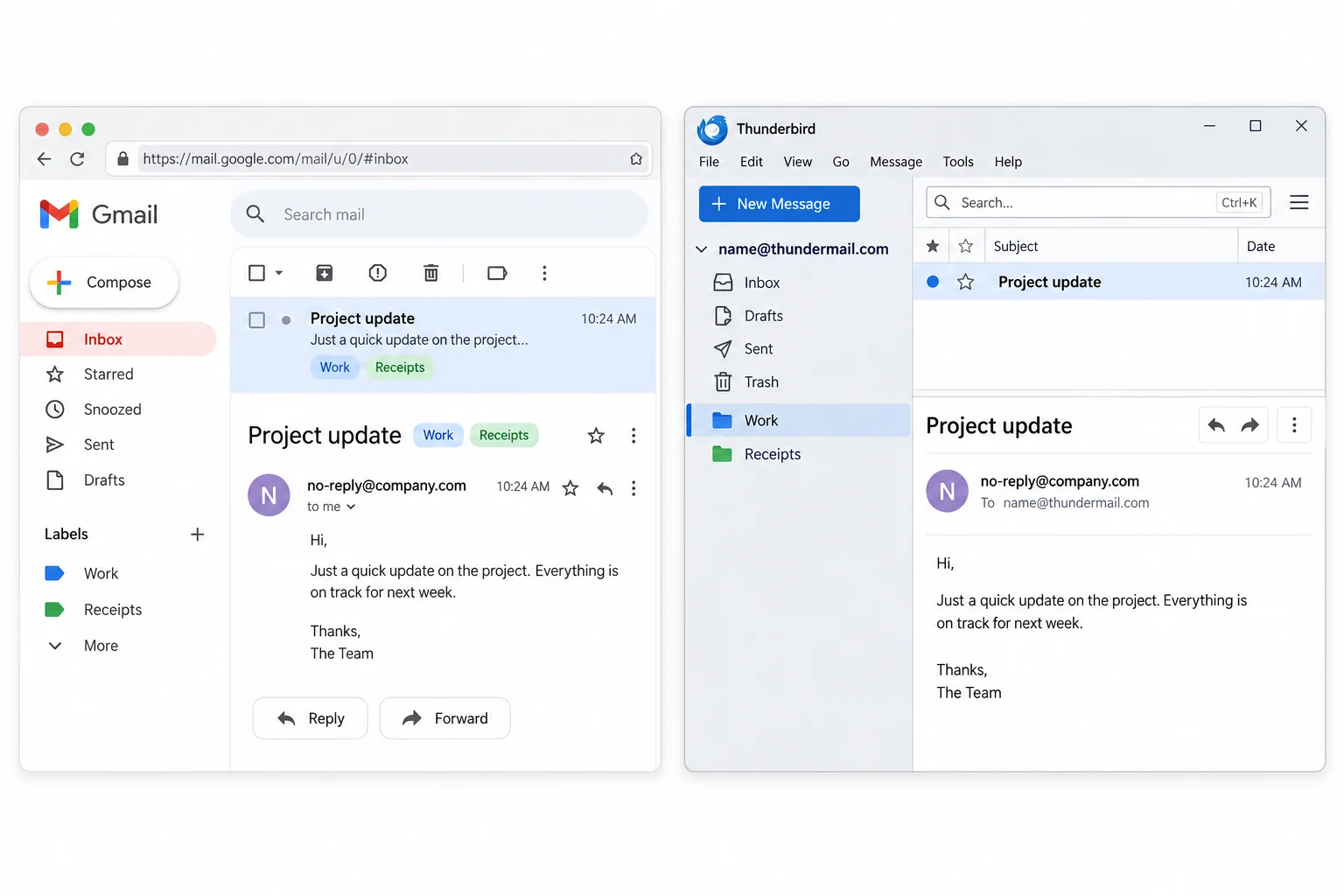
Univik Email Converter does that as it writes to Thundermail. Each Gmail label becomes a folder, and a message keeps a copy under every label it carried, which is how Gmail displayed it. Inbox, Sent, Starred and your own labels all arrive as folders you can browse in Thundermail, so the sorting you built up in Gmail is not lost in the move.
How Do I Move Gmail to Thundermail?
Four steps and roughly half an hour once the transfer runs. You set up two app passwords, one per account.
Turn on IMAP and make a Gmail app password
On the Gmail side, open Settings, See all settings, Forwarding and POP/IMAP and enable IMAP. Then, with two-step verification on, create a Google app password for mail. Gmail uses imap.gmail.com on port 993 with SSL/TLS, and that app password lets a tool read the account.
Make a Thundermail app password too
Thundermail also needs an app password for a tool to sign in. Open the Thundermail dashboard, go to Email Settings and create one, then save it, since it shows only once. Now you have both keys: one to read Gmail and one to write to Thundermail.
Add Gmail as the source in Univik Email Converter
Open Univik Email Converter and add your Gmail as an IMAP source. Enter imap.gmail.com, port 993, SSL/TLS, your Gmail address and the Google app password. The tool connects and lists your Gmail labels. If you would rather work from a file, a Google Takeout MBOX export loads the same way.
Send it to Thundermail and check the account
Pick the IMAP destination and enter the Thundermail server, port 993, SSL/TLS, your Thundermail address and its app password. Run the transfer. The converter recreates each Gmail label as a folder in Thundermail and moves the messages with their dates and attachments. Open Thundermail to see the mail arrive.
Can I Use a Gmail Takeout Export?
Yes, and some people prefer it. Rather than connect the live Gmail account, you can export your mail with Google Takeout for an MBOX file, then load that into the converter instead. The upload to Thundermail then works from the file rather than a direct Gmail link.
Both routes reach the same place. The direct IMAP route is quicker to set up and moves the account as it stands. The Takeout route suits a case where you want a copy of the mail on disk first, or where you no longer have easy access to sign in to the Gmail account but do have the export.
The Gmail move stands or falls on the labels. Anyone can copy the messages across. Turning Starred, Important and a dozen project labels into real folders in Thundermail is what makes it feel like the same mailbox in a new place.
Does the Move Touch My Gmail Account?
No. The transfer reads from Gmail and writes to Thundermail, and it does not delete or change anything in Gmail. Your Gmail mailbox stays exactly as it was, so you can keep it running alongside Thundermail for as long as you like, or close it later once the move has settled.
Because nothing is removed from the source, there is no risk in running the move and checking the result before you commit. If a label did not come across the way you wanted, you can adjust and run it again, since the Gmail original is untouched.
Which Gmail to Thundermail Route?
Three ways to shift Gmail mail across. Only one keeps the label sorting as folders.
| What you need | Forward or drag | Free online mover | Convert over IMAP |
|---|---|---|---|
| Turns Gmail labels into folders | No | Sometimes | Yes |
| Moves the whole mailbox in one pass | No | Partly | Yes |
| Keeps dates and attachments | Manual | Varies | Yes |
| Works from a Takeout MBOX too | No | No | Yes |
| Mail avoids a middle server | Yes | No | Yes |
| Good for | A handful of emails | A small account | A full Gmail move |
Univik Email Converter reads Gmail over IMAP or from a Takeout MBOX and writes it into Thundermail, turning Gmail labels into folders and keeping dates and attachments. Give it both app passwords and move the whole account in one run.
Windows 7 to 11 · reads Gmail IMAP or a Takeout MBOX · the trial carries a few messages per label
The short version
- Enable IMAP in Gmail and create a Google app password.
- Create a Thundermail app password in the dashboard.
- Add Gmail as an IMAP source in Univik Email Converter, or load a Takeout MBOX.
- Send it to the Thundermail IMAP destination on port 993 with SSL/TLS.
- Gmail labels become folders in Thundermail, and the Gmail account is untouched.
Move Gmail to Thundermail, free trial
Gmail to Thundermail Questions
 About This Guide
Written for Univik by Leena Taylor Paul, from Univik's years of work moving mail between IMAP accounts since 2013. The Thundermail connection values were taken from its beta support material in 2026. The Gmail side was exercised label by label into a live IMAP destination. 23 September 2026. A label not showing in Thundermail? Support is a click below.
Sources: Thundermail settings and ports · Getting started with Thundermail · Univik Email Converter