 Migrate Guide
 By
By ACT! does not run on macOS, so the data leaves as a file. On a Windows PC, export the ACT! contacts to vCard 3.0 or a CSV. Copy that file to the Mac and in the Contacts app choose File then Import. Or upload the vCard on the iCloud website so every Apple device gets it. Contacts on Mac imports vCard, CSV, tab-delimited text and LDIF, shows the field mapping for text files and flags duplicates as it goes.
The office moved to Macs and the ACT! database stayed on the last Windows machine in the corner. Or a sales rep bought a MacBook and wants twenty years of customer records on it. Either way the question is the same: how do ACT! contacts get into Apple Contacts, iCloud and the iPhone that syncs with them?
Act! itself is a Windows program. Its cloud edition opens in a Mac browser but gives no file export to Apple Contacts. So the move is a file export on Windows and a file import on the Mac. This page covers both halves and the two places where names and photos go wrong.
- Why Can You Not Open an ACT! Database on a Mac?
- Which File Format Should ACT! Contacts Travel In, vCard or CSV?
- How Do You Move ACT! Contacts to Apple Contacts in 4 Steps?
- Step 1: Export the ACT! contacts on a Windows PC
- Step 2: Copy the file to the Mac
- Step 3: Import into Contacts with File then Import
- Step 4: Review the duplicates Contacts flags
- Should You Import on the Mac or on the iCloud Website?
- vCard, CSV or iCloud Upload: Which Route Fits You?
- How Do You Check the Contacts Arrived Complete?
- ACT! to Mac Questions
Why Can You Not Open an ACT! Database on a Mac?
Act! ships a Windows desktop program and a browser-based Premium Cloud edition. There is no macOS install, and the database itself, an .adf file next to an .alf file, is a SQL Server data file that nothing on a Mac reads. Apple Contacts, Numbers and Excel for Mac all decline it.
What a Mac does read very well is a vCard. Apple built Contacts around the format, and the same .vcf file imports on the Mac, on iCloud.com and on an iPhone. The whole job is turning ACT! records into that file on a Windows machine, even a borrowed one.
Which File Format Should ACT! Contacts Travel In, vCard or CSV?
vCard 3.0 for almost everyone. Apple Contacts reads it with no mapping screen, keeps the photo inside the card and keeps phone labels such as Mobile and Work. Choose CSV only when you want to open the list in Numbers first and tidy it, because CSV drops photos and asks you to match every column on import.
If ACT! still opens on the old PC, its File, Export command writes a delimited text file of contacts, which is the CSV route. If ACT! will not open, Univik ACT ADF Converter reads the .adf on any Windows PC without Act! and writes vCard 3.0 directly.
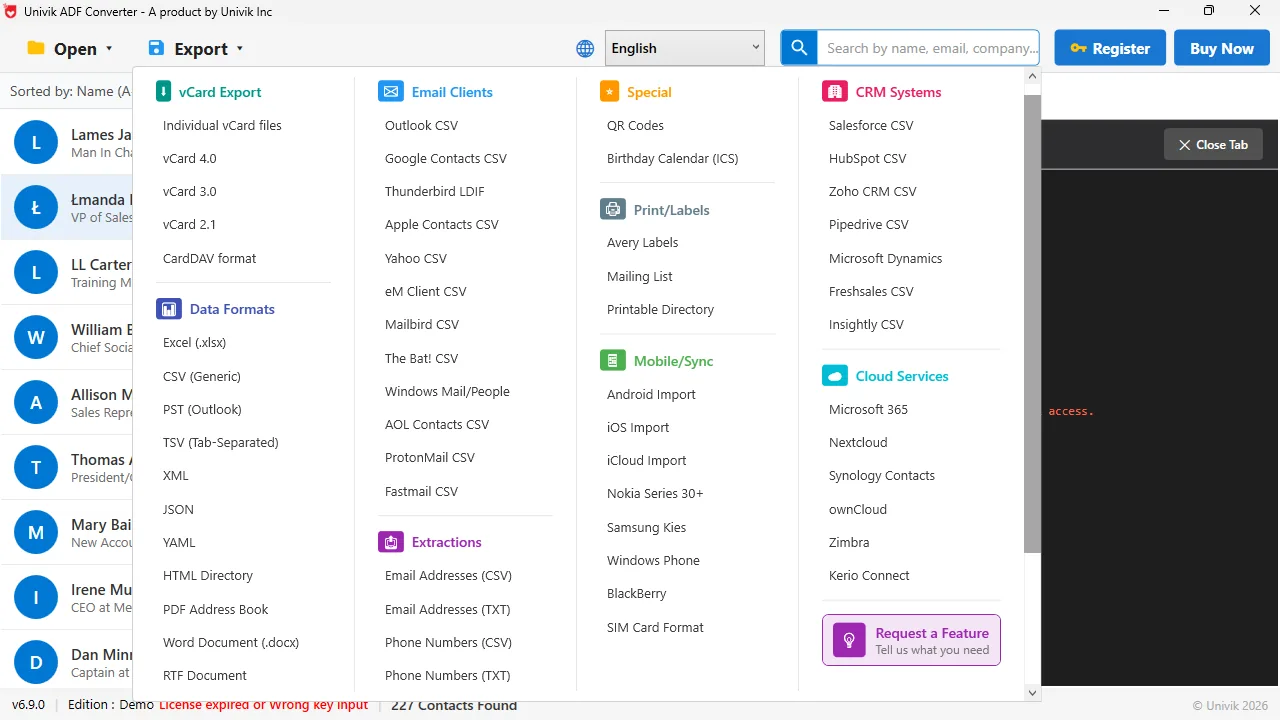
Two Mac-friendly exports vCard 3.0 under vCard Export is the one Apple Contacts reads without a mapping step. Apple Contacts CSV under Email Clients is the fallback when you want to check columns first.
How Do You Move ACT! Contacts to Apple Contacts in 4 Steps?
Half an hour for a database of a few thousand records, most of it waiting for iCloud to sync.
Export the ACT! contacts on a Windows PC
Take the Windows PC that has the database or a copy of the .adf and .alf pair. Open it in Univik ACT ADF Converter and choose vCard 3.0 under vCard Export. Save one combined .vcf file. The log lists each contact as it is written and ends with the total.
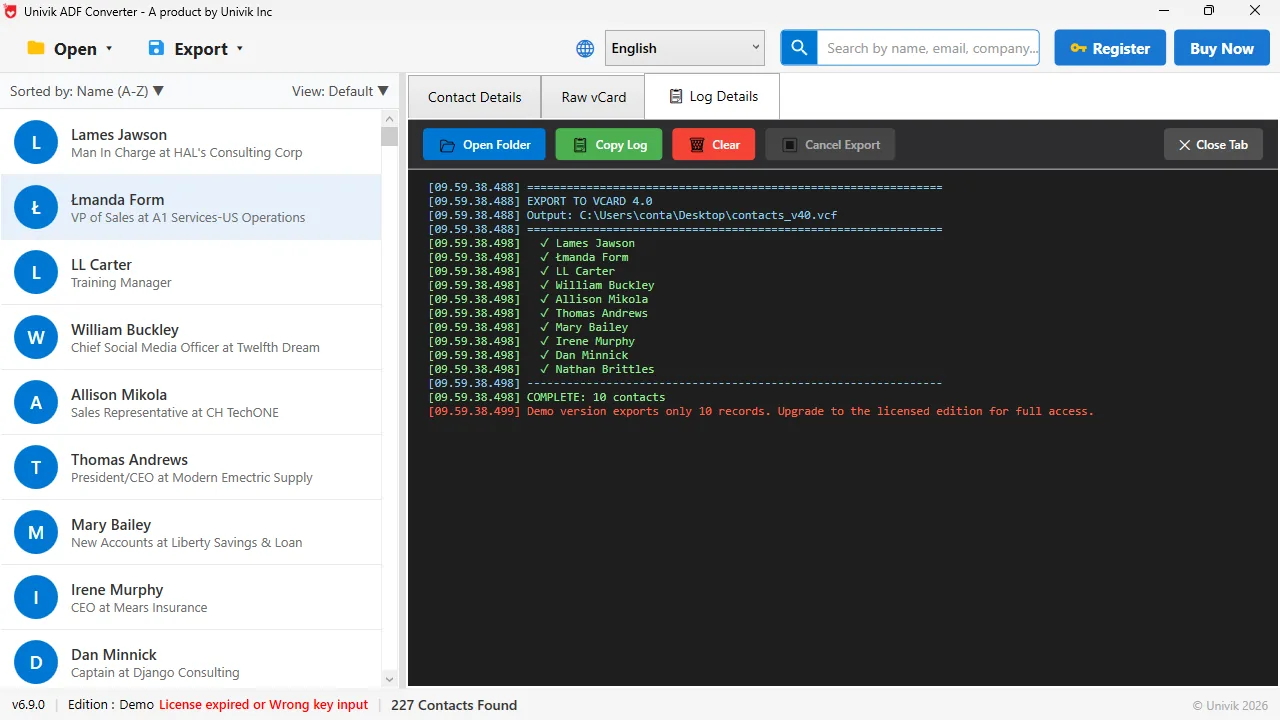
The vCard log One tick per contact and a COMPLETE line with the count. Match this number against Contacts on the Mac after the import.
Copy the file to the Mac
A .vcf is plain text, so any route works. Drop it in iCloud Drive from the PC through iCloud for Windows, email it to yourself or carry it on a stick. Keep the file until the import is checked.
Import into Contacts with File then Import
On the Mac open Contacts, choose File, Import and pick the .vcf. Apple's Contacts guide lists vCard, CSV, tab-delimited text, LDIF and its own archive format as import types. A vCard goes straight in. A CSV opens a mapping screen where you match each column to a label and can tick Ignore first card for the heading row.
Review the duplicates Contacts flags
Contacts checks each imported card against what you already have and shows the ones that look like duplicates. Review them before you accept, especially if the Mac already had a few of the same people from an iPhone. Then give iCloud a few minutes and the same cards appear on the phone.
Mac users lose the most time looking for an ACT! app for macOS. There is none, and there does not need to be. A vCard 3.0 file made on any Windows PC lands in Apple Contacts with names, numbers and photos in the right places.
Should You Import on the Mac or on the iCloud Website?
Both end in the same place if the Mac signs in to iCloud. The website route skips the Mac altogether: go to iCloud.com, sign in, open the Contacts app there and use the settings control to pick Import vCard. It is the better choice when the Mac is not set up yet or when the cards are for a rep who mainly uses an iPhone. The Mac route is the better choice for a CSV, because the website only accepts vCard.
Univik ACT ADF Converter opens the .adf and .alf pair on Windows 7 to 11 without Act! installed and writes the vCard 3.0 file that Apple Contacts and iCloud import in one step.
Windows only. Run it on a PC or in a Windows virtual machine on the Mac · the demo exports the first 10 contacts
vCard, CSV or iCloud Upload: Which Route Fits You?
| Criteria | vCard 3.0 into Contacts | CSV into Contacts | vCard into iCloud.com |
|---|---|---|---|
| Field mapping step | None, fields are already labelled | Yes, you match each column | None |
| Contact photos | Kept inside the card | Not carried by CSV | Kept |
| Several phone types | Kept with labels | Kept if each type has its own column | Kept with labels |
| Reaches iPhone and iPad | After iCloud sync from the Mac | After iCloud sync from the Mac | At once, on every device |
| Best when | You have a Mac in front of you | You want to check columns in Numbers first | The Mac is not set up yet |
How Do You Check the Contacts Arrived Complete?
- The contact count in Contacts (All Contacts, bottom of the window) has grown by the number in the export log
- A card with a photo in ACT! shows the same photo on the Mac
- A card with a mobile and a work number shows both, with the right labels
- The same card appears on the iPhone after iCloud sync
If photos are missing, the export was CSV. Re-export as vCard 3.0 and import again. Contacts will flag the repeats so you can merge rather than double up.
The short version
- ACT! is Windows software. The records move as a file, not through an app on the Mac.
- Export vCard 3.0 for a no-mapping import, or CSV when you want to see the columns first.
- On the Mac: Contacts, File, Import, pick the file. Text files get a field mapping screen.
- Or upload the vCard at iCloud.com so the iPhone and iPad get the cards at the same time.
- Compare the count in Contacts with the count the export log reported.
Try Univik ACT ADF Converter free
ACT! to Mac Questions
Is there a version of ACT! for Mac?
No desktop version. Act! Premium Cloud runs in a browser on a Mac, but the .adf database file and the desktop program are Windows only. To get the records into Apple Contacts you export a file on Windows and import it on the Mac.
Which file does Apple Contacts import best from ACT!?
A vCard 3.0 file. Apple's Contacts guide lists vCard, CSV, tab-delimited text, LDIF and its own archive as import formats. vCard needs no field mapping and carries photos and phone labels, which CSV does not.
Can I run the converter on the Mac itself?
Univik ACT ADF Converter is a Windows program. Run it on any Windows PC, or inside a Windows virtual machine on the Mac, then move the .vcf across. The export takes minutes, so a borrowed PC is enough.
Will ACT! notes and history come into Apple Contacts?
No. Apple Contacts has a single Note field per card and no history table. Export notes and history separately to Excel or PDF for reference. The contact cards themselves carry name, company, numbers, emails, addresses, birthday and photo.
How do I get the cards onto an iPhone as well?
Import on a Mac that is signed in to iCloud and the phone receives them through Contacts sync, or upload the .vcf at iCloud.com so every device gets them at once. Either way, check the count on the phone afterwards.
What happens to duplicates?
Contacts on Mac flags cards that match existing cards during the import so you can review them. Merge the real repeats and keep the rest. Doing this on the Mac before iCloud sync stops the duplicates reaching the phone.
 About This Guide
Written and maintained by Leena Taylor Paul and the Univik team, developers of Windows data conversion and recovery software since 2013. We checked the import formats, the File, Import path and the duplicate review behaviour against Apple's Contacts user guide for Mac in September 2026, and exported ACT! databases to vCard on Windows 11 the same week. Last verified September 20, 2026. Need a hand? Contact our support team.
Sources checked: Apple Support: Import contacts into Contacts on Mac · Univik ACT ADF Converter