To password protect a OneNote PDF, set an open password and AES-256 encryption when you convert the notebook to PDF. The Univik ONE Converter locks the file as it writes it, offline, so nothing sensitive goes near an upload.
A OneNote notebook can hold the kind of thing you do not want anyone opening, financial records, client notes, health details. Turning it into a PDF is only half the job if the file then sits unlocked.
The fix is to encrypt the PDF as you make it. This guide is about the password, not the base conversion, which the OneNote to PDF guide walks through in full.
Set a Password When You Convert
The cleanest way to lock the file is to add the password in the same pass that writes it, so the notebook never becomes an unprotected PDF sitting on disk first. A converter that reads the .one turns on encryption at save time and asks for the password there.
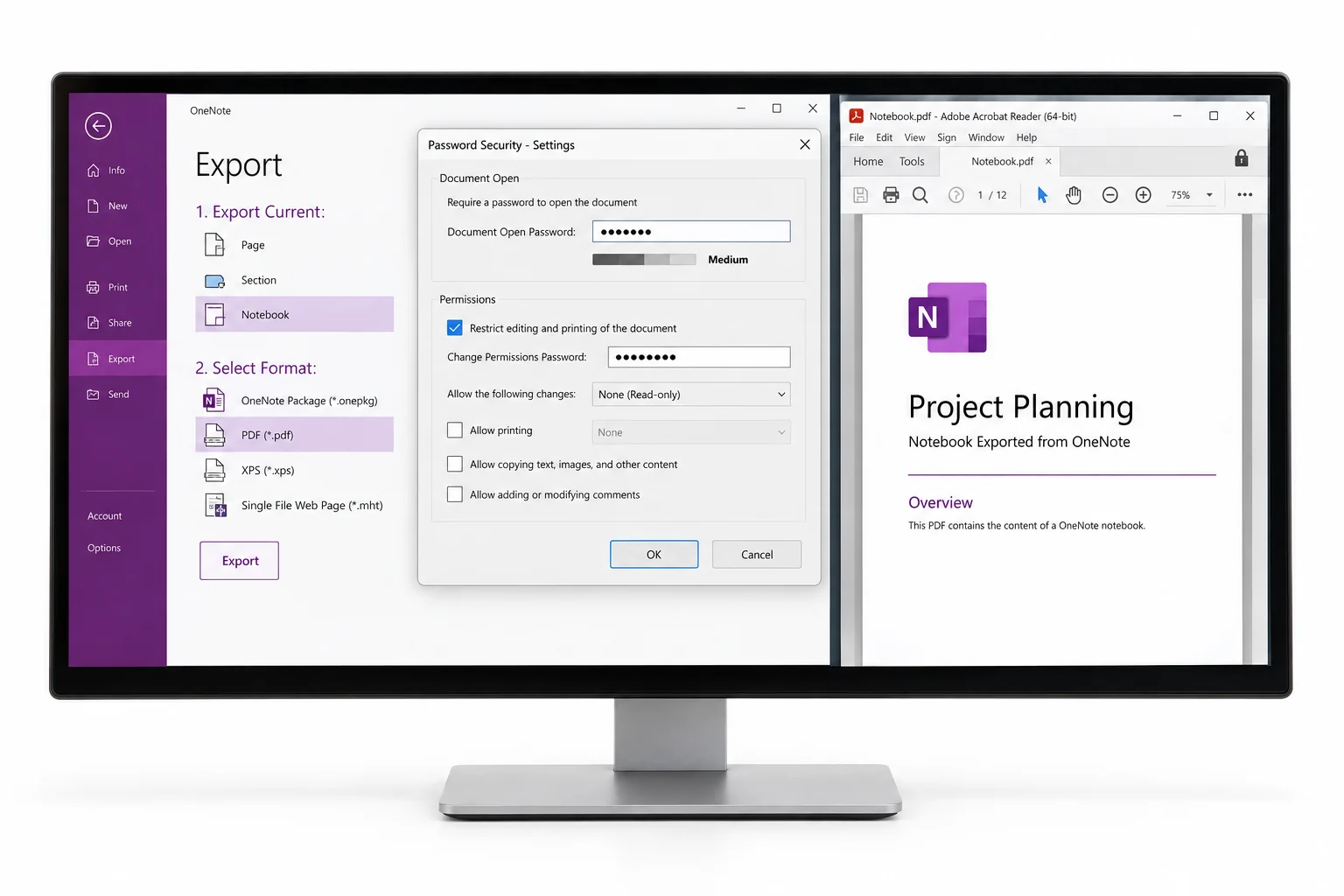
- Add the OneNote notebookLoad the .one or .onepkg file.
- Choose PDF and open securityFind the PDF password option.
- Set an open passwordType a strong one and confirm it.
- Convert to the locked PDFThe file saves already encrypted.
The other PDF options the tool offers sit on the OneNote converter page.
The ONE Converter writes a notebook straight to a PDF that is sealed with an open password and AES-256, all offline so the file never leaves your computer.
Free Download See All FeaturesThe Two Passwords a PDF Uses
A PDF can carry two passwords that do different jobs, and mixing them up is the usual mistake.
For a private notebook the open password is the one that matters, since it is what stops the wrong person reading the file. Adobe's guide to securing PDFs lays out how the two work together.
AES-256 Encryption and Older Readers
The password is only a door. The lock behind it is the encryption, and the level to pick is AES-256, the strong standard set in PDF 2.0. Every current reader, Acrobat, Preview, Edge, Chrome, handles it. Only software from before roughly 2008 misses it, which is rare enough now to ignore for most sharing.
Restrict Printing, Copying and Editing in the PDF
If you want people to read the notebook but not reuse it, that is the owner password's job. It leaves the file openable while turning off actions you choose, printing, copying text, editing or filling forms. One honest caveat, those permission flags can be stripped by specialised tools without the password, since the PDF spec allows it for recovery. So use the owner password to stop casual reuse, and lean on the open password when the content itself has to stay private.
OneNote Section Locks Versus PDF Passwords
These two get confused all the time, and they are not the same lock. A OneNote section password locks a section inside the app. A locked section is sealed inside the notebook itself, and how the .one is built is covered in Microsoft's OneNote file format spec, so it stays shut until you unlock it. A converter cannot read a locked section, which means you unlock it in OneNote first, then convert. The PDF password is a separate step applied to the output file, and that is the one that travels with the document you share.
Free Ways to Add a PDF Password
You do not have to encrypt at conversion time. You can make the PDF any way you like, then add a password to it afterward.
Adding it afterward is fine for something that is not too sensitive. For patient or client material, skip any tool that uploads the file, and prefer a route that keeps it on your own machine.
What a Password Cannot Protect
A locked PDF guards the file, not the reader. Once the right person types the password, they hold readable content they can save unencrypted, print, screenshot or forward, and that copy carries none of your protection. Encryption covers the file in transit and at rest, against people without the password. Two more honest points, a lost open password on a strong AES-256 file has no back door, so keep the original notebook safe, and never send the password in the same message as the PDF.
When to Lock a OneNote PDF
Reach for a password when the notebook holds something a leak would hurt. Medical or legal notes, payroll and finance, HR records, anything under a privacy rule like HIPAA or GDPR. A researcher sharing draft findings, a lawyer sending a client file, an accountant handing over statements, all have a clear reason to lock the PDF. For everyday notes with nothing private in them, an unlocked PDF is simpler and does the job.
OneNote PDF Password Questions

Written and maintained by Leena Taylor Paul and the Univik team, developers of Windows data conversion and recovery software since 2013. The support questions on this topic almost always come down to two mix ups, the section lock against the PDF password and the open password against the owner one, so this guide is built to clear both and be honest about what a locked PDF can and cannot do. Last verified August 2026. Locking down a confidential notebook? Contact our support team.