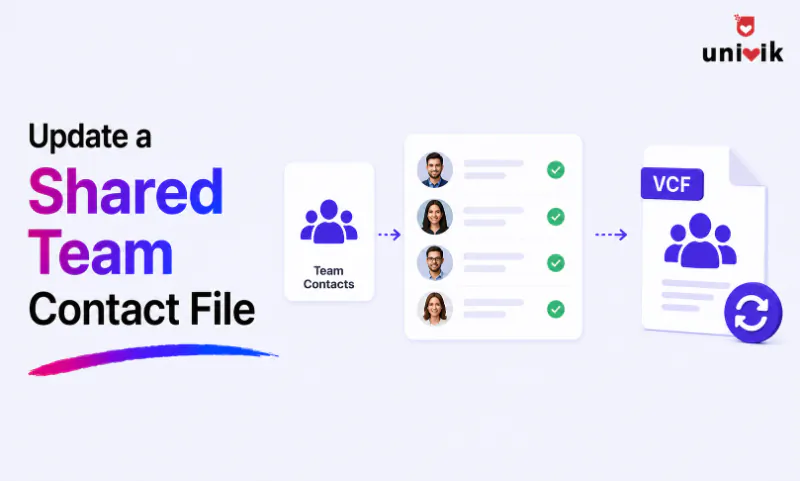
To update a shared team contact file without a CRM, open the master .vcf in a vCard editor, change the numbers, titles or people that have changed, then save one clean file and send it to the team to re-import. A shared file has no live sync, so the person who owns it edits the master and redistributes it whenever details change. The Univik VCF Editor opens the file, edits any field through a form, keeps custom fields intact and saves in a version every device can read, so the updated file imports cleanly on iPhone, Android and Outlook alike. It runs offline, which suits teams that keep contacts off the cloud.
Why Teams Keep a Shared Contact file without a CRM
Plenty of small teams run on a single shared contact file rather than a CRM or a cloud directory. Everyone imports the same .vcf, so the whole team carries the same list of clients, suppliers and staff on their phones. It is cheap, it works offline, and it does not tie the team to one platform, which matters when some people are on iPhone, some on Android and some in Outlook.
For a team of a handful of people, this is often enough. A CRM is built for pipelines, permissions and reporting that a five-person shop may never need, and a cloud directory means every contact lives on a provider’s servers, which some businesses avoid on privacy grounds. A shared .vcf keeps the list simple and under your own control. The catch is that it does not maintain itself, and that is where the work comes in.

“Shared files collect contacts from several phones over time, which means mixed vCard versions and mixed encodings in one file. Those are the files we test with, and converting the whole file to one version and UTF-8 before sharing it removes most of the trouble.”
Nick Rogers
|Founder, Univik, building file conversion tools since 2013
Why a Shared Contact file drifts Out of Date
A shared file has one weakness a cloud directory does not. There is no live sync. When a client changes number, when someone leaves or when a colleague fixes a typo on their own phone, nothing flows back to the master or out to everyone else. Each person is holding a copy that started identical and has drifted since.
Within a few months the copies disagree. One person has the new number, another has the old one, a third has a duplicate because they imported the file twice. Without a single source of truth that everyone re-imports, the shared list quietly rots. The fix is not complicated, but it has to be deliberate. One master file, edited in one place, sent out again whenever it changes.
How to Update a Shared Team Contact file (VCF)
The reliable way to keep the file current is to treat one copy as the master and make every change there. Open that master .vcf in the Univik VCF Editor, work through the changes, save one clean file and send it back to the team. The editor opens the whole file at once, shows each contact in a form and lets you change any field, name, number, email, title or company, without touching the raw text or breaking the format.
Because it edits in place and keeps the fields it does not change, including any custom or app-specific data already in the file, the master keeps everything it had and simply gains your edits. Save it in a widely read version such as vCard 3.0, and the updated file imports cleanly whether your team opens it on an iPhone, an Android phone or in Outlook. For a business running one or more shared lists, the editor’s business licence covers commercial use on your team’s machines.
Keep your shared contact file current. The Univik VCF Editor opens your master .vcf, edits any field through a form and saves a clean file every device can import, all offline. It preserves custom fields and flags duplicates, so the list you send out stays tidy. A one-time business licence covers commercial use across your team. The free trial edits a limited number of contacts.
What to Edit in a Shared Contact file
Most updates to a shared list fall into a few jobs. A client or supplier changes a phone number or email, and you correct it on their record. Someone changes role, and you update their job title and company. A person leaves, and you remove their record so nobody keeps calling a dead line. A number that came in under the wrong label gets set back to the right one.
Two jobs sit next to this and are worth keeping separate. If you are creating cards for brand new hires rather than editing people already in the file, that is its own task, covered in our guide to contact cards for new employees. And if the file has filled up with duplicate records from repeated imports, clearing those is work for a dedicated duplicate remover rather than hand editing. Editing the shared file is about keeping the records you already have correct.
Keeping the file consistent across a Mixed-Device Team
A shared file only works if it imports cleanly for everyone, and mixed teams are where that breaks down. A file saved in an old 2.1 format from one phone can lose labels or characters when a colleague opens it on a different system. A custom phone label one person set can vanish on another’s device. The way to avoid it is to standardise the master.
Save the shared file in vCard 3.0, the version with the broadest support across iPhone, Android, Outlook and Google Contacts, which our guide to vCard 2.1, 3.0 and 4.0 explains in full. Use the standard Cell, Home and Work labels rather than custom ones on numbers the whole team relies on, a point covered in fixing phone number labels. And keep names in the right First and Last fields so nobody imports a list that reads back to front, which our guide to swapped first and last names walks through. Editing the master through one editor is what lets you hold that consistency in a single place rather than hoping every device agrees.
How to Send the updated file back to the Team
Once the master is edited and saved, getting it back to the team is the last step, and a little discipline keeps it from going wrong. Send the single updated file by email or drop it in a shared folder everyone can reach. Name it with a date or version so people can tell the current file from an old one sitting in their downloads. The catch is that importing a vCard usually adds contacts rather than updating them, so plain re-imports build up duplicates. The tidiest habit is to keep the shared contacts in their own group or account, so each person can clear the old batch before importing the new file. Some apps, such as Outlook, also offer a replace-duplicates option on import.
Be honest about what this method is. It is manual, and it depends on people actually re-importing. For a small team that is a minor habit. If the list grows into the hundreds or the team gets much larger, the manual loop starts to strain, and a proper shared directory or CRM becomes the better tool. For a small team that wants control and no subscription, a well-maintained shared file does the job.
Frequently Asked Questions
How do I update a shared contact file used by my whole team?
Treat one copy as the master, open it in an editor, make every change there, then save a single clean file and send it to the team to re-import. In the Univik VCF Editor you edit each contact through a form and save in vCard 3.0, so the updated file imports the same way on every device. The key is that all edits happen in one master rather than on scattered phones.
Can a shared VCF file sync automatically like a CRM?
No. A shared .vcf has no live sync. Everyone holds a copy that only changes when they import a newer file, so edits made on one person’s phone do not reach anyone else. That manual step is the trade-off for a method that is cheap, offline and not tied to a provider. To update the team, you edit the master and redistribute it.
How do I remove someone who left from the shared contact file?
Open the master file in an editor, find the person’s record and delete it, then save and send the updated file to the team. Removing them in the master and having everyone re-import is what stops old contacts lingering on people’s phones. Doing it on one device only leaves the record in every other copy.
What vCard version should a shared team file use?
vCard 3.0 is the safest choice for a shared file, since it has the broadest support across iPhone, Android, Outlook and Google Contacts. Saving the master in 3.0 means the same file imports cleanly for a mixed team. Older 2.1 files can drop labels or characters on some systems, and 4.0 is not read consistently everywhere yet.
How do I stop duplicates when the team re-imports the file?
Importing a vCard usually adds contacts rather than updating them, so re-imports tend to create duplicates. The tidiest fix is to keep the shared contacts in their own group or account, so each person can clear the old batch before importing the new file. Some apps, such as Outlook, offer a replace-duplicates option on import. If duplicates have already built up, a dedicated duplicate remover clears them faster than editing by hand.
Is a shared VCF file a good alternative to a CRM?
For a small team that wants a simple, offline, no-subscription contact list, a shared .vcf works well as long as one person keeps the master current. It is not a substitute for a CRM once you need pipelines, permissions, reporting or a list in the hundreds of people. At that scale a shared directory or CRM is the better tool. Below it, a well-maintained file is often enough.
Can I edit a shared contact file offline without cloud access?
Yes. A desktop editor like the Univik VCF Editor opens and edits a .vcf entirely on your own machine, with no account or internet connection needed. That suits teams that keep contact data off the cloud for privacy or policy reasons. You edit the master locally and share the finished file however you choose.
How do I share the same contact list across iPhone and Android?
Save the shared list as a vCard 3.0 file and send everyone the same .vcf to import. vCard 3.0 reads on iPhone, Android, Outlook and Google Contacts alike, so one file covers a mixed team. Keep names in the right First and Last fields and use standard phone labels, and the list imports the same way on every device.
The Short Version
A shared contact file is a workable way to run a small team’s contacts without a CRM, as long as someone treats it as a master and keeps it current. The weakness is the lack of live sync, so the copies on everyone’s phones drift apart unless one edited file is sent out whenever something changes. Editing that master in one place is what holds the whole team on the same list.
Do the edits through a form-based editor and the file keeps its custom fields, saves in a version every device reads and stays clean enough to redistribute without spreading errors. Update the master, save it in vCard 3.0, send it out with a clear version name and have the team clear the old batch before importing the new one. Past a few hundred contacts a CRM earns its keep, but below that a well-kept shared file does the job at no ongoing cost.