 Help Guide
With the database open, click Export in the top left. The menu is split into nine groups: vCard Export, Data Formats, Email Clients, Extractions, Special, Print/Labels, Mobile/Sync, CRM Systems and Cloud Services, 58 options in all. Pick a format, choose where to save and the Log Details tab lists every contact as it is written, ending with a COMPLETE line and the count.
This page covers the Export menu in Univik ACT ADF Converter: what is in it, which option fits which job and how to read the log when the export finishes. It assumes the database is already open. If it is not, start with the open a database page.
All menu names below are copied from version 6.9.0 as it appears on screen.
- What Is in the Export Menu?
- How Do I Run an Export in 4 Steps?
- Step 1: Open the database and check the count
- Step 2: Click Export and pick a format
- Step 3: Choose where to save the file
- Step 4: Read the log and open the folder
- Which Export Option Should I Pick?
- How Do I Read the Log Details Tab?
- Where Did the Exported File Go?
- Exporting From Univik ACT ADF Converter, Common Questions
What Is in the Export Menu?
The Export menu in Univik ACT ADF Converter opens as a wide panel with four columns and nine groups. Each line under a group heading is one output format. Version 6.9.0 lists these 58.
- vCard Export
- Individual vCard files, vCard 4.0, vCard 3.0, vCard 2.1 and CardDAV format.
- Data Formats
- Excel (.xlsx), CSV (Generic), PST (Outlook), TSV (Tab-Separated), XML, JSON, YAML, HTML Directory, PDF Address Book, Word Document (.docx) and RTF Document.
- Email Clients
- Outlook CSV, Google Contacts CSV, Thunderbird LDIF, Apple Contacts CSV, Yahoo CSV, eM Client CSV, Mailbird CSV, The Bat! CSV, Windows Mail/People, AOL Contacts CSV, ProtonMail CSV and Fastmail CSV.
- Extractions
- Email Addresses (CSV), Email Addresses (TXT), Phone Numbers (CSV) and Phone Numbers (TXT).
- Special
- QR Codes and a Birthday Calendar as ICS.
- Print/Labels
- Avery Labels, Mailing List and Printable Directory.
- Mobile/Sync
- Android Import, iOS Import, iCloud Import, Nokia Series 30+, Samsung Kies, Windows Phone, BlackBerry and SIM Card Format.
- CRM Systems
- Salesforce CSV, HubSpot CSV, Zoho CRM CSV, Pipedrive CSV, Microsoft Dynamics, Freshsales CSV and Insightly CSV.
- Cloud Services
- Microsoft 365, Nextcloud, Synology Contacts, ownCloud, Zimbra and Kerio Connect.
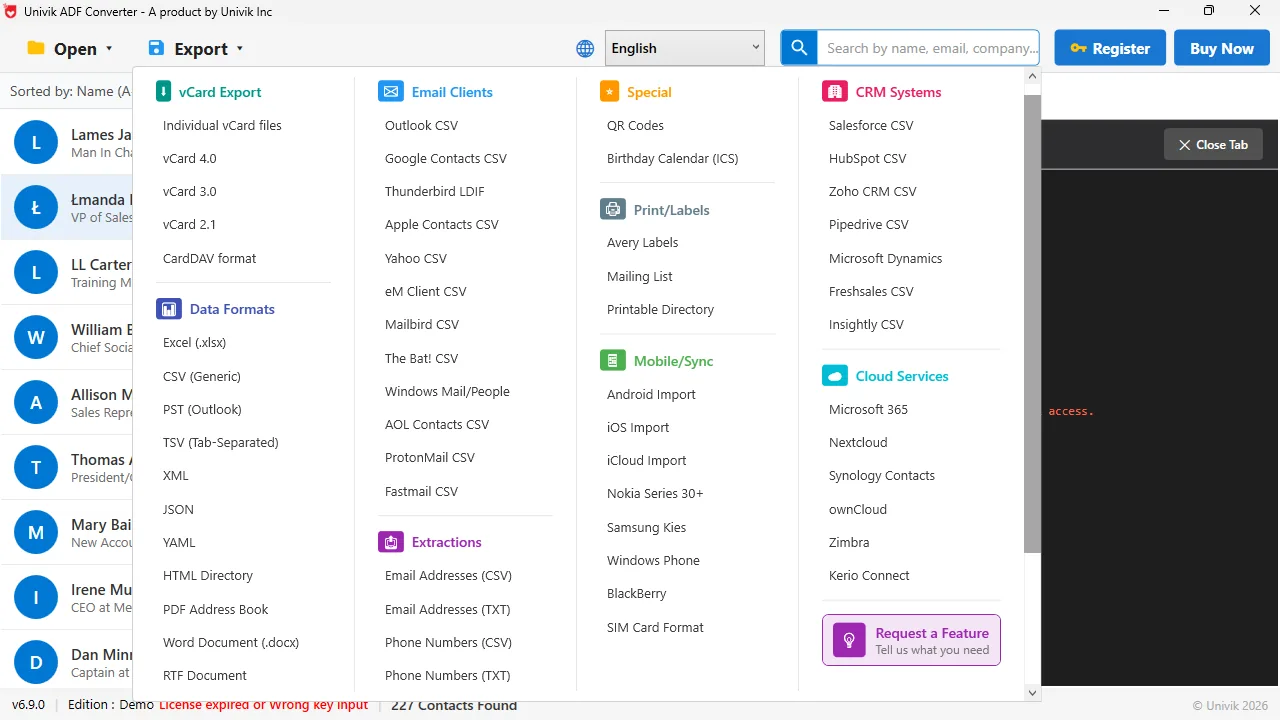
The Export menuNine groups in four columns. vCard Export and Data Formats on the left, Email Clients and Extractions next, then Special, Print/Labels and Mobile/Sync, with CRM Systems and Cloud Services on the right.
Two things stand out. There is no single "CRM CSV" entry. The CRM Systems group names each product, so you pick by destination instead of guessing which columns the CRM wants. And vCard comes in four flavours plus CardDAV, because phones and mail programs are picky about the version.
How Do I Run an Export in 4 Steps?
The steps are the same for every one of the 58 formats.
Open the database and check the count
With the .adf loaded, read the count in the bottom bar, for example 227 Contacts Found. That is the number the licensed edition will write. Note it now so you can match it against the log later.
Click Export and pick a format
Click Export in the top left. Find the group for your destination and click the option under it. The table further down this page maps common jobs to the right option. A Request a Feature button sits at the bottom of the menu for a format that is not there yet.
Choose where to save the file
A save dialog asks for a location and a file name. The log later shows the full path you chose, such as C:\Users\name\Desktop\contacts_v40.vcf, so you can always find it again.
Read the log and open the folder
The Log Details tab opens on its own. It prints a header with the format and the output path, then one line per contact with a tick, then a COMPLETE line with the number written. Click Open Folder to jump to the file.
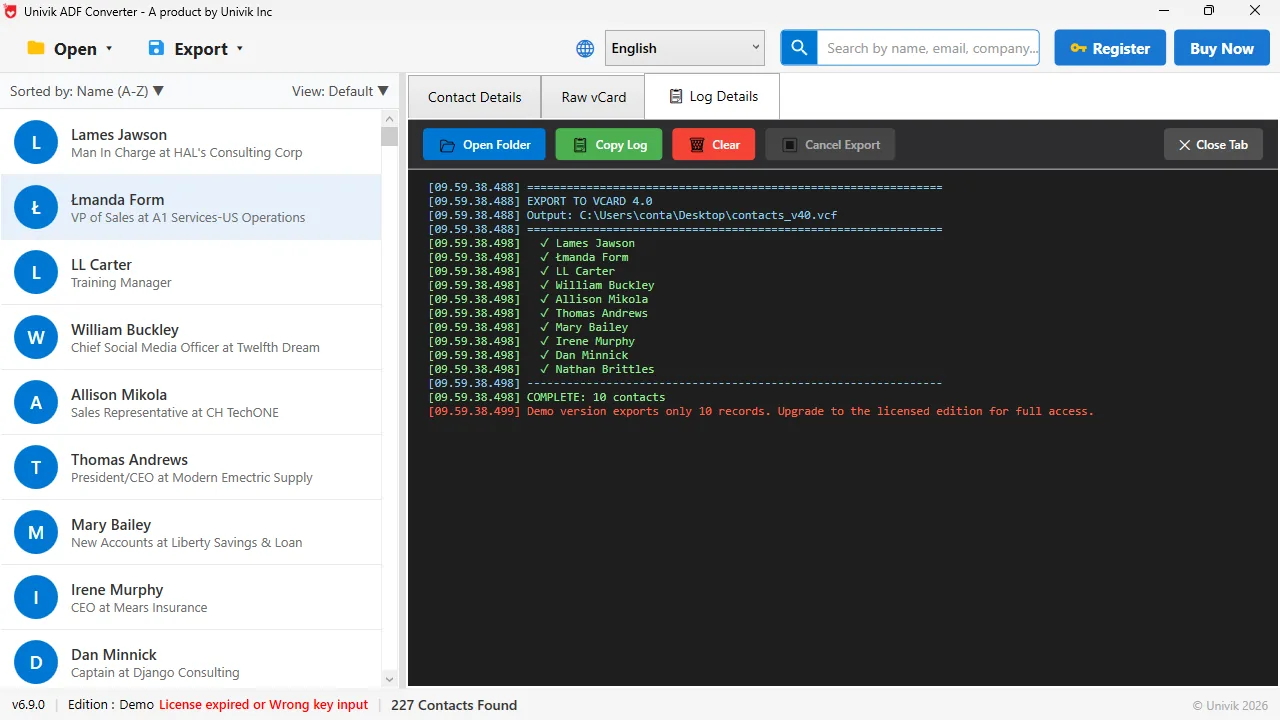
A finished exportThe header names the format and the output path. One tick per contact. The last two lines give the count and, in the demo, the 10 record notice.
Which Export Option Should I Pick?
Match the option to where the contacts are going. These are the requests that reach Univik support most often and the option that answers each one.
| You want to | Pick this group | Then this option |
|---|---|---|
| Work on the list in a spreadsheet | Data Formats | Excel (.xlsx), or CSV (Generic) for any other program |
| Bring contacts into Outlook | Data Formats or Email Clients | PST (Outlook) for a ready mailbox file, Outlook CSV for the import wizard |
| Move them to a Google account | Email Clients | Google Contacts CSV |
| Get them onto an iPhone or Mac | vCard Export or Mobile/Sync | vCard 3.0, or iOS Import and iCloud Import |
| Load them into a CRM | CRM Systems | The CSV named after your CRM, such as HubSpot CSV or Zoho CRM CSV |
| Hand someone a printed list | Print/Labels or Data Formats | Printable Directory, or PDF Address Book |
| Keep only email addresses or phone numbers | Extractions | Email Addresses or Phone Numbers, as CSV or TXT |
| Sync with Microsoft 365 or Nextcloud | Cloud Services | The service name in the list |
Pick the format named after the place the contacts are going, not the most general one. A HubSpot CSV is shaped for HubSpot's import screen. A generic CSV works everywhere and needs mapping everywhere.
How Do I Read the Log Details Tab?
The log is a plain text record of the run, timestamped to the millisecond. Reading it top to bottom:
- EXPORT TO VCARD 4.0 (or the format you chose) is the header. It confirms which option ran
- Output: followed by a path is the file that was written, or the folder for multi-file formats
- One line with a tick per contact name. A name without a tick did not make it into the file
- COMPLETE: 10 contacts is the count written. Compare it with the status bar
- A red line about the demo version means the export stopped at 10 records. A licence removes the line and the limit
Five buttons sit above the log. Open Folder shows the output in Windows Explorer. Copy Log puts the text on the clipboard. Clear empties the pane. Cancel Export stops a run in progress. Close Tab hides the log.
Where Did the Exported File Go?
Where you told the save dialog to put it. If you clicked through without looking, the Output line at the top of the log has the answer. Open Folder takes you straight there. The converter never writes back into the .adf, so the ACT! database itself is unchanged after any number of exports.
The demo edition shows every contact and writes the first 10 per export. A $39 licence removes the limit on 2 PCs and comes with a 30-day money-back guarantee.
Windows 11 / 10 / 8 / 7 · runs offline, nothing is uploaded · the .adf is never modified
The short version
- Export lives in the top left, next to Open. It has nine groups and 58 options.
- Choose the option named after the destination: Excel (.xlsx), Outlook CSV, Google Contacts CSV, vCard 3.0, HubSpot CSV and so on.
- The Log Details tab prints the format, the output path, one tick per contact and a COMPLETE line with the count.
- Open Folder in the log jumps to the saved file. Copy Log copies the text for support.
- The demo edition writes 10 records per export and says so in red at the end of the log.
Try Univik ACT ADF Converter free
Exporting From Univik ACT ADF Converter, Common Questions
 About This Help Page
Maintained by the Univik team, developers of Windows data conversion and recovery software since 2013. The Export menu, group names and log text on this page are taken from Univik ACT ADF Converter v6.9.0 on Windows 11 in September 2026. The sample log shows a vCard 4.0 export in the demo edition. Last verified September 20, 2026. Need a hand? Contact our support team.
Sources checked: Univik ACT ADF Converter product page · Open an ACT! database in Univik ACT ADF Converter · Demo limits and licence