 Help Guide
Install the converter on any Windows 7 to 11 PC, click Open in the top left and pick the .adf file. Keep the matching .alf in the same folder. The contact list loads on the left, sorted by name. The status bar at the bottom shows how many contacts were found. Nothing else has to be installed. Act! and SQL Server are not needed on the PC.
This page walks through the first thing everyone does with Univik ACT ADF Converter: getting an ACT! database open and on screen. It covers the install, the Open button, the three tabs on the right and the numbers in the status bar.
Menu names and screens on this page come from version 6.9.0. If your window looks different, check the version number in the bottom left corner first.
- What Do I Need Before I Open the Database?
- How Do I Open the .adf File in 3 Steps?
- Step 1: Install Univik ACT ADF Converter
- Step 2: Click Open and choose the .adf file
- Step 3: Read the contact list and the status bar
- What Does Each Part of the Window Show?
- Which ACT! File Do I Pick, .adf, .alf or .pad?
- Why Is the Contact List Empty or Missing People?
- Opening an ACT! Database, Common Questions
What Do I Need Before I Open the Database?
Three things. A Windows PC running Windows 7, 8, 8.1, 10 or 11 with .NET Framework 4.8 or higher. The installer from univik.com. And the database folder with both the .adf and the .alf inside it.
Act! itself is not required on that PC. Neither is SQL Server. The converter reads the .adf file on its own, so an old database from a retired computer can be opened on a new laptop that has never seen Act!.
How Do I Open the .adf File in 3 Steps?
From a fresh Windows PC to a contact list on screen takes a couple of minutes.
Install Univik ACT ADF Converter
Download setup-adf-converter.exe from univik.com and run it. When the install finishes, start the program. The Open and Export menus sit in the top left corner, next to the Univik logo.
Click Open and choose the .adf file
Click Open. Browse to the folder that holds your database and select the file ending in .adf. On most PCs Act! kept it under Documents, then ACT, then ACT Data, then Databases. The .alf with the same name has to be in that folder too. Pick the .adf, not the .alf.
Read the contact list and the status bar
The left column fills with contacts, sorted by name. Click any name and the Contact Details tab on the right shows that person's title, company, phone numbers, addresses and website. Look at the bottom bar. It shows the version, the edition and a count such as 227 Contacts Found. That count is the whole database, not a sample.
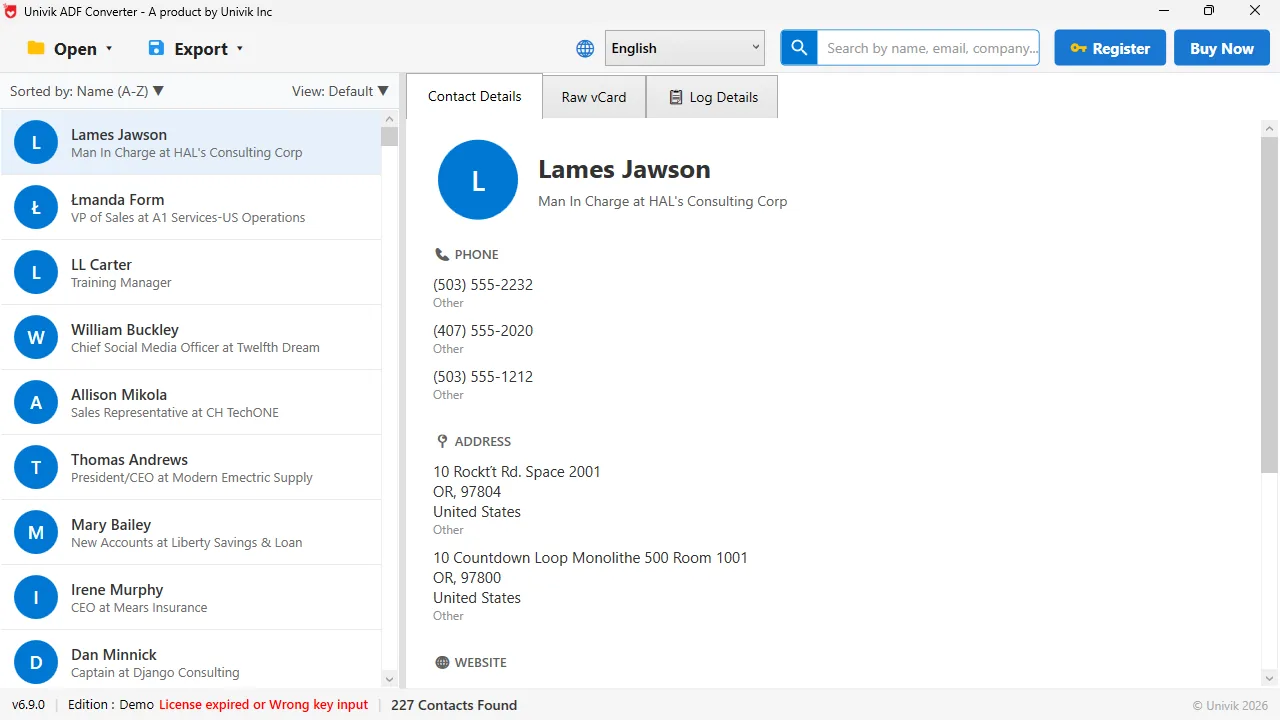
An open databaseContacts on the left, the selected person on the right. The bottom bar reads v6.9.0, the edition and 227 Contacts Found.
What Does Each Part of the Window Show?
The window has one job, so there is not much to learn. Here is every control in version 6.9.0 and what it does.
| Part of the window | What it shows | What you can do there |
|---|---|---|
| Open and Export menus | Top left, next to the Univik logo | Open a database, start an export |
| Language selector | Globe icon with a drop-down, English by default | Switch the interface language |
| Search box | Search by name, email, company | Type to narrow the list on the left |
| Register and Buy Now | Top right, blue buttons | Enter a licence key or buy one |
| Contact list | Left column, Sorted by Name (A-Z), View: Default | Click a person to see their record |
| Contact Details tab | Name, title at company, Phone, Address, Website | Read one record in full |
| Raw vCard tab | The same record as vCard text | Check a field before you export |
| Log Details tab | The line by line export log | Open the output folder, copy the log |
| Status bar | Version, Edition, licence state, contacts found | Confirm the count before you export |
The Raw vCard tab is the one people miss. It shows the selected contact as plain vCard text, so you can see which ACT! field ended up in which vCard line before you export a single file.
Which ACT! File Do I Pick, .adf, .alf or .pad?
Pick the .adf. The other two files confuse people because Act! itself opens a database through the .pad. The converter goes straight to the data file.
- .adf
- The data file. This is the one you pick in the Open dialog. Contacts, companies, notes and history live here.
- .alf
- The companion file that pairs with the .adf. Leave it beside the .adf with the same name. You never open it on its own.
- .pad
- A small pointer file Act! uses to find the database on a network. The converter does not need it.
Most open problems are file problems, not software problems. The .adf and .alf were split up when someone copied only one of them. Put the pair back together and the database opens.
Why Is the Contact List Empty or Missing People?
If the window opens but the list on the left stays blank, or the count in the status bar is lower than you expected, work through these in order.
- The .alf is in the same folder as the .adf and carries the same name
- The .adf was copied completely, so its size matches the original on the old PC
- The file is a SQL Server era database from ACT! 2005 onward rather than a .dbf from ACT! 6 or earlier
- The search box at the top is empty, because a leftover search term hides everyone else
If all four check out and the list is still empty, use the Log Details tab. Click Copy Log and paste the text into a message to support with the version number from the status bar.
Once the database is open, the Export menu turns the list into Excel, CSV, vCard, PDF, PST and dozens of other formats. The next help page covers every export option.
Windows 11 / 10 / 8 / 7 · .NET Framework 4.8 or higher · the demo opens the whole database and exports 10 contacts per run
The short version
- Install on Windows 7 to 11 with .NET Framework 4.8. No Act! and no SQL Server on the PC.
- Click Open, pick the .adf. The .alf with the same name must sit in the same folder.
- The left column lists every contact. The status bar shows the total, for example 227 Contacts Found.
- Contact Details, Raw vCard and Log Details are the three tabs on the right.
- An empty list almost always means a missing .alf or a copy that was interrupted.
Try Univik ACT ADF Converter free
Opening an ACT! Database, Common Questions
 About This Help Page
Maintained by the Univik team, developers of Windows data conversion and recovery software since 2013. The screens, menu names and status bar text on this page come from Univik ACT ADF Converter v6.9.0 running on Windows 11 in September 2026. Last verified September 20, 2026. Need a hand? Contact our support team.
Sources checked: Univik ACT ADF Converter product page · Microsoft .NET Framework 4.8 download · Export contacts from Univik ACT ADF Converter