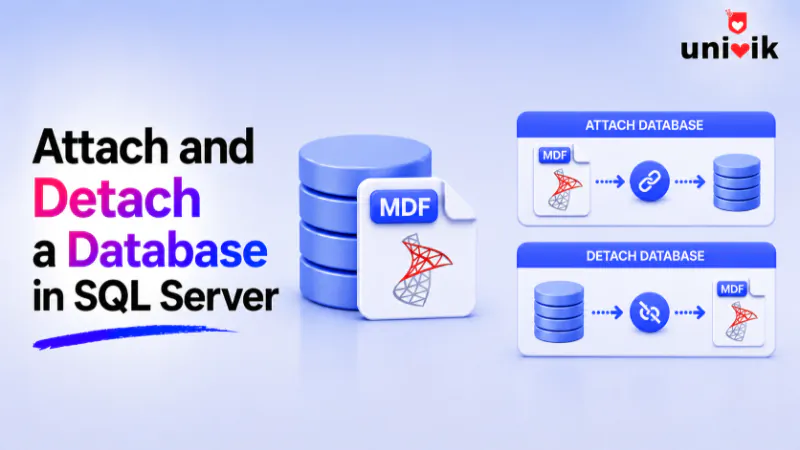
To move or restore a SQL Server database by hand, you detach it, move the files, then attach them again. Detach with sp_detach_db after taking the database into single user mode, and attach with CREATE DATABASE ... FOR ATTACH pointing at the MDF and LDF. The one failure that trips almost everyone is the access denied Error 5123, and it comes down to file permissions, not the database. When an MDF is too corrupt to attach by any method, Univik reads the file directly instead, which the SQL Database Recovery tool handles.
Detach and attach is the manual way to pick a database up off one SQL Server instance and set it down on another, or in a new folder on the same one. It is quick, it needs no backup file and it moves the real data files rather than a copy. It also has a short list of sharp edges that turn a two minute job into an afternoon, and the access denied error is the most common. Here is the whole round trip done safely, with the traps marked before you hit them.
What Detach and Attach Actually Do
New to these files? Our guide on what an MDF file is explains MDF vs NDF vs LDF and how attaching works.
A detach removes the database from the SQL Server instance while leaving the MDF, LDF and any NDF files sitting on disk, whole and untouched. The instance forgets the database, the file lock lifts and you are free to copy or move the files. An attach is the reverse. You hand SQL Server the files, it reads the database structure back in and brings it online. Nothing is converted and nothing is copied inside the engine, so both operations are fast even on a large database.
Because it moves the files directly, this route is faster than a backup and restore for a one off move, and it needs no spare disk for a backup copy. The trade off is that the database is offline for the whole trip and there is no fallback copy if a file is lost in transit, so a backup first is cheap insurance on anything you cannot lose.
One point worth clearing up, since it sends people down the wrong path. Detach and attach work on the live data files, the MDF, LDF and any NDF. A BAK backup file is a different thing. You restore a BAK, you do not attach it. The restore a SQL database from a BAK file guide covers that route.

“We attach and detach across every SQL Server version and edition in separate environments, because the version decides what attaches. Test on the version you will run in production, not the one on your laptop.”
Nick Rogers
|Founder, Univik, building file conversion tools since 2013
Detach a Database the Safe Way
A detach needs exclusive access. If any session is still using the database, the detach either waits or fails, so the safe pattern is to force everyone out first, then detach. Setting single user mode with an immediate rollback closes open connections and rolls back their unfinished work, which leaves the database in a clean state to release. It helps to note where the files sit before you detach, since you will need to find them to copy. A quick query of the sys.database_files view lists the physical path of every file in the database.
USE master;
ALTER DATABASE Sales SET SINGLE_USER WITH ROLLBACK IMMEDIATE;
EXEC sp_detach_db 'Sales';
You need membership in the sysadmin or db_owner role to run it. In SQL Server Management Studio the same thing lives under a right click on the database, then Tasks and Detach, with a checkbox to drop active connections that does the single user step for you. Either way, once the detach completes the files remain exactly where they were, ready to copy. One tuning note, the detach runs UPDATE STATISTICS by default, which can drag on a large database, so pass the skip option unless you are parking the files on read only media. Microsoft documents the full sp_detach_db parameters if you want the edge cases.
Attach with CREATE DATABASE FOR ATTACH
The current, supported way to attach is the FOR ATTACH clause on CREATE DATABASE. You name the database, list the file paths and SQL Server does the rest. The primary MDF records where the other files belong, so you only have to spell out paths for files that actually moved.
USE master;
CREATE DATABASE Sales
  ON (FILENAME = N'D:\Data\Sales.mdf'),
     (FILENAME = N'D:\Data\Sales_log.ldf')
FOR ATTACH;
Prefer the point and click route? The SSMS steps are short.
- In Object Explorer, right click Databases and pick Attach from the menu.
- Click Add and select the primary MDF file for the database.
- Check that the listed MDF and LDF paths match where the files now sit.
- Click OK, and the database comes online under its name.
Attaching under a new name is allowed too, which is what the “with a different name” searches want. Give CREATE DATABASE a different database name than the original and the files attach under it without complaint, since the name is a label the instance assigns rather than something stored inside the MDF.
One version rule catches people moving between servers. An attach only goes up the version ladder, never down. Point an older database at a newer SQL Server and the attach quietly upgrades it, a one way change you cannot reverse. Point a newer database at an older server and it fails outright with Error 948, because the version stamped into the MDF header is higher than the old engine can read. You can check that stamped version with DBCC CHECKPRIMARYFILE before you move the file, which saves you a surprise on the other server.
Skip sp_attach_db and Use FOR ATTACH
Plenty of older guides still reach for sp_attach_db, and it does still run, but Microsoft deprecated it back in the SQL Server 2005 era and flags it for removal. It carries a hard limit of sixteen files where FOR ATTACH handles tens of thousands, and its single file cousin sp_attach_single_file_db is deprecated the same way. There is no upside to the old procedure on any supported version. Treat any tutorial that leads with it as dated, and reach for the CREATE DATABASE form instead.
Fixing the Access Denied Error 5123
This is the error that sends most people searching, and it looks scarier than it is. The message reads that CREATE FILE hit operating system error 5, access is denied, on the MDF path. The database is fine. The problem is a file permission, and it has a specific cause worth understanding so the fix sticks.
Put plainly, the account that detaches a database is the only one left with rights to its files, so any other account that tries to attach them is refused. Right click the MDF in Windows Explorer, open Properties then Security and give Full Control to the login you are attaching with. Repeat on the LDF. If granting rights by hand is awkward on a locked down server, running the whole SSMS session elevated sidesteps the permission check. Once the rights are in place the attach goes through on the first try.
The Rules That Block a Detach
SQL Server refuses to detach certain databases, and the reasons are worth knowing before you plan a move around one. Each block has a specific unlock.
What an Attach Quietly Resets
An attach does not restore every setting exactly as it left. A few settings reset on the way in by design, and each one has bitten someone who did not expect it. The one behind the “read only after attach” searches is the simplest, if the primary MDF file carries the Windows read only attribute, SQL Server assumes the whole database is read only and attaches it that way. Clear the read only flag on the file and reattach to get a writable database back.
For security, an attach also switches Service Broker off, turns the trustworthy setting off and disables cross database ownership chaining, no matter how they were set before. Anything that relied on those, a broker queue or a cross database call, stops working until you turn the setting back on with ALTER DATABASE. The database owner can shift as well, landing on the login that performed the attach rather than the original owner. Microsoft lists these resets in the detach and attach reference. None of them throw an error, so if something worked before the move and not after, this short list is the first place to look.
When an Attach Refuses to Work
Two failures sit outside the permission fix, and each has its own route. The first is a missing log file. If you have the MDF but not the LDF, SQL Server can generate a replacement log during the attach, as long as the database was shut down cleanly. That path has its own quirks and its own error, 5171. The attach an MDF without the LDF guide walks it start to finish.
The second is a corrupt MDF. When the file itself is damaged, no attach method reaches the data, and no permission change helps, because the problem is inside the file. That is where reading the database outside SQL Server pays off. Univik opens the MDF directly at the page level and pulls the tables out, even when the file will not attach and there is no running instance to point it at. Repair the file first with SQL Database Recovery, or read it as it stands with the free MDF viewer. The same page level trick is what lets you go about opening an MDF without SQL Server at all, and the SQL Server migration hub maps the wider set of moves off a stuck instance.
Frequently Asked Questions
How do I Attach and Detach a Database in SQL Server?
Detach with sp_detach_db after taking the database into single user mode to force out connections, which leaves the files on disk. Move the files if you need to, then attach with CREATE DATABASE and the FOR ATTACH clause, pointing at the MDF and LDF. Both steps also live under a right click in SQL Server Management Studio, under Tasks.
Why Does Attaching a Database Fail with Access Denied Error 5123?
Detaching a database resets its file permissions to the account that detached it, so a different account trying to attach the files has no rights to them. Grant Full Control on both the MDF and the LDF to the account doing the attach, the Windows user for Windows authentication or the service account otherwise. Running SSMS as Administrator resolves it too.
Can I Attach a Database with a Different Name?
Yes. The database name is a label the instance assigns, not something stored in the MDF, so you can give CREATE DATABASE any name you like and the files attach under it. This is handy for standing up a copy alongside the original on the same instance without a naming clash.
Do I Need the Log File to Attach a Database?
Not in every case. If the database was shut down cleanly, SQL Server can create a fresh log file during the attach when the LDF is missing. If it was not shut down cleanly, the original log is required for recovery. The full missing log procedure, including the rebuild option and Error 5171, is covered in the attach an MDF without the LDF guide.
Is sp_attach_db Still Supported?
It still runs on current versions but Microsoft deprecated it in the SQL Server 2005 era and marks it for removal, so it should not be used in new work. It is capped at sixteen files where CREATE DATABASE with FOR ATTACH handles far more. Use the FOR ATTACH form instead on any supported version.
Why Is My Database Read Only after Attaching?
SQL Server reads the whole database as read only when the primary MDF file carries the Windows read only attribute. Clear the read only flag on the MDF file in its Windows properties, then attach again, and the database comes back writable. An attach also disables Service Broker and the trustworthy setting for security, which can look like a change in behavior.
Attach keeps failing on a damaged MDF?
When the file is too corrupt to attach and permissions are not the problem, Univik reads the MDF straight off the disk and recovers the tables, with no SQL Server instance needed.