Windows has no built in program for an .mdf, so double clicking one goes nowhere. The file is really a SQL Server database, and Microsoft’s answer is to install SQL Server and attach it. You can skip all of that. The free Univik MDF Viewer opens the .mdf directly on Windows 10 or 11 and shows you the tables and rows inside, and the MDF Converter turns them into nine everyday formats when you need the data somewhere else.
Why an MDF File Refuses to Open on Its Own
Prefer not to install anything? You can open MDF files online in your browser and read the tables, views and stored procedures without SQL Server.
An .mdf is not a document. It is SQL Server’s main data file, a binary container of pages that hold tables, indexes and system records, which Microsoft describes in its database files documentation. Windows ships nothing that reads it, so the double click fails and dragging it into Notepad or Word prints unreadable characters.
The format was never meant to be opened like a file. SQL Server attaches it, locks it and serves its contents through queries. Every way of opening one comes down to a choice, bring a database engine to the file or bring a reader that understands the format on its own.

“Reading an MDF without SQL Server is tested on databases of 100 MB up to 5 GB, written by every version and edition we run. The check is the data: tables and rows compared with the source, not the file opening.”
Nick Rogers
|Founder, Univik, building file conversion tools since 2013
First, Check Which Kind of MDF You Have
Three unrelated file types use the .mdf extension, and the right way to open each is different. If your file came from a database server, an old application folder or a backup drive next to an .ldf, it is a SQL Server database and the rest of this guide is for you.
If it came from a burned disc or a downloaded game and sits next to an .mds file, it is an Alcohol 120% disc image. Mount it with virtual drive software or convert it to an ISO, no database tool will help. And if it came from vehicle test equipment, it is an ASAM measurement recording that its own engineering tools open. Our MDF to CSV guide has a fuller breakdown of telling the three apart.
Three Ways to Open a SQL Server MDF
Once you know it is the database kind, you have three workable paths that suit different situations.
A free viewer opens the file where it sits. Nothing else is installed, nothing is uploaded and the .mdf is read as it is, which makes this the fastest way to simply see what is inside.
SQL Server Express turns the file back into a live database. You install Express, attach the .mdf and query it like any other database. This is the route when you need to run SQL against the data, at the cost of an installation and some setup.
Conversion turns the tables into files that ordinary programs open. A spreadsheet for the finance team, a CSV for an import, an Access database for a department. The next sections walk through each path in turn.
Opening the MDF With a Free Viewer
The viewer route reads the .mdf page by page the way SQL Server would and presents the tables it finds in a browsable window. No engine runs, no attach happens and the file itself is not changed.
Opening one takes a minute.
- Download and start the free Univik MDF Viewer on Windows 10 or 11.
- Browse to the .mdf, wherever it is stored.
- Wait for the table list to appear.
- Click any table to read its rows.
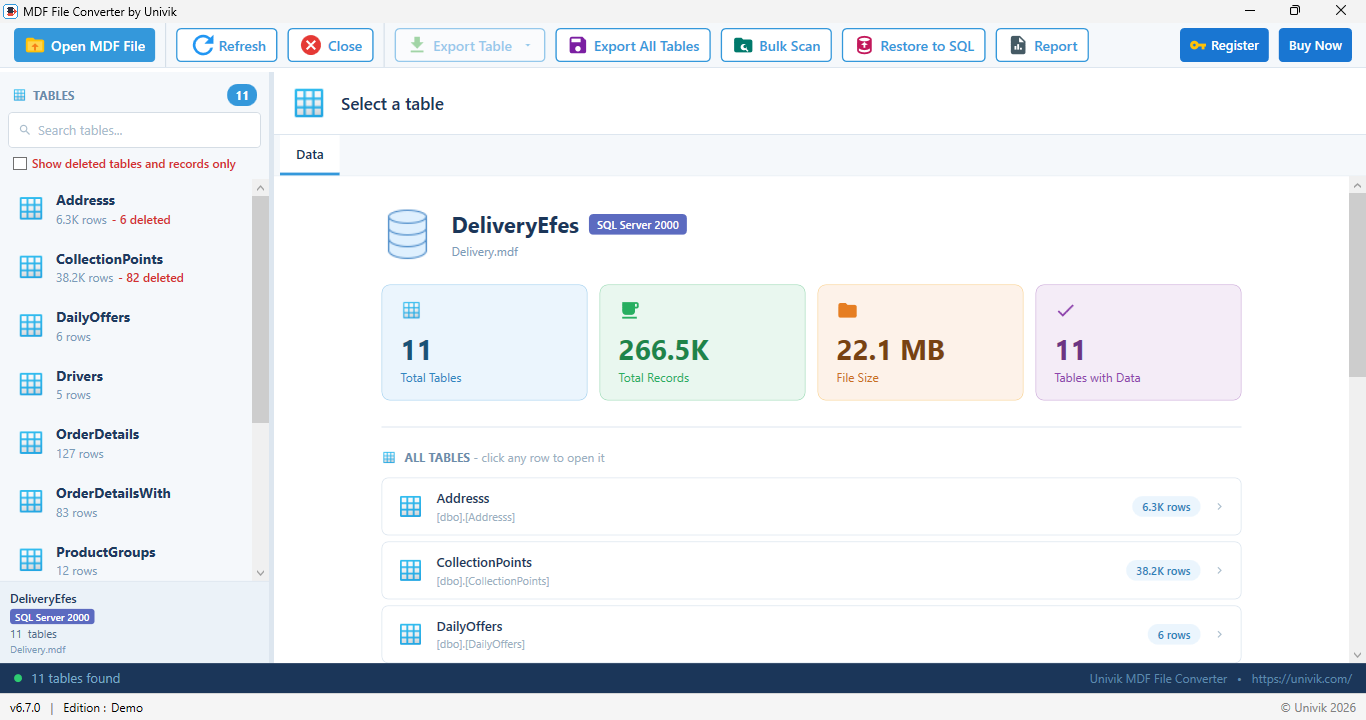
Not sure where the file is stored? SQL Server keeps its data files under C:\Program Files\Microsoft SQL Server, inside a version numbered MSSQL folder with a DATA directory, and that is the first place to look on the old machine.
The viewer stays free, and its supported SQL Server versions are set out on the MDF Viewer page. It answers the most common version of this problem, an .mdf on a disk and a person who just needs to know what is in it.
What an MDF File Holds Inside
A SQL Server database file holds more than its visible rows. The user tables come first, each with its columns, types and data. Around them sit system tables that SQL Server keeps for itself, which a reader skips past to get to your content. For a map of those pages, the boot page and the system tables, and how to read them with no server, see our guide to viewing MDF file structure and metadata without SQL Server.
The file can also hold leftovers. Rows deleted from a table are marked rather than wiped, so recently removed records can still be sitting in the pages. If missing data is the whole reason you are opening the file, our guide to recovering deleted records from SQL Server is the deeper read, and the structure of the MDF, NDF and LDF trio is covered in the MDF file extension guide.
Attaching the MDF to SQL Server Express Instead
When looking is not enough and you need to query, filter or update, the file has to become a live database again. SQL Server Express is Microsoft’s free edition, holds up to 10GB per database and attaches an .mdf through Management Studio or a single command, as the attach documentation shows.
The attach itself is short once Express and Management Studio are installed.
- Connect Management Studio to your new Express instance.
- Right click Databases in Object Explorer and pick Attach.
- Click Add, then browse to the .mdf.
- Confirm with OK and the database appears in the list.
Plan for two catches. Attaching expects the matching .ldf, and a lone .mdf needs the workaround our guide to attaching an MDF without its LDF explains step by step. And a file from a newer SQL Server version will not attach to an older Express, so a very old or very new .mdf can refuse. When either one blocks you, the direct read routes above still work, since they never attach the file at all.
Converting the MDF Into a Format That Opens Anywhere
Opening is sometimes only step one, and the real goal is the data in a program someone already uses. Each format has its own guide with the traps and type mappings for that target.
For plain rows in any tool, start with MDF to CSV. For a workbook with typed cells and sheets, MDF to Excel. To rebuild the database on another server, MDF to SQL script. For apps and APIs, MDF to JSON. For strict interchange with schemas, MDF to XML. For analytics engines and data lakes, MDF to Parquet. And for a desktop database Office users can query, MDF to Access.
All seven exports come from the same place, the Univik MDF Converter, which reads the .mdf without SQL Server and writes the format you pick.
When the MDF is Corrupt or Refuses to Open
A file that neither attaches nor opens in a viewer has a deeper problem. Torn pages, a damaged header or an interrupted copy can all leave an .mdf that no normal reader gets through.
Salvage what reads first and repair second. Our guide on recovering a SQL database without a backup sets the order of operations, and the SQL database recovery tool takes on the damaged .mdf itself. Only after the file reads cleanly is it worth returning to viewing or converting.
See inside your MDF in the next five minutes
The free Univik MDF Viewer opens the file directly on Windows and shows every table and row. When the data needs to travel, the MDF Converter writes it out in nine formats. No SQL Server on either path.
Frequently Asked Questions
Can I Open an MDF File Without SQL Server?
Yes. A viewer that understands the format reads the .mdf directly from disk, with no database engine installed or running. The free Univik MDF Viewer does this on Windows 10 and 11 and shows the tables and rows inside. SQL Server only becomes necessary when you want to run live queries against the data.
Can Notepad or Excel Open an MDF File?
No. The .mdf is a binary database container, so Notepad shows unreadable characters and Excel reports an invalid format. Excel can hold the data after a conversion though, and our MDF to Excel guide covers turning the tables into a workbook with typed cells and one sheet per table.
Is There a Free Way to Open an MDF File?
Two, in fact. The Univik MDF Viewer is free and opens the file directly with nothing else installed. SQL Server Express is also free, holds up to 10GB per database and turns the .mdf back into a live, queryable database after an install and an attach. The viewer is faster, and Express is more powerful.
How do I Open an MDF Without the LDF File?
A direct read viewer or converter does not care, since it never attaches the database and reads the .mdf alone. The attach route through SQL Server does expect the log file, and a lone .mdf needs the rebuild trick our attaching an MDF without its LDF guide explains before Express will accept it.
Can I Open an MDF File Online?
Uploading a database to a website is the risky version of this job. An .mdf holds entire tables of what may be customer or business data, and an online opener means all of it travels to someone else’s server. A desktop viewer reads the file on your own PC, which is the safer default for anything sensitive.
Which Format Makes the MDF Easiest to View?
For a quick look in any spreadsheet, CSV is the simplest target. For repeated use by people, Excel keeps types and puts each table on its own sheet. For a department that needs to query and edit, Access keeps the result a real database. Each option has a dedicated guide covering its type mappings and limits.