Excel has no reader for the .mdf format, since the file is a SQL Server database stored in binary pages rather than a spreadsheet. Most guides tell you to export it to CSV and open that in Excel. That works, but the CSV step drops leading zeros, pushes long ID numbers into scientific notation and shifts date formats. A direct export to a native Excel Workbook avoids all of that. Univik MDF Converter works from the .mdf on Windows, reads every table and writes an .xlsx file with each column typed. Nothing is uploaded and no SQL Server instance is involved.
Why the CSV Round Trip Loses Data
Search for how to convert an MDF to Excel and nearly every guide gives the same answer. Convert the database to CSV, then open the CSV in Excel. That path does work, and our guide to converting MDF to CSV walks through it. What those guides leave out is what the CSV step costs you.
One point the search results get wrong is worth settling first. A SQL Server .mdf is not a Microsoft Access file. Access uses .mdb and .accdb, so the trick of opening an Access database in Excel does not apply to an .mdf, which only SQL Server and tools built to read its format can open.
A CSV carries no type information. It is text with commas and nothing more. When Excel opens one, it guesses the type of each column, and the guesses fail in predictable ways. A product code like 007891 loses its leading zeros and reads as 7891. A 16 digit order number shows as 1.23457E+15, and any digit past Excel’s fifteenth is lost for good. A column of dates written 03/04/2025 flips between March and April depending on your regional settings. That is not Excel misbehaving. It is Excel inventing types the CSV never recorded.
A native Excel Workbook records the type of every cell as it writes it. The export marks the product code as text and the order date as a date, and Excel opens the file exactly as saved. That gap, between a format that stores types and one that does not, is the whole case for exporting straight to .xlsx.

“Excel is where row limits and type changes bite, so our export tests use real databases. The smallest is 100 MB and the largest 5 GB. We check specific rows in the sheet against the source, because a sheet that opens is not the same as a sheet that is right.”
Nick Rogers
|Founder, Univik, building file conversion tools since 2013
A Native Workbook Versus a Folder of CSV Files
Types are one half of it. Packaging is the other.
Export a forty table database to CSV and you get forty separate files in a folder. Each opens on its own and nothing ties them together. An Excel Workbook holds many sheets in one file, so the same forty tables arrive as forty tabs you can flip between, search across and save as a single document.
Opening is easier too. Double click a CSV and Excel loads it with its own type guesses, no questions asked, which is where the leading zeros and long numbers get mangled. To control the types you have to bring it in through the Data tab with From Text/CSV and set each column by hand. An .xlsx file needs none of that. You double click it and the sheets are there, typed and ready to sort.
Three Ways to Convert MDF to Excel
Getting from an .mdf to a workbook comes down to three methods, and they differ mostly in what has to be in place before they run.
The native method is the SQL Server Import and Export Wizard. You attach the database in SSMS, open its Tasks menu, choose Export Data, pick Microsoft Excel as the destination, select the tables to copy, then run the wizard to finish. Excel can also reach the other way, through Get Data on its own Data tab, though that pulls from a live SQL Server rather than a file. Either path has two catches. You need SQL Server running with the database attached, and the Excel destination shows up only in the 32 bit wizard with the Office connectivity components installed, a requirement Microsoft documents plainly.
The online method sends the .mdf up to a web service, which returns a zip of .xlsx files, one per table. Since a worksheet caps near a million rows, a big table returns split across several files. It needs no SQL Server, but the whole database leaves your network to get there.
The direct read method reads the .mdf on your own machine and writes the workbook locally. No attach step, no upload, no connectivity components to chase down.
Reading the MDF Straight to an Excel Workbook
A direct read tool treats the .mdf as a file to parse, not a database to mount. It lifts the tables out of the binary pages and writes them into an .xlsx workbook, each column carrying the type it held in the database. Because nothing is mounted, it runs on a PC that never had SQL Server and handles a loose .mdf that no instance will attach.
Univik MDF Converter handles this on Windows. It lists the tables, marks deleted rows in red and writes an Excel Workbook with the columns already typed. The supported versions and the full feature list are listed on the MDF Converter product page, not in this post. To browse the tables without exporting, the MDF viewer opens them read only.
One Table or the Whole Database
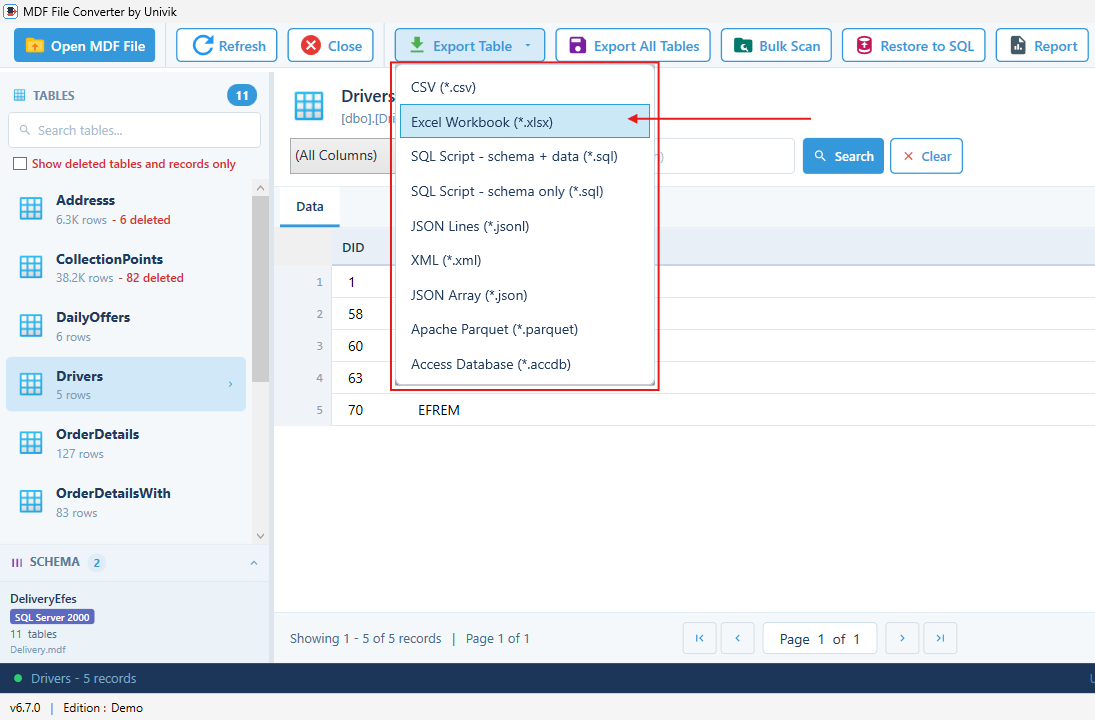
You do not have to take everything. Export Table writes just the table you are looking at. Export All Data Tables writes every user table and skips the system tables that hold SQL Server’s own bookkeeping.
Where CSV would spread those tables across a folder, the workbook keeps them together. A single table becomes a one sheet file. The whole database becomes one workbook with a tab per table, which is what you want when the data is going to someone who lives in Excel rather than a database tool.
The Million Row Ceiling and How to Handle It
The Excel format carries one hard limit worth knowing before you export. A single worksheet holds 1,048,576 rows, and Microsoft sets that as a fixed ceiling with no setting to raise it. That number belongs to the modern .xlsx format, which replaced the old .xls and its 65,536 row cap, so a current export writes .xlsx. Load past the ceiling and Excel keeps the first 1,048,576 rows and drops the rest, and the warning it flashes is easy to miss.
The ceiling is per sheet, not per workbook, so a table of two million rows can sit across two sheets rather than losing half its data. For tables that run into the tens of millions, a spreadsheet is the wrong container. Keep that data in CSV or Apache Parquet instead, since neither carries a row limit. Our MDF to CSV guide covers that route. For the ordinary case, a few hundred thousand rows up to a couple of million, the workbook handles it without complaint.
How Dates, Text and Long IDs Land in Cells
A native export gets to set the type of each cell, and a handful of column types are where that choice earns its keep.
Text and Unicode. An nvarchar column of accented names or non Latin scripts comes across as text cells, so the characters render without the encoding guesswork a CSV invites.
Dates. A datetime column lands in real date cells rather than text that only looks like a date. You can sort and filter it as dates right away.
Long identifiers. This is the one that catches people out. Excel holds a number to 15 significant digits, and anything longer loses its tail to zeros. A 20 digit account number stored as a number would corrupt the moment it loaded. Written as a text cell instead, every digit survives and so do the leading zeros. A careful export writes identifier columns as text for exactly this reason.
Empty and binary. A NULL becomes an empty cell rather than the literal word NULL. A varbinary column holding an image or a blob has no clean spreadsheet form, so it is better left out of the Excel export and pulled on its own if you need it.
When the MDF will Not Read Cleanly
Everything above assumes the .mdf can be read. A damaged file changes the job. If the pages are intact enough to parse, a direct read tool can lift whole tables into a workbook from a file the server will not touch. When the damage runs deeper, the export stops before it starts and the file needs repair first.
For a database stuck offline, our guide on recovering a SQL database without a backup is the place to begin. When the file itself is the problem, the SQL database recovery tool works on the .mdf directly. And if you were handed an .mdf with no log beside it, attaching an MDF without the LDF covers that case. For the format itself and how MDF, NDF and LDF relate, the MDF file extension guide has the anatomy.
Read your MDF and export it to Excel, no SQL Server needed
Univik MDF Converter opens the .mdf on Windows, lists every table and writes a typed Excel Workbook or any of the nine export formats. Deleted rows appear in red. Nothing is uploaded.
Frequently Asked Questions
Can I Convert an MDF to Excel Without Installing SQL Server?
Yes. A direct read tool opens the .mdf as a file, with no database engine involved, so nothing needs installing. Univik MDF Converter works from the file on Windows and writes an Excel Workbook with typed columns. The native Import and Export Wizard cannot do this, since it only runs once the database is attached to SQL Server.
Do I Need to Convert the MDF to CSV First?
No. That is the common advice, but it is not required and it costs you data. Going through CSV drops the column types, so leading zeros, long numbers and dates can change when Excel opens the file. A tool that writes a native .xlsx workbook sets each column type as it exports, which skips the CSV step and the damage it does.
What Happens If a Table has More Than a Million Rows?
An Excel worksheet stops at 1,048,576 rows, so a larger table has to be split across sheets or it loses the overflow. For tables in the tens of millions, use CSV or Apache Parquet instead, since neither has a row limit. Our MDF to CSV guide covers that path.
Will Leading Zeros and Long ID Numbers Survive in the Spreadsheet?
They survive when the column is written as text, which is what a native Excel export does for identifier columns. Excel keeps only 15 significant digits in a number, so a long account number stored as a number would lose its tail. Held as a text cell it stays exact, leading zeros and all.
Does the Excel File Keep Keys, Relationships or Formulas?
No. An Excel Workbook keeps the data in the cells, not the schema that organised it. Primary keys, foreign keys, indexes and stored procedures do not carry into a spreadsheet. If you need the structure rebuilt rather than the values read, a SQL script is the right target, which our guide on converting MDF to a SQL script covers.
Can I Open the Exported Workbook in Google Sheets or LibreOffice?
Yes. The export is a standard .xlsx file, the same Office Open XML format Excel itself writes. Google Sheets, LibreOffice Calc and Apple Numbers all open it, though a very large sheet may load slowly or run into each program’s own limits.