Access cannot open an .mdf, because the file belongs to SQL Server and only a running instance can attach it. Access imports from SQL Server over ODBC, which still needs that live server. When there is no server, the working option is a Windows program that reads the .mdf as a file and writes an Access database from its tables. Univik MDF Converter does this, turning the tables inside your .mdf into an .accdb you can open, query and build forms on in Access, with nothing installed beyond the converter.
First, the usual naming confusion. This guide is for the SQL Server variety of .mdf, the Master Database File where a database keeps its tables. The same letters appear on Alcohol 120% disc images and automotive measurement recordings, which have nothing to do with Access, and our MDF to CSV guide shows how to tell which kind you are holding.
Why Access and Not a Flat Export
Every other export flattens the database into files. A CSV is rows of text. A spreadsheet is a grid. Access is the one target that is still a database when you are done. The tables keep their columns and types, and on top of them you get queries, forms and reports inside a single desktop file.
That makes Access the right destination when people need to keep working with the data rather than just read it. A department can take over a customer list and keep editing it. A retired application’s data stays queryable years after its SQL Server is gone. Anyone with Microsoft Office can open the result without touching a server.
When nobody needs to edit or query, simpler targets win. Rows meant for a report do better as a spreadsheet, which our MDF to Excel guide walks through, and heavy analytics data belongs in Parquet.

“Access exports are checked by opening the result in Access and querying real tables, the same way every export in our SQL testing is checked. Databases from 100 MB to 5 GB are in the set, from every SQL Server version we run.”
Nick Rogers
|Founder, Univik, building file conversion tools since 2013
Three Ways to Convert MDF to Access
All three routes end at an Access database, and they differ in what has to exist before you start.
Access itself can pull from SQL Server. On the External Data tab you choose a new data source from SQL Server, connect over ODBC and either import the tables or link to them. It is the official path, and it works only when a running server has the database attached, so a bare .mdf file is out of reach.
The SQL Server Import and Export Wizard works from the SQL Server side. It exports tables from a live database into an .accdb, and it needs the Access Database Engine provider installed to write the file. Same catch, the database must be attached first.
There is a middle option worth knowing. SQL Server Express installs free on any PC, and a bare .mdf can be attached to it before running either Microsoft route, a process our guide to attaching an MDF without its LDF walks through. It works, and it costs an installation plus setup time for what may be a one time conversion.
The direct read route needs neither the server nor the wizard. A desktop tool reads the .mdf as a file, rebuilds the tables and writes the Access database from them. This is the route that works when the .mdf is all you have.
Reading the MDF Straight to an Access Database
The direct read parses the .mdf on disk page by page and puts each table back together with its columns and types. From that rebuilt picture it writes an Access database, so the conversion never depends on SQL Server being present, licensed or willing to attach the file.
The whole job is four steps.
- Open the converter and point it at the .mdf.
- Browse the tables it finds and check the rows.
- Choose the Access Database output.
- Save the .accdb and open it in Access.
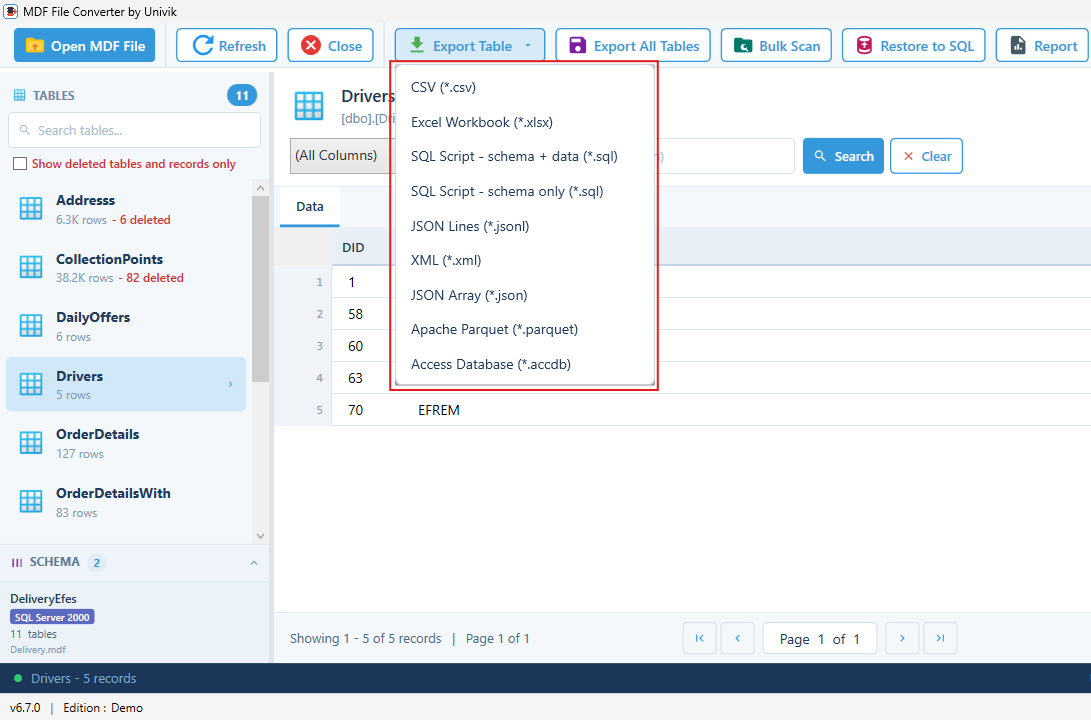
Univik MDF Converter does the work on Windows. Tables appear in a preview first, rows still flagged as deleted inside the file show in red, and the Access export sits next to CSV, Excel, JSON, XML and Parquet in the same menu. Version coverage and licensing are noted on the MDF Converter product page. When seeing the tables is enough, the free MDF viewer does the job.
The .accdb Format Against the Old .mdb
Access has two file formats, and the export writes the current one. The .accdb arrived with Access 2007 on the ACE engine and is what every supported version of Access creates today. The older .mdb is the Jet era format kept around for compatibility with Access 2003 and earlier.
For a converted database, .accdb is the right choice. It opens in any Access from 2007 through Microsoft 365, supports newer field types and gets Microsoft’s ongoing attention. Choose .mdb only when a legacy application insists on it, and expect feature gaps when you do.
How Types, Dates and NULL Land in Access
Access is typed like SQL Server, so most columns cross over to a close relative rather than collapsing into text.
Text columns become Short Text up to 255 characters and Long Text past that. A datetime becomes an Access Date/Time value, still sortable and filterable as a date. A bit becomes Yes/No. Money and decimal columns land as Currency or a decimal Number, keeping their scale.
Two need attention. A bigint maps to the Large Number type that current Access versions include, while older versions have no matching type, so very large identifiers deserve a check after import. And a varbinary column has no matching field type in a table grid, so binary content is stored as an OLE style object or left out, depending on the export. NULL needs no workaround at all, since Access fields hold empty values natively.
The 2GB Ceiling and Other Access Limits
Access is a desktop database, and its limits are set by the file format. An .accdb tops out at 2GB, and that ceiling covers everything inside, tables, indexes and system objects together. The Access specifications page lists the full set, including 255 fields per table.
In practice, trouble starts before the ceiling. Access needs room to work, and a file past a gigabyte gets slow to compact and fragile to edit. A database that big, or a single table with tens of millions of rows, is a poor fit for Access no matter how it is converted. Send data of that size to Parquet for analysis or keep it in a real server engine.
Field count matters too. A SQL Server table with more than 255 columns cannot land in one Access table, so extremely wide tables need trimming or splitting before the move.
Working With the .accdb After Export
The exported file behaves like any Access database, because it is one. Double click opens it in Access, the tables sit in the navigation pane, and from there queries, forms and reports build on the converted data the same way they would on data typed in by hand.
The file also serves as a data source beyond Access. Excel connects to an .accdb through Get Data for pivot tables, and other Office aware tools read it through the same Access Database Engine. For a small team, one .accdb on a shared drive is a workable, if modest, multi user database.
Converting a Corrupt or Detached MDF
A detached .mdf converts as it stands, since the direct read never attaches anything. An .mdf missing its LDF is the everyday case here, and the MDF file extension guide explains what each companion file does.
Damage changes the order of work. Pull the readable tables out first, into Access or any other format, then repair. Our walkthrough on recovering a SQL database without a backup maps out the decisions, and the SQL database recovery tool handles the .mdf when the file itself is broken.
Give your MDF a second life as an Access database
Univik MDF Converter works through the .mdf on Windows, previews every table, marks deleted rows in red and produces an .accdb ready for queries, forms and reports, one of nine export formats. No SQL Server, no upload.
Frequently Asked Questions
Can I Convert an MDF to Access Without SQL Server?
Yes. A direct read converter treats the .mdf as an ordinary document, rebuilds its tables and writes an Access database from them, with no instance involved. Univik MDF Converter works this way on Windows. The two Microsoft routes, importing into Access over ODBC and the Import and Export Wizard, both require a live SQL Server with the database attached.
How do I Open an MDF File in Access?
Access has no way to open an .mdf directly, because the format belongs to SQL Server. You either import from a running SQL Server over ODBC through the External Data tab, or convert the .mdf into an .accdb first and open that. The conversion route is the one that works when no server is available.
Should I Use the .accdb or the Older .mdb Format?
Use .accdb. It is the current Access format, opens in every version from Access 2007 through Microsoft 365 and supports the newer field types. The .mdb format exists for compatibility with Access 2003 and earlier, so it only makes sense when an old application refuses anything else.
What Happens to SQL Server Data Types in Access?
They keep typed equivalents. A datetime column becomes an Access Date/Time value that still sorts and filters as a date, and a bit column becomes a Yes/No field. Text, money and decimal columns map to Short or Long Text, Currency and decimal Number, so the converted tables stay usable in queries without cleanup.
What is the Size Limit of an Access Database?
2GB per .accdb file, including tables, indexes and system objects, with 255 fields per table as a second hard limit. Performance drops well before 2GB, so a database around a gigabyte or a table with tens of millions of rows belongs in a different target, such as Parquet for analysis or a server engine for live use.
Is Access or SQL Server Express the Better Home for the Data?
It depends on who uses it. Access wins for a desktop file that Office users can open, query and build forms on with nothing to install. SQL Server Express wins for size and concurrency, since the free tier holds 10GB per database and behaves like full SQL Server. For data near the 2GB Access ceiling, Express is the safer home.