To migrate Zimbra to Office 365, export each mailbox as a TGZ and bring it into Microsoft 365 as a PST, or let a desktop tool write the export straight into the target mailbox. For a live server, run an IMAP migration batch from the Exchange admin center. The two export routes carry contacts and calendar. The IMAP batch carries mail folders only.
Moving off Zimbra usually means the mail has to land in Microsoft 365, where the rest of the business already works. There is no single button for it, and the right path depends on where you start: a stack of exported .tgz files, or a Zimbra server still running that you want moved to the cloud. This guide walks the three routes to migrate Zimbra to Office 365, with the Univik Zimbra Converter for the export routes and the Exchange admin center for the live one. It covers what each route carries, the limits Microsoft sets and how to check the result.
Why Teams Migrate Zimbra to Office 365
A Zimbra to Office 365 migration nearly always starts as a business decision rather than a technical one. Running Zimbra Collaboration on your own hardware costs staff hours and a support contract, while Microsoft 365 combines mail, calendar and the rest of the office suite into one subscription. When the rest of the company lives in Outlook and Teams, the mail is the last thing left on the old platform. Compliance and search also push the move, since Microsoft 365 puts every mailbox behind one retention and eDiscovery setup.
Support dates push it too. Zimbra Collaboration 8.8.15 reached the end of technical guidance on 31 December 2024. The 9.0 and 10.0 lines followed on 30 June 2025, which leaves 10.1 as the only current release. Zimbra Desktop, the offline client, stopped getting updates by 2019. An upgrade means a project and a renewed support contract, so many teams move instead. Whatever the driver, the old Zimbra mail still has to arrive intact.
The Three Ways to Move Zimbra to Microsoft 365
Three routes cover almost every case. The first two work from an export, so they need no live server and they carry the whole mailbox. The third reads a running server over IMAP and suits a large setup that has to stay online during the switch-over. The table shows what each route needs and what it leaves behind.
| Route | Live Zimbra server | What arrives | What stays behind | Best fit |
|---|---|---|---|---|
| 1. TGZ to PST, then the Purview import | Not needed. Works from .tgz files | Mail, folder tree, dates, attachments, contacts, calendar | Zimbra filters and folder shares. Rebuild them as Outlook rules and mailbox sharing | A retired server, leavers, archives |
| 2. Direct send from the converter | Not needed. Reads the .tgz or signs in to the account | The same set, written into the mailbox with no PST on disk | Zimbra filters and folder shares | A few accounts, no PST storage wanted |
| 3. IMAP batch in the Exchange admin center | Required, with IMAP open on port 993 | Inbox and mail folders | Contacts, calendar, tasks, tags, folder permissions, filters | A large live server that must stay up during the move |
Export the Zimbra Mailbox and Import It to Office 365
This is the safe default when a server is being retired or you were handed a folder of .tgz files. A Zimbra TGZ holds one .eml per message with a .meta file beside it for the folder, flags and tags, plus contacts as .vcf and calendar entries as .ics. An export from Preferences, then Import/Export in the web client passes through a proxy with a 60-second read timeout, so a big mailbox stops with a 504 error. On the server, zmmailbox -z -m user@example.com -t 0 getRestURL "//?fmt=tgz" > user.tgz runs with no timeout. Once you hold the .tgz, the Univik Zimbra Converter reads it and writes a Unicode PST that already holds the folders, dates, attachments, contacts and calendar. Our companion guide on how to convert Zimbra to PST covers that first step in full.
- Convert the export to PSTLoad the .tgz into the converter and write one Unicode PST for each mailbox.
- Make sure the target mailbox existsCreate and licence the user in the Microsoft 365 admin center so the mail has somewhere to go.
- Bring the PST into Microsoft 365Open the Import page in the Microsoft Purview portal and create a new import job. Network Upload copies the PST files to a SAS URL with AzCopy, then a mapping CSV pairs each PST with its mailbox. Drive shipping is the option for a slow line.
- Check the countsCompare the folder counts in the new mailbox with the source so you know every message arrived.
For the upload step itself, our walk-through on how to import a PST to Office 365 covers the Network Upload and Drive shipping routes with the exact screens and the mapping CSV columns. The PST path is the one that also brings the address book and the calendar, which the live IMAP route cannot.
Send Zimbra Mail Straight to Office 365
The converter can skip the PST middle step. Point it at the export, choose Office 365 as the target, sign in to the tenant and it writes the mail into the mailbox for you. This suits a small number of accounts where you would rather not keep PST files on disk. Folders, dates and attachments arrive the same way. Contacts and the calendar come across too. Check the Zimbra mailbox size against the storage quota of the target plan first.
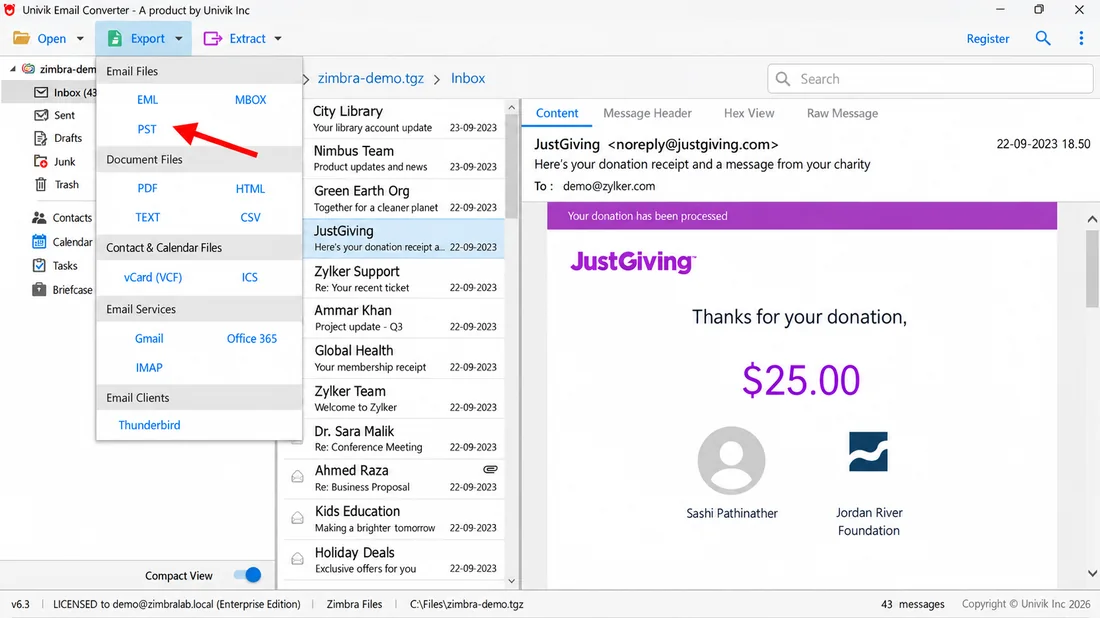
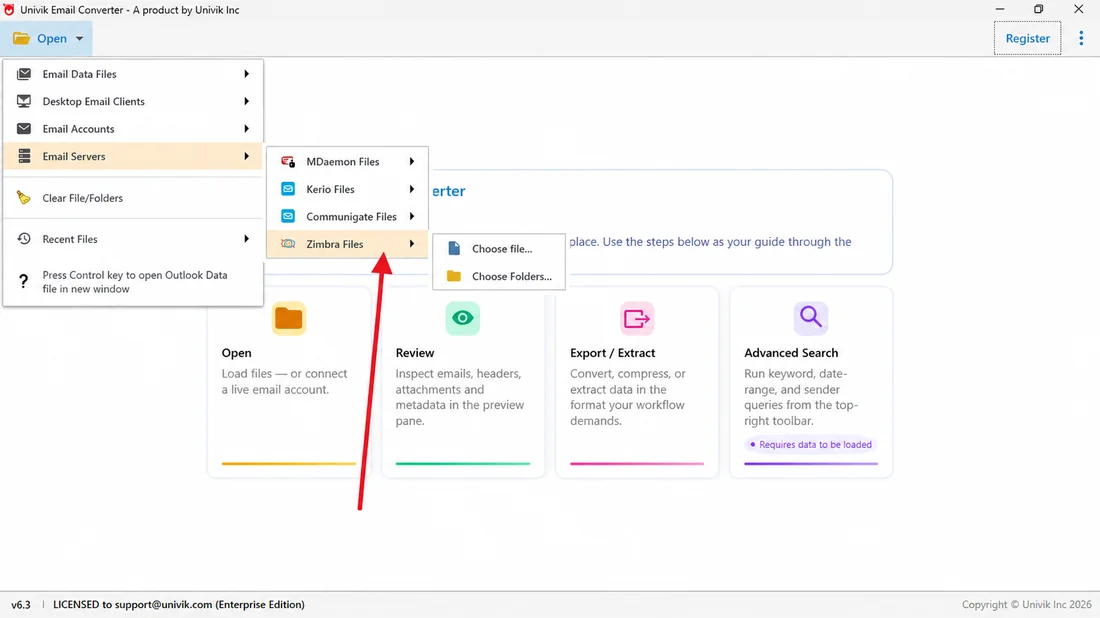
- Open the exportLoad the .tgz file, or sign in to read the live Zimbra account.
- Choose Office 365 as the outputPick Office 365 in the Export menu and approve the sign-in to your tenant.
- Map to the mailbox and runPoint it at the licensed target mailbox and start the transfer.
IMAP Migration for a Live Zimbra Server
When the Zimbra server is up and you want the cloud to pull the mail across, an IMAP migration is the built-in path. It runs from the Exchange admin center in Microsoft 365 and copies the folder mail on its own, so people keep working while it runs. First turn on IMAP in the Zimbra admin console so the server answers on the secure IMAP port 993. Then build a CSV with the header row EmailAddress, UserName, Password and one mailbox per line under it. One file can hold up to 50,000 rows and 10 MB.
- Turn on IMAP in ZimbraEnable IMAP for the accounts in the Zimbra admin console and confirm the server answers on port 993 with SSL.
- Provision the Microsoft 365 usersCreate and license each target mailbox in the Microsoft 365 admin center. Verify your domain first if it is not added yet.
- Add a migration endpointIn the Exchange admin center open Migration and then Migration endpoints. Add an IMAP endpoint with the Zimbra server address, port 993 and SSL encryption.
- Start the IMAP batchChoose Migrate to Exchange Online and pick IMAP migration. Upload the CSV, point it at the endpoint and start the migration batch.
- Watch it reach Synced and cut overThe batch shows Syncing while it copies and Synced when the first pass is done. Check the counts, then switch the MX record so new mail flows to Microsoft 365.
The limit is scope. An IMAP batch carries inbox and folder mail, and nothing else. Contacts, calendar, tasks, tags, folder permissions and server-side filters stay on Zimbra. Microsoft also throttles IMAP transfers, so a big move runs slower than the raw mail size suggests. For anything past a few accounts, or when the address book and calendar matter, most teams pair IMAP for the live mail with a PST pass for the rest, or hand the whole job to a Zimbra migration service.
Planning a Zimbra to Office 365 Migration
A little planning saves a messy cutover. Start with the prerequisites: add and verify your domain in Microsoft 365 with the TXT record it asks for, then provision and license every target user so the mailboxes are ready. List the mailboxes and their sizes so you know how long the transfer runs. Decide on a switch-over window. Consider coexistence too, where the two platforms run side by side for a few days so nothing is missed while mail settles. Keep the Zimbra data or the .tgz exports until you have checked the new mailboxes. Lower the TTL on the MX record a day ahead, then change the record so fresh mail flows to Microsoft 365. A short pilot with one or two mailboxes shows the real timing before the full run.
Tested and Verified: Zimbra to Office 365 Results
Before this went out, our team put the export routes through real mailboxes rather than a demo. Test archives spanned Zimbra Collaboration releases from 8.8.15 up to the 10.x series, and one from the Zimbra Desktop client, each loaded into a Microsoft 365 mailbox by the PST import and again by the direct send. Every run showed the Microsoft 365 item total matching the source, the folder layout holding, plus the address book and calendar in place next to the mail. Timestamps for when each message was sent and received survived intact.
Zimbra to Office 365 Questions

Written by Leena Taylor Paul alongside the Univik team, a group that has shipped Windows email and file tools since 2013. There is no single right way to reach Microsoft 365 from Zimbra, so this guide focuses on fitting the route to where you begin and on proving that mail, folders, dates, contacts and calendar all made it. Last reviewed October 2026. Not sure which route fits your move? Talk to our support team.