 Backup Guide
 By
By AOL Mail prints your whole address book at once. Open Contacts, click More and choose Print all, then use your browser's print box to print on paper or save the list as a PDF. For a formatted directory, mailing labels or a cleaner PDF, export the contacts to CSV first and lay them out with Univik.
Sometimes you want your contacts on paper, not on a screen: a printed address book for a desk drawer, a page of numbers for a family member or a hard copy for your records. AOL Mail can do this in one batch. A single menu choice prints every contact at once, and the same print box can save the lot as a PDF instead.
The built-in print is quick and free, and it is the right call for a fast copy. If you want something neater, a proper directory or a sheet of mailing labels, that takes one extra step through your exported file. This guide covers both, starting with the batch print.
- AOL Prints Every Contact at Once
- Print the Whole Address Book
- Step 1: Open the More menu in Contacts
- Step 2: Choose Print all
- Step 3: Send it to paper or a PDF
- Save the Contacts as a PDF Instead
- Make a Directory, Labels or a Tidy PDF
- Check the Printout
- Fix Common Print Problems
- AOL Contacts Print Questions
AOL Prints Every Contact at Once
AOL Mail has a batch print built in. In Contacts, open the More menu and you will find Print all near the bottom. Choosing it gathers every contact into one printable page and hands it to your browser's print box. You do not tick contacts or print them one at a time, which is what makes it a batch.
From the print box you have two ways to go. Send the page to a printer for a paper copy, or save it as a PDF for a digital one. The steps below walk the print, and the section after shows the PDF route.
Batch Print Every AOL Contact
AOL's own print handles the whole list. It needs no software and only a couple of clicks.
Open Contacts and click More
Sign in to AOL Mail and open Contacts from the left rail. The three-dots More button, above your contact list, opens the menu that holds Print all.
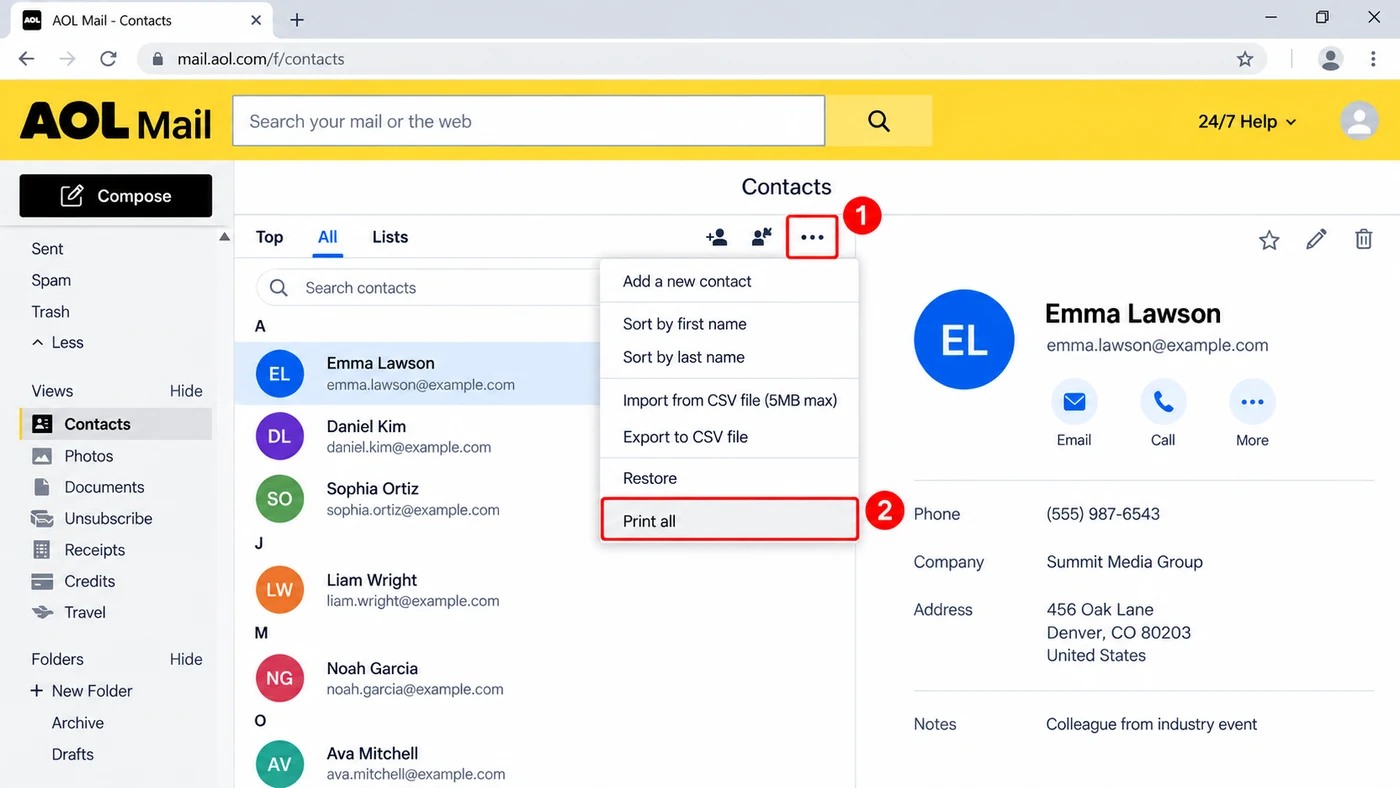
One batch From the Contacts toolbar, open More and pick Print all.
The menu lists Import, Export, Restore and Print all. Print all is the last choice, below Restore.
Choose Print all
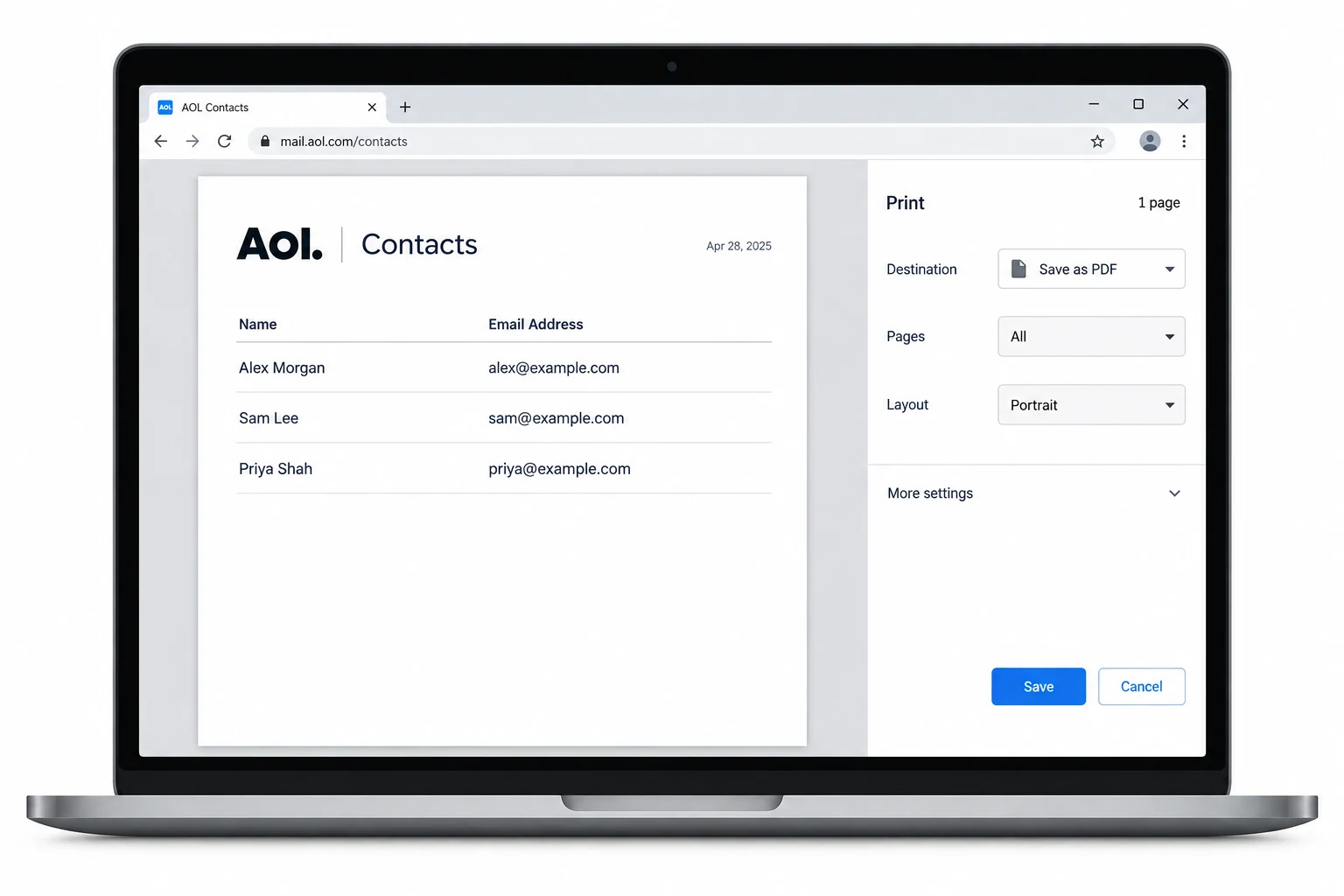
Click Print all. AOL builds a clean page of your whole address book and opens your browser's print box on top of it. Each contact shows its name and the details you saved.
Print on paper or save as a PDF
In the print box, choose your printer and click Print for a paper copy. To keep a digital copy instead, change the printer to Save as PDF, then Save. Either way you get the full list in one go.
Save the AOL Contacts as a PDF Instead
A PDF is the better pick when you want a copy to keep or share rather than a page on the desk. In the print box that Print all opens, set the printer to Save as PDF. On Windows that option is named Microsoft Print to PDF. Choose a folder and save. You end up with one PDF holding every contact, which opens on any phone or computer and prints later if you change your mind. It makes a fine light backup of your address book next to a proper CSV export of your AOL contacts.
Make a Directory, Labels or a Tidy PDF
The browser print is plain by design: a single list in one typeface. That is fine for a quick copy, but it will not group contacts, print name badges or lay out mailing labels. For any of those, the neat route is to work from your exported file rather than the print page.
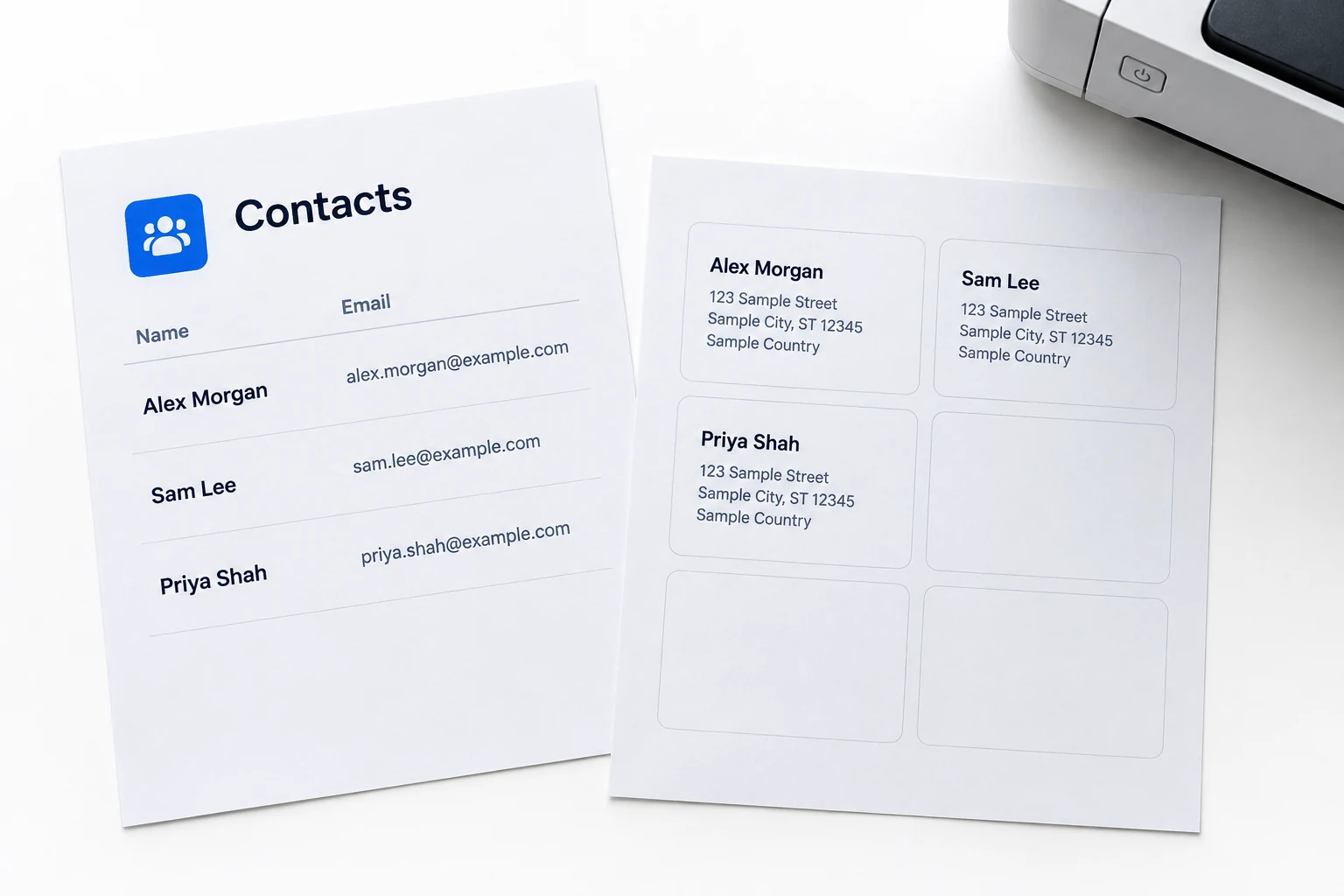
Start by exporting your AOL contacts to CSV. Then open that file in Univik vCard Converter, which lays contacts out as a PDF address book, a printable directory or sheets of Avery labels. It is the difference between a rough printout and something you would be happy to hand around.
Univik vCard Converter takes your exported contacts and lays them out for print: a grouped PDF address book, a printable directory or ready-to-run Avery mailing labels. It keeps every name, number and address in place, so the page looks finished, not raw.
Windows 11 / 10 · PDF address book, directory and Avery label layouts · the free trial builds a sample page so you can see the layout before you buy
Check the AOL Contacts Printout
- The print preview shows every contact rather than only the first page, and the page count matches the size of your list
- Each contact shows the name and the details you saved, with nothing cut off at the right edge
- A saved PDF opens on another device and prints later with the same layout
If the preview looks short, scroll it to confirm all the pages are there before you print. A long address book can run to many pages, so a PDF is often kinder than paper.
Fix Common AOL Contacts Print Problems
Three problems cover most batch prints that go wrong, and each has a quick fix.
Do this: You opened print from inside one contact, not the list. Go back to the list, use the three-dots More button above it and choose Print all, which gathers everyone.
Do this: Set the print box to landscape, shrink the scale to about 90 percent or narrow the margins. A PDF at those settings holds the full width better than a default paper print.
Do this: The browser print cannot lay those out. Export the contacts to CSV, then build a directory or Avery labels from that file with Univik vCard Converter.
Not sure whether to print, save a PDF or build a directory? Tell our support team what the pages are for and we will point you at the tidiest route.
AOL Contacts Print Questions
How do I print all my contacts in AOL Mail?
In AOL Mail, go to your Contacts list, use the three-dots More button above it and choose Print all. AOL gathers every contact onto one page and opens your browser's print box, where you print on paper or save a PDF. It prints the whole list in one batch.
Can I save my AOL contacts as a PDF?
Yes. Choose Print all, then in the print box set the destination to Save as PDF. Windows lists it as Microsoft Print to PDF. Then save. You get one PDF holding every contact, which is handy as a light backup and opens on any device.
Does Print all print every contact or only the page I see?
It prints every contact in your address book, not only the names on screen. AOL builds a full printable page from the whole list before it opens the print box, so a long list runs to several pages.
How do I print AOL contacts as a directory or on mailing labels?
The browser print is a plain list and cannot do that. Export your contacts to CSV, then lay them out as a directory or Avery labels with Univik vCard Converter. That gives a grouped, formatted page rather than a raw list.
Why do my printed AOL contacts get cut off at the edge?
The default paper print can be too wide. Switch the print box to landscape, drop the scale to around 90 percent or trim the margins, then print or save the PDF. Those settings keep the phone numbers and addresses on the page.
Can I print only some AOL contacts, not all of them?
AOL's menu offers Print all, which takes the whole address book. To print a chosen few, export to CSV, open it in a spreadsheet, keep only the rows you want, then print that or lay those rows out with Univik first.
 About This Guide
Written and maintained by Leena Taylor Paul and the Univik team, developers of Windows data conversion and recovery software since 2013. We ran Print all ourselves in September 2026 and confirmed it sits at the bottom of the More menu on the Contacts toolbar and opens the browser print box. Last verified September 9, 2026. Need a hand? Contact our support team.
Sources checked: AOL Mail help centre · Univik vCard Converter