Outlook holds every macro in one file, VbaProject.OTM, and the password on that project only bars the editor and encrypts nothing. On a machine you own it lifts without the word you lost. The Univik VBA Password Remover for Outlook clears the lock on the OTM in a single pass.
Outlook is the outlier of the Office family. There is no macro enabled email and no locked attachment to open. There is one project, tied to your profile. It holds every line of automation you ever wrote. When that project asks for a forgotten word, the fix starts with knowing where the code actually lives.
Where Does Outlook Keep Its Macros?
The Excel remover works file by file, and so do the tools for Word and PowerPoint. Outlook does the opposite. It runs a single VBA project for the whole application, saved as VbaProject.OTM, and everything you build sits inside it. One password on that project locks the lot, which is why there is never a stack of files to work through, only the one.
What Is the Fast Way to Unlock the OTM?
A remover works straight on the OTM. It reads the project, drops the password and saves the file, leaving every module and event routine as it was. No editing bytes by hand, no risk to the one file that carries your whole automation setup.
- Copy the OTM asideBack up VbaProject.OTM before you touch it.
- Point the tool at itFeed the copy to the Outlook VBA remover.
- Drop the passwordThe tool clears the project lock and rewrites the OTM.
- Swap it back inReturn the file, open Outlook, press Alt and F11 and your code is there.
The Univik VBA Password Remover opens the lock on your VbaProject.OTM and leaves every module, event routine and reference in place, so the project is ready to edit the moment Outlook loads it.
Free Download See All FeaturesDo Macros Live in Individual Emails?
Many people picture a macro tucked inside a suspicious message. That is not how Outlook works. An email is data, a payload the application reads, not a place code can run from. Microsoft puts it plainly in its developer notes, describing the closest thing to a document in Outlook as an item such as a message or an appointment, with the VBA held separately in the one project. So a macro never travels inside a received item. It lives in your VbaProject.OTM and fires on application events, like a rule that runs when mail arrives or a check that runs before a message sends. You can read Microsoft's account of the Outlook VBA project and where it is stored for the full detail.
Why Does the Lock Lift?
The project password guards less than it seems. It writes a hash and holds the editor closed until the word is typed, yet the macro code sits in plain form the whole time, never scrambled. Clear the flag and the code is right there. Outlook shares the one VBA engine with the rest of Office, so how this gate is built and why it never really shut an owner out is spelled out in the reference at the heart of this set. The identical weakness is what a remover leans on in Word, Access and PowerPoint.
Does the Zip Trick Work on the OTM?
The free spreadsheet route hits a wall here for a reason worth understanding. A .xlsm or a .pptm is really a zip package, which is why renaming one to .zip lets you open it and reach the macro project inside as vbaProject.bin. An OTM offers none of that. It is itself a binary project container, closer to that vbaProject.bin than to the workbook around it, with no outer archive to open. Rename it to .zip and nothing unpacks. The manual approaches that do exist edit the OTM bytes directly in a hex editor, which is far riskier than the zip method, since a single slip damages the one file holding all your automation. That is why a tool built for the OTM matters more here than it does for the zip based apps.
Where Does VbaProject.OTM Live?
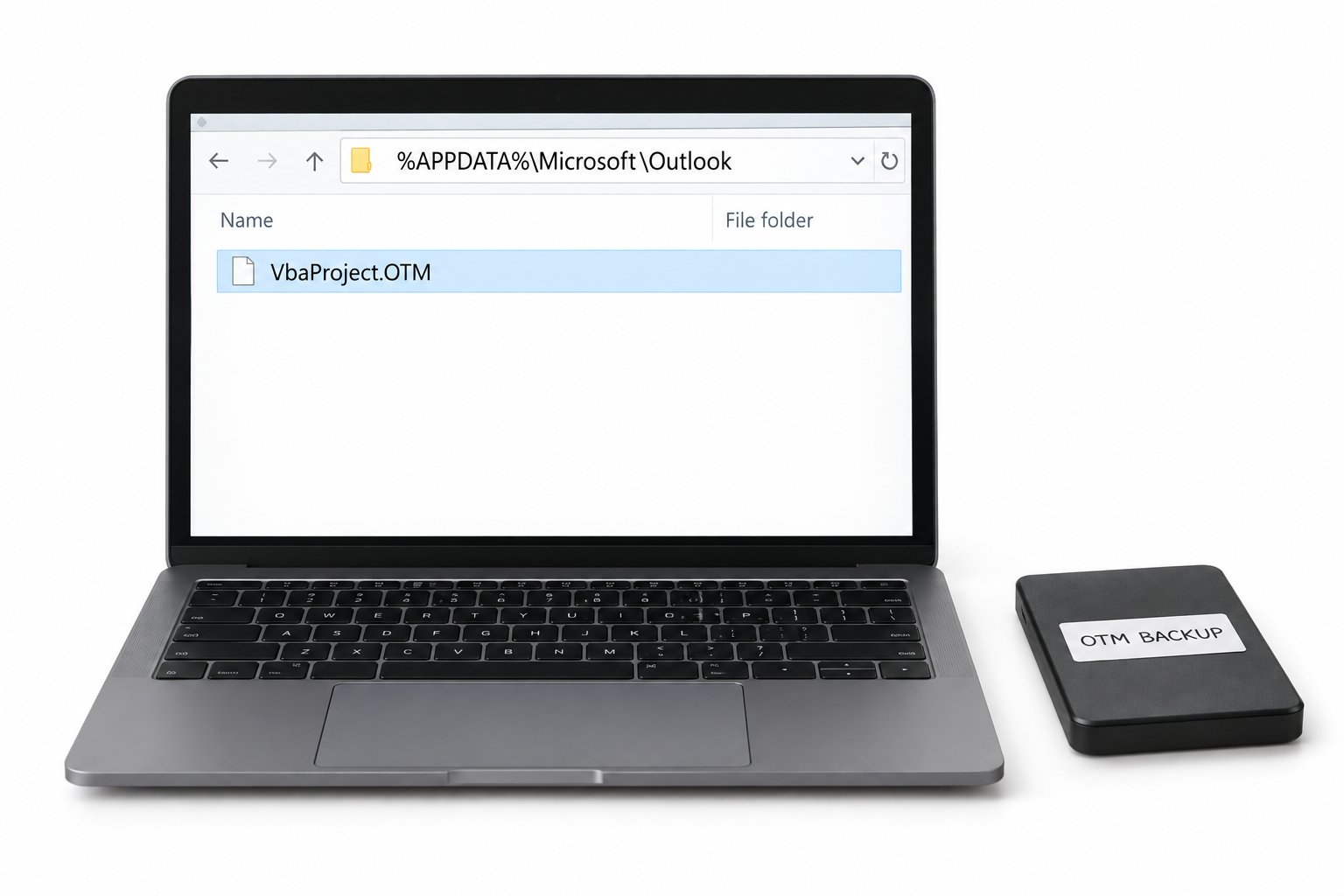
Finding the file is half the job, and it is not next to your mail. Outlook keeps the project in your roaming profile, one copy per Windows user, so a shared machine can hold a different OTM for each login. Close Outlook before you copy or replace it, because the application holds the file open while it runs.
What Comes Back After Unlocking?
Clearing the lock returns the project untouched. Standard modules, class modules, userforms and the ThisOutlookSession module all open as written. The routines that fire on send and receive, the custom buttons wired to your toolbar, the references to outside libraries, all of it stays intact. Nothing in your mailbox or your account settings is part of the operation, because the lock only ever sat on the code in the OTM. You reopen to a working project, free to read and change, with no repair waiting afterward.
What Are Real Reasons to Unlock Outlook VBA?
Locked Outlook code turns up wherever a team leaned on one person's automation. A developer set up your send checks and categorisation macros, protected the project and moved on with the password. An OTM was handed over when staff left and now needs edits nobody can make. A compliance review wants the code behind an automatic disclaimer read and signed off. A rule that stamps or files incoming mail broke after an update and cannot be debugged through the lock. In each of these the machine and the project are yours to maintain, and that is the case a remover is built for. Steer clear of any OTM you have no standing to open.
Outlook VBA Password Questions

Written and maintained by Leena Taylor Paul and the Univik team, developers of Windows data conversion and recovery software since 2013. Outlook surprises people because its one OTM project sits nowhere near the mailbox, so this guide starts by pinning down where the code actually lives before touching the lock. Last verified August 2026. Lost the word to your OTM project? Contact our support team.