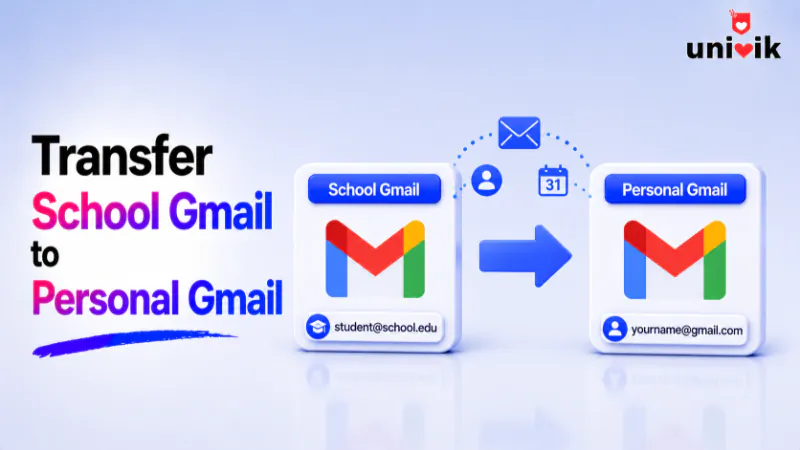
You have two ways to save a college or university mailbox before the account closes. The free route is Google Takeout, which builds an archive you download and open with the Univik MBOX Converter, since Gmail hands you an MBOX file it cannot read back. The direct route skips the wait entirely, with Univik Gmail Backup signing in to the mailbox and pulling the mail down to your own drive, which needs an app password your school administrator has to allow. To move the mail into a personal Gmail account as well, use Google Transfer at takeout.google.com/transfer.
Graduation comes with a quiet deadline nobody announces loudly. Four years of project threads, references from tutors, internship offers and every receipt you ever needed sit in an account your university is about to switch off. Two jobs matter here, and they are separate. Keeping your own copy of the mail is one. Getting the mail into a personal Gmail account is the other. Do the first job early, because it is the one that survives every deadline.
Find Out How Long Your School Account Has Left
You can also do it yourself with email migration software that copies every mailbox over IMAP, folders intact.
Start here, because this one number decides how relaxed you can be. Every institution sets its own retirement clock, and the range is wider than students expect. Some school districts deactivate accounts a couple of weeks after you leave. Plenty of universities give six months or a year after your last class. A few stretch to two years. None of them make an exception once the date passes.
Search your institution’s IT pages for alumni account policy, or ask the help desk outright. Write the date down. If it has already passed and you cannot sign in, the routes below are closed to you, since every one of them needs a live account.
Two Ways to Save Your Mail
Both routes end with your mail on a drive you own, which is the copy no administrator can switch off. They differ in what they cost you, what they ask of your school account and how long you wait.
Pick the free route when you have weeks in hand and do not mind handling a large file at the end. Pick the direct route when the deadline is close, when you want a part of the mailbox rather than all of it, or when a previous Takeout attempt timed out on you. Running both is a reasonable answer for an archive you cannot replace.
Option One, the Free Google Takeout Export
Takeout is Google’s own export service and it costs nothing. Pick Mail alone, choose a split size and let Google build the package. Google emails a download link once the package finishes building.
- Open Google Takeout in your school account and deselect everything, then tick Mail.
- Choose a split size, with smaller pieces being easier to handle than one huge file.
- Create the export and wait for the mail telling you it is ready.
- Download the archive and unzip it to find your mail in MBOX format.
Three details decide whether this goes smoothly. The download link expires after seven days and allows a limited number of attempts, so grab it promptly rather than filing the mail for later. A heavy mailbox can take days to build, which is why a tight deadline argues for the direct route instead. Your Gmail labels ride along inside a header on each message, so a converter that reads the archive can still tell what was filed where.
Then comes the part the university guides skip. You have a several gigabyte MBOX file and no obvious way to read it, because Gmail cannot import MBOX. There is no upload button for this format anywhere in the Gmail interface. Desktop mail clients open it with an add on, and they slow to a crawl once the file passes a few gigabytes.
The Univik MBOX Converter reads the archive directly. It lists the messages with their folders, dates and attachments intact, with no mail client and no account to sign in to, then writes the mail out in whatever format suits the job. Convert MBOX to PST for Outlook, MBOX to PDF for coursework you want as fixed records, or MBOX to EML and MBOX to HTML for messages you want to file singly or read in a browser. The free MBOX viewer covers the simpler case where you just want to search the archive and read it. If you want to know what the format actually is, the MBOX file explainer lays it out.
Left holding a Takeout file you cannot open?
Univik opens the MBOX archive from your student account and converts it to PST, PDF, EML or HTML, with no mail client and no server involved.
Option Two, Back Up the Mailbox Directly
The second route removes the waiting entirely. A backup tool signs in to the mailbox and pulls the mail down itself, so there is no archive to queue for, no download link counting down and no giant zip to unpack. It also lets you choose what comes down rather than taking the whole mailbox, and a run that stops part way can pick up where it left off. Univik Gmail Backup works this way, saving the mail to your own drive in a form you can still read years later.
One gate stands in front of this on a school account, and it is worth checking first. Google switched off password only sign in for mail protocols in March 2025, so a backup tool now connects using an app password. App passwords exist only on accounts with 2-Step Verification switched on, and Workspace administrators decide whether their users can create them at all. Plenty of colleges keep that permission closed.
Test it in a minute. Open the security settings of your school account and look for the app password option. If it is there, this route is open to you. If the option is missing or refuses to generate a code, the permission is closed at your institution and the free Takeout export becomes your route to a copy on disk.
This route suits a few situations better than Takeout does. A deadline days away leaves no room for an export queue. A mailbox of twenty gigabytes is painful to move as one download and easy to pull down in folders. And an account you still use daily can be backed up again next month without repeating the whole export, which is the habit behind keeping your own email backups rather than trusting a provider to hold everything forever.
Deadline too close for a Takeout queue?
Univik Gmail Backup connects to the mailbox with an app password and saves your college mail straight to your own drive, folder by folder.
Copy Your Mail into Personal Gmail
Saving a copy and moving the mail into a personal account are different jobs, and Google built a tool for the second one. It copies your Gmail and your Drive files into any personal Google account, and the word copy is literal. Nothing leaves the school account, so running it early as a precaution costs you nothing. Neither Univik product does this part, since both work on files and mailboxes rather than pushing mail back into Gmail.
Sign in to your school account, open takeout.google.com/transfer and enter your personal Gmail address. Google sends a code to that account, and once you paste it back you choose what to copy and start the transfer. The code expires after about a day, so finish the handshake in one sitting.
The copy itself runs in the background and lands in batches. A small mailbox arrives in a few hours, a heavy one can take the better part of a week, and Google mails your personal account when it finishes. Copied mail arrives under a label named after your school account, which makes it easy to find and easy to delete if you change your mind. One limit worth planning around, the tool copies everything or nothing, so a bloated student mailbox arrives bloated.
A desktop alternative exists for anyone comfortable with a mail client. Connect both accounts over IMAP in Thunderbird and drag the folders across, which the guide on migrating email between IMAP accounts walks through. It gives you finer control over which folders move, at the cost of more setup.
When the Transfer Tool Refuses to Start
Two things stop this tool, and they look identical from the outside. The message says Transfer Your Content is only available to authorized accounts, and asks you to contact your administrator.
The first cause is a browser mixup, and it is the more common one. Google gets confused when you are signed in to your personal account and your school account in the same browser at the same time. Sign out of everything and sign in with the school account alone, or run the school account in a browser you never use for personal mail. The error clears immediately when the tool sees a single education account.
The second cause is real. Administrators can switch the transfer permission off for their institution, and some do. If a clean browser still shows the message, the feature is off for your account and no amount of retrying changes it. Ask your help desk whether they will enable it, since a polite request sometimes works. If the answer is no, both save routes above stay open to you, and Gmail’s own import can pull the mail across from the receiving side.
That import runs from your personal account. Open Settings, then Accounts and Import, then Import mail and contacts and give it your school address. Your personal account signs in to the old one and pulls the mail across on its own. It moves more slowly than a direct transfer and it needs the school account to still accept a sign in, so it suits people with weeks in hand rather than days.
What Stays Behind in the School Account
The transfer tool carries mail and Drive files. Anything else in that account is your own problem, and the omissions catch people out after the account is gone.
Contacts are the omission that stings most. Four years of tutor addresses, classmates and placement supervisors live in Google Contacts, and the transfer tool ignores them completely. Export them yourself as a VCF file, which the guide on exporting Google Contacts to VCF covers, then load that file into your personal account using the steps for importing a VCF into Google Contacts. It takes five minutes and saves a lot of awkward reintroductions later.
Calendar entries need their own trip too, and files a classmate shared with you belong to that classmate. If a shared document matters to your portfolio, make your own copy into My Drive before the transfer runs, since that turns you into the owner and brings it into scope.
Mind the 15 GB Ceiling on a Personal Account
Here is the trap that stops more transfers than any error message. A free personal Google account holds 15 GB, and that allowance is shared across Gmail, Drive and Photos together. Student accounts run on institutional plans with far more room, so a mailbox that felt weightless at university can overflow a personal account on arrival.
Check both numbers before you start. If the sums do not work, you have three honest options. Delete rubbish from the school account first, buy a month of extra Google storage and cancel it once the dust settles, or keep the bulk of the mail as an archive on your own disk and copy only what you need into Gmail.
That last option is the one most graduates land on, and it is why the two save routes matter more than the transfer does. Old coursework threads rarely need to be searchable in your phone’s mail app, they need to exist somewhere you can find them in five years. A file on a drive you control does that job without renting space forever. From there, exported EML messages drop straight into Outlook following the guide on importing EML files into Outlook, and the reverse trip is covered in converting PST to MBOX.
Frequently Asked Questions
How do I Transfer My School Email to a Personal Gmail Account?
Sign in to your school account, open takeout.google.com/transfer and enter your personal Gmail address. Google sends a code to that account, and once you enter it back in the school account you choose what to copy and start the transfer. Your mail and Drive files are copied across while the originals stay in place, and Google mails you when it finishes.
What Is the Best Way to Back Up a College Gmail Account?
Two routes work. A free Google Takeout export costs nothing and hands you an MBOX file, which you then open with a converter since Gmail cannot read that format back. A direct backup tool signs in to the mailbox and saves the mail to your drive without the wait, which needs an app password your administrator has to permit. A close deadline argues for the direct route.
Can I Move My University Email After the Account Is Closed?
No. Every method needs you to sign in to the school account, so once it is deactivated the mail is out of reach. Institutions rarely restore closed accounts for former students. The one thing that survives a closure is a copy you made earlier, which is the argument for saving your mail well before your deadline rather than in the final week.
Does Google Transfer Copy My Contacts and Calendar?
No, it carries Gmail messages and Drive files you own, and nothing else. Contacts, chats and tasks stay in the school account, and calendar entries need their own export. Save your contacts separately as a VCF file and import that into your personal account, since losing four years of tutor and classmate addresses is the most common regret after a graduation move.
Why Can I Not Create an App Password on My School Account?
Two reasons stop it. App passwords appear only once 2-Step Verification is switched on for the account, so turn that on first. Beyond that, Google Workspace administrators control whether their users can generate app passwords at all, and many colleges keep the permission closed. If the option stays missing after enabling 2-Step Verification, ask your help desk or use the free Takeout export instead.
Can Gmail Import an MBOX File from Google Takeout?
Gmail has no MBOX import. The format is a local archive rather than something a mail server accepts, so there is no upload button for it in Gmail. You can read and convert the file with a desktop tool such as the Univik MBOX Converter, or open it in a mail client with an add on, though large archives make most clients struggle.