DBCC CHECKDB is the right tool for checking one live database, but it cannot touch a detached MDF, a BAK backup or a stray log file, and it runs one database at a time. To screen a whole folder of files at once, including offline ones, Univik Bulk Scan reads each MDF, NDF, BAK and LDF directly and marks it healthy, truncated or corrupt, with no SQL Server instance and no attach needed. It is a feature of the Univik MDF Converter. For checking a single attached database instead, the causes of SQL Server corruption guide walks the DBCC CHECKDB route.
Checking one database for corruption is a solved problem. You run DBCC CHECKDB against it and read the result. The trouble starts when you have twenty of them, or a folder of backups from a server nobody has logged into for a year, or a pile of loose MDF files rescued off a dying disk. Checking those one at a time, attaching each so a command can reach it, is a day you will not get back. This is about screening many files at once, the offline ones included, then telling the healthy from the corrupt before you spend real time on any of them.
When One Database Check Is Not Enough
To eyeball each file quickly, you can view MDF files in browser and see which ones still open and read cleanly.
A single healthy database is easy to confirm. The batch case is where the effort piles up, and it comes up more than you would expect. A server is being retired and someone hands you its data folder to verify before the box is wiped. A migration is coming and every database has to be proven clean first. A backup drive turns up and no one is sure which of the fifty BAK files still restore. In each of these you are not asking whether one database is corrupt. You are asking which of many are, and you need the answer without standing up each one on a live server.

“Our corruption testing is done on databases we broke on purpose, MDF, NDF, LDF and BAK, from 100 MB up to 5 GB. Checking many files in one pass is how we run those tests, and it is how you find the damaged one before the application does.”
Nick Rogers
|Founder, Univik, building file conversion tools since 2013
The Native Way, and Where It Stops
DBCC CHECKDB is the built in consistency check, and for a single attached database it is the right call. The causes of SQL Server corruption guide covers running it and reading its output in full, so this is only where it runs out of road. It checks one database per run. To cover every database on an instance you script a loop over them, which works but is still serial, still slow on large databases and still needs each one online.
-- the native way to loop every attached database, one after another
EXEC sp_MSforeachdb 'DBCC CHECKDB([?]) WITH NO_INFOMSGS, ALL_ERRORMSGS';
The harder wall is what the command cannot see at all. DBCC CHECKDB only works on a database the instance already has online. A detached MDF sitting in a folder, a BAK backup file, an LDF on its own, none of these can be checked until you first restore or attach them. And attaching a batch of unknown files just to test them is exactly the work you were trying to avoid. For loose files and backups, the native path asks you to do the risky, slow part before you even know which files are worth it.
Batch Check Files with Bulk Scan
Bulk Scan turns the batch problem around. You point it at a folder, switch on subfolders if you need them, and it reads each file directly off the disk. There is no instance to connect to, no database to attach and no restore to run first. It opens every MDF, NDF, BAK and LDF it finds and lists each one with its type, size, SQL Server version and a status of healthy, truncated, corrupt or unreadable, so you see the state of the whole folder in one pass.
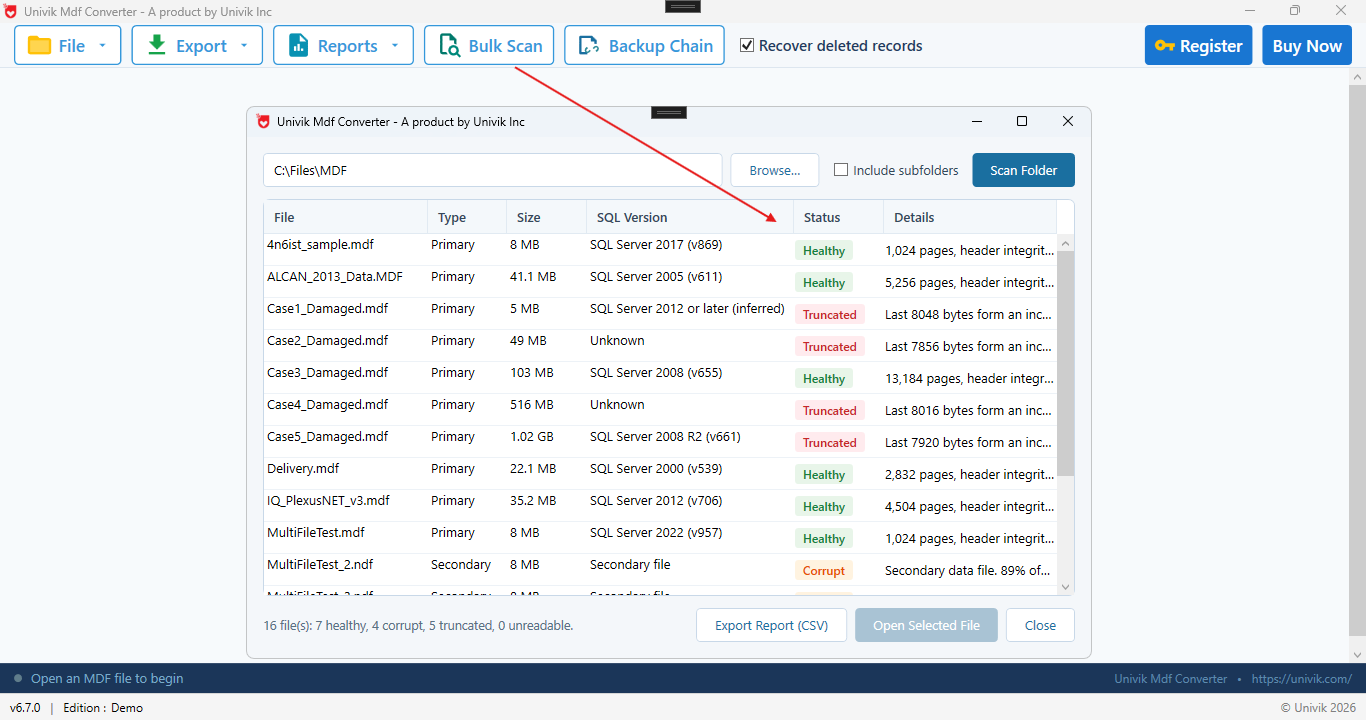
Because it parses the file format on its own instead of handing the file to SQL Server, the result does not depend on the file being attachable, on having the matching log or on the original server still existing. That is what makes it a screening tool. You get a map of which files are sound and which need attention before you commit any time to attaching, restoring or repairing. The full list exports to CSV when you want a record of the scan.
What a Scan Reads in Each File Type
The four file types a SQL Server database leaves on disk each hold a different part of the picture, and a scan reads each on its own terms.
Reading a Healthy, Truncated or Corrupt Result
The status column is deliberately blunt. Healthy means the scan read the structure end to end and found nothing wrong. Truncated means the file is incomplete, its last page cut short, the sign of a copy or download that did not finish. Corrupt means real structural damage inside the file, and unreadable means the scan could not open it at all. A healthy MDF is sound enough to attach and use, and a healthy BAK should restore. Anything flagged is the signal to stop and choose a path rather than attach the file and hope.
What the verdict does is sort the pile. The scan shown sorted sixteen files into seven healthy and nine flagged, four corrupt and five truncated, in a single pass. On a real folder most files come back healthy, which turns an overwhelming set into a short list that needs a decision. That is the whole point of screening first. You spend your effort only on the files that actually need it, and you never waste a restore window on a backup that was never going to come back.
Why an Offline File Can Still Be Corrupt
It is tempting to assume a database file is fine because it opened last time, or because the backup job reported success. Neither proves the file is clean. SQL Server checks a page’s checksum only when it reads that page into memory, so a page that is rarely touched can carry damage for months without anyone noticing. The corruption is real the whole time, it just has not been read yet.
Backups inherit the same blind spot. A backup copies the pages as they are, so if a page was already corrupt on disk, the backup faithfully preserves the corruption, and the backup job still reports success. This is why a stack of backups that all completed cleanly is not the same as a stack of backups you can trust. A full read of every page is the only thing that settles it, and reading each file directly is exactly what a scan does, without waiting for those cold pages to be touched in normal use.
When to Run a Bulk Check
A few moments call for screening a batch rather than checking one database. Before a migration, scan every source file so a corrupt one does not derail the cutover halfway through. When a server is decommissioned, scan its data folder so you know what you are actually archiving. On a backup set you have not tested in a while, scan the BAK files so a real emergency is not the first time you learn one will not restore.
After a hardware event, a power loss or a controller fault, scanning the affected files early tells you the scale of the damage before you start recovering blind. None of this replaces a regular DBCC CHECKDB on your live databases, which stays the routine health check for anything online. A bulk scan is the tool for the files that are not online, or not yet, and for the moments when you need the state of many files faster than one at a time can give it.
A folder full of files to check?
Univik Bulk Scan reads every MDF, NDF, BAK and LDF in one pass and marks each one healthy, truncated or corrupt, with no SQL Server instance and no attach required.
What to Do with a Corrupt File
A corrupt verdict is a starting point, not a dead end. If the file is an MDF and you have no clean backup, the data can still be pulled out by reading the file directly, the same page level approach used for opening an MDF without SQL Server. Our recover a SQL database without a backup guide covers that path. If a BAK is the corrupt one, the restore from a BAK file guide covers the options.
Where the database is attached and you want to try the built in repair, the DBCC CHECKDB repair guide explains what that costs, and a database already sitting in suspect mode has its own route. For anything the built in tools cannot recover, SQL Database Recovery reads the damaged file and lifts out the tables, and the free MDF viewer lets you look inside first.
Frequently Asked Questions
How do I Check Multiple SQL Server Databases for Corruption at Once?
For attached databases you can script DBCC CHECKDB in a loop over every database on the instance, though each one still runs on its own and has to be online. To check many database files at once, including detached and backup files, a batch tool like Univik Bulk Scan reads each MDF, NDF, BAK and LDF directly and returns a healthy, truncated or corrupt status per file, with no server involved.
Can I Check a Detached MDF or a BAK Backup for Corruption?
Not with DBCC CHECKDB, which only works on a database the instance already has online, so a detached MDF or a BAK has to be attached or restored first. A file level scan reads the MDF or BAK directly off the disk and reports whether it is corrupt without that step, which is the point of screening loose files and backups before you commit to restoring them.
How do I Know if a SQL Server Backup Is Corrupt?
The native check is RESTORE VERIFYONLY, which confirms the backup is readable and complete but does not prove the data inside is clean. A backup job reporting success only means the copy finished, not that the pages are sound. The sure test is a full restore followed by DBCC CHECKDB. A bulk scan sits in between, reading a whole set of BAK files directly and flagging the damaged ones fast, so a real recovery is not the moment you discover the problem.
Does DBCC CHECKDB Work on Files That Are Not Attached?
No. DBCC CHECKDB runs only against a database the SQL Server instance has online, so it cannot read a detached MDF, a standalone LDF or a BAK file on disk. You would have to attach or restore the file first, which is the slow and risky step you are trying to test around. A file level scan reads the file without attaching it.
Can a Database File Be Corrupt Even if It Opens?
Yes. SQL Server verifies a page’s checksum only when it reads that page into memory, so damage in a rarely read page can sit undetected for a long time while the database appears to work. A file that opens is not a file that has been fully checked. Only a complete read of every page, whether by DBCC CHECKDB or a file scan, confirms the whole file is clean.
What File Types Can Bulk Scan Check?
Bulk Scan reads the four files a SQL Server database leaves on disk, the MDF primary data file, the NDF secondary data files, the BAK backup file and the LDF transaction log. Each is read directly for structural damage, so one pass over a folder covers the data, the backups and the logs together and reports a healthy, truncated or corrupt status for every file.